
If you encounter “There is not enough free memory to run this program” error on your Windows computer, the solutions provided in this article will help you. This error commonly occurs when there is insufficient system memory (RAM) to run the required program. The insufficient error causes the launched program to crash repeatedly, making it unusable.
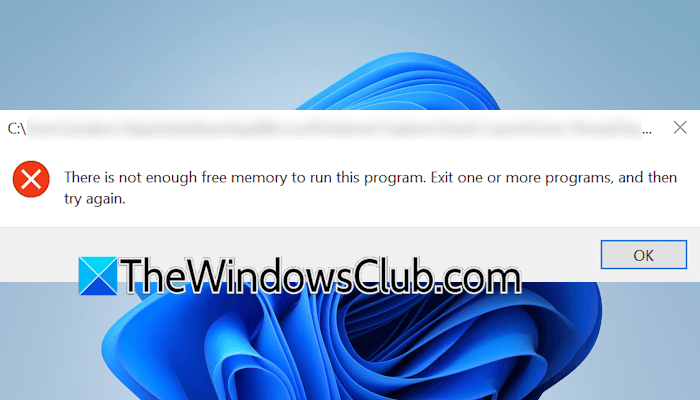
There is not enough free memory to run this program
Use the following suggestions to fix the “There is not enough free memory to run this program” error on your Windows computer.
- Check for Windows Update
- Troubleshoot using the Task Manager
- Test your RAM
- Repair your system image files
- Increase Virtual Memory
- Reset your PC
- Increase physical RAM (if applicable)
Before you begin, close all running programs that you do not need.
1] Check for Windows Update
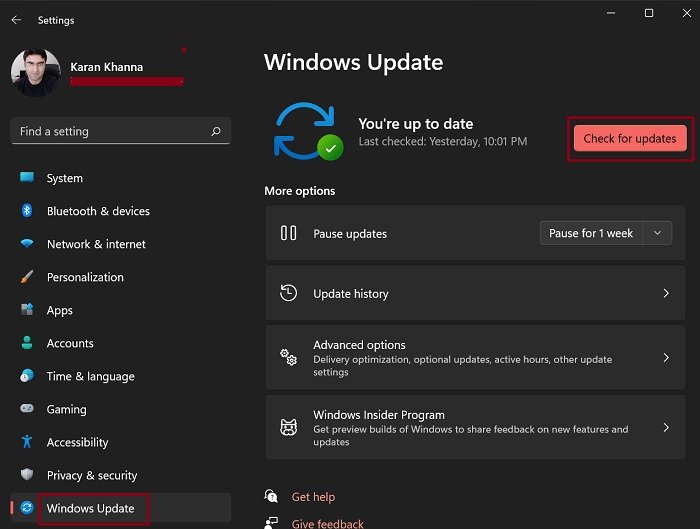
Your system might have bugs, which caused this issue. Check for Windows Update manually and install it if available.
2] Troubleshoot using the Task Manager
The next step is to troubleshoot using the Task Manager. Some other programs might be consuming more memory, which prevents Windows from managing memory for other required programs. To check this, open the Task Manager. You will see your system resources consumption under the Processes tab. Notice the percentage of occupied RAM there. If it is high, find out which program is using the most RAM. Click the Memory column to sort all programs in descending order by RAM consumption. Completely close the program consuming more RAM, so you can use the required program.
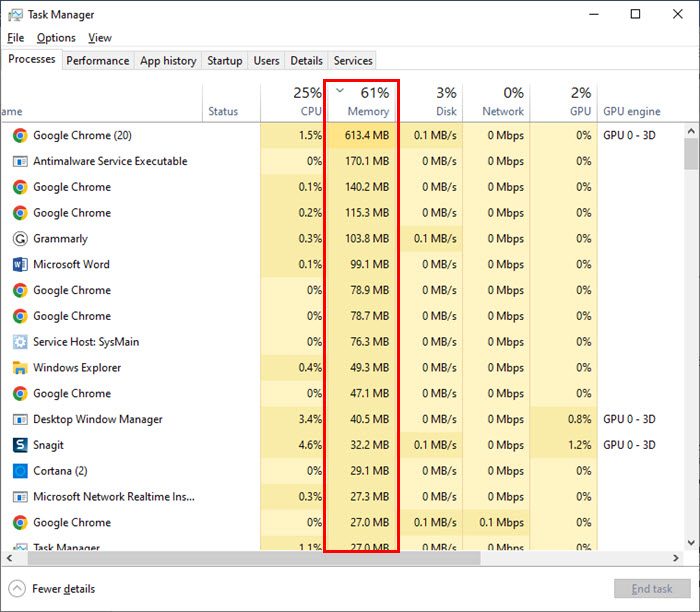
If the RAM does not get freed, it can be a case of a Memory Leak. A Memory Leak occurs when a program fails to release allocated memory after it closes. In this case, update or uninstall the problematic program. Or you can contact its support team for further assistance.
3] Test your RAM
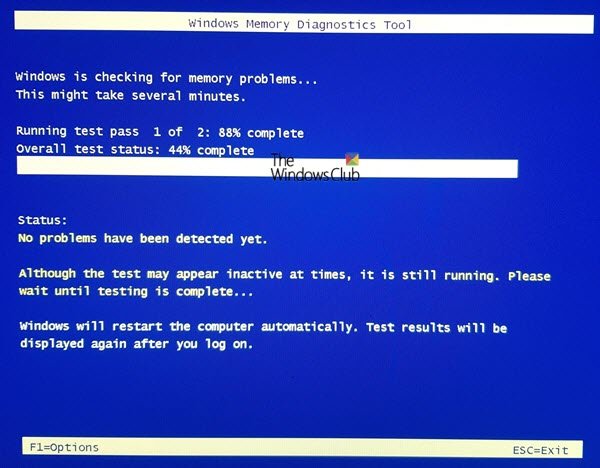
The problem might be associated with your memory. To confirm this, test your RAM using the built-in Windows Memory Diagnostic tool. If the results of this test indicate that your RAM is faulty, consider replacing it.
Read: How to clear Memory Cache in Windows 11
4] Repair your system image files
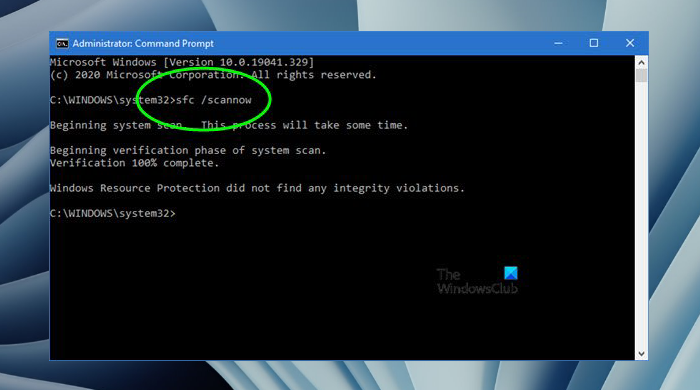
The problem might be occurring due to the corrupt system image files. Use built-in tools, System File Checker, and DISM to scan your computer for corrupt system image files and repair them. Do not interrupt the scan; it will take time.
5] Increase Virtual Memory
You can increase your system’s virtual memory. This can be done by adjusting the paging file size. Windows uses the paging file as a virtual memory to support the system’s performance and stability when the physical RAM is insufficient.
By default, Windows manages the paging file size. However, if your system is continuously showing the insufficient memory error, you can increase the paging file size.
While increasing the paging file size, it is important to enter the right values to avoid system errors. While doing this, you will see the minimum allowed size and the recommended size for virtual RAM. Usually, the minimum size is 16 MB on most computers. This means the custom initial size must be at least 16 MB. Before proceeding, I recommend you create a system restore point.
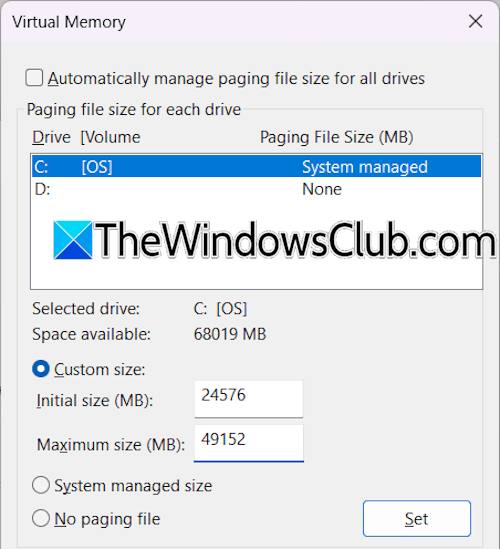
Setting the initial size to 16 MB can cause a BSOD. Therefore, you can set the recommended value there, or set it to 1.5 times your physical RAM. The maximum size should be 3 times your physical RAM. Since you have to enter the size in MB, follow these steps for calculations:
For 16 GB RAM:
- Initial size: 16*1024*1.5 = 24576 MB
- Maximum size: 16*1024*3 = 49152 MB
The above calculations are for 16 GB RAM. In your case, the calculation may vary depending on your physical memory size. I multiplied 16 GB by 1024 to convert it into MB. When you are done, restart your computer for the changes to take effect.
One more thing to note is that the maximum value should always be less than the available space on your hard drive, typically the C drive.
6] Reset your PC
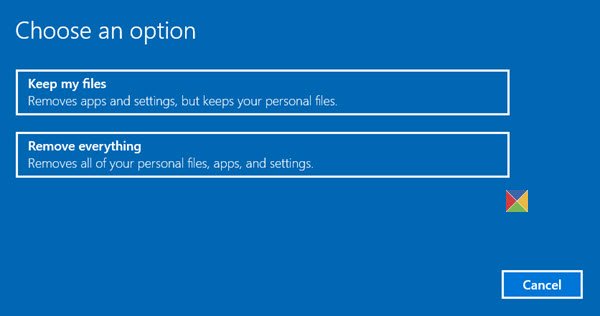
If the error persists, you can reset your PC to the factory default settings. If you select the “Keep my files” option during a factory reset, your data won’t be deleted. However, all installed programs will be removed, and you will need to reinstall them later.
7] Increase physical RAM (if applicable)
If your system has less RAM, say 4 GB, you may encounter the “There is not enough free memory to run this program” error while running multiple programs. Additionally, you will also experience slow performance issues. To fix this issue, add more physical RAM to your system.
That’s it. I hope this helps.
Read:
How do I free up memory?
Each application consumes some amount of RAM. Therefore, close unnecessary applications to free up memory. Some applications keep running in the background and consuming your RAM. Open the Task Manager, then terminate the programs and processes.
How to free storage space on the C drive?
To free up storage space on your C drive, uninstall unwanted programs and delete their files. To completely remove unwanted programs, you can use third-party tools, such as Revo Uninstaller. Deleting the temporary files also frees up space on the C drive. Additionally, you can use the built-in Disk Cleanup tool. You can also delete some files from the Windows folder, but perform this action carefully.
Read next: Unsupported memory configuration. Please populate DIMM 1.
