
While opening or saving a document as a PDF, if Microsoft Word is showing an error message saying Word has insufficient memory, here is how you can troubleshoot the issue in Windows 11/10 PC. As there could be different reasons, we have consolidated all the possible reasons and solutions to get rid of this problem.
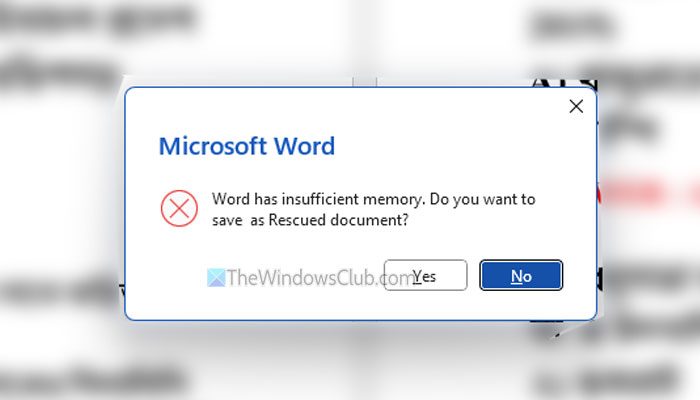
The entire error message says something like this:
Word has insufficient memory. Do you want to save as Rescued document?
Possible reasons:
- Installation of countless fonts from different third-party resources.
- Corrupt registry file.
- Unnecessary registry tweaks.
- Heavyweight PDF.
- Corrupt Normal.dotm file.
Although there are many more reasons, these are some of the primary causes of this problem.
Word has insufficient memory, Do you want to save as Rescued document
To fix the Word has insufficient memory error, follow these solutions:
- Close all the unnecessary programs
- Terminate Word and restart
- Rename Normal.dotm
- Check available disk space
- Disable Protected View
- Delete Data folder in Registry
- Disable add-ins
To learn more about these solutions, continue reading.
1] Close all the unnecessary programs

It is the first thing you need to do, as this problem may arise due to insufficient allocated resources. You can certainly use the close button to terminate all the open programs. However, it is also suggested to check the Task Manager, as many programs often leave some background processes running.
Read: How to close running Apps on Windows 11
2] Terminate Word and restart
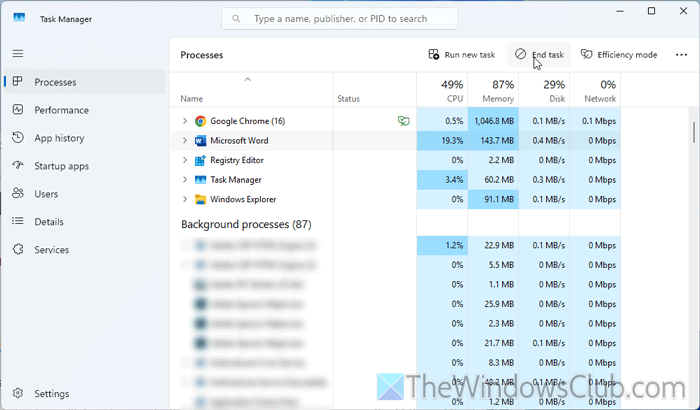
As this error could arise due to a glitch or bug, restarting Word may fix the issue temporarily. At times, Word might not be able to process a big PDF file for certain reasons. If so, restarting Word can be handy.
Read: How to force close a Program which Task Manager cannot terminate
3] Rename Normal.dotm
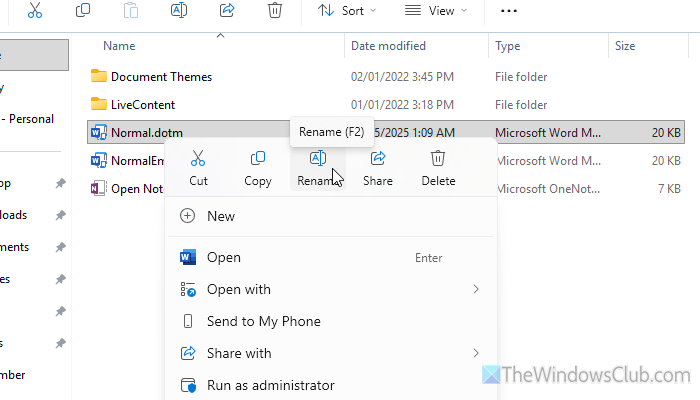
Normal.dotm represents the default template or the template you see when you open Word on your computer. If this template is broken due to a malware or adware attack, the error above may appear while opening a Word document or PDF file. That is why we would suggest you to rename the Normal.dotm file. For that, do the following.
First, open the File Explorer and navigate to the following path:
C:\Users\your-username\AppData\Roaming\Microsoft\Templates
Alternatively, you can press Win+R, type %appdata%, and hit the Enter button. Then, go to Microsoft > Templates.
Here you can find a file named Normal.dotm. You need to rename this file to something else.
In case you are wondering, a new file will be created automatically when you re-open Word.
Read: How to change Normal Template (Normal.dotm) in Word
4] Check available disk space
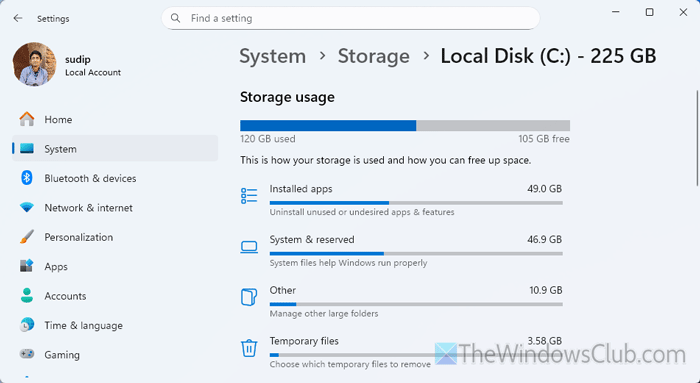
To save a file, you need to have free disk space. However, if you have a large file and are low on space, there is a high chance of encountering the error mentioned above. Therefore, it is suggested to check for available disk space. If there is no space, you can go through these guides to free up and increase hard disk space.
5] Disable Protected View
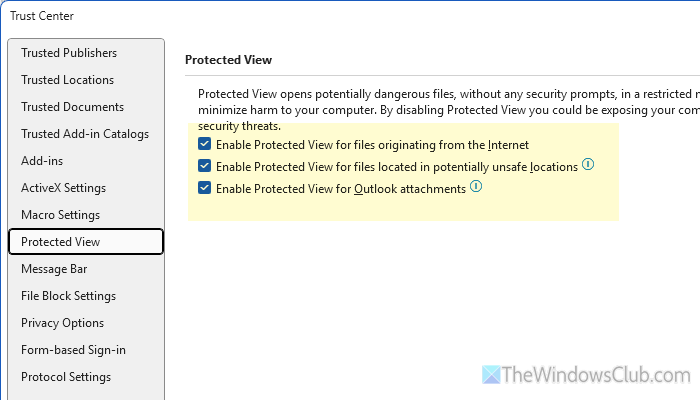
Protected View is a security layer for your computer that prevents unwanted security threats made through various Office programs. However, this could also cause the aforementioned error. That is why it is suggested to temporarily disable it and check if the issue is resolved.
For that, do the following:
- Open Microsoft Word on your computer.
- Go to File > Options > Trust Center > Trust Center Settings.
- Switch to the Protected View tab.
- Remove ticks from all the checkboxes.
- Click the OK button.
Read: How to disable Protected View in Microsoft Office
6] Delete Data folder in Registry
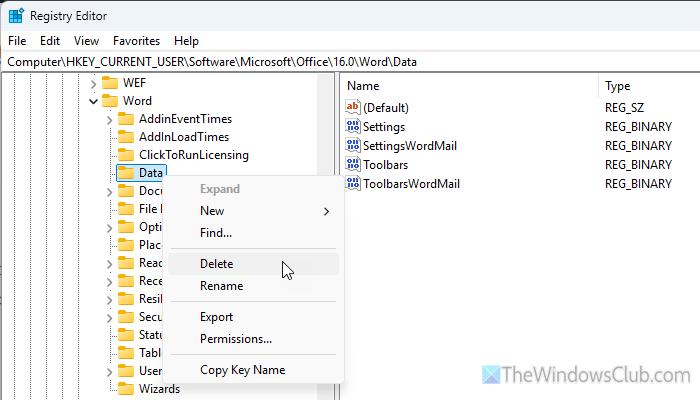
To delete the Data folder, follow these steps:
- Open the Registry Editor.
- Navigate to this path: HKEY_CURRENT_USER\Software\Microsoft\Office\16.0\Word\Data
- Right-click on the Data key > select the Delete option.
- Click the Yes button.
- Close all windows and restart your computer.
7] Disable add-ins
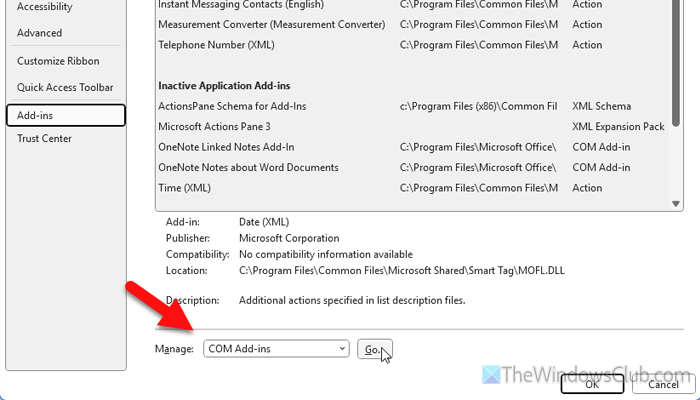
To disable add-ins, follow these steps:
- Open Word and go to File > Options > Add-ins.
- Select COM Add-ins and click the Go button.
- Uncheck all the checkboxes and click the OK button.
Read: View, manage, install and remove Add-ins from Office programs
What to do when Word has insufficient memory?
Do these when Word has insufficient memory:
- Disable add-ins.
- Make free space to save the document.
- Disable Protected View temporarily.
- Rename Normal.dotm or the default Word template file.
- Close all the unnecessary programs.
- Delete the existing Data folder in Registry Editor.
Read: There is not enough free memory to run this program
Why is Word not letting me save as a PDF?
If the Word installation is corrupted, you may not be able to save a file as a PDF. On the other hand, if you have an add-in-related conflict, there is a chance of getting this error. Additionally, you can verify if there are any issues with the installed fonts.
