
If you encounter the “Unsupported memory configuration” error when turning on your Dell computer, the solutions provided in this article will help you. This error indicates a problem with your RAM configuration, RAM stick, or RAM slot.
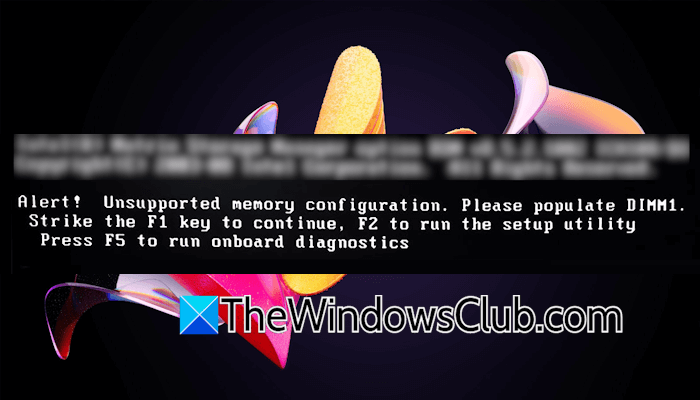
Unsupported memory configuration. Please populate DIMM 1
Unsupported memory configuration, please populate DIMM 1
Use the following solutions to fix the “Unsupported memory configuration” error on your Windows computer:
- Perform a hard reset
- Clear CMOS
- Reseat your RAM
- Refer to your system’s manual
- Test your RAM
- Hardware fault
All these fixes are explained in detail below:
1] Perform a hard reset
The first step that you can try is performing a hard reset. Follow these steps:

- Turn off your computer.
- Remove peripherals and disconnect the power cord. If you have a laptop, disconnect its charger.
- Press and hold the power button for 30 seconds.
- Turn on your system.
Check if the error appears.
2] Clear CMOS
Clearing CMOS can help fix this error if your system’s BIOS is confused about initializing memory during POST. This step will also reset your BIOS settings to the default. Therefore, before proceeding, note down all your current BIOS settings, so you can reapply them later.
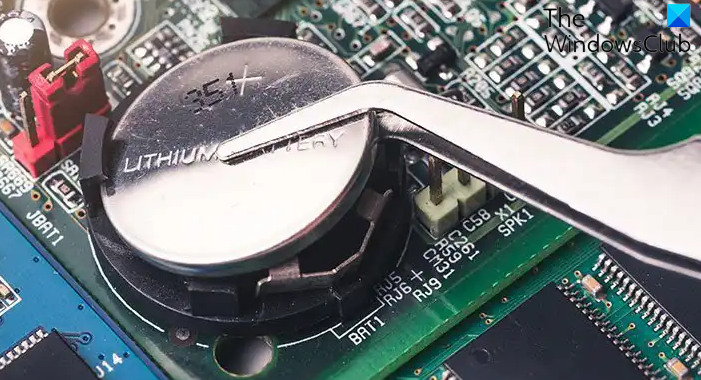
To reset CMOS, turn off your computer and open its case. Locate a small coin-shaped battery and gently pull it out of the socket. Wait for a few minutes and reinstall the battery with the right polarity.
3] Reseat your RAM
This error can also occur when the RAM cannot make a proper contact with the computer motherboard. This usually happens if you have recently cleaned your computer. The RAM might not be seated properly. Turn off your computer and open its case. Remove the RAM from the RAM slot and reinstall it properly.
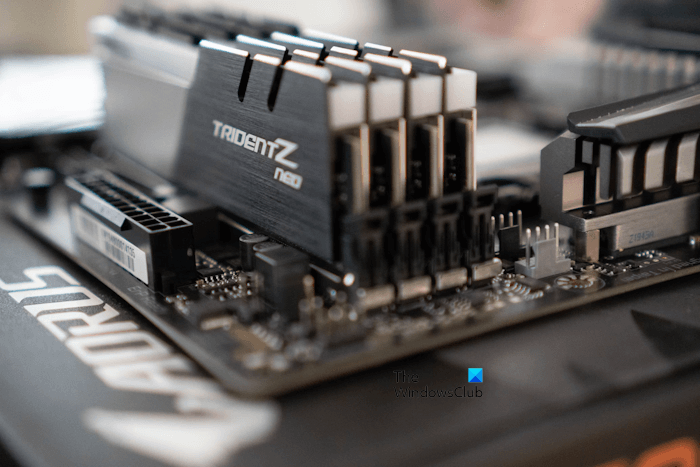
According to the error message, the slot DIMM 1 is empty. This means that the RAM is installed in another slot. Take a close look at your motherboard; you will find the DIMM numbers mentioned near each RAM slot. DIMM 1 is the first RAM slot. If your RAM stick is installed in another RAM slot, remove it from there and install it in DIMM 1. If the error occurs even after installing the RAM stick in the correct slot, the problem might be with your RAM stick.
4] Refer to your system’s manual
The correct way to install RAM is mentioned in the user manual. If you cannot install your RAM correctly, refer to your motherboard’s user manual.
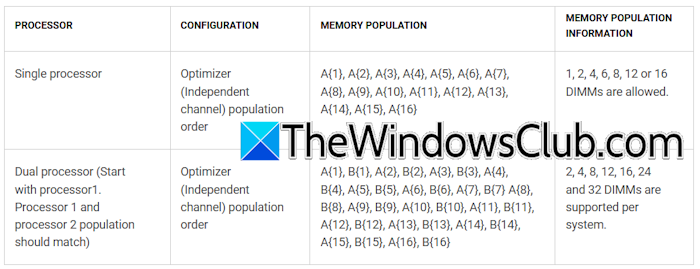
The screenshot above shows the memory installation guidelines for the Dell PowerEdge R650 with single- and dual-processor configurations. Single processor refers to a single physical processor, regardless of how many cores it has. While installing RAM, it is important to maintain a proper channel balance.
The Memory Population column specifies the exact DIMM slots that must be populated to ensure proper channel balance and system stability for a given number of memory modules. The Memory Population Information column specifies the total number of DIMMs that can be installed while maintaining a proper channel balance. Unsupported DIMM counts may result in boot or configuration errors.
For a single processor, the RAM sticks should be installed in the following order:
A1, A2, A3, A4, A5, and so on.
For a dual processor, the RAM sticks should be installed in the following order:
A1, B1, A2, B2, and so on.
The last column shows the total number of RAM sticks allowed. For example, you cannot install 3 RAM sticks, 5 RAM sticks, etc., on this system with single and dual processors. Such a count is unsupported.
Read your motherboard’s user manual to determine the exact number of RAM sticks it supports.
5] Test your RAM
If everything is alright, but your system keeps showing the “Unsupported memory configuration” error, the problem might be with your RAM or RAM slots. To check this, you can run a RAM test. First, press the required Function key to boot into Windows. Now, open the Task Manager and navigate to the Performance tab. Select Memory and view the amount of available memory. If the Task Manager shows less amount of memory, this means that your RAM stick(s) is/are not detected by your system.
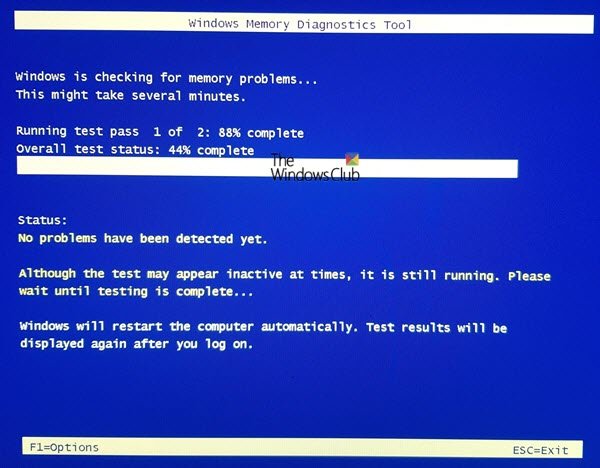
If the amount of memory is correct, you can run the RAM test using the built-in tool, Windows Memory Diagnostic. If any of your RAM sticks are faulty, replace them.
6] Hardware fault
If the above-mentioned solutions do not work, there might be a hardware fault with your system. Take professional help for further assistance.
That’s it. I hope this helps.
What is DIMM1?
DIMM1 refers to the first memory slot for installing a single RAM stick. In most cases, you have to install the single RAM stick in DIMM 1; otherwise, you will get the memory configuration error.
Should I use DIMM 1 or 2?
The correct installation instructions for memory modules are available in your motherboard’s user manual. Using DIMM 1 or DIMM 2 depends on how many RAM sticks you want to install.
Read next: Alert, Memory failure detected in DIMM, System halted.
