
During the normal course of using your Windows 11 or Windows 10 PC, you may encounter the SYSTEM LICENSE VIOLATION Blue Screen error. This particular stop code bug check has a value of 0x0000009A, and indicates that the software license agreement has been violated. In this post, we provide the most suitable solutions to this issue.
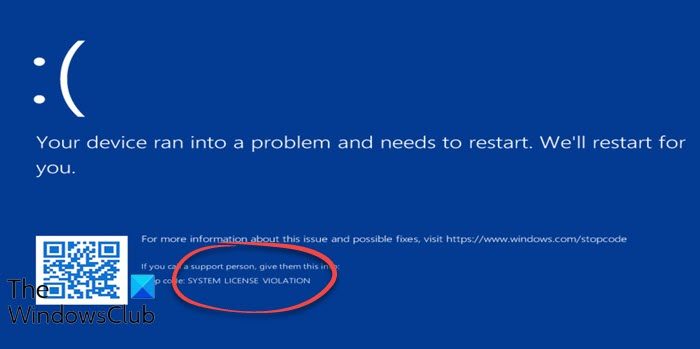
You’ll encounter this error if Windows detects a violation of the software license agreement. This violation could occur if a user attempts to change the product type of an offline system or modify the trial period of an evaluation unit of Windows.
SYSTEM LICENSE VIOLATION Blue Screen error
If you’re faced with this SYSTEM LICENSE VIOLATION Blue Screen error on your Windows PC, you can try our recommended solutions below in no particular order and see if that helps to resolve the issue.
- Run the Blue Screen Online Troubleshooter
- Run SFC and DISM scan
- Update drivers
- Troubleshoot in Clean Boot state
- Check Windows Licensing Status and Activation ID
- Validate your Windows Product Key
- Run CHKDSK
- Perform System Restore
- Reset Windows
- Contact Microsoft Support
Before you try the solutions below, check for updates and install any available bits on your Windows 10/11 device, and then restart your computer and see if the error reappears.
Let’s examine the descriptions of the processes involved for each of the listed solutions.
If you can log in normally, good; else you will have to boot into Safe Mode, enter Advanced Startup options screen, or use the Installation Media to boot to be able to carry out these instructions.
1] Run the Blue Screen Online Troubleshooter
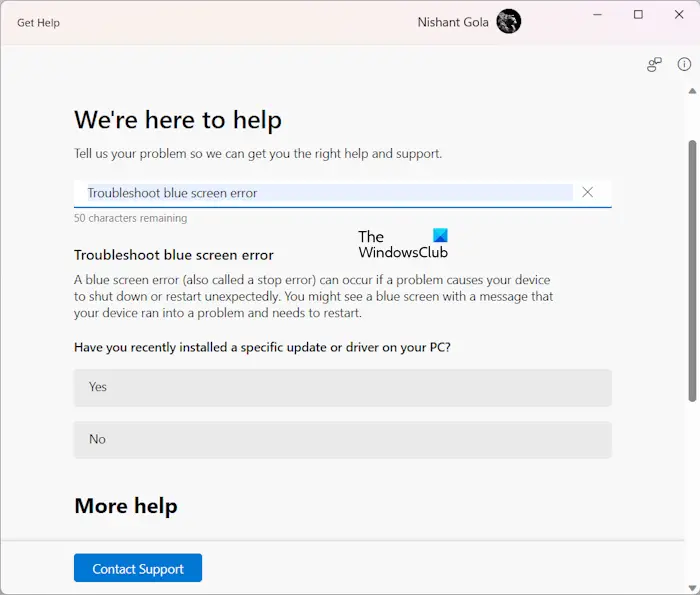
The Blue Screen Troubleshooter may or may not fix the SYSTEM LICENSE VIOLATION Blue Screen error. In any case, give the wizard a try; if the error is resolved, good – but if not, try the next solution.
2] Run SFC and DISM scan
The System File Checker (SFC) and DISM (Deployment Image Servicing and Management) which are both in-built tools for Windows OS come in handy when fixing corrupt or missing system/image files on the Windows 11/10 computer.
3] Update drivers
Make sure all outdated drivers are updated on your Windows PC and install any missing drivers as well. If the issue persists, try the next solution.
4] Troubleshoot in Clean Boot state
Third-party software installed on your Windows PC may conflict with the OS system files or other applications, which can consequently trigger this error. In this case, you can troubleshoot in Clean Boot State and see if the issue at hand is resolved. Otherwise, try the next solution.
5] Check Windows Licensing Status and Activation ID
This solution requires you to check licensing status and activation ID of the copy of Windows 11/10 currently running on your device.
6] Validate your Windows Product Key
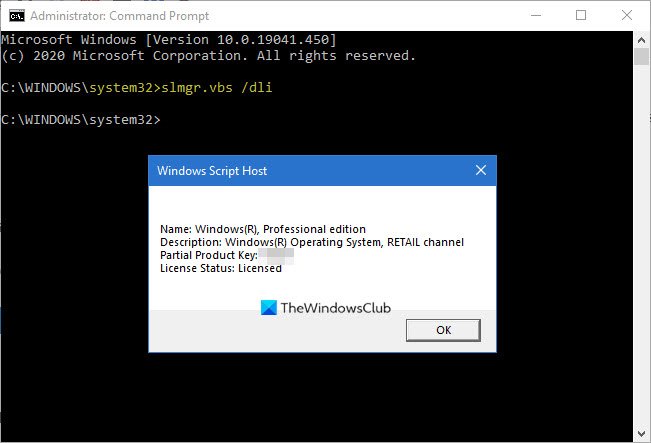
This solution requires you to validate the product key for your installed Windows edition and version.
7] Run CHKDSK
This solution requires you to run CHKDSK to repair bad sectors, which could be triggering the error as well.
8] Perform System Restore
If your system has undergone some changes that you’re not aware of, you may encounter this error. In this case, you can perform System Restore and see if the error reappears. If it does, try the next solution.
9] Reset Windows
This solution requires you to reset Windows and see if that resolves the issue.
10] Contact Microsoft Support
If none of the solutions listed in this post or elsewhere that you have tried worked for you, you can contact Microsoft Support.
I hope this helps!
What does a software License agreement do?
A software license agreement is a legal contract between the developer/vendor and the end-user that establishes the consumer’s rights. Typically, the software license agreement outlines how and when the software can be used, and it provides any restrictions imposed on the software’s use.
Why do you need a software license agreement?
Windows 10/11 PC users need a software license agreement to prevent or protect them from infringement of copyright law. Included in the software license agreement will be detailed information for the end-user on where the software can be installed, as well as the frequency and number of installations allowed, and the maximum number of devices on which the software can be installed at any given time.
How do I fix a SYSTEM LICENSE VIOLATION?
There are a number of ways you can fix SYSTEM LICENSE VIOLATION error depending on the identified potential causes which includes;
- Old and outdated drivers
- Corrupted disk partitions
- RAM issues
- Virus or malware infection
- Conflict due to recently installed application (mainly third-party)
- Outdated Windows OS
- Corrupted system files
Is Blue Screen error dangerous?
It’s essential to note that the Blue Screen of Death error will not damage your hardware, but it can potentially disrupt your work or play on your Windows PC. You’ll need to reboot the computer, then reload all the programs and files you had open. Only after doing so can you return to what you were doing. Please note that all unsaved work will be lost, which means you may have to redo some of what you were working on or start your game from scratch.
