
Reset this PC is a built-in Windows Recovery feature that reinstalls Windows while letting you choose whether to keep or delete your personal files. It helps if you are having issues with your PC or want to sell it. Some users report that resetting the PC triggers a BSOD error. This issue occurs due to several reasons, such as corrupted system image files or faulty hardware. If you encounter a blue screen when trying to reset your Windows PC, the solutions in this article will help.
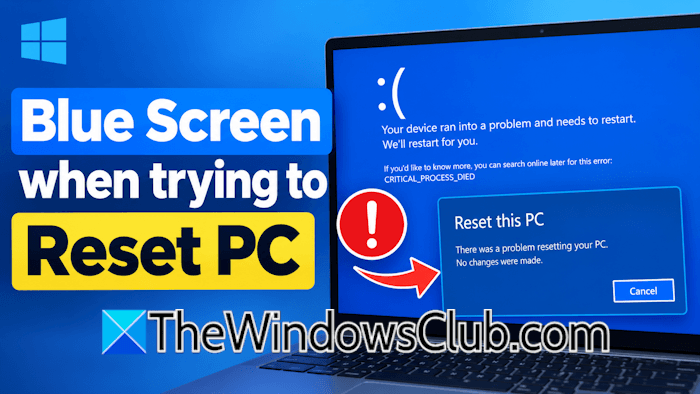
Blue screen when trying to reset PC
Use the following fixes if you encounter a blue screen when trying to reset your Windows 11 PC:
- Repair your system image files
- Run the Chkdsk command
- Reseat the RAM sticks
- Test your RAM
- Reset in a Clean Boot state
- Try the Cloud Reset option
- Check the Blue Screen log in Event Viewer
- Perform a clean installation of Windows
After the Blue Screen is displayed, your PC will restart automatically after a few minutes. If it displays an error code or message, please note it down, as that may help you troubleshoot the issue. On restart you may follow these suggestions.
1] Repair your system image files
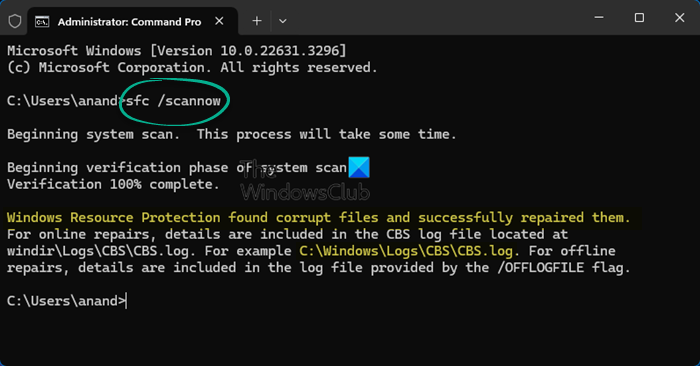
Corrupt system image files can cause blue screen errors on a Windows computer. That might be the case with you. Use the System File Checker and DISM tools to scan and repair the corrupted system image files. The scan will take time. Let the scan be completed and do not interrupt it.
2] Run the Chkdsk command
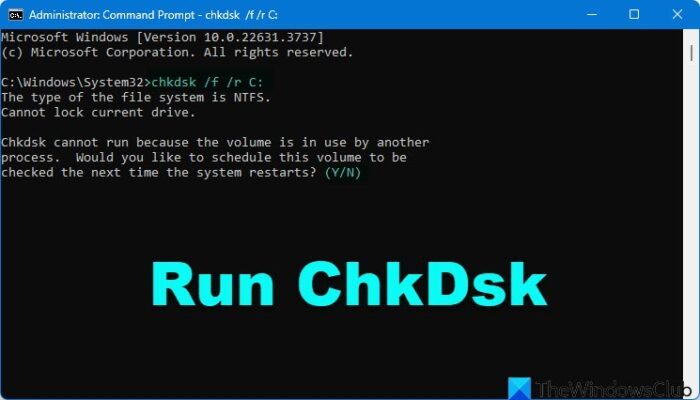
Another possible cause is logical errors or bad sectors on your hard disk. Run the chkdsk scan to scan your hard drive for logical errors and bad sectors. If the tool finds any errors, it will fix them.
3] Reseat the RAM sticks (if applicable)
Dust accumulation can also trigger this error. Several users reported that the error was fixed after cleaning and reseating the RAM sticks. You can also try this. Shut down your system and open it. Now, carefully remove the RAM sticks, clean them, and reinstall them.
4] Test your RAM
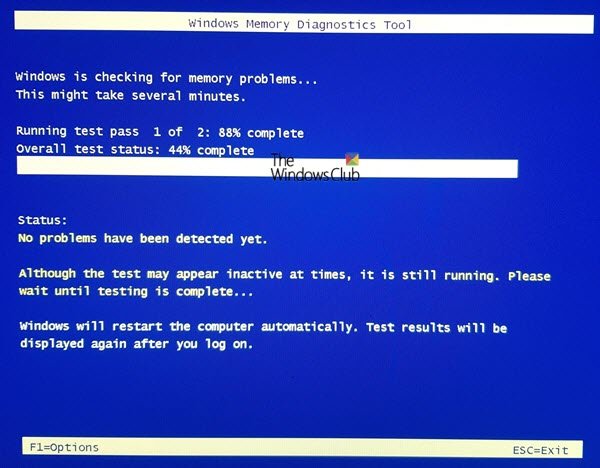
If the error occurs after you clean your system and reseat the RAM sticks, one of them may be faulty. To check this, you can run a RAM test. Windows has a built-in Memory Diagnostic Tool that scans RAM for errors. When you run this tool, your system will restart to test the RAM. Therefore, save all pending work before proceeding. After the test is completed, your system reboots into Windows. Now, check the test results. If the test shows RAM issues, replace it.
5] Reset in a Clean Boot state
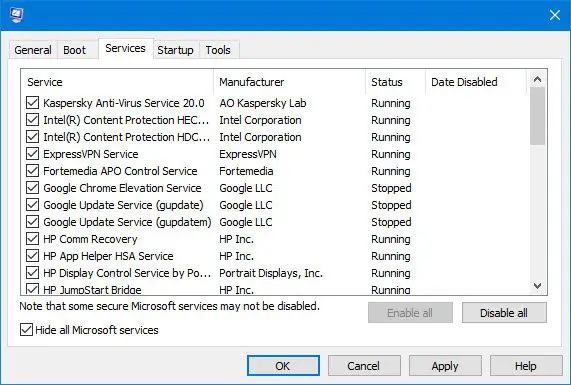
A third-party application or service might be conflicting with Windows and triggering this error. To confirm this, try resetting your system in the Clean Boot state. To enter the Clean Boot state, you need to disable third-party services through MSConfig. Do this carefully, as if you disable all the services by mistake, you will get into trouble, and you will have to reinstall Windows from scratch. If this works, you can enable all the third-party services after resetting your PC.
6] Try the Cloud Reset option
When you reset your system, Windows shows you the following two options:
- Cloud download
- Local reinstall
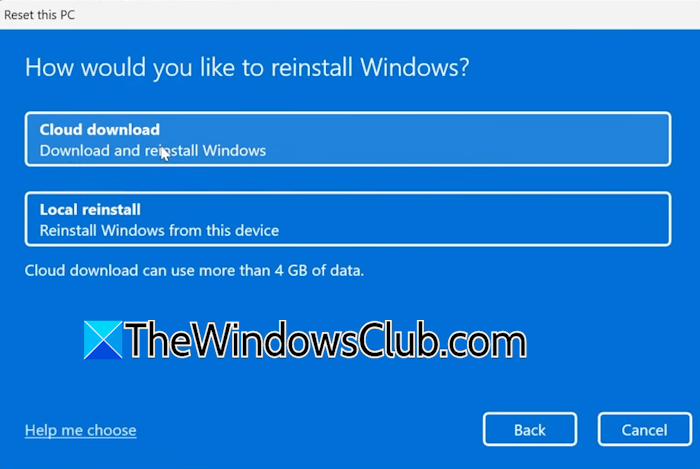
Select the Cloud download option. This feature downloads a fresh, clean copy of Windows directly from Microsoft’s servers to reinstall your operating system. Therefore, it requires an active internet connection.
7] Check the Blue Screen log in Event Viewer
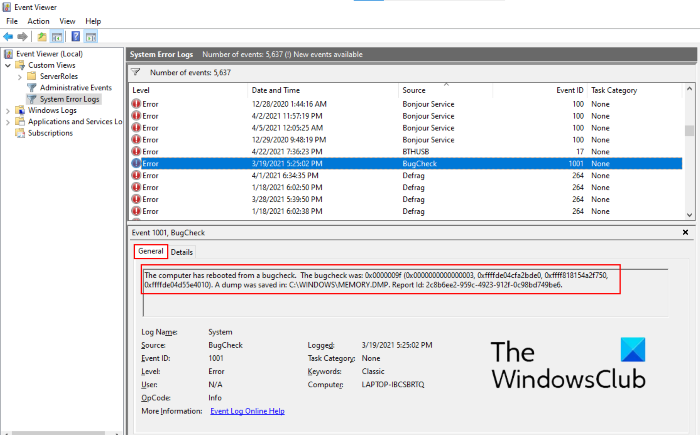
If you have the BSOD error message, use it to search for a solution on this website.
Windows also saves the blue screen logs, and you can read them in Event Viewer. Launch Event Viewer and filter the System Event Logs. Now, look for the error whose source is Bug Check. Once you find it, review the details to understand the error and troubleshoot accordingly.
8] Perform a clean installation of Windows
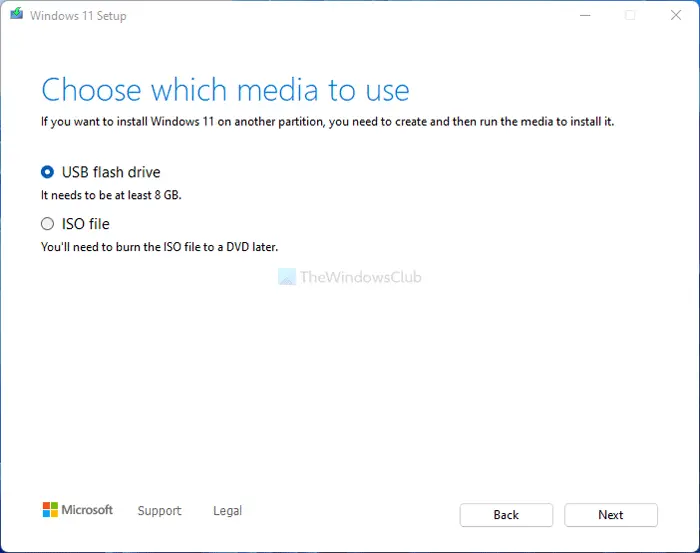
If nothing helps, the last resort is to perform a clean installation of Windows. This step will delete all your data from the drive partition you select for installing Windows. Before proceeding, back up all your important files. However, if you are resetting your PC by removing all the files, you do not need to back up your data. You need to create a bootable USB flash drive. For this, you can use Microsoft’s official Media Creation Tool or a third-party tool like Rufus.
That’s it.
Is a blue screen caused by RAM?
Yes, faulty RAM can cause a blue screen error. However, you cannot jump to the conclusion immediately because a blue screen occurs due to several other reasons, such as corrupted system image files and a faulty driver. If your RAM is faulty, you will notice some symptoms in addition to the BSOD error, such as random restarts and a decrease in the system’s performance.
Can a blue screen error be fixed?
Yes, you can fix a blue screen error. A BSOD error can occur for several reasons, such as faulty hardware, corrupted system image files or a bad driver. To fix a BSOD error, it is important to know its exact cause. Check the event logs for the blue screen error and fix it accordingly.
Read next: VIDEO MEMORY MANAGEMENT INTERNAL Blue Screen on Windows.
