
If after you upgrade your Windows PC to a newer version/build and the device crashes shortly after startup and returns the error message – NO MORE IRP STACK LOCATIONS, then this post is intended to help you. In this post, we will identify the possible cause, as well as provide the corresponding solution you can try to help you mitigate the issue.
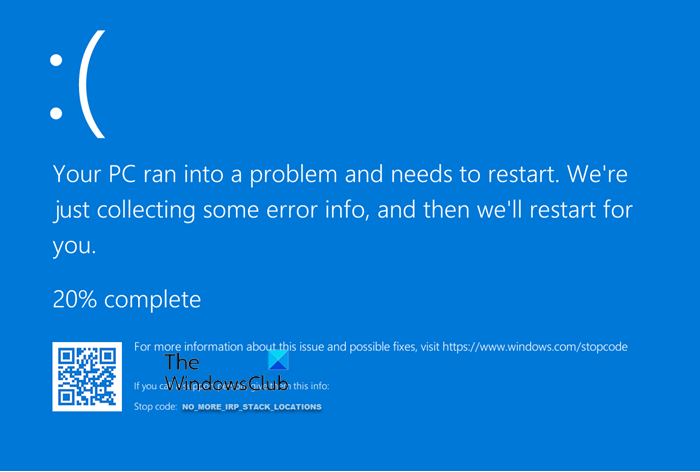
The NO_MORE_IRP_STACK_LOCATIONS bug check has a value of 0x00000035. This bug check occurs when the IoCallDriver packet has no more stack locations remaining. A higher-level driver has attempted to call a lower-level driver through the IoCallDriver interface, but there are no more stack locations in the packet. This will prevent the lower-level driver from accessing its parameters.
This issue may occur when a specific third-party driver viz farspace.sys is installed on the system before you upgrade to the newer version of Windows 10. If a computer that has the unsupported driver is upgraded, a bugcheck error is triggered. SomeFarspace.sys driver versions are known to cause this problem.
To verify that the issue on your system is caused by this farspace.sys driver, follow these steps:
- Navigate to the folder path below.
C:\Windows\System32\drivers
- Locate the farspace.sys file.
- Right-click the file, and then click Properties.
- In the properties window, select the Details tab, and note the file version.
If the file version is 8.34.x.4642 or earlier, this driver is causing this error. In which case, you can continue below in the next section to see the applicable fix for the issue.
Fix NO_MORE_IRP_STACK_LOCATIONS Blue Screen
Generally speaking, to fix the NO_MORE_IRP_STACK_LOCATIONS Blue Screen, update or reinstall any problematic drivers, especially storage and network drivers. Next, check for Windows updates and apply all patches to keep the system stable. Run System File Checker and DISM to repair corrupted system files. If the issue persists, disable or remove recently added hardware/software that may be conflicting. Also test your RAM and hard drive for errors, as faulty hardware can trigger this stop code.
If you’re facing this issue due to the farspace.sys driver on Windows 11/10, try our recommended 3-step fix procedure in the order below.
- Disable the Storage Sense scheduled task that’s triggering the faulty code.
- Download and install the updated farspace.sys driver.
- Re-enable the Storage Sense scheduled task.
Let’s take a look at a brief description of the process involved in the 3-step fix.
1] Disable the Storage Sense scheduled task that’s triggering the faulty code
Investigations show that if the Storage Sense scheduled task is enabled, this BSOD error will be triggered – provided the farspace.sys outdated driver is installed on the Windows computer.
In this first step, disable the Storage Sense scheduled task. Here’s how:
- Press Windows key + R to invoke the Run dialog.
- In the Run dialog box, type cmd and then press CTRL + SHIFT + ENTER to open Command Prompt in admin/elevated mode.
- In the command prompt window, copy and paste the command below and hit Enter.
schtasks /Change /TN Microsoft\Windows\DiskFootprint\StorageSense /DISABLE
Once the command executes, proceed to Step 2.
2] Download and install the updated farspace.sys driver
In this step, you are required to download the DeepFreezeWin10FarSpacePatch.msi package. This package is for Windows 10.
Navigate to its download location.
Double-click to launch the update package.
Follow the on-screen instructions.
After you have completed this 2nd step requisite for fixing the error, proceed with Step 3.
3] Re-enable the Storage Sense scheduled task
In this 3rd and final step, re-enable the Storage Sense scheduled task. To do that, follow these steps:
- Open CMD Prompt in elevated/admin mode.
- In the command prompt window, copy and paste the command below and hit Enter.
schtasks /Change /TN Microsoft\Windows\DiskFootprint\StorageSense /ENABLE
Now, you can try the Windows upgrade process again – it should complete successfully.
Note: After you have completed the 3-step fix procedure, the Windows system must be booted in a thawed state (suspended deep freeze) for the changes to take effect. This means using a program called Deep Freeze by Faronics, you can reboot the system into thawed mode, install more programs, update settings, drivers, etc., and then refreeze the computer in its new state. It’s kind of like using a virtual machine, but not the same thing.
That’s it!
