
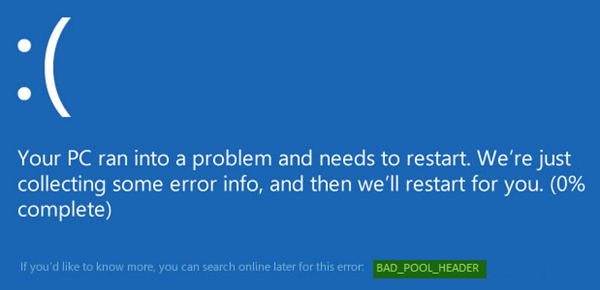
The BAD_POOL_HEADER Stop Error in Windows 11/10 signified with the error code 0x00000019 indicates that the pool header is corrupted. A Bad Pool Header issue is caused due to problems with Windows memory allocation. This error usually occurs after you’ve installed new hardware or software – usually the antivirus software – that doesn’t work with your Windows computer. However, faulty drivers and routers, bad sectors or other disk write issues could also cause this Blue Screen.
Fix BAD_POOL_HEADER Blue Screen on Windows
If you are unable to start Windows in Normal mode, try booting in Safe Mode. That will help as you work through a resolution. Try the procedures below to resolve this issue. Go through the entire list of suggestions first, then decide which one or more you would like to try.
1] Uninstall recently installed software
If you recently installed software, uninstall it and see if the error goes away. Most of the time, third-party antivirus applications cause the error. In case you have installed antivirus software products on your system, you can try uninstalling them temporarily. If this resolves the problem, you can replace them with other applications. In the Control Panel window, click on “Programs and Features” to open the list of programs installed on the system and uninstall the antivirus program – or the recently installed software.
2] Uninstall recently installed hardware
If you recently installed any hardware, open Device Manager, find the hardware driver, right-click on it and select Uninstall. Restart your computer and see.
3] Disconnect external devices
External devices may also cause the error. To isolate this cause, disconnect all peripherals and external devices except for the keyboard and mouse and restart your machine. Check if it resolves the issue. If it works, one or more of the previously connected external hardware devices might be faulty and need to be replaced. If this doesn’t resolve the issue, try the next steps.
4] Disable Fast Startup feature
Disable Fast Startup feature and see. It is enabled by default in Windows. At times, it can interfere with the system and cause pool header corruption.
5] Update Device Drivers
Faulty drivers may cause issues. Although Windows Update updates all drivers, you can also update them manually if the previous step doesn’t work. 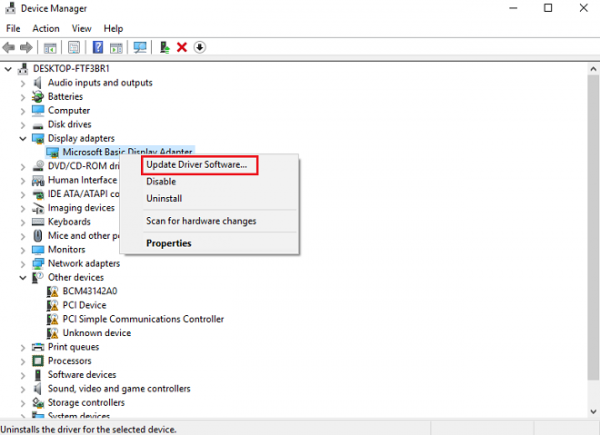
To update device drivers, press Win + R and open the Run window. Type devmgmt.msc to open the device manager. In the list of drivers, right-click on individual drivers and select “Update Driver Software” for each driver. Update all of them one by one.
You could also use Driver Verifier Manager to examine the behavior of bad drivers.
6] Perform a Clean Boot
Perform a Clean Boot and check if it resolves the problem. If you have no issues, a non-Microsoft process is causing this stop error. You will have to manually try and identify the offender.
7] Perform Hardware Clean Boot
A Hardware Clean Boot is different from the usual Clean Boot State. Disable hardware components that aren’t necessary for the system to run in Device Manager. 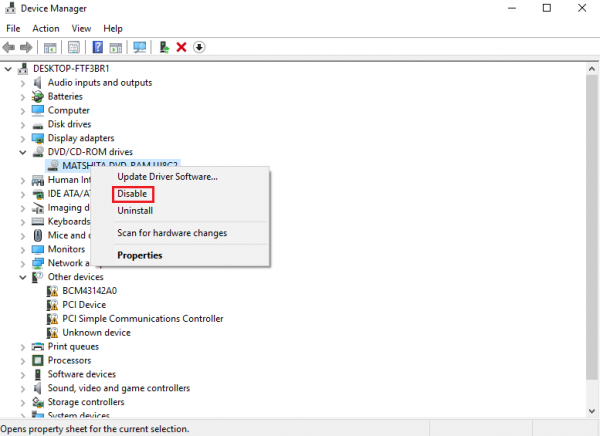
Press Win+R to open the Run window. Type devmgmt.msc and press Enter to open the Device Manager. You may disable the drivers for the following devices by right-clicking them and selecting the option to disable them.
- Display Adapters.
- DVD/CD-ROM drives.
- Sound, video and game controllers.
- Network Adapters.
- Modems
- Ports
- USB Devices and controllers – provided you are NOT using USB/Wireless Mouse or Keyboard.
Restart the system and verify if this fixes the error. If it does, one of these devices is the cause. Again, you will have to identify the device manually through trial and error.
8] Run Windows Memory Diagnostics Tool
You could also run the built-in Windows Memory Diagnostics Tool. Open the tool and click Diagnose your computer’s memory problems. Once it completes, open Event Viewer and look for the results under the MemoryDiagnostics-Results entry.
9] Check your RAM
A hardware expert usually does this, but the issue could be the RAM. Therefore, it should be verified.
Hope something helps!
If you are an advanced user, you may visit Microsoft for more on this stop error.
See this post if you receive a BAD_POOL_CALLER error.
