
Software piracy is quite prevalent among computer users these days. The Windows operating system is reportedly used illegally by many across the globe. To combat the rate of Windows operating system piracy, Microsoft introduced Windows Genuine Advantage.
This feature will check your computer’s product keys against thousands of blacklisted Product keys. If yours is found wanting, the effect will be an occasional change of your wallpaper and background every 60 minutes.
It will also add a notification on your background, prompting you to “Activate Windows.” Until you use a genuine product key, your computer will not get Windows updates. Often, users with genuine product keys may also encounter this warning.
Some may decide to either remove the Windows Genuine Advantage after it’s been installed or bypass the online validation. If you prefer to have a constant Windows checkup to stay up-to-date or you wish to find out why your genuine Windows is giving you this error, the Microsoft Genuine Advantage Diagnostic Tool (MGADiag) is the way around.
Read: Why not to use a Pirated copy of Windows.
Microsoft Genuine Advantage Diagnostic Tool
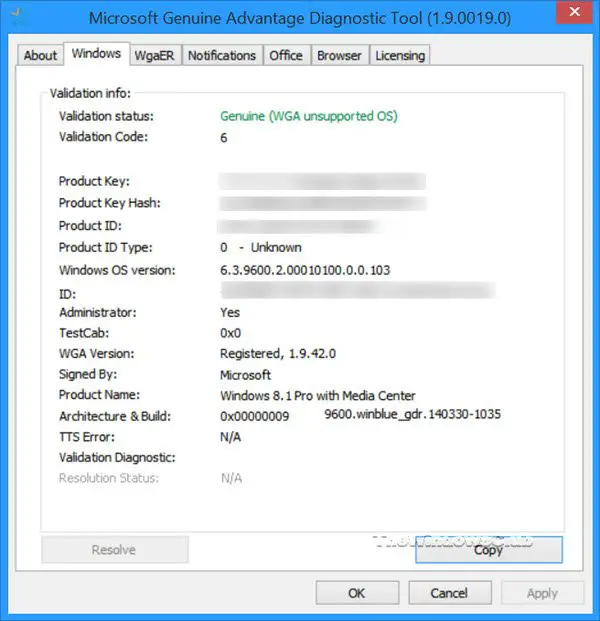
The Microsoft Genuine Advantage Diagnostic Tool ran a check on your Windows and gives you various pieces of information or clue as to why parts of your system appear to be ingenuine – as reported by the Windows Genuine Advantage. It also helps in resolving a few issues and sending errors to Windows (with your permission)
Most users used MGADiag to confirm if their machines are still in the grace period. The Grace period is the amount of free time Microsoft gives to users who have installed illegal copies of Windows before it sanctions their computers.
During this time, Microsoft believes that unlawful users would get hooked, change their minds, and purchase the genuine Windows version. As Bill Gates puts it, “They’ll get addicted, and then we’ll collect.”
The tool, however, appears to have been deprecated now.
Read next: How to buy Windows 11 with a valid or legit license key.
Can I use Microsoft Genuine Advantage Diagnostic Tool on Windows 11/10?
The reason people use MGADiag.exe is to find out if their Windows is genuine; however, MGADiag isn’t built to run on Windows 11/10.
How to validate Windows 11/10 product key
1] Check using the Slmgr Command
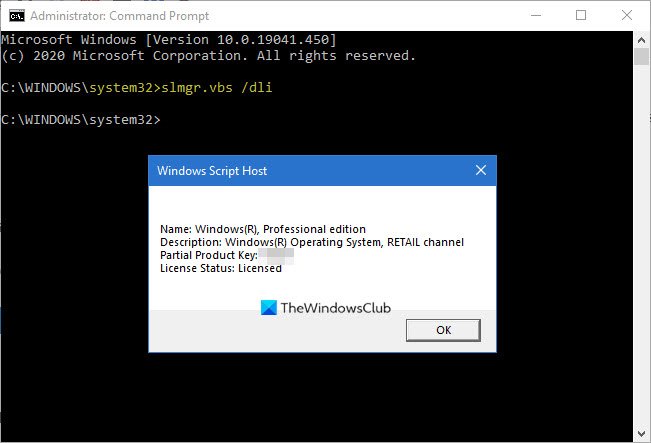
To check if your Windows license is genuine, click the Win + R
Type in slmgr.vbs /dli then strike Enter.
slmgr means Software License Manager while .vbs means Visual Basic Script.
In the pop-up window, if you see “Volume_” activation expiration or any text in this line, know your Windows is cracked with an activator software and isn’t legal.
2] Check via Windows 11/10 settings
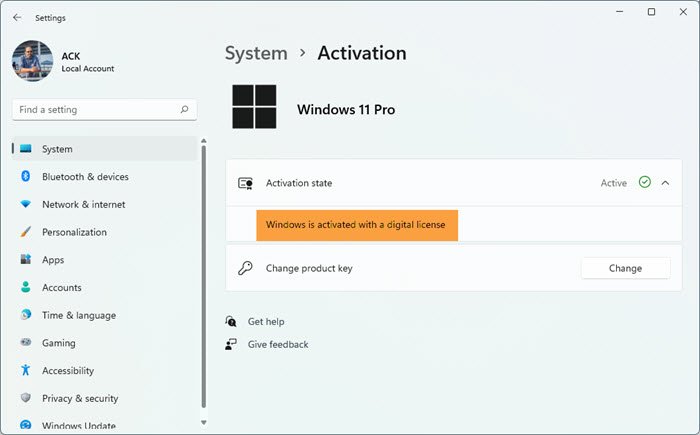
In Windows 11 > Open Settings > Open System settings > On the right side you will see Windows is activated with a digital license.
In Windows 10 > Open the Settings app. Go to Start menu > Settings > Update & Security. Then locate the Activation section. If your Windows is genuine, you’ll see Windows is activated with a digital license.
3] Check with Command Prompt
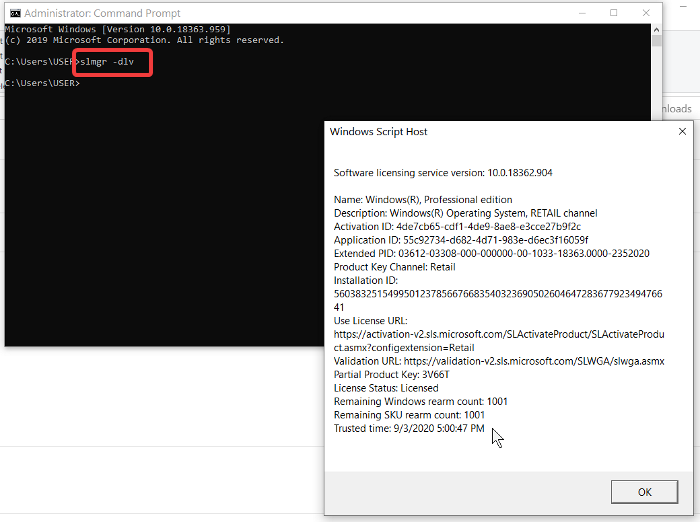
Alternatively, you can check if Windows 10 is genuine with the admin command prompt.
- Click the Start menu and type Command Prompt,
- Right-click on Command Prompt and click Run as administrator.
- Copy and paste
slmgr –dlvthen hit Enter.
Check the details in the pop-up window. To see the Windows expiry date, replace the above command with slmgr -xpr and hit Enter.
Report Windows 11/10 Activation errors
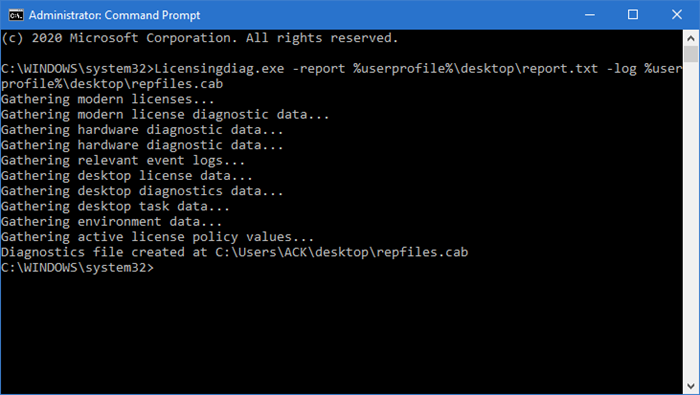
If your Windows 11/10 is genuine, but you still receive errors related to non-genuine software, you can follow the steps below.
- Open Administrative command prompt then paste the code below and hit Enter:
Licensingdiag.exe -report %userprofile%\desktop\report.txt -log %userprofile%\desktop\repfiles.cab
- Copy the result and upload to OneDrive, then locate the txt file Windows created on your desktop then upload both to OneDrive
- Go to the Microsoft Product Activation Call Center and lay your report.
Sometimes, Windows may report your PC’s product key as invalid. If you encounter this issue, using the steps above, you can obtain a status report of your PC and submit it to Microsoft Support.
