
If Google Chrome is showing a Print preview failed error or the preview is not working while printing a document, here is what you can do to get rid of this problem. As there could be numerous reasons, we have enlisted some of the most common causes and solutions to fix this issue in Windows 11.
Why does Chrome show Print preview failed?
If Google Chrome shows a Print preview failed error, one of these could be the reason:
- The PDF is corrupt or damaged.
- You have a very big PDF file and a smaller amount of RAM allocated for Chrome.
- The PDF is encrypted.
- You have installed tons of unnecessary extensions that are creating the conflict.
- There are some issues with your Chrome user profile.
- Another third-party PDF viewing program is creating a mess.
Print preview failed or not working in Chrome
If Chrome shows Print preview failed or it is not working in Windows 11, follow these solutions:
- Check if your PDF is fine or not
- Disable third-party PDF viewers
- Split PDF is it is big
- Clear Chrome cache
- Try in incognito mode
- Disable all extensions
- Remove password from PDF
- Reset Chrome
To learn more about these solutions, continue reading.
1] Check if your PDF is fine or not
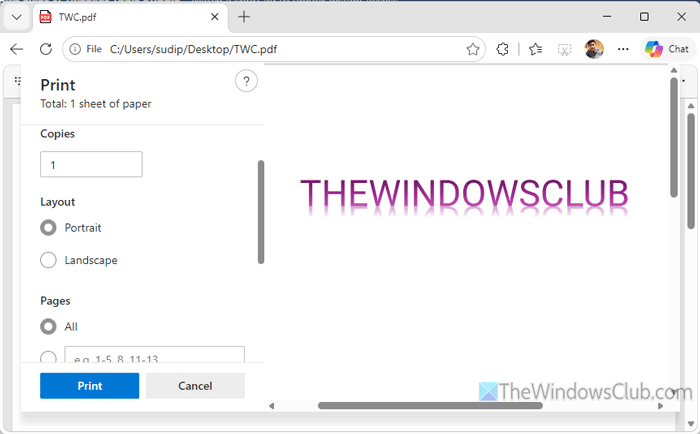
At times, your PDF files may get corrupted due to various reasons, e.g., malware attack, adware attack, etc. If that happens, there is a strong possibility that Google Chrome will fail to show the preview before printing it.
To verify that, try opening the PDF in another browser such as Microsoft Edge. If you can open and go to the print dialog without any problem, your PDF file is probably fine. However, if you cannot open the PDF fluently, it is highly recommended to repair the PDF file.
2] Disable third-party PDF viewers
There are so many PDF annotation tools available on the market. If you have installed such a program and this program started right after that, it is suggested to disable that third-party PDF viewer or editing software temporarily.
Read: Best Free PDF Editing software for Windows PC
3] Split PDF is it is big
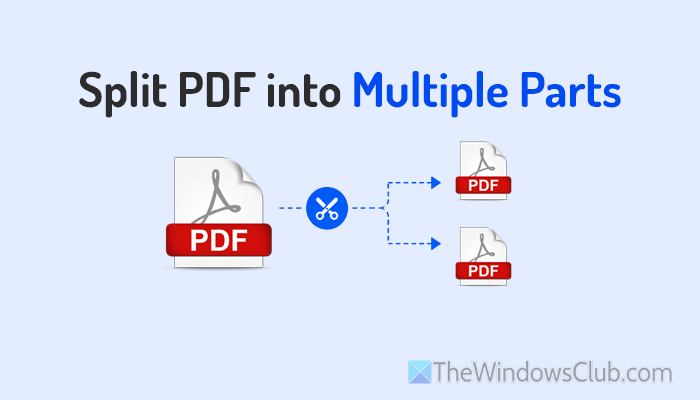
If the PDF file is big and your computer doesn’t have enough RAM for Chrome, there is a high chance of getting this problem. To run various background processes, Google Chrome consumes a lot of Memory. Upon that, if you want to open and print a PDF via Chrome, it will try to consume even more RAM.
In this situation, you have two options:
- You can simply split the PDF into multiple parts and try printing them one after another.
- You can install more RAM.
Instead of following the latter option, it is always suggested to go with the former one since it won’t cost you money. You can follow any of these articles to find a handy tool to split your PDF:
- PDFTK Builder is a free software to modify & split PDF files & documents
- PDF Candy is an awesome all-in-one online tool to manage PDFs
- Split, reorder, merge PDF pages with PDFSam PDF editing freeware
- iLovePDF: Free Online PDF Editing Tools
4] Clear Chrome cache
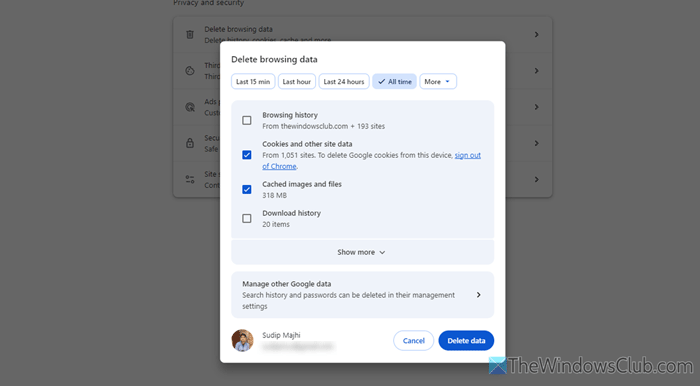
To clear Google Chrome cache, follow these steps:
Open the Google Chrome Settings page and go to the Privacy and security tab. Then, click on the Delete browsing data option and choose the All time option.
Next, tick the Cookies and other site data and Cached images and files checkboxes.
Finally, click the Delete data button.
Once done, try opening the PDF file again.
Read: Normal Reload, Empty Cache & Hard Reload in Chrome browser
5] Try in incognito mode
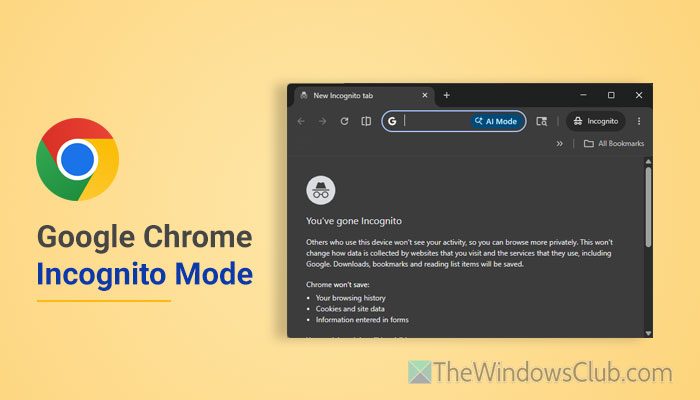
You can always use the incognito mode if the regular window is showing the aforementioned error. By following this solution, you will come to know whether this problem is appearing because of the corrupt extensions, incorrect internal settings, or anything else.
If you can find the preview in incognito mode, the following solution will be handy for you.
6] Disable all extensions
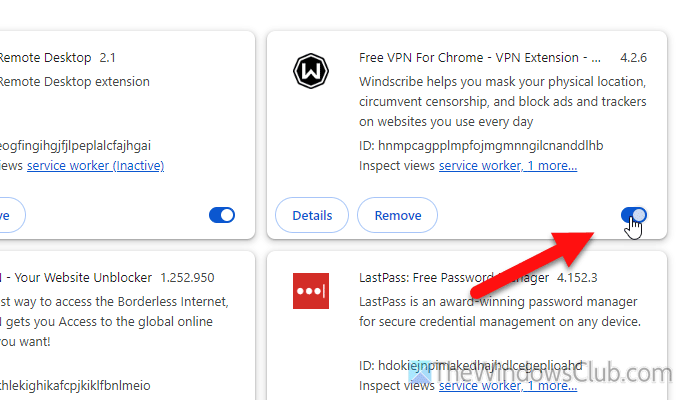
If you have installed a lot of extensions for various purposes, there is a high chance of getting this problem. That is why it is suggested to disable all extensions at once.
For that, click on the three-dotted icon and select Extensions > Manage Extensions. Then, toggle the corresponding buttons to turn them off.
After that, open the PDF and check the preview. If it works, enable one extension at a time and check the preview again.
Note: Do not install multiple extensions for the same purpose. If you need more than one extension, it is suggested to disable them when not needed.
7] Remove password from PDF
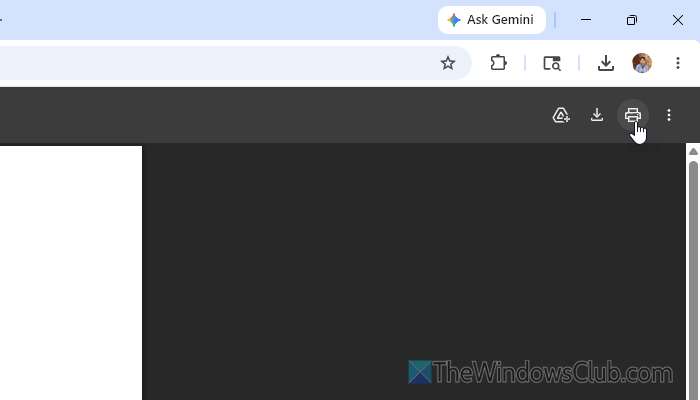
If you have a password for your PDF, there is a chance of getting this problem while printing. If Chrome fails to fetch your password, you will encounter this error. In that situation, it is suggested to remove your password before printing.
You can use Google Chrome to remove the password. For that, open the original PDF once and save it as a PDF.
- Remove PDF Restrictions using free software or online tools
- Remove Password from PDF with Free Software or Online Tool
8] Reset Chrome
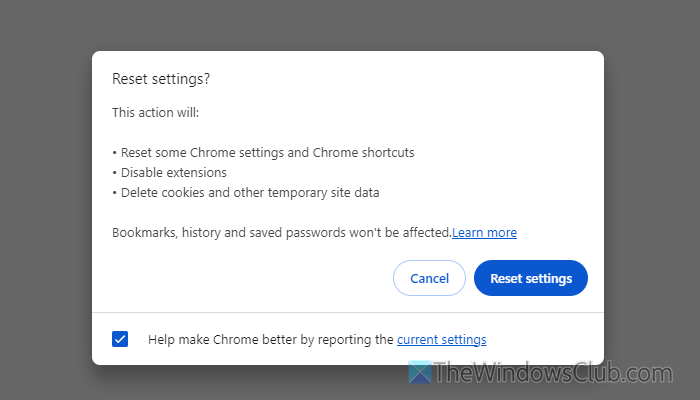
If there are some issues with your Google Chrome settings, you might find the same problem while printing a PDF via Chrome. That is why it is suggested to reset the settings to factory defaults to get rid of this problem.
To reset Google Chrome, follow these steps:
Open the Google Chrome Settings panel and switch to the Reset settings tab.
Click on the Restore settings to their original defaults option and click the Reset settings button.
Read: Google Chrome problems and issues on Windows 11
How to solve Print preview failed?
To solve the Print preview failed error in Google Chrome, re-open the PDF after disabling all extensions and closing some of the heavyweight running apps using Task Manager. Apart from that, disable third-party PDF annotation or editing programs that you may have installed.
How to enable print preview?
There is nothing to do to enable print preview in Google Chrome. Google Chrome shows a preview that you are about to print automatically. You can check the real-time update if you make any changes before printing the document.
