
In this post, we take a look at PDFill Free and Advanced PDF Utilities Free – free PDF Editor software. They can be used to manage daily PDF tasks such as splitting pages, converting PDF to text & converting images to PDF, or vice versa. This free software lets you easily manage and improve your PDF file. This software comes with a set of interesting and useful features that we will discuss in this post.
Free PDF Editing software for Windows 11/10
- Advanced PDF Utilities Free
- PDFill Free.
Advanced PDF Utilities Free
The software is elegantly designed with a user-friendly interface. The interface principle is taken from Microsoft Office; everything is properly aligned on the top Ribbon bar. There are 9 tabs that contain all the software’s features. Let us discuss each tab one by one:
1. PDF Preview
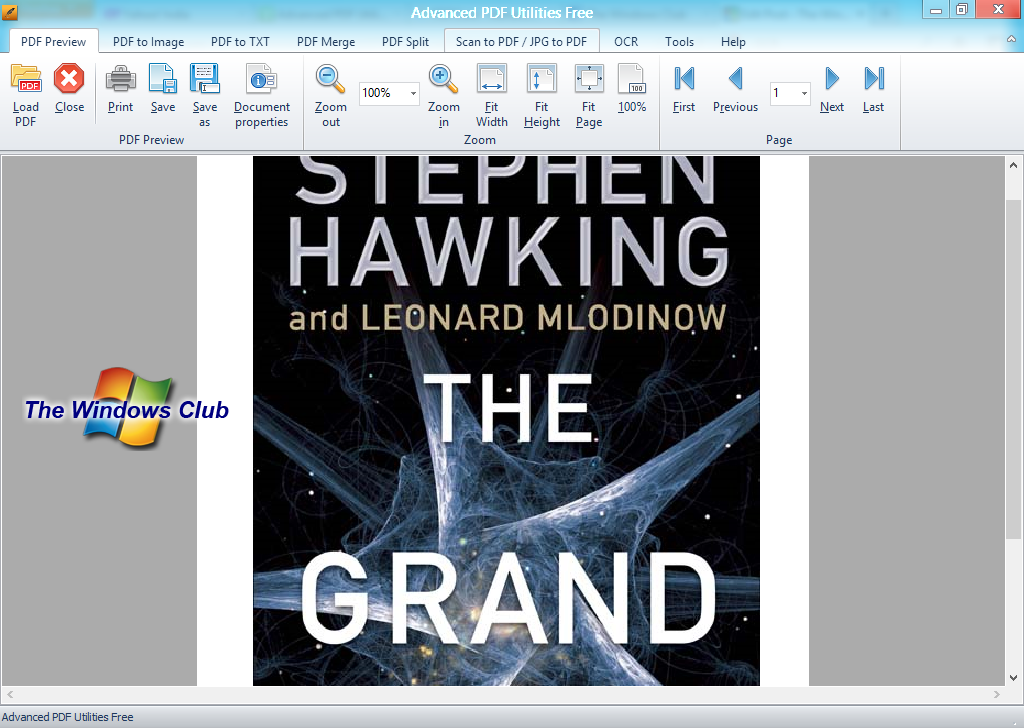
Under this tab, you can view a PDF file. In addition to viewing, you can Print and save your PDF file. This tab includes a basic PDF viewer with all navigation functions, such as Next Page. Another feature available under this Tab is Document properties. With this option, you can edit the basic information for your PDF file and include your name or a simple description of the File.
2. PDF to Image
This tab converts a PDF file to an image file. To convert your PDF into an image, you need to set the starting and ending pages, select the image format and resolution, and finally click on the “Convert PDF to Image” option. And your task is done!
Read: Best free PDF Voice Readers for Windows PC
3. PDF to Text
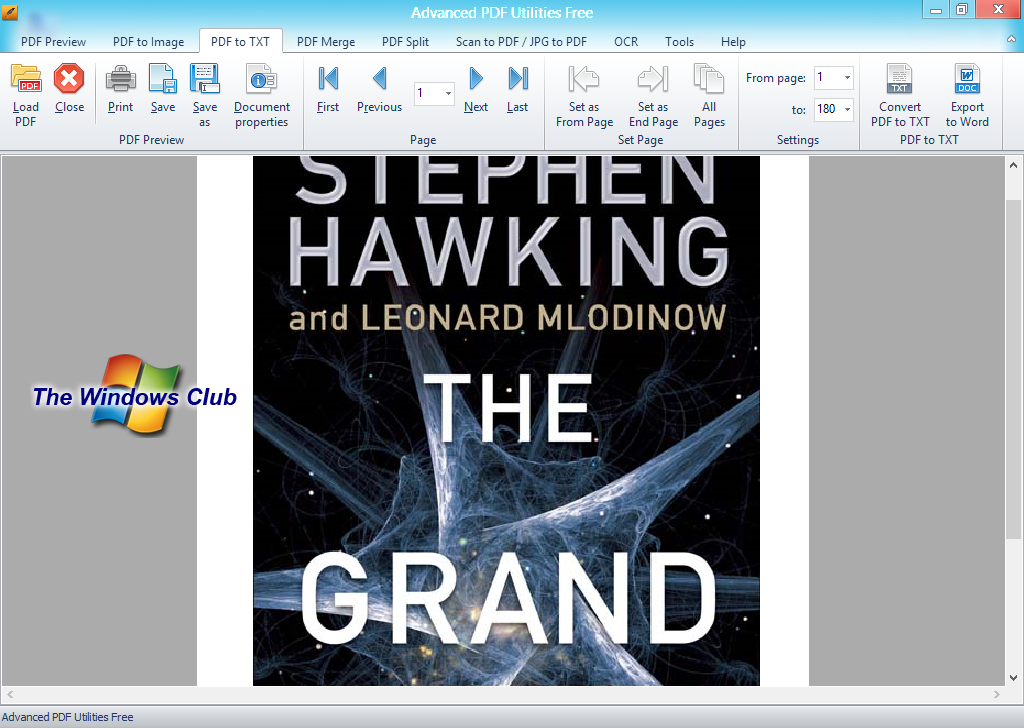
This tab converts a PDF file into a Text File. The usage is the same as the second tab (PDF to an image). With this tab, you can even export your PDF file to Microsoft Word format.
4. PDF Merge
With this tab you can merge multiple PDF files into one single PDF file. The usage is very simple – you just need to select your multiple PDF files and click on the “Merge PDF” option, and the rest of the work is done by the software.
5. PDF Split
In the previous tab we merged multiple files. In this tab we can split a file into different multiple files. It offers the opposite functionality of the previous tab. For splitting a file, we need to select a page range. For example, if I want to split a file after every 5 pages, I will have to select my page range and click on “Split PDF” button. That’s all.
6. Scan PDF/JPG to PDF
This tab is used to scan a file into PDF file. I mean that you can choose an Image file or a PDF file and you can embed it into a new PDF file. Scanning can even be done from a hardware device such as a Scanner. The results are real-time and are of awesome quality.
7. OCR
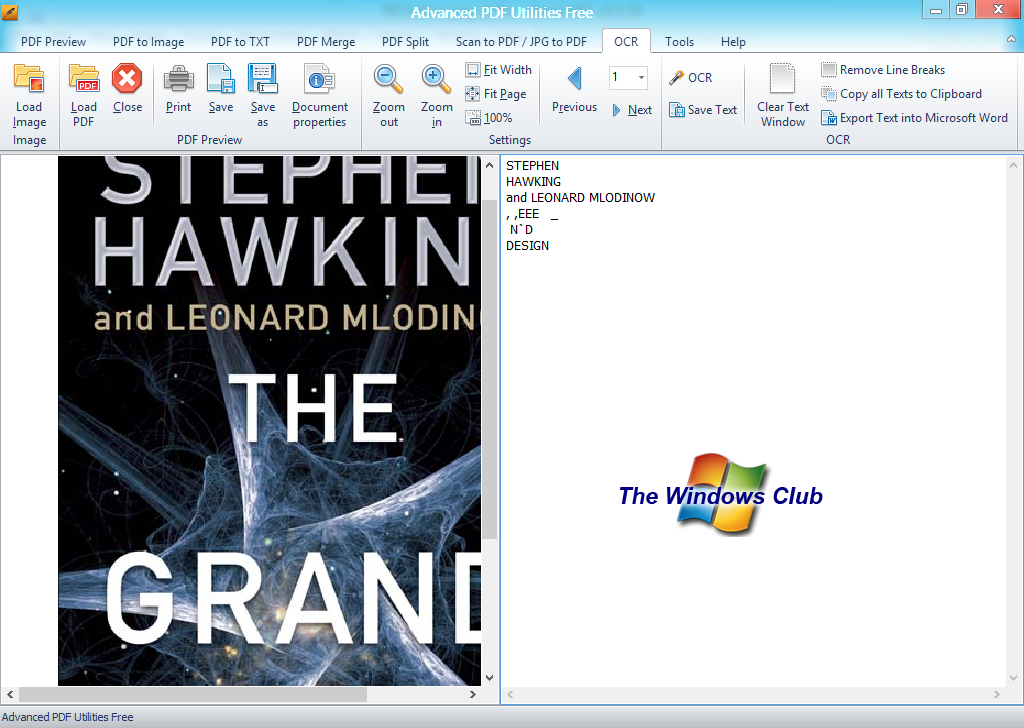
OCR stands for Optical Character Recognition. Under this tab you can recognize characters from your PDF file and export them into a text file. This feature is very useful when you want something to be recognized from a handwritten source. OCR will recognize all the characters in your PDF file, making your task much easier. The program specializes in optical character recognition.
8. Tools
The Tools tab contains some of the security tools which can be used to encrypt PDF file with a password or remove a password from a PDF file. You can apply a digital signature to a PDF file from this tools tab.
9. Help
It views the basic info about the software and some of the basic FAQs that would help you when you use the program.
All this is available in Advanced PDF utilities free. Click here to download it.
PDFill PDF Tools is a free PDF editing tool with many options! With PDFill, you can do anything with your PDF. This free software includes many other small utilities that help you completely optimize and enhance the quality of your PDF files. PDFill comprises three utilities.
PDFill Free PDF Tools
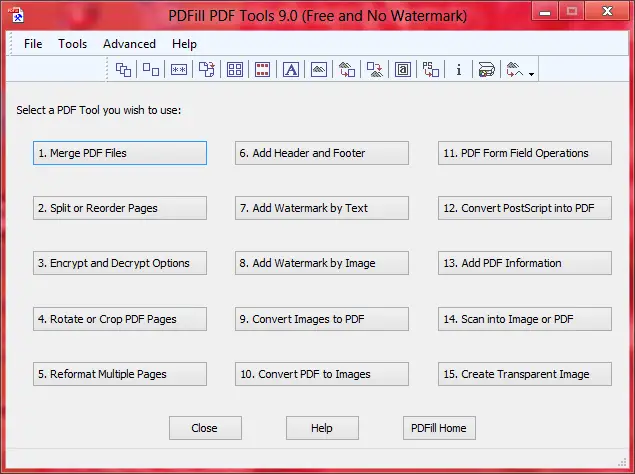
With PDFill Tools, you can merge different PDF files into one file or you can simply split and reorder them. Regarding security, PDFill tools let you encrypt or decrypt a PDF with a password. You can even manage page alignment and rotate or crop pages in a PDF file with this free utility.
Reformatting multiple pages, adding headers and footers, and watermarks is just an easy game for this software. In addition to these features, many conversion options are available. They are:
- Convert from images to PDF
- Convert from PDF to images
- Convert filed operations to PDF
- Convert from postscript to PDF.
If your PDF file lacks information, you can add it to a file. Last but not least, an important feature of this PDF tool is that it lets you create transparent PNG images from a PDF file, so you can save your entire PDF as transparent PNG images.
PDFill Image and PDF Writer is a free PDF printing and Image printing utility that lets you create PDF files and Image files form different applications running on your Windows PC.
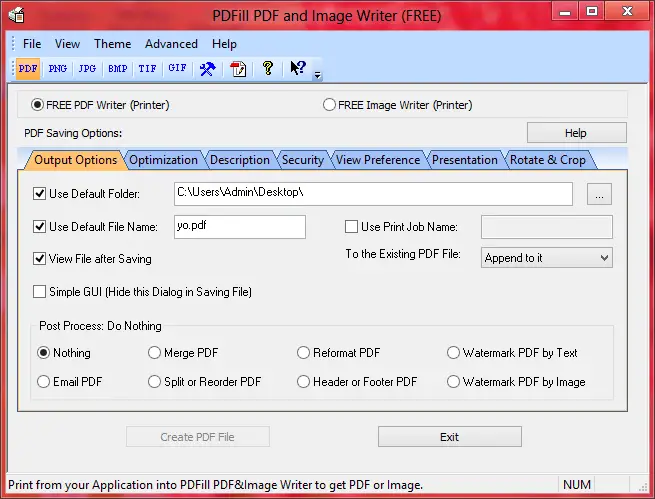
If you are looking for complete PDF freeware for Windows, I recommend this utility. Combining three different PDF utilities into a one-stop solution for your PDF needs.
Click here to download PDFill. You have to look for the download link for the free version.
How to improve text quality in scanned PDF documents?
To improve text quality in scanned PDF documents, use OCR (Optical Character Recognition) tools like Adobe Acrobat, ABBYY FineReader, or online converters to turn images into editable text; adjust scan resolution to at least 300 dpi before scanning for sharper results; apply image enhancement
