
Microsoft has updated the good old Notepad app in Windows 11/10. The humble Notepad in Windows is a very basic text editor for simple documents. Let us take a look at the new features in Notepad.
Notepad new features in Windows 11
Notepad in Windows 11/10 gets the following new features. Let us take a look at them in detail.
1] Shortcut to delete previously typed word
Firstly, you can use a simple shortcut Ctrl+Backspace to delete a previous word you typed/entered.
TIP: Check this post if you are looking for a Dark Mode Black Notepad.
2] Status bar
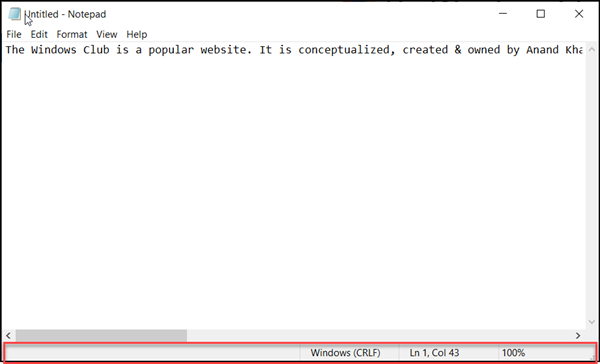
It is visible at the bottom of the Notepad screen and displays the last line of the currently open text file. Alongside it, you can find information related to the column and line numbers, word wrapping and the current zoom level, if enabled. The Status Bar itself is enabled by default.
3] Wrap-Around
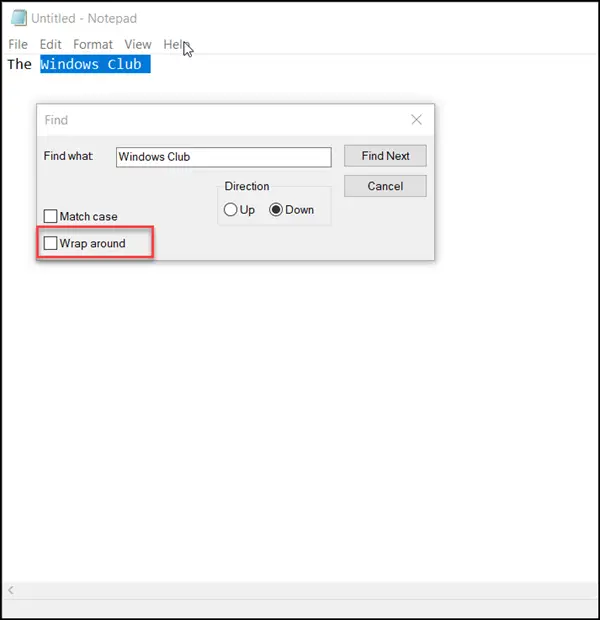
Earlier, Notepad had certain limitations. For instance, you could only search or replace text using a single word. However, now you can find a new ‘wraparound’ option visible under ‘Find’ tool to search a fragment of a text. Also, Notepad will save previously typed values and checkboxes and automatically apply them when you reopen the ‘Find’ dialog box.
Read Notepad Tips and Tricks for Windows users.
4] Text zooming
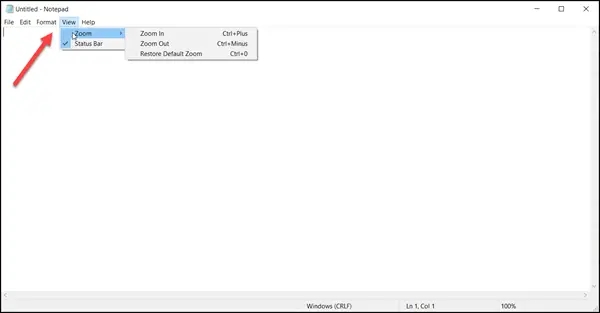
Microsoft has also added options to quickly zoom text in Notepad. So, when you attempt to change the text layout, you can see the zoom percentage in the status bar. You can alter this until you get the preferred zoom level.
Also, you can change Text Zoom Level by simply heading to ‘View’ option, select ‘Zoom’ and choose any of the following options,
- Zoom In (Control + Plus)
- Zoom Out (Control + Minus)
- Restore Default Zoom (Control + 0).
5] Search with Bing in Notepad
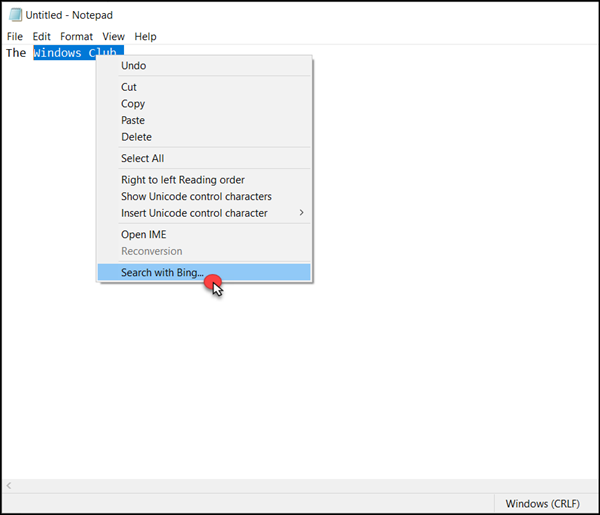
The new Notepad enables Windows users to quickly find a word’s meaning or spelling within the app. There’s no need to manually open a web browser for this. It appears as a deliberate move by Microsoft to push people to use Bing. Still, it has benefits as it is easily accessible.
Manually, you can select the text and use the Ctrl+E keyboard shortcut to quickly get a Bing answer using Microsoft Edge. Sadly, there’s no option available to change the default search engine.
6] Added Support for the UNIX-style End Of Line (EOL) Characters
This new capability will enable the app to view, edit, and print files correctly. So, you could copy a file created on Linux or Mac and paste it in Notepad. The file’s current line-ending format will be maintained as it was originally on Mac or Linux, and will not be changed. Earlier, this was not the case since Notepad featured no line breaks.
Notepad also includes new features like Notepad UTF-8 Encoding, increased MAX_PATH Limit, new Keyboard Shortcuts & ability to send Feedback.
7] Encoding
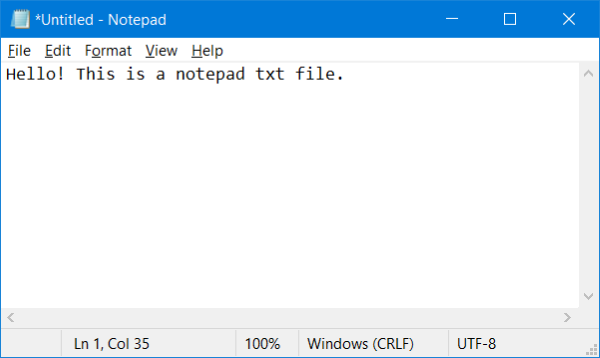
The new Notepad offers slightly changed encodings. So instead of ANSI, the new default encoding is UTF-8. And the new Notepad supports UTF-8 without Byte Order Marking. Also, the document’s encoding is now displayed in a new column in the status bar. UTF-8 is sort of more compatible with the web and is becoming a standard these days.
8] Send Feedback
Now you can directly send feedback about Notepad from Notepad itself. Head over to help menu and click on Send Feedback to open the feedback dialogue. This is another step towards deeper integration of Microsoft Apps.
9] MAX_PATH Limit
Notepad can now open and edit files with paths longer than the MAX_PATH limit. MAX_PATH is usually set to 260 characters on Windows and many programs are not capable of working with files with paths greater than MAX_PATH. But Notepad can now not only open these files but also save files with a longer path.
10] Keyboard Shortcuts
A wide variety of keyboard shortcuts have been added to Notepad. These shortcuts make the tool easier to use and makes the features more accessible. Here are some of the useful keyboard shortcuts added in this update:
- Ctrl+Shift+S: Open Save As window
- Ctrl+Shift+N: Opens new Notepad window
- Ctrl+W: Close current window.
11] Use Markdown in Notepad
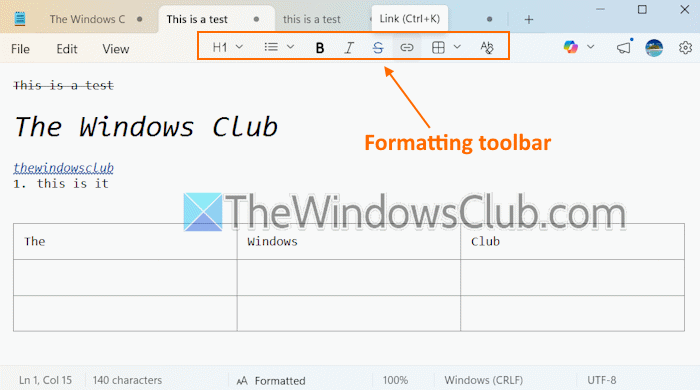
Now you can use Markdown in Notepad as it supports *.md files. With lightweight formatting support in Notepad, you can create and edit Markdown files using all the basic formatting options, including Hyperlinks, Bold, Italic, Strikethrough, Headings (Title, Section, Subheading, Heading, Body, and Subsection), Bullet lists, and numbered lists.
Once you have turned on Formatting under the Settings of Notepad, you can access and use the Formatting toolbar in the top-middle section of Notepad to use Markdown. You can also switch to the Markdown syntax view mode to check the raw form and get back to the Formatted view easily. For this, access View menu > Markdown.
Anytime you want to remove all the formatting, press Ctrl+Space, or use the Clear formatting option in the Formatting toolbar. To save the output as Markdown, go to File > Save as > Save as Markdown file.
12] Create Tables in Notepad
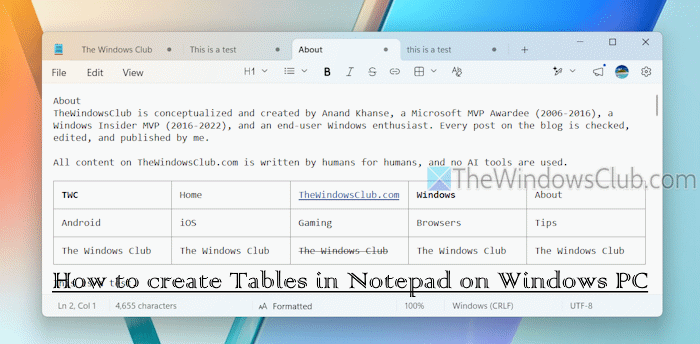
Along with Markdown support, you can now create tables in Notepad with just two mouse clicks. A maximum of a 5*5 table can be inserted at once with ease. You can also edit a table to insert and delete columns and rows to the table.
To create a table, use the Formatting toolbar or right-click menu, and select the number of rows and columns. Using the right-click menu option, a table of up to 32767 rows and 52 columns can be inserted at once.
In each cell of the table, you can use the Formatting options to create a list, add links, headings, and more. Once the table is ready, save the output as a Markdown file.
13] Tabbed Interface
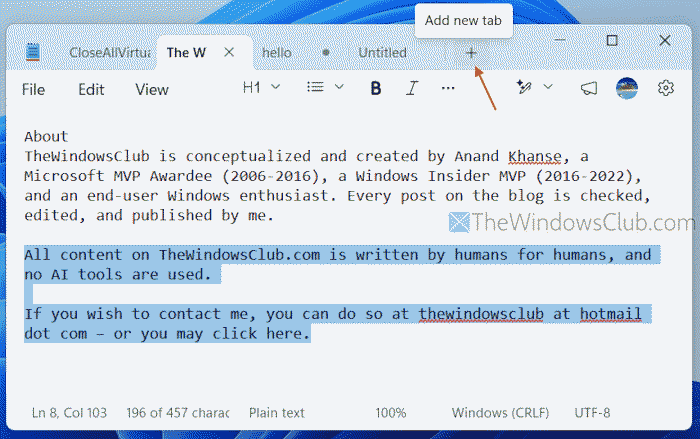
Similar to a browser, Notepad comes with a Tabbed interface to work with multiple files together. There’s a + icon, just next to an open tab, to add a new tab in Notepad. The best part is that even if you accidentally close Notepad, all your unsaved tabs and changes remain as they are. You can reopen the Notepad and those tabs, and your work will remain there. This is the default behavior or setting. You can change it to Start new session and discard unsaved changes by accessing Notepad Settings.
You can also close all tabs (except the active tab) at once, or close the tabs to the right. For this, right-click on a tab and use the given options. To save your work, use the File menu and press the Save all option to save tabs one by one. This is handy when you need to save all tabs without using the Save as option.
14] Use AI Writing tools in Notepad
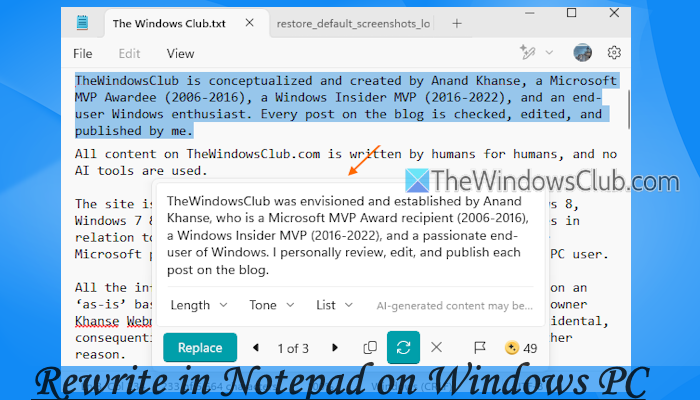
This is one of the best features in Notepad. You can use AI Writing tools in Notepad to use the Write, Rewrite, or Summarize text features for a sentence or paragraph. You can even make a text shorter, longer, change its tone (Humor, Casual, Formal, and Inspirational), and change the format.
Once you’ve selected a text, use the Writing tools icon in the top-right corner and select an option. After this, it will generate new content for you that you can add to your document or try again.
You can also choose a model to regenerate the content. While the On Device model is free and unlimited and included with Copilot+ PC, the Enhanced model requires credits (included with your M365 subscription.
15] Use Spellcheck in Notepad
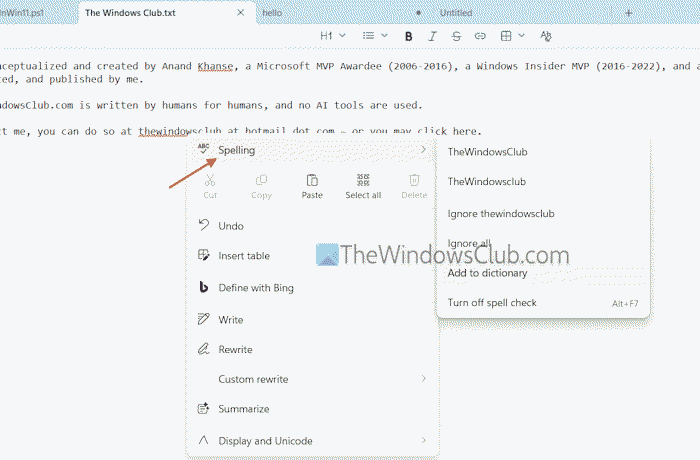
A built-in Spellcheck feature is also introduced in Notepad, which is enabled by default. It automatically highlights misspelled words and provides suggestions when clicking on it. You can also right-click on a misspelled word and access the Spelling menu to see suggestions, ignore that word, ignore all, add to dictionary, and turn off spell check.
What replaces Notepad in Windows 11?
Notepad isn’t replaced in Windows 11 with any other app. Instead, it is improved and enhanced with new features, including AI tools. However, if you are looking for the best free Notepad replacement software for Windows 11, Notepad++ is probably the best. In addition, you can also try EditPadLite, TED Notepad, QText, and other feature-rich applications.
How to get the old Notepad back?
There are a few easy ways to restore the old Notepad to Windows 11. For example, you can access the Windows folder or System32 folder in the C drive and double-click on notepad.exe to launch the classic Notepad. Apart from that, you can use Optional features in the Settings app to get back the old Notepad in Windows 11.
TIP: If your Notepad is not working properly, this is how you can reset Notepad to default settings.
These Notepad posts may also interest you:
