
The Windows Notepad app now supports lightweight formatting, including bold, italics, lists, hyperlinks, headings, and a Microsoft Word-like table feature. In this tutorial, we will show you how to create Tables in Notepad on a Windows 11 PC. With just two mouse clicks, you can insert a maximum of a 5*5 cell table at once. You will also be able to edit a table, insert links, and use other formatting options in cells, add columns and rows, and delete cells as per your needs.
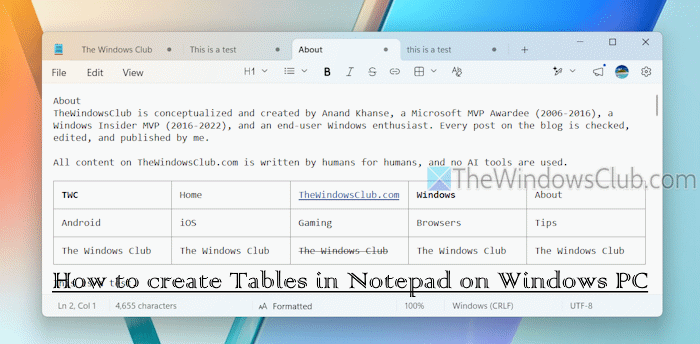
The table size in Notepad is adjusted automatically. You can’t resize a column or a row separately. Also, you must update the Notepad app to the latest version (if you haven’t already) to enable this feature.
How to create Tables in Notepad on Windows 11 PC
You can create tables in Notepad on a Windows 11 PC using three ways:
- Create a Table in Notepad using the Formatting toolbar
- Insert a Table in Notepad using the right-click menu
- Create a Table in Notepad using Markdown Syntax.
Let’s check these options.
1] Create a Table in Notepad using the Formatting toolbar
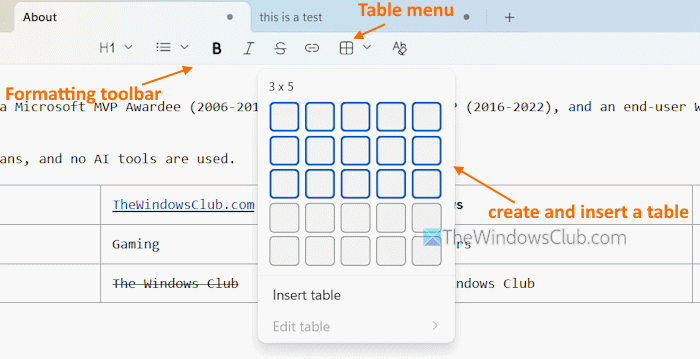
There’s a new Formatting toolbar to use Markdown in Notepad. It remains enabled by default and is available in the top-middle part. It includes a Bulleted lists option, Headings, Bold, and other formatting options, and a Table drop-down menu. Click that menu and move your mouse cursor over the grid. This will highlight the number of rows and columns for your table.
Press the left mouse button, and the table with highlighted number of rows and columns is created and inserted. Now you can enter text, insert hyperlinks in cells, etc.
TIP: If the Formatting toolbar is not displayed, access Notepad Settings > turn on the Formatting option.
2] Insert a Table in Notepad using the right-click menu
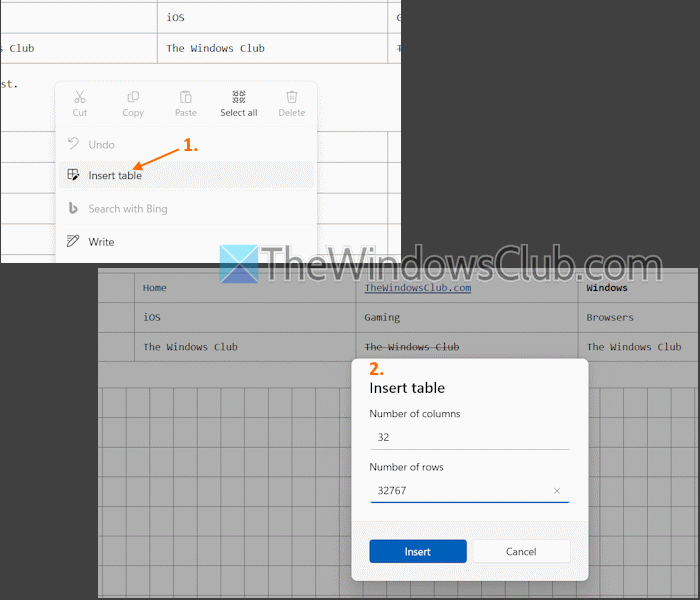
You can also insert a table in Notepad on Windows 11 using the right-click context menu. The benefit of this option is that you can insert a large table (up to 52 columns and 32767 rows) at once. However, that will make Notepad slow or cause it to hang.
Right-click on an empty area > Insert table. Add numbers in the Number of rows and Number of columns text fields. Press OK.
3] Create a Table in Notepad using Markdown Syntax
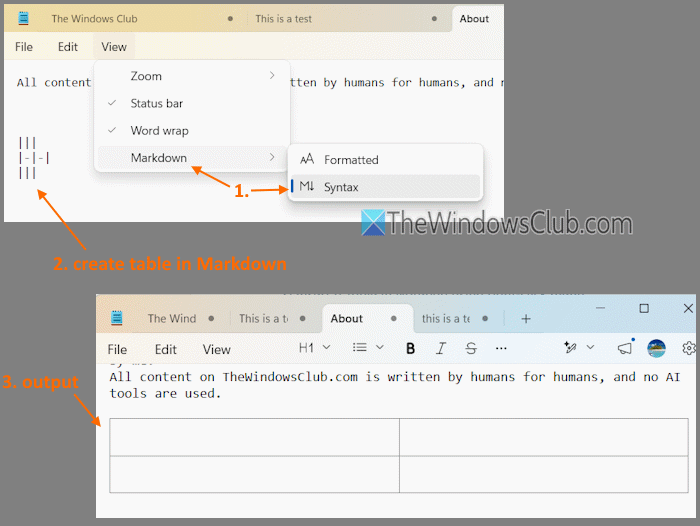
You can also use Markdown syntax to create a table in Notepad. For this, select View menu > Markdown > Syntax. Now you can add a (|) pipe or vertical line to separate columns.
To create a column’s header, add (—) three or more dashes. After that, switch to the Formatted mode (View menu > Markdown > Formatted) to see the output.
For convenience, you can first create a table in Formatted mode, then switch to Syntax mode.
Related: Enable and use AI Writing tools in Notepad on Windows PC
How to edit a Table in Notepad on Windows 11?
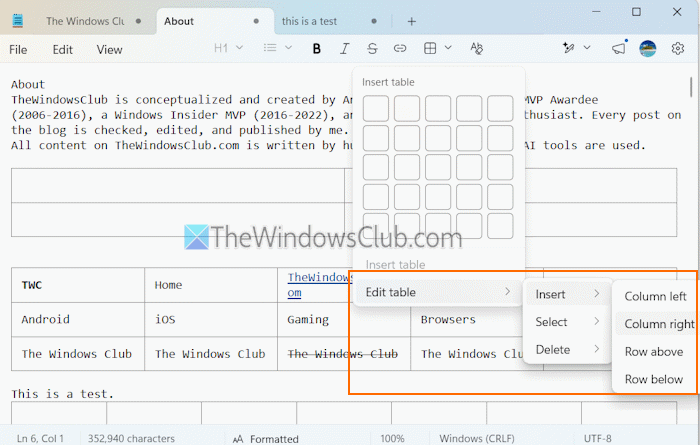
To edit a table in Notepad on Windows 11, click on a table cell. Use the Table menu in the Formatting toolbar > Edit table. You will have three options:
- Insert: to add a column left and right, and add a row below or above
- Select: to select the entire table, Column, or row, and
- Delete: to remove the entire table, row, or column.
The Edit table option in the right-click context menu also shows these options.
That’s it.
Also read: How to remove Text Formatting in Notepad in Windows PC
How to make a Table in Notes Windows?
To make or create a table in OneNote on a Windows 11 PC, first, create a new notebook or open an existing one. Click Insert > Table > select rows and columns in the grid. You can also insert a new Excel spreadsheet in OneNote using the Table menu.
How to create a Table in a TXT File?
You can use the Notepad app in Windows to create a table in a TXT file. Use the Table menu in the Formatting toolbar to select rows and columns to add a table. Additionally, if you want to convert a text to a table, use Microsoft Word.
Read next: How to replace Notepad with Microsoft Edit on Windows PC.
