
In this post, we will show you how to replace Notepad with Microsoft Edit on Windows 11. Plain text editing should be simple and quick. For years, Notepad filled that role on Windows by doing just one thing: letting you view and edit text without distractions. But on Windows 11, the experience has changed. The app now behaves more like a modern document editor, with extra features that many users never asked for.
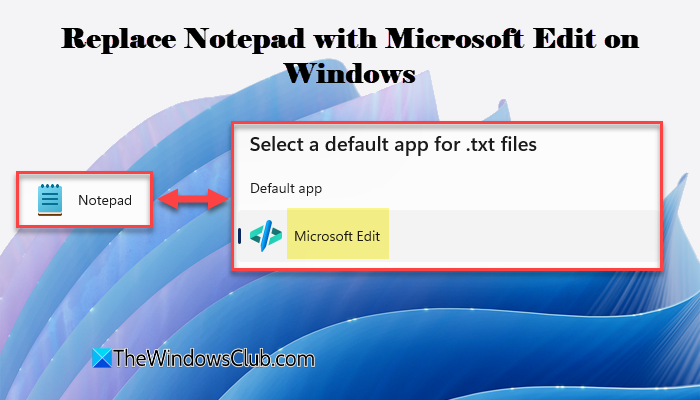
Today, Notepad includes tabs, autosave, emoji input, formatting support, and even AI-powered features. While these features can be useful, they also introduce background services, extra processes, and potential privacy concerns. Additionally, if you open text files only to view logs, tweak configuration files, or make quick edits, all those extra features can feel unnecessary. That is where Microsoft Edit comes in.
What is Microsoft Edit?
Microsoft Edit is a classic command-line text editor that Microsoft has quietly reintroduced in Windows 11. The 32-bit versions of Windows included the MS-DOS Editor. Currently, there is no built-in CLI text editor on 64-bit Windows. This led Microsoft to develop an Edit text editor for 64-bit Windows. With a few simple tweaks, you can configure Edit as your default text editor and restore the classic text-editing experience on Windows 11.
Why use Microsoft Edit?
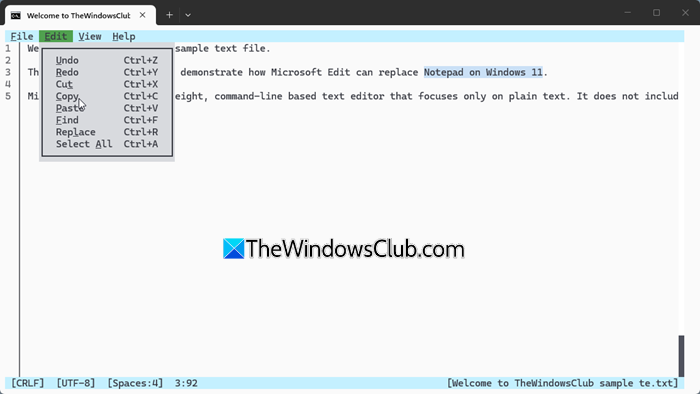
Edit runs locally, is free of smart tools, and focuses solely on plain-text editing. Even though it runs inside Windows Terminal, it fully supports mouse and keyboard input, allowing you to click menus, select text, scroll through files, and perform common actions with ease.
How to replace Notepad with Microsoft Edit on Windows 11
To replace Notepad with Microsoft Edit on your Windows 11 PC, you need to follow these steps:
- Create a Microsoft Edit profile in Windows Terminal
- Set Microsoft Edit as the default app for .txt files
- Use Microsoft Edit for other text file types
Let us see this in detail.
1] Create a Microsoft Edit profile in Windows Terminal
To make Microsoft Edit feel more like a regular desktop app, you first need to create a dedicated profile for it inside Windows Terminal.
Press Win + X to open the Power User Menu. Select Terminal (Admin) from the list of options.
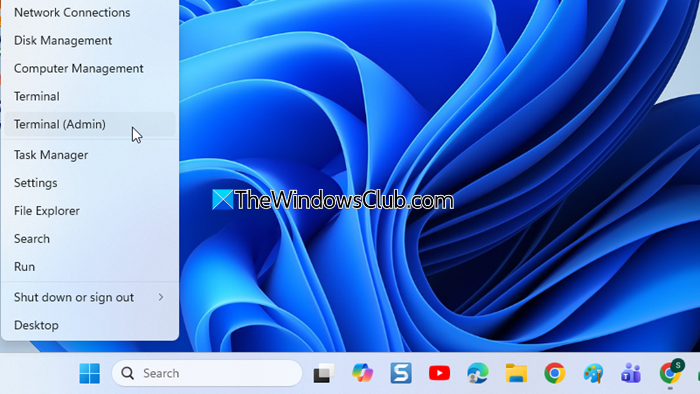
A User Account Control prompt will appear. Click Yes to continue.
Once Terminal opens, click the drop-down arrow in the title bar and select Settings (or press Ctrl + ,).
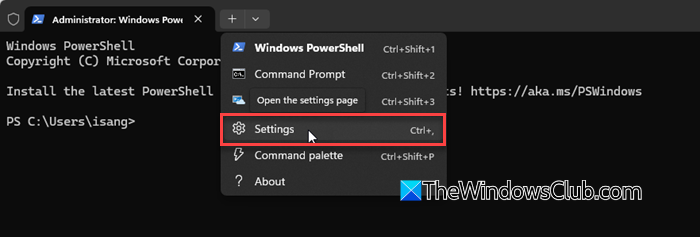
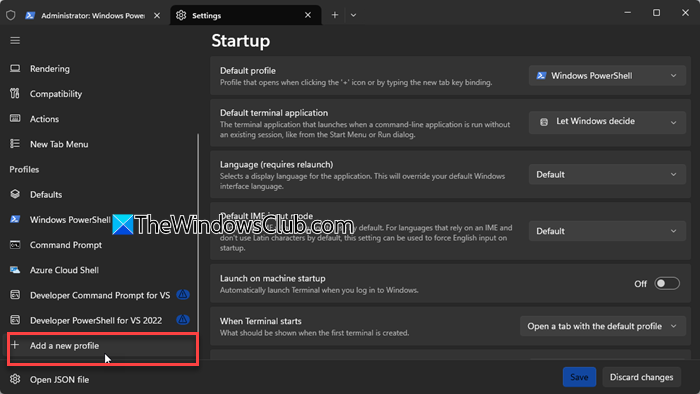
Select Add a new profile from the left pane of the Settings window.
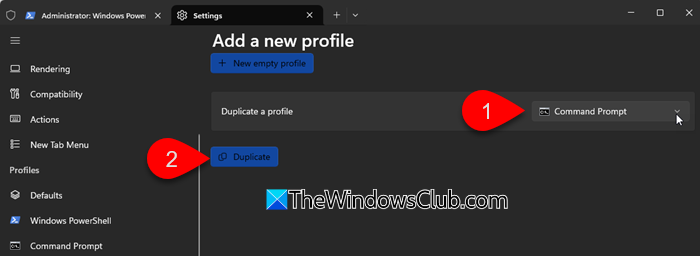
Next, select Command Prompt under Duplicate a profile, then click Duplicate.
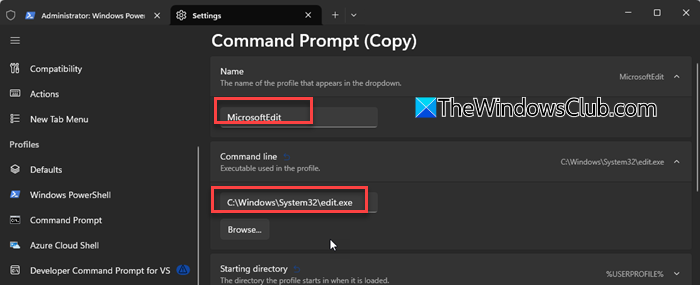
The newly created profile will open. Click the Name setting and change the profile name to MicrosoftEdit.
Next, click the Command line setting. Then click Browse, and select Edit.exe as the default app for the Terminal. The address of the file is:
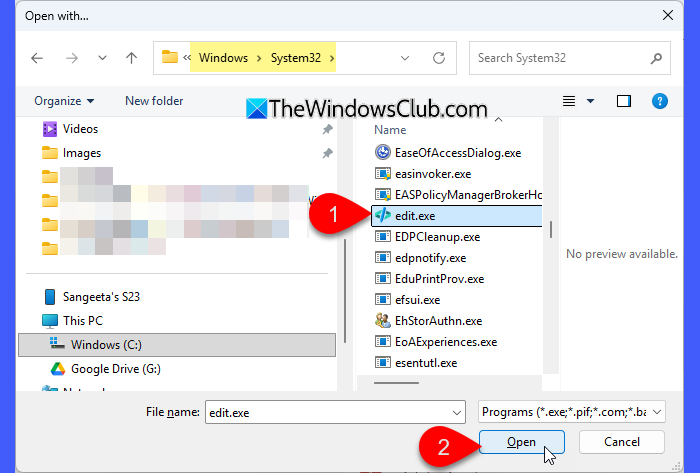
C:\Windows\System32\edit.exe
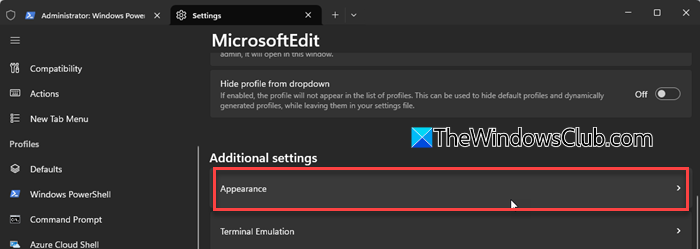
Next, scroll down to Additional settings and select Appearance.
Apply a light color scheme to the profile, then click Save.
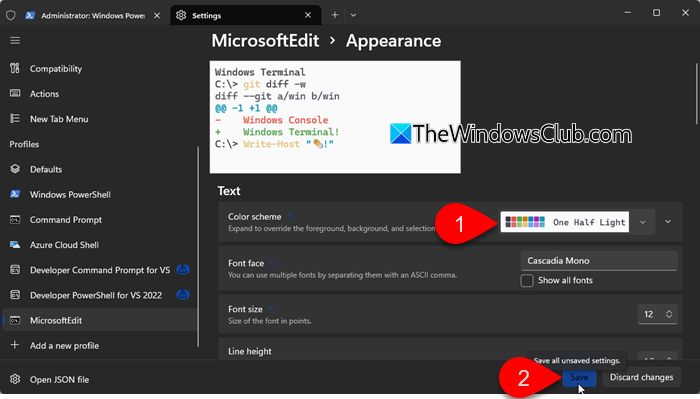
This creates a clean, Notepad-like environment for Microsoft Edit inside Windows Terminal.
2] Set Microsoft Edit as the default app for .txt files
Once the Microsoft Edit profile is ready, you can assign it as the default program for opening text files.
To do this, open the Settings app (Win + I) and go to Apps > Default apps. In the search box, type .txt and select it from the results.
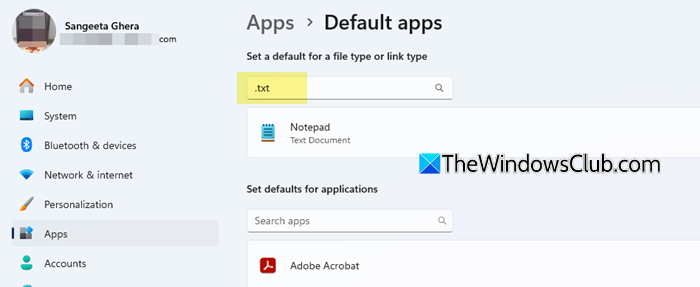
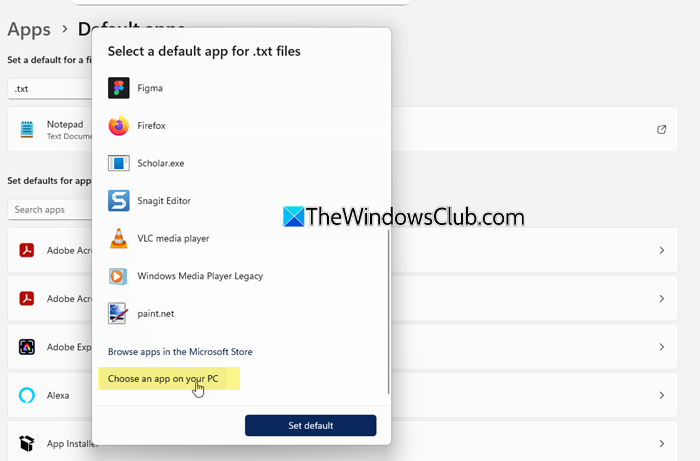
Click the currently assigned app (Notepad), then scroll to the bottom of the Select a default app for .txt files dialogue, and select Choose an app on your PC.
When the file browser opens, navigate to C:\Windows\System32, select edit.exe, and click Open.
Finally, click Set default to apply the change.
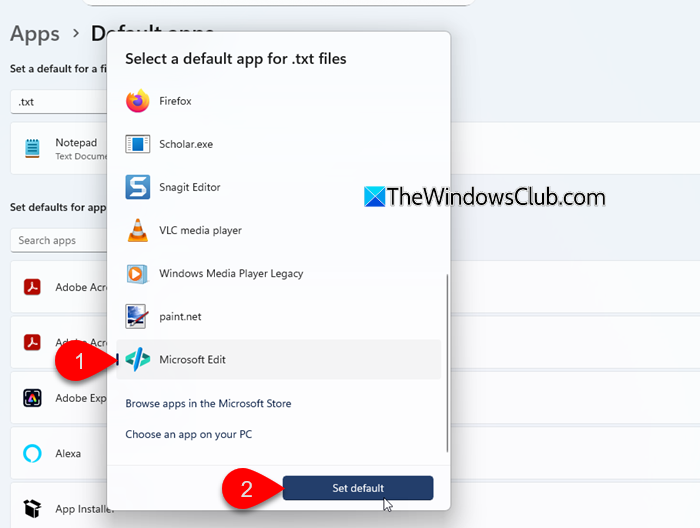
After this, any .txt file you double-click will open in Microsoft Edit instead of Notepad.
3] Use Microsoft Edit for other text file types
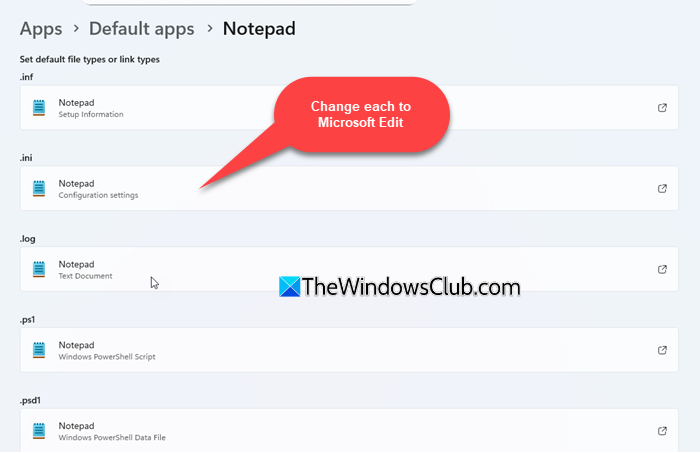
If you want Microsoft Edit to open other plain-text formats, such as .log, .ini, .bat, or .cmd, you can assign it to those file types as well.
Open Settings and go to Apps > Default apps. Search for each file extension one by one, and change the default app the same way you did for .txt files.
Alternatively, scroll down the Default apps page, select Notepad, and replace it with edit.exe for every file type linked to it.
How to revert to the Notepad app
If you decide to switch back to the default Notepad app, you can undo the changes at any time through Windows Settings.
Open Settings and go to Apps > Default apps. In the search box, type .txt and select it. Click the currently assigned app (Microsoft Edit), choose Notepad from the list, and then click Set default.
If you changed other file types, repeat the same steps for each extension.
That’s all! I hope you find this useful.
Read: Stop Notepad from opening the last file in Windows 11
Does Windows 11 have a text editor?
Yes, Windows 11 comes with Notepad as its default text editor. It helps you create and edit plain text files, such as .txt, .log, and .ini. While earlier versions of Notepad were very basic, the Windows 11 version now includes features like session restore, formatting support, and AI-powered tools.
How do I remove Notepad from Windows 11?
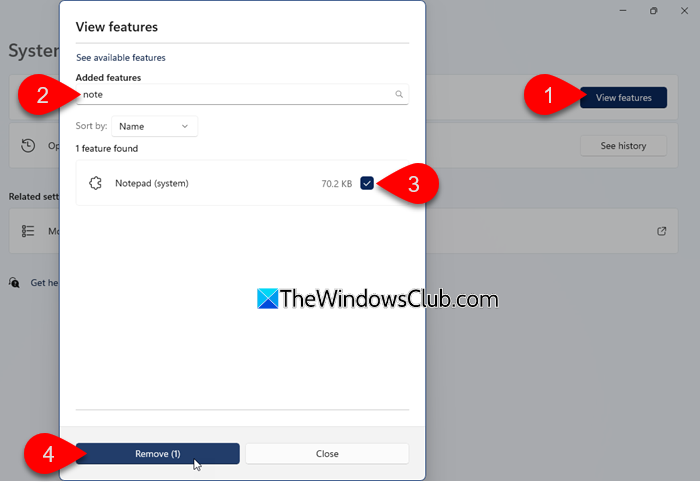
You can uninstall Notepad from Windows 11 using Optional features. Open Settings and go to System > Optional features. Click View features, and search for Notepad. Select Notepad from the search results and click Remove. You can also replace Notepad with Microsoft Edit, as explained in this post.
Read Next: How to change Notepad Font and Size in Windows 11.
