
If you are experiencing high CPU and Memory usage issues with Notepad in Windows 11, here is what you can do to fix them.
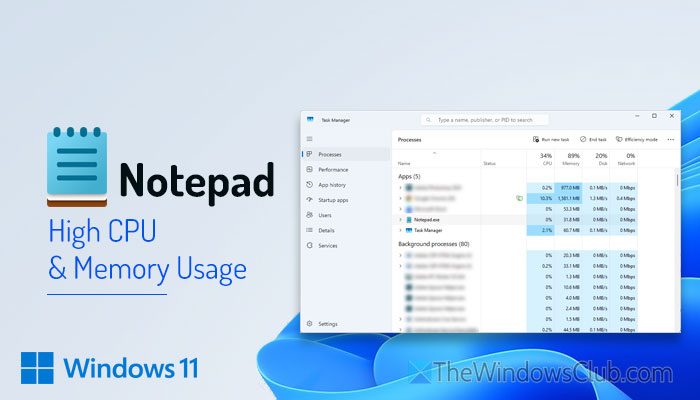
Why is Notepad showing high CPU and Memory usage?
If Notepad is showing high CPU and Memory usage problems, these could be the reasons:
- You are trying to open multiple big CSV files or log files of various programs simultaneously.
- There are some issues with the encoding.
- Your computer is attacked by malware or adware.
- There are some internal problems with the Windows Notepad application.
Notepad high CPU and Memory usage in Windows 11
To fix high CPU and Memory usage by Notepad, follow these solutions:
- Close all instances and background processes
- Block Notepad from running in background
- Clear cache of Notepad
- Scan PC with antivirus and adware removal tool
- Use System File Checker
- Repair and Reset Notepad
- Reinstall Notepad
- Change encoding
To learn more about these solutions, continue reading.
1] Close all instances and background processes
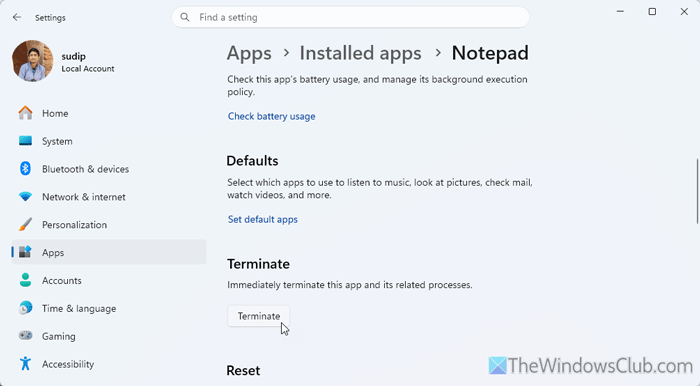
Although it is not a permanent solution, it is suggested to try it before doing anything else, so that you can try other solutions by allocating a small amount of RAM to other programs.
To close all instances and background processes, you must open two things: Task Manager and Windows Settings.
First, open the Task Manager and go to the Processes tab. Next, find Notepad, select it, and click on the End task button.
Then, go to the Details tab, find Notepad, select one process at a time, and click the End task button.
Once done, open the Windows Settings and go to Apps > Installed apps > click the three-dotted icon of Notepad and select Advanced options.
Click the Terminate button to close all the background processes at once.
2] Block Notepad from running in background
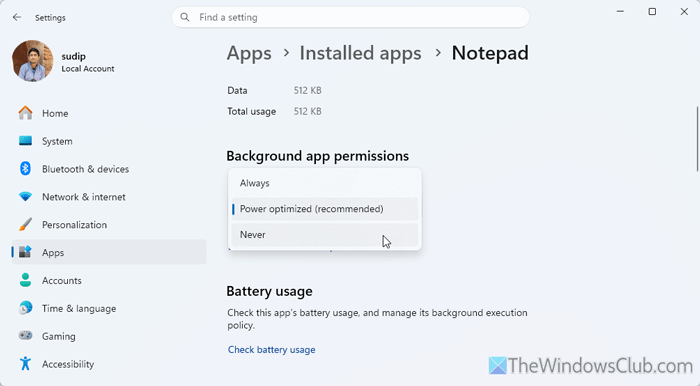
To block Notepad from running in the background, follow these steps:
- Open Windows Settings on your computer.
- Go to Apps > Installed apps > Notepad.
- Find the Background app permissions
- Expand the drop-down menu and choose the Never
3] Clear cache of Notepad
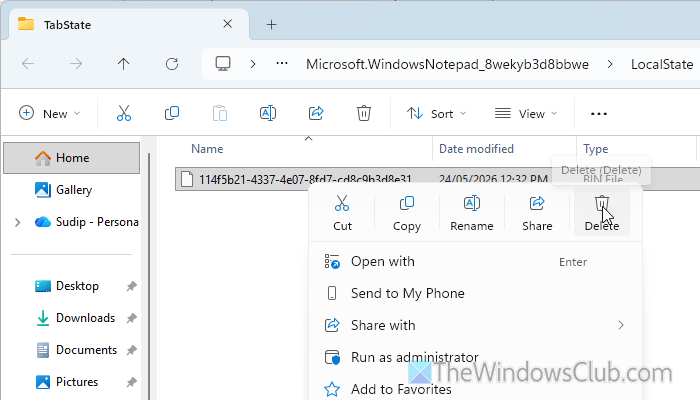
To clear the Notepad cache in Windows 11, follow these steps:
First, open the File Explorer and navigate to this path:
C:\Users\username\AppData\Local\Packages\Microsoft.WindowsNotepad_8wekyb3d8bbwe\LocalState\TabState
You must unhide hidden files and folders before following this path.
Alternatively, press Win+R to open the Run prompt, and enter this command:
%localappdata%\Packages\Microsoft.WindowsNotepad_8wekyb3d8bbwe\LocalState\TabState
Here are a few BIN files you must delete. Once done, restart Notepad.
Read: How to clear Memory Cache in Windows 11
4] Scan PC with antivirus and adware removal tool
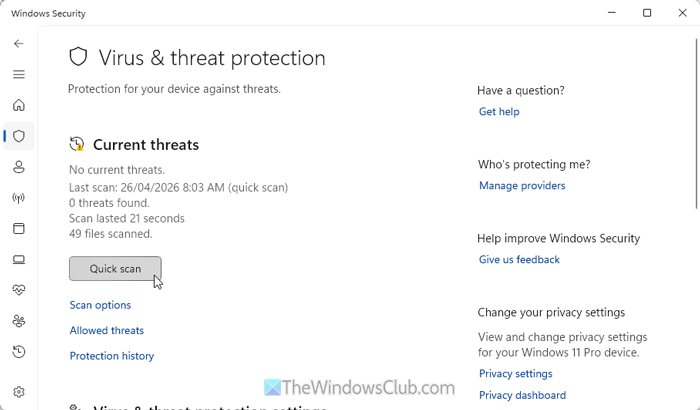
This problem often occurs when your PC is under attack by adware, viruses, malware and similar threats. They often use various programs to execute commands and keep them running continuously. This unnecessary process allows the app to consume more resources than usual.
That is why we suggest scanning your computer with an adware removal tool and an antivirus. AdwCleaner would be an excellent choice for this purpose, whereas you can use the built-in virus protection program to scan your system.
If you want to use a third-party antivirus, you can go through this list.
Read:
5] Use System File Checker
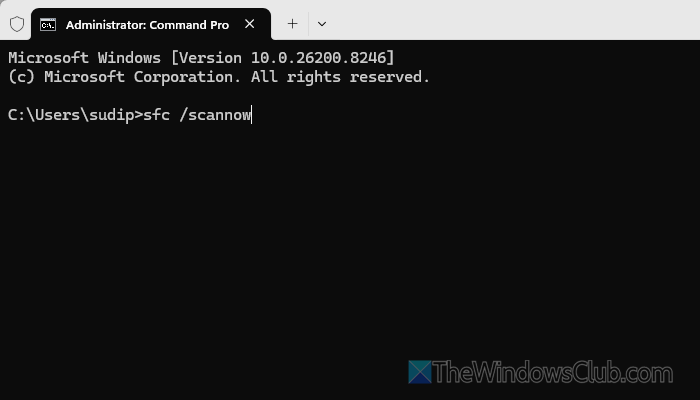
This problem often arises when there are some issues with the system files. In most cases, it happens after a malware and adware attack. Even after removing the adware or malware, Notepad continues to consume more resources than usual. That is when you must use the System File Checker. In case you don’t know, it helps you scan for corrupted system files and fix them accordingly.
To run the System File Checker, press Win+X, select Terminal (Admin), and enter this command:
sfc /scannow
You can use this command in the Command Prompt window. However, if your antivirus has been redirected towards any specific system file that needs to be repaired, you can use this guide to repair a a single file using System File Checker.
6] Repair and Reset Notepad
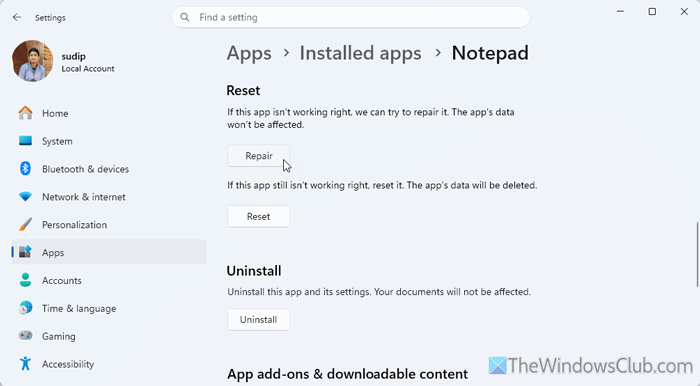
If there are some internal issues with Notepad installation, you can fix them by repairing or resetting the program. To repair and reset Notepad, follow these steps:
First, press Win+I to open the Windows Settings panel on your computer. Then, go to Apps > Installed apps and click on the three-dotted button to select Advanced options. Next, find the Repair option and click on it.
Next, check whether it resolves the issue. If not, click on the Reset button twice.
Read: Reset or Repair Microsoft Store apps via Windows Settings
7] Reinstall Notepad
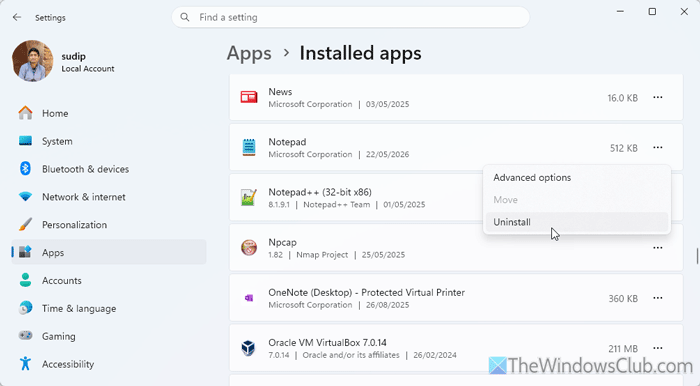
To reinstall Notepad, open the same path as above (Apps > Installed apps). Find Notepad, click on the three-dotted icon, and select the Uninstall option.
Then open the Microsoft Store, search for Windows Notepad, and install it.
Read: Uninstall Notepad using PowerShell, Command Prompt or Settings app
8] Change encoding
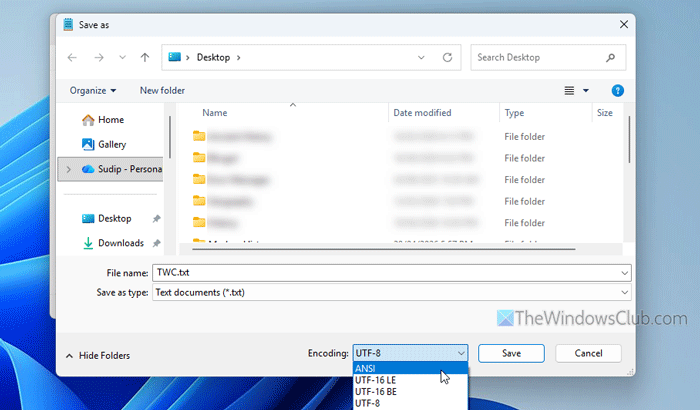
Encoding is how Notepad converts text and other characters into Binary. This problem may arise from selecting the wrong encoding. Also, this problem often vanishes after switching to a different encoding. To change default Character Encoding in Notepad, follow these steps:
First, open the Notepad file and press Ctrl+Shift+S. Then, expand the Encoding drop-down menu and choose either UTF-8 or ANSI.
Click the Save button and reopen Notepad with that file. If it works, delete the old file and keep working on the new one.
Why is Notepad using so much memory?
If you open multiple big CSV or log files in Notepad, it will start consuming more resources than usual. Notepad can also use excessive memory if it’s trying to reopen old session files or handle very large or non-text files. Also, if you choose the wrong encoding, you will get the same issue.
How to fix Notepad problems?
The most efficient way to fix common Notepad problems is to repair and reset the app in the Windows Settings panel. Go to Apps > Installed apps > Notepad, then click the Repair button. If it doesn’t work, click on the Reset button twice.
