
Notepad has been with Windows since the beginning. Microsoft has been continuing this application since Windows 1.0 and the reason is its simplicity and ease of use. Yes, we do have endless fancy text applications on the web today, but Windows users still prefer to use Notepad to take notes and create and edit their text files.
While the application is very simple and easy to use, it can sometimes be a little difficult to read or write when text goes outside the window. Well, we have a solution for that too – Word Wrap. With the Word Wrap feature, you can wrap the text within the window.
Today, in this post, we will learn what the Word Wrap feature is and how to use it in Notepad, but first, let’s see why Notepad is still one of the most popular note-taking apps among Windows users, despite having no special formatting features.
Why Notepad is simple yet good
- The first and a very important reason is that this application is very simple. You do not need any specific tech knowledge to use Notepad. Even a layman can open the Notepad and start making notes instantly.
- It is a very lightweight tool that takes up no space on your PC, so it does not hinder your PC’s performance.
- It is a very quick app. Click on the Notepad icon and the application opens instantly on your PC.
- Notepad is a built-in app and comes with every version of Windows. You do not need to download or install any third-party application on your PC.
- One very important feature of Notepad is its storage format. The text file stored in Notepad is readable on any kind of computer platform.
What is the Word Wrap feature?
In Notepad, the text sometimes goes out of the window making it a little difficult to read, write or edit. Word Wrap is a feature in Notepad that when enabled, keeps the text inside the window only. The feature is turned off by default and you need to enable it if you want to use it.
How to enable and use Word Wrap in Notepad
Type Notepad in the Windows Search option.
Open the app and click on the View button on the top menu. 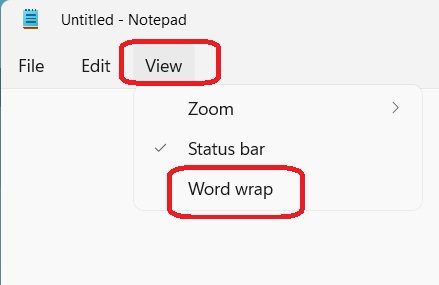
Select Word Wrap from the dropdown menu and you are done.
Your text will now remain inside the window only.
What is the use of Word Wrapping?
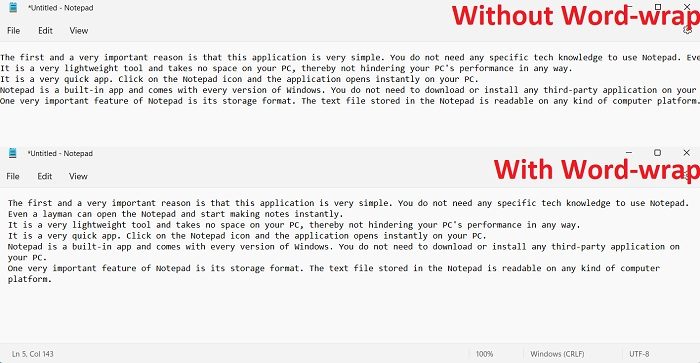
The word-wrap feature helps keep your text within the window and makes it more readable so you don’t miss any part of the text. If you don’t enable the word-wrap feature, you have to keep scrolling left to right to read a long line and on the other hand, if you enable the word-wrap feature, your text will be preformatted in a proper paragraph making it more readable.
Also, when you are typing and the word-wrap feature is disabled, your line of text will continue in a single line until you press the Enter key on your keyboard. Look at the screenshot above to understand the difference between the word-wrap feature enabled and disabled.
Notepad Word Wrap not working
Though it’s pretty rare, you may face a time where you find that Notepad Word Wrap is not working. You face this issue, try the following suggestions:
1] Disable and enable it again
Sometimes, a temporary glitch can also cause this error, and your word wrap might not work. In that case, disable the word-wrap feature and enable it again. See if this works.
2] Check for Notepad updates
Applications and programs that are not updated to the latest version show these problems. Check if there are any updates available for your Notepad app. Open the Microsoft Store, click the Library button in the lower-left corner, then click Get Updates in the top-right corner. Download if you see any updates for the Notepad app. This should probably resolve your error and get the word-wrap feature working.
3] Uninstall Notepad and install it again
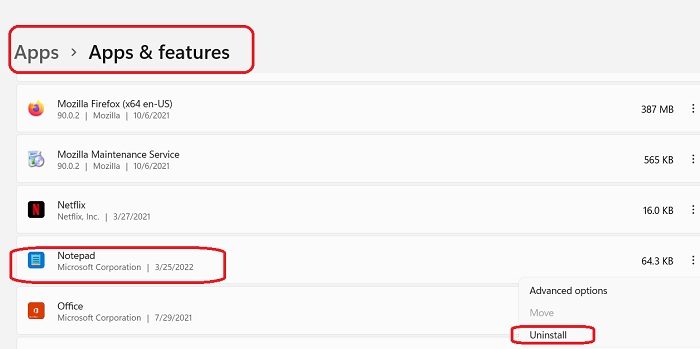
The above methods should work but if you are still getting the same error, try reinstalling the Notepad app on your PC. Press Win+I on the keyboard to open Settings > App & Features. Search for Notepad and click on the three dots. Select Uninstall from the options in the drop-down menu. Go to the Microsoft Store and reinstall it. This should hopefully resolve your issue of word-wrap.
How do I wrap text in Notepad?
Launch Notepad, click on the View tab, and enable the word-wrap feature from the dropdown menu.
How can I see all of my text without scrolling horizontally in Notepad?
Go to the View tab on Notepad and enable the word-wrap feature. This feature will fit your text on the screen and you do not need to scroll horizontally to read your text.
