
In this post, we will show you how to use Markdown in Notepad on a Windows 11 PC. Microsoft has introduced lightweight formatting in Notepad, and it supports Markdown (*.md) files to work directly with the lightweight markup language. Once you enable text formatting, you can create and edit Markdown files in Notepad natively and use formatting options like links, headings, lists, insert tables, bold, italic, etc. You can also preview the Markdown file and save it to your PC. This tutorial covers each step in detail.
Does Windows Notepad support Markdown?
Yes, starting with Notepad version 11.2504.52.0, Windows Notepad app supports Markdown. You can create a new MD file or edit existing Markdown files with ease. There is a Formatting toolbar for Markdown, or you can type symbols by hand. You can also switch between the Formatted view to preview the output and the Syntax view to view Markdown with all characters in the raw form. This feature is rolling out to users. You should update the Notepad app to make sure you have this feature.
How to use Markdown in Notepad
You can use Markdown in Notepad in Windows 11 using the following steps:
- Enable or turn on Text Formatting in Notepad
- Open a new Markdown tab
- Use the Formatting toolbar
- Switch between Markdown syntax and Formatted view
- Clear Formatting
- Save the output as a Markdown file.
1] Enable or turn on Text Formatting in Notepad
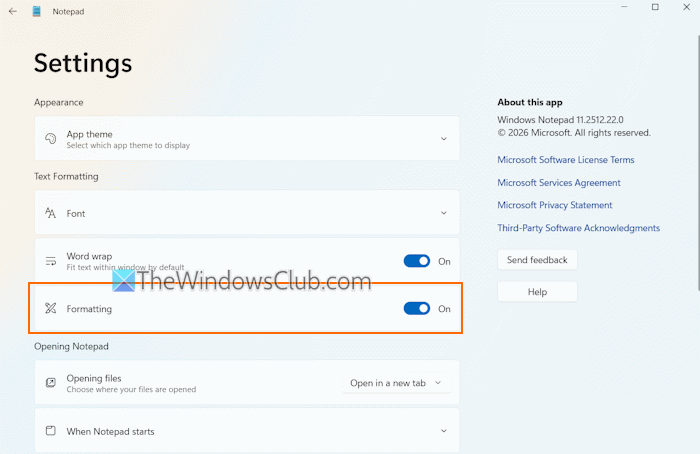
To use Markdown in Notepad, you must enable text formatting. It should be enabled by default. If it is turned off, use these steps to enable it:
- Open the Notepad app
- Click on the Settings icon (or gear) available on the top right corner
- Under the Text Formatting section, turn on the Formatting option.
2] Open a new Markdown tab
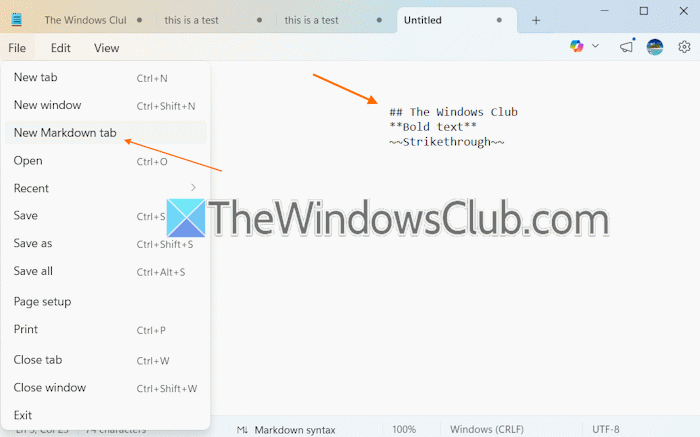
Now you can create and edit Markdown files in Notepad. To start with a new Markdown file, click the File menu and select the New Markdown tab option. The new tab won’t include the Formatting toolbar, but you can start writing using syntax. You can use the supported markup, such as:
- ## H2 (Subtitle)
- **Bold text**
- * Bulleted list
- *Italic text*
- # H1 (title)
- ### H3 (Heading)
- ~~Strikethrough~~.
Related: Best free Markdown Editor software for Windows PC
3] Use the Formatting toolbar
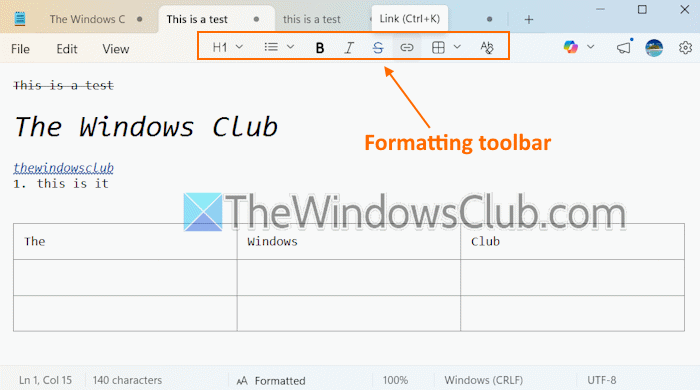
The Formatting toolbar makes it easy to use Markdown in Notepad, as there are self-explanatory options. When you enable the text formatting and open a new tab, you will see the Formatting toolbar in the top-middle section of Notepad. Here, you can use:
- Headings (H1, H2, H3, H4, H5, and H6) for Title, Subtitle, Heading, Subheading, Section, Subsection, and Body
- Bulleted list
- Numbered list
- Strikethrough
- Italic
- Bold
- Link option to create or add a link to selected text, and
- Table option to insert and edit tables. While editing a table, you can use options like selecting a row, column, deleting a row or column, inserting a column to the left or right, and inserting a row to the left or right.
For some formatting options, keyboard shortcuts for Markdown are also supported. For example, you can use Ctrl+K hotkey to insert a link for selected text, Ctrl+B for Bold, Ctrl+Shift+X for Strikethrough, and Ctrl+I for Italic.
4] Switch between Markdown syntax and Formatted view
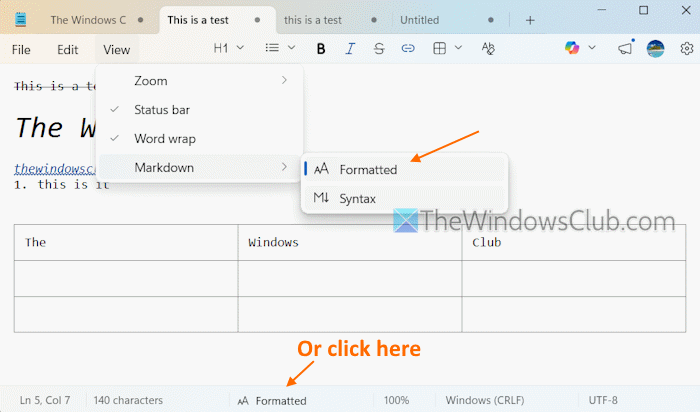
You can easily switch between the Markdown syntax and Formatted view modes. In the Syntax view, you can see Markdown in its raw form that shows all the characters. In the Formatted view, syntax is hidden, and only plain text (including headings and other elements) is visible. This helps you preview the output Markdown file. There are two ways to switch between syntax view and Formatted view:
- Click on the View menu, access the Markdown option, and select Formatted or Syntax
- Select the toggle button (Formatted or Markdown syntax) present in the Status bar at the bottom-middle section.
Also read: Best free Markdown to PDF converter software and online tools
5] Clear Formatting
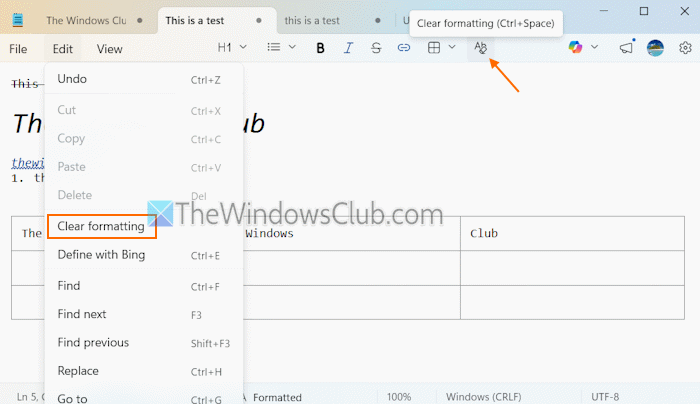
You can also clear text formatting in Notepad to remove all the Markdown characters whenever needed. It can be done in three different ways:
- Click on the Edit menu and select Clear formatting
- Click on the Clear formatting icon on the Formatting toolbar
- Press the Ctrl+Space hotkey.
These options immediately wipe all Markdown syntax, leaving only plain text.
6] Save the output as a Markdown file
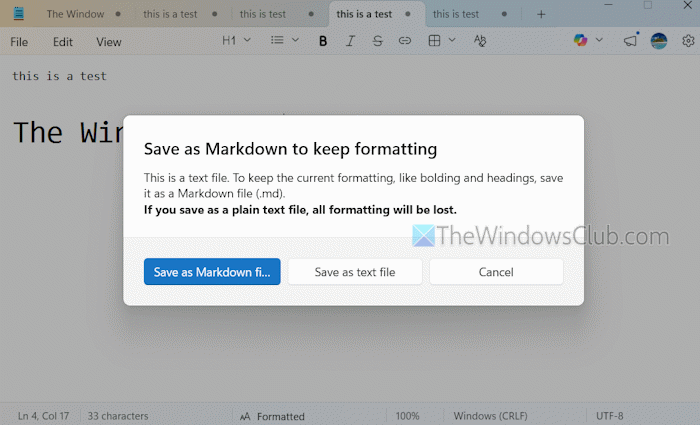
You can save the output as a Markdown file to keep all the formatting. For this, click on the File menu and select the Save as option. In the pop-up that appears, click on the Save as Markdown file button. If you save the output as a plain text file, all the formatting will be lost.
That’s all.
Now read: How to convert Markdown to Word document
What is the Markdown tab in Notepad?
A Markdown tab in Notepad lets you write using syntax and view all Markdown characters, which is more useful for experienced users. There won’t be any Formatting toolbar, and you can’t preview the output unless you enable it manually. For this, you need to access the View menu in Notepad and select the Formatted option under the Markdown section.
Read next: How to replace Notepad with Microsoft Edit on Windows PC.
