
Alongside the recently introduced Write and Rewrite features, Microsoft has now added a Summarize feature to the Notepad app. This new feature allows you to quickly transform long pieces of text into short, high-level summaries, making it easier to review notes, drafts, or copied content without reading everything line by line. In this guide, we’ll show you how to use the Summarize feature in the Windows 11 Notepad app to enhance your writing with AI.
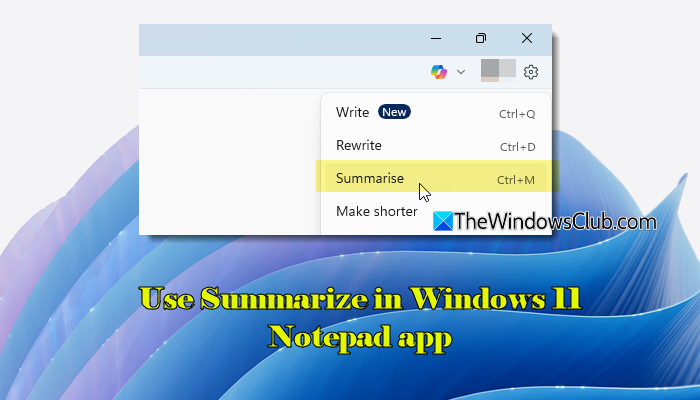
The feature is available in newer versions of the Notepad app (version 11.2508.28.0 and later) and is being rolled out gradually through Microsoft Store updates. On Copilot+ PCs, summaries can be generated using on-device AI and do not require a subscription. On non-Copilot+ PCs, Notepad uses cloud-based AI, which requires AI credits included with a Microsoft 365 Personal or Family subscription (even if you are signed in with a Microsoft account). At present, Summarize supports English only.
Use Summarize in Windows 11 Notepad to Enhance Writing with AI
Here’s how you may use the Summarize feature in the Windows 11 Notepad app to enhance writing with AI:
- Open the Notepad app.
- Paste or type the text you want to summarize.
- Select the text.
- Click Summarize, then choose the AI Model (on Copilot+ PCs) and the summary length.
- Review the AI-generated summary.
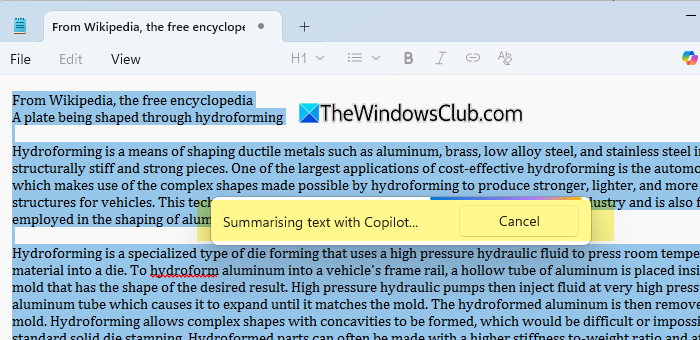
Let us see this in detail.
First, open the Notepad app on your Windows 11 PC. You can either open an existing text file or start with a new, blank document.
Next, paste or type the content you want to summarize. This can be a long paragraph, notes, or any text you want to shorten using AI.
Now, select the text you want to summarize. If you want Notepad to summarize the entire document, you can leave the text unselected.
Next, you may perform any of the following actions to invoke the Summarize feature:
- Press the Ctrl + M keys.
- Click the Copliot button in the top-right corner of the toolbar, and then select Summarize from the menu that appears.
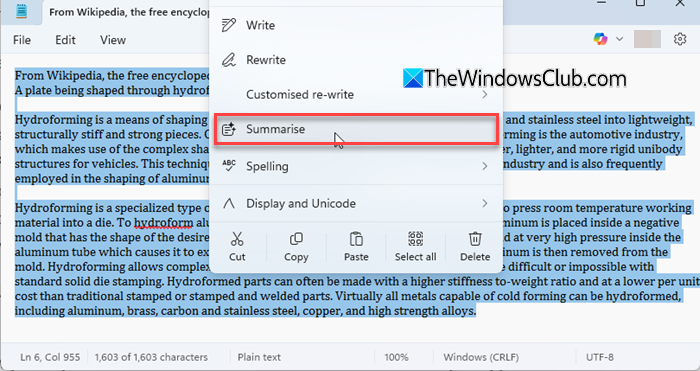
- Right-click the text and select Summarize from the context menu.
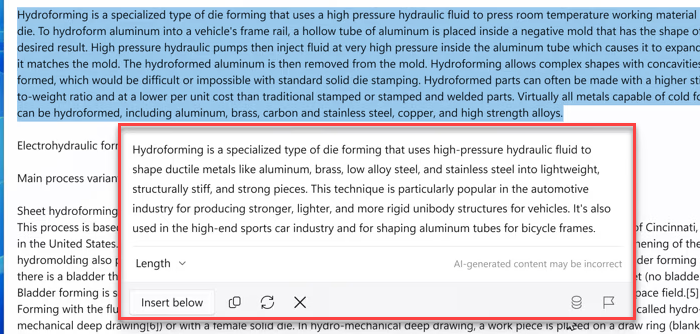
Once the process starts, Notepad generates an AI-powered summary of your text. You can review the summary and take appropriate action:
- Insert below: Inserts the generated summary directly below the selected text in your document.
- Copy: Copies the summary to the clipboard, allowing you to paste it into another document or app.
- Try again: Regenerates the summary if you’re not satisfied with the current result.
- Discard: Closes the summary without saving or inserting it into the document.
On Copilot+ PCs, you may select the desired AI model for text summarization. Click the Choose model button, then select the model you want to use:
- On device: Use this model to generate summaries locally on your PC. It does not require a subscription and does not rely on cloud processing.
- Enhanced: Use this model to generate more detailed summaries using Microsoft’s cloud-based AI. It requires you to be signed in and uses AI credits included with a Microsoft 365 Personal or Family subscription.
You can also adjust the length of the summary based on your needs. Click the Length option and choose Short, Medium, or Long.
That’s how you can use the AI-powered Summarize feature in Notepad to work with text more efficiently.
Read: How to turn off Overtype in Notepad in Windows 11.
How to enable AI in Notepad?
AI features in Notepad are enabled automatically when you install a supported version of the app (version 11.2508.28.0 or later). Once available, options like Summarize, Write, and Rewrite appear in the toolbar. You must sign in with a Microsoft account, and on non-Copilot+ PCs, an active Microsoft 365 subscription may be required.
What AI can I use to summarize my notes?
You can use Microsoft’s built-in generative AI in the Windows 11 Notepad app to summarize your notes. On Copilot+ PCs, summaries are generated using on-device AI, while other systems rely on cloud-based AI. The model used depends on your device and whether you have access to cloud AI credits.
Read Next: How to reset Notepad to default settings on Windows.
