
Uploading files to ChatGPT for analysis or processing is now common. However, ChatGPT does not automatically delete all uploaded files or generated images when you end a session or close your browser. If you use ChatGPT regularly, these files can accumulate over time and consume your available storage. They may also contain sensitive information that you may not want to retain longer than necessary.
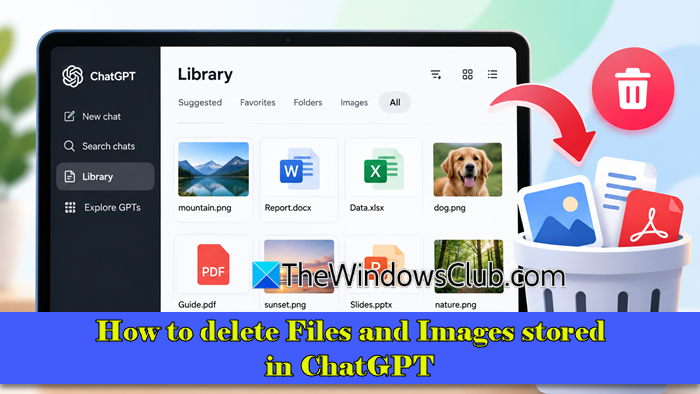
Deleting files from your ChatGPT account helps manage storage and reduce the risk of unintended access. In this post, we will show you how to delete files and images stored in ChatGPT on a Windows 11/10 PC.
How to delete Files and Images stored in ChatGPT
To delete files and images stored in your ChatGPT account, follow these steps:
- Check your storage usage in ChatGPT.
- Delete files and images from ChatGPT Library.
- Permanently delete files from ChatGPT Trash.
Before deleting files from ChatGPT, it is important to understand the difference between Library Storage and Memory. Although both help ChatGPT retain information, they serve different purposes.
ChatGPT provides a dedicated Library that stores files you upload or create in ChatGPT, such as PDFs, Word documents, spreadsheets, and AI-generated images. You can access these files and reuse them in future conversations. If you no longer need a file, you can delete it from Library to manage your stored content.
Memory, on the other hand, allows ChatGPT to remember useful details about you, your preferences, and your ongoing activities to personalize future responses. For example, ChatGPT may remember your favorite color or that you usually want documents formatted as Word files.
You can manage Memory under Profile > Settings > Personalization, where you can review or delete Saved Memories. However, clearing Memory does not delete files stored in Library or free up Library storage. Similarly, deleting a file from Library does not automatically clear information saved in Memory.
Now let us take a detailed look at how to delete files and images stored in ChatGPT.
1] Check storage usage in ChatGPT
Before deleting anything, check how much storage your files and images are consuming. This helps you identify whether you need to remove documents, images, or both. Follow these steps:
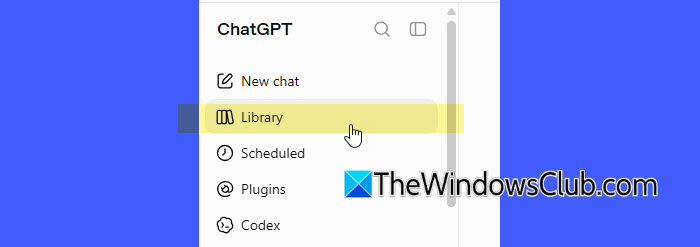
Open ChatGPT in your browser and sign in to your account. Open Library from the sidebar.
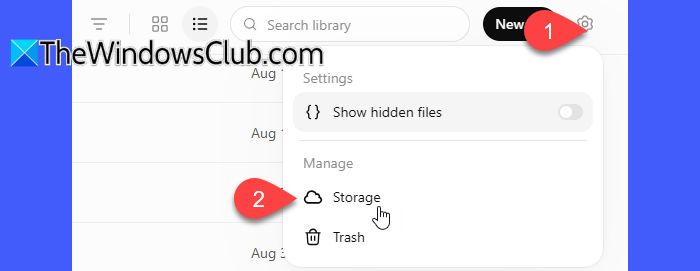
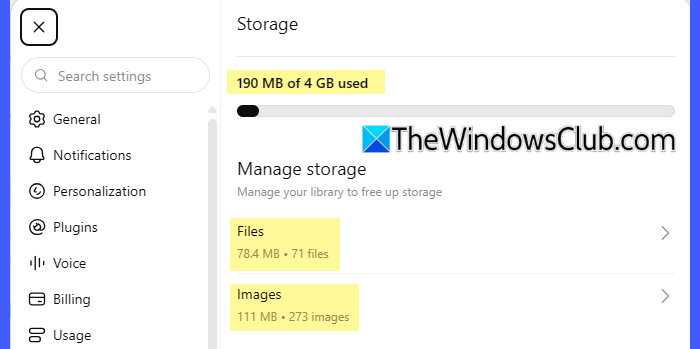
Click the gear icon in the upper-right corner. Select Storage.
ChatGPT displays your storage usage, including the total space used, the available storage limit, and separate usage information for files and images. Check which category is consuming the most space and proceed accordingly. For example, if images account for most of your usage, you can filter the Library to display images and remove the ones you no longer need.
2] Delete files and images from ChatGPT Library
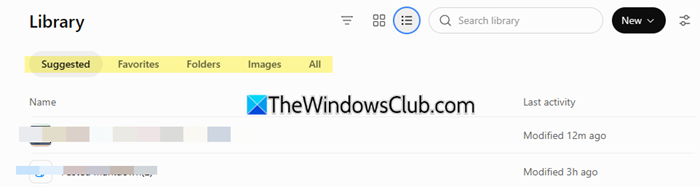
Open Library in ChatGPT. You will see 5 different tabs:
- Suggested: Displays suggested files and images. You can filter items by file type, switch to List view, and select multiple items for deletion. It is a useful starting point for bulk cleanup.
- Folders: Displays folders associated with your Projects. Open a folder by clicking its name to view and delete individual files inside it. Be careful when selecting the checkbox beside a folder, as it may select the entire folder for deletion.
- Favorites: Displays files and images you have marked as favorites for quick access. Review this tab before deleting items to ensure you do not accidentally remove files you want to keep.
- Images: Displays images as larger thumbnails in Grid view, making it easier to review them visually.
- All: Displays all available Library items and supports filtering, List view, and bulk deletion.
Select the Filter icon at the top. Under Source, select Uploaded to view files you uploaded or Generated to view files created by ChatGPT.
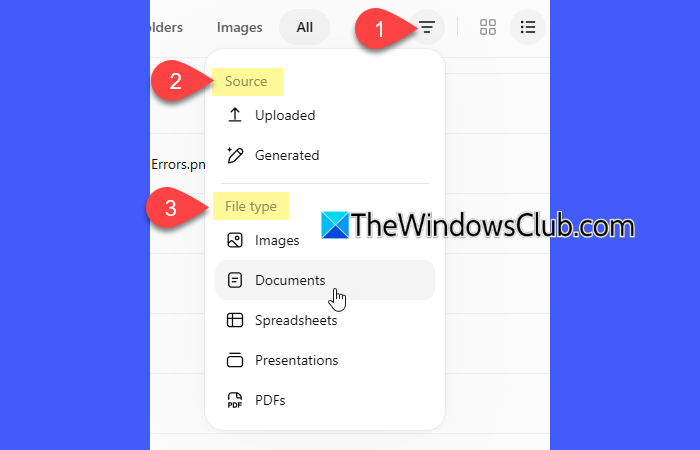
Under File type, select the category you want to view, such as Images, Documents, Spreadsheets, Presentations, or PDFs.
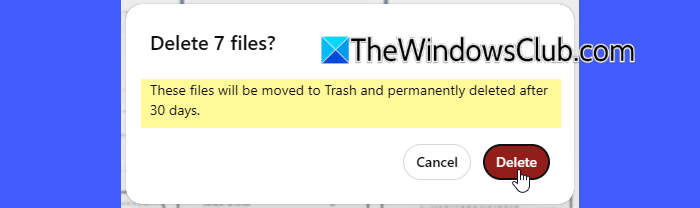
Review the filtered results and select the files you want to delete. If you have a large Library, scroll down gradually to load more items before selecting files. Click Delete in the selection bar.

Confirm the action when prompted.
3] Permanently delete files from ChatGPT Trash
Deleting a file from Library moves it to Trash. The deleted file may continue to count toward your storage usage until it is permanently removed. OpenAI schedules deleted Library files for permanent deletion within 30 days. However, you can manually delete them sooner by following these steps:
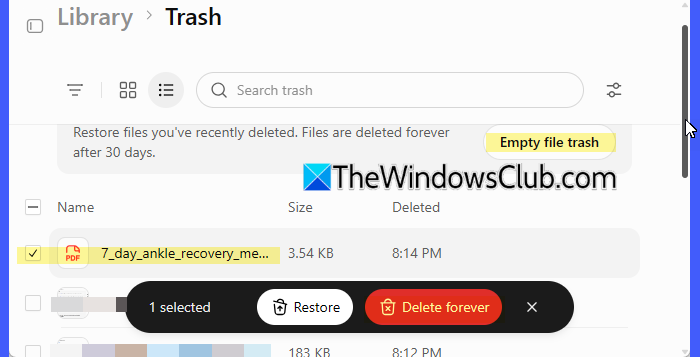
Open Library in ChatGPT. Click the gear icon in the upper-right corner. Select Trash.
Review the deleted files. Click Empty trash to permanently delete all items in Trash. Alternatively, select the files you want to remove and click Delete forever.
Confirm the action when prompted.
Note: Permanently deleting files cannot be undone. Review the contents of Trash before clicking Empty trash, especially if you have recently deleted files you may need again.
That’s all! I hope you find this helpful.
Read: ChatGPT memory not working.
Does ChatGPT keep your photos?
ChatGPT saves photos you upload or generate in a dedicated Library. You can access and reuse these photos in future conversations. They remain available in the Library until you delete them. Deleted images move to Trash and are scheduled for permanent deletion within 30 days, unless you permanently delete them sooner.
Can you remove files from ChatGPT?
Yes, you can delete uploaded files and generated images from the ChatGPT Library. Deleted files move to Trash, from where you can permanently remove them using the Empty trash or the Delete forever option.
Read Next: ChatGPT showing blank screen.
