
If ChatGPT shows a blank screen on Windows 11 or Android, here is how to fix it. Since there are many possible causes, we’ve listed the most common reasons and solutions so you can fix this problem regardless of your subscription type or device.
Why is ChatGPT showing a blank screen?
If ChatGPT is showing a blank screen, these could be the reasons:
- The server is down.
- You have some internet connection-related problems.
- Your VPN or proxy is not working.
- Your browser cache and cookies are outdated.
- Your Private DNS is blocking ChatGPT.
- Other apps are causing conflicts with the ChatGPT app.
ChatGPT showing a blank screen
If ChatGPT is showing a blank screen, follow these instructions:
- Check if ChatGPT server is down
- Empty cache and hard reload
- Sign out and sign in again
- Create a new chat
- Try Incognito mode
- Check your internet connection
- Remove site data and try again
- Temporarily disable VPN and proxy
- Disable browser add-ins
- Switch to another mobile network
- Empty ChatGPT cache on mobile
- Update the app.
To learn more about these solutions, continue reading.
1] Check if ChatGPT server is down
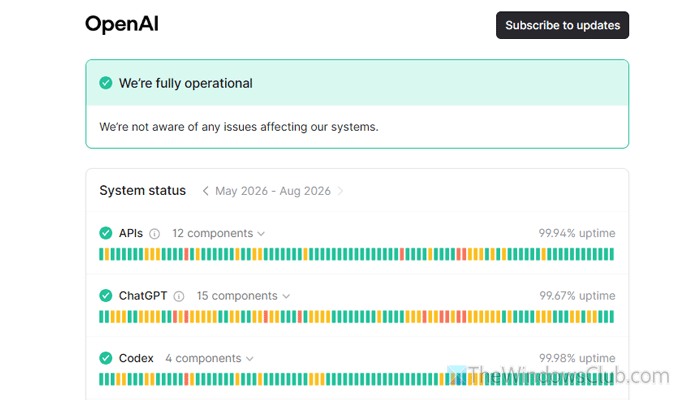
This is the first thing you should check, because if the issue is on the official side, there is nothing you can do. That is why we suggest visiting status.openai.com to check whether everything is operational.
If everything is up and running, follow the other solutions. If you see an error message, wait a few minutes before trying the next solutions.
2] Empty cache and hard reload
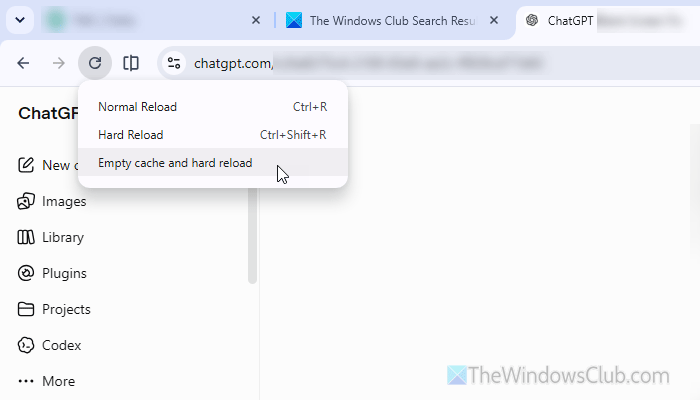
Sometimes, this problem can happen because of an outdated cache or other data. That is why we suggest emptying the cache and hard-reloading the ChatGPT website. For that, open the ChatGPT website and press F12.
Right-click on the reload button and select Empty cache and hard reload (Google Chrome) or Empty cache and hard refresh (Microsoft Edge).
Read: Normal Reload, Empty Cache & Hard Reload in Chrome browser
3] Sign out and sign in again
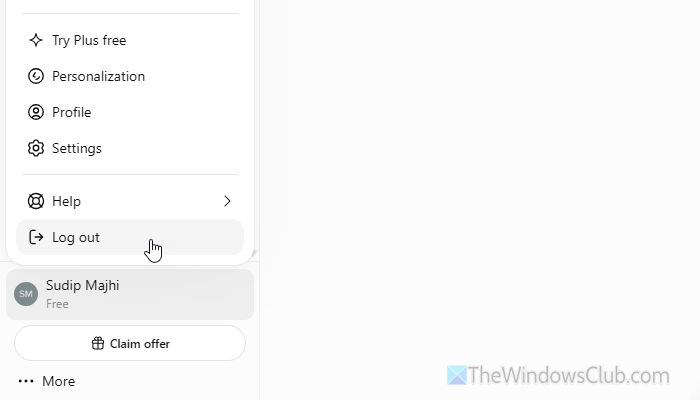
To sign out of your ChatGPT account, click on your name visible in the bottom-left corner and select the Log Out option. Then, you will be able to enter your credentials to log in again. It helps when ChatGPT fails to fetch your new subscription.
Read: How to Activate or Cancel free ChatGPT Go subscription in India
4] Create a new chat
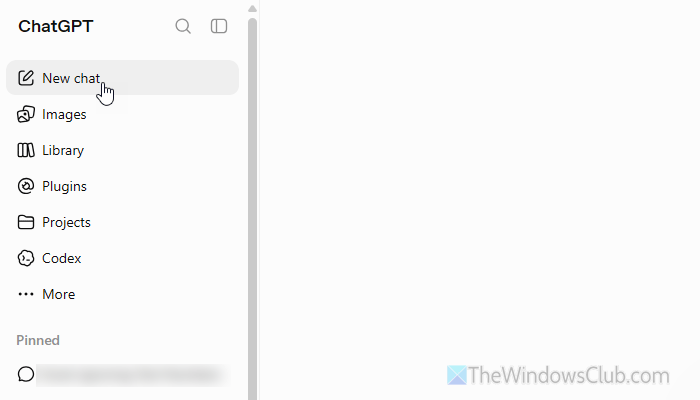
If you are using a free account and have been using the same chat for a long conversation, you may run into this issue. Simply create a new chat and continue your conversation. For that, click on the New chat option visible in the top-left corner.
Then, you can ask the same questions that you asked earlier.
5] Try Incognito mode
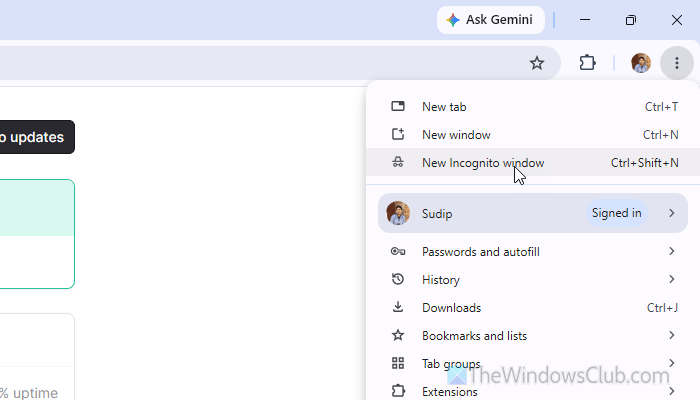
If you have changed a lot in your browser and think this problem might be related, you can use Incognito mode. You can simply press Ctrl+Shift+N or click on the three-dotted icon > select New Incognito window.
If you are using Edge, you can find the same option under New InPrivate window.
6] Check your internet connection
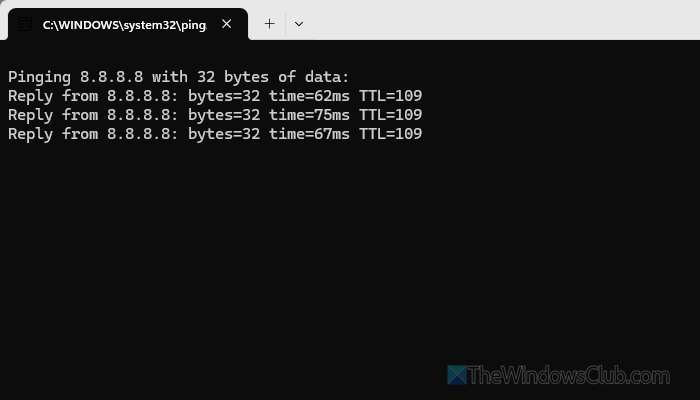
If you have internet issues, you can check them using the ping tool. Following that, you can change your internet source. For example, if you are using Ethernet, use mobile data and vice versa. You can also use USB tethering, mobile hotspot, etc.
To run the ping tool, press Win+R > type ping 8.8.8.8 -t and hit the Enter button.
Read: Best Free Ping Monitor Tools for Windows PC
7] Remove site data and try again
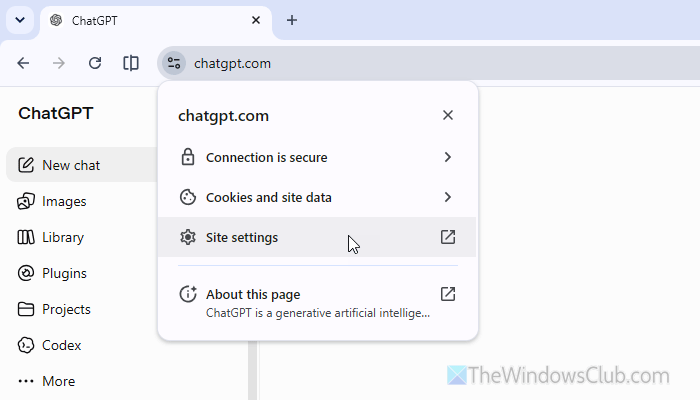
To remove the site data, open the ChatGPT website and click on the icon visible before the website URL. Then, click on Site settings.
Next, click the Delete data button.
Then reopen the ChatGPT website and log in to your account to start using it again.
8] Temporarily disable VPN and proxy
If you use a VPN or proxy, disable it temporarily, as it may cause this issue. Whether you use ChatGPT on a computer or mobile, don’t use a VPN or proxy right now. If it works, disable them while using ChatGPT. Otherwise, you can keep using them.
Read: Disable Proxy or Prevent changing Proxy settings in Windows 11
9] Disable browser add-ins
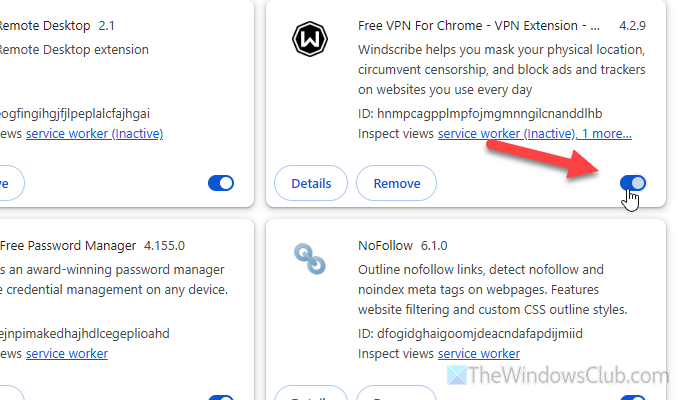
If you use security, privacy, VPN or ad-blocker extensions or add-ins, disable them. Sometimes, ChatGPT may not work smoothly with these extensions installed. To disable extensions in Google Chrome, you can follow this guide.
10] Switch to another mobile network
If you use 5G all the time but your current location isn’t compatible with that generation, you may get a blank screen when using ChatGPT. That is why you can switch between 4G and 5G to resolve this issue.
11] Empty ChatGPT cache on mobile
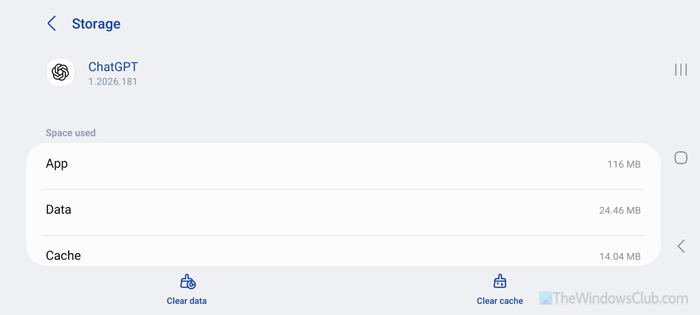
To clear the ChatGPT cache on mobile, tap and hold the ChatGPT icon, then select the info icon. Then, tap on the Force stop option. Next, go to Storage and select Clear cache. Following that, select Clear data to reset the app.
Once done, restart the ChatGPT app.
Read: How to stop ChatGPT from using old chats
12] Update the app
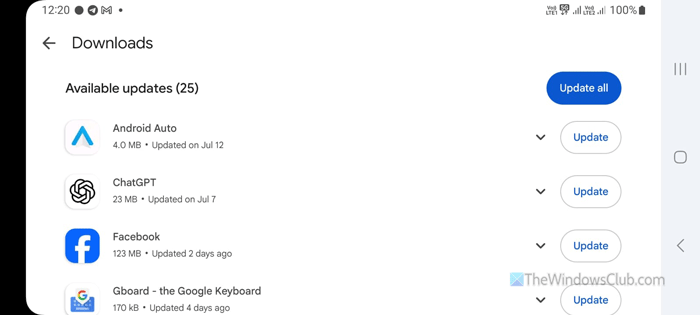
If you haven’t updated the ChatGPT app in a long time, it is highly recommended that you do so. Open the Google Play Store to find the update. Once done, it will run smoothly.
Read: Fix ChatGPT Network Error on long responses or answer
Why isn’t ChatGPT showing anything?
Although there are many reasons, some of the most common are your internet connection, browser cache issues, incorrect VPN or proxy settings, etc. Also, if the ChatGPT server is down, you won’t find anything while having a conversation.
Read: ChatGPT Dictate not working
Is ChatGPT down right now?
You can check the current status on status.openai.com. If it says operational, there is no problem. However, if you see a message saying there are issues, you may need to wait a few moments.
