
ChatGPT is a great tool released by OpenAI. Millions of users worldwide are using it for various purposes, like getting answers to their questions, writing code, etc. However, some users see a network error while trying to get long answers for their prompts on ChatGPT. In this guide, we show you how you can fix the ChatGPT network error that you may see on long responses or answers.
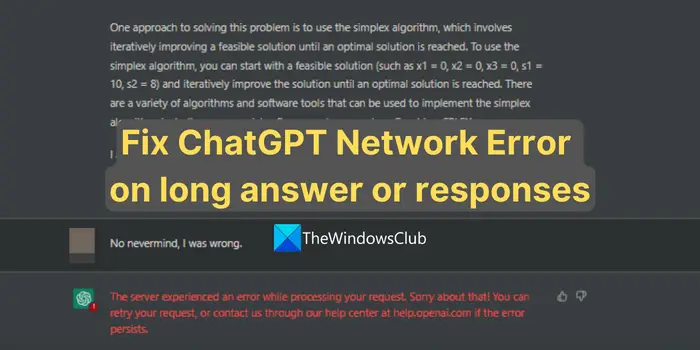
Why does ChatGPT keep giving me a network error?
The network errors on ChatGPT are caused by the following factors:
- Network Congestion: When a high volume of data is transmitted over a network, it can cause a delay or drop in packets.
- Server issues: ChatGPT is a complex AI model that requires significant computing resources to work properly. If the server capacity is reached or insufficient to handle the volume of requests, you see this error.
- Connectivity issues: If there are any network issues on your side or on ChatGPT’s backend, you will see network errors.
- Security settings: The security settings like a Firewall or antivirus program on your computer might interfere with the traffic of ChatGPT.
Let’s see how to fix the error and get long responses on ChatGPT normally.
Fix ChatGPT Network Error on long responses or answer
If you see network errors on ChatGPT while trying to get long answers or responses, you can follow the methods below to fix them.
- Hard Refresh the webpage
- Check your internet connection
- Check the server status of OpenAI
- Clear the Cache of your browser
- Reduce the length of your inputs
- Disable VPN
- Try using a different browser
- Contact OpenAI support
Let’s get into the details of each method.
1] Hard Refresh the webpage
The first thing you need to do is hard refresh the ChatGPT page when you get network errors. This can fix network errors caused by congestion.
To do a Hard Refresh, press Ctrl+F5 or, while holding Ctrl, click the Refresh button near the address bar. You can also press Ctrl+Shift+R.
You can also open ChatGPT in a new tab and try getting answers. It will also work.
2] Check your internet connection
If you have internet issues, fix them. Find if the internet is slower than usual using the online speed test tools. If you experience slow speeds, you should fix network issues to resolve the ChatGPT error.
3] Check the server status of OpenAI
Check if the servers of OpenAI are working fine using the OpenAI status page. If there are any issues, you need to wait until they are fine to get rid of the network error. If everything is fine, you can use the methods below to fix the issue.
4] Clear the Cache of your browser
If you see a network error on ChatGPT, you need to clear the cache of your browser and see if it helps you fix the error. If the cache is corrupted, clearing it can fix the issue and make space for a fresh cache.
Read: An error occurred, Please contact us through help.openai.com
5] Reduce the length of your inputs
Sometimes the length of your inputs or prompts might cause a network error. They may be too long or too confusing for ChatGPT. Break your prompt into a few smaller ones and try again. This might take more time than usual, but it is worth it.
Read: ChatGPT History is temporarily unavailable
ChatGPT History is temporarily unavailable
6] Disable VPN
The location you selected on the VPN might be causing the network error. Disable the VPN or change the location to see if it fixes the error. If you do not want to disable VPN, you can enable split tunnel in the Settings of your VPN program and add a browser to it to bypass VPN on that browser.
Read: ChatGPT is at capacity right now meaning
7] Try using a different browser
Try accessing ChatGPT in a different browser to see if it helps you get longer answers or responses. Extensions or browser settings might be causing the error. Trying ChatGPT in another browser can rule out those causes and fix the network error.
8] Contact OpenAI support
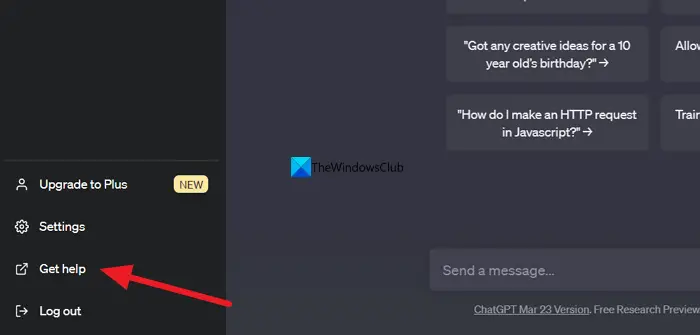
If none of the above methods helped you fix the error, you need to contact OpenAI support to get your issues resolved. To do that, click on the Get help button at the bottom-left of the ChatGPT page and follow the on-screen steps.
Here are the different methods you can use when you see network errors on ChatGPT while trying to get long answers or responses.
TIP: Take a look at these free ChatGPT alternatives too.
How do I get longer responses on ChatGPT?
To get longer responses on ChatGPT, clearly state what you want in your prompt. Your prompt should also include details about your needs. After you get the answer, you can ask ChatGPT to continue and get a more detailed, longer response.
Read: We’ve detected suspicious behavior on ChatGPT.
