
Are you dealing with the problem of high CPU usage when playing the New World game on Windows PC? This guide will help you fix the New World high CPU usage problem. New World is a multiplayer online role-playing game by Amazon Games which is gaining popularity fast. Some gaming enthusiasts who love playing New World have reported high CPU, Memory, GPU usage of the game, which affects the game and system performance. If you are experiencing the same problem, here is how you can resolve it. Just try the fixes we have mentioned below and you should be able to resolve the issue.

Before we get to the solutions, it is recommended to check whether your system meets the minimum requirements to play Amazon Games’ New World smoothly.
System requirements for New World
Minimum requirements:
OS: Windows 11/10 (64-bit)
Processor: Intel® Core™ i5-2400 / AMD CPU with 4 physical cores @ 3Ghz
Memory: 8 GB RAM
Graphics: NVIDIA® GeForce® GTX 670 2GB / AMD Radeon R9 280 or better
Storage: 50 GB available space
DirectX: Version 12
Network: Broadband Internet connection; Internet connection required to play
Recommended specifications:
OS: Windows 11/10 (64-bit)
Processor: Intel® Core™ i7-2600K / AMD Ryzen 5 1400
Memory: 16 GB RAM
Graphics: NVIDIA® GeForce® GTX 970 / AMD Radeon R9 390X or better
Storage: 50 GB available space
DirectX: Version 12
Network: Broadband Internet connection; Internet connection required to play
Fix New World High CPU, Memory, GPU usage on PC
If you face High CPU, Memory, GPU usage, Overheating or Temperature problems when playing New World game on your Windows 11/10 PC then here are the proven fixes.
- Disable unnecessary background programs and apps.
- Make sure your graphics drivers are updated to the latest version.
- Install the latest Windows Updates.
- Tweak your PC’s power plan.
- Allow high graphics performance for the game.
- Repair system files using SFC scan.
- Try lowering in-game settings.
- Verify the integrity of game files.
Let us elaborate on the above methods now!
1] Disable unnecessary background programs and apps
If there are too many programs and processes running in the background on your PC, it can consume a significant amount of your CPU resources. In that case, try closing any necessary background applications and then relaunching the game. To disable unnecessary background apps, you can follow the steps below:
- Firstly, open the Task Manager using Ctrl + Shift + Esc key combination.
- Now, from the Processes tab, look for the resource-hungry application and select it.
- Next, click on the End Task button to shut it down.
- Repeat the above steps for all the unnecessary background processes.
- Finally, relaunch the New World game and check if the high CPU usage issue is now resolved.
If this doesn’t resolve the issue for you, proceed to the next potential method.
2] Make sure your graphics drivers are updated to the latest version
Out-of-date and faulty drivers are known to cause high CPU usage of games including New World. For best gaming performance, it is crucial to have the latest graphics drivers installed on your system. If you have outdated graphics drivers on your PC, it is time to update them to the most recent version. This will improve the overall gaming performance and should also fix the high CPU usage issue.
To manually update graphics drivers on Window 11/10, you can go to the Settings > Windows Update and download & install the latest graphics drivers under the Optional Updates section. Apart from that, you can also visit the official website of your device manufacturer and download the latest GPU drivers from there.
In case you want to automatically update graphics drivers, there are some third-party driver updaters that you can use. For example, IObit Driver Booster, Driver Talent, and DriverFix are a few nice driver update software that you can try.
After updating the graphics drivers to the latest version, restart your PC and launch New World. Hopefully, the issue of high CPU usage will now be resolved.
Read: Fix Phasmophobia high CPU usage and temp on PC.
3] Install the latest Windows Updates
The high CPU usage of your game can also be caused by an outdated system. With new updates, compatibility issues and bugs are fixed that might be causing high CPU usage issues. If you don’t update your Windows system regularly, consider updating your PC to the latest build.
To update Windows, you can simply open the Settings app using Windows + I hotkey and go to the Windows Update section. From here, click on the Check for updates button and then install all the available updates. On updating Windows, the PC will restart to apply changes. You can then try launching New World and see if the problem of high CPU usage is fixed now.
Fix: New World Connection Errors on Windows PC.
4] Tweak your PC’s power plan
You can try changing your PC’s power plan from ‘Balanced’ to ‘Best Performance’ to fix the error. By default, your system’s power plan is set to Balanced that might limit CPU speed. You can switch to High Performance to run the CPU at full capacity. To do that, open Settings using Windows + I key and then go to System > Power & battery section. From here, select the Power mode drop-down and choose the Best performance option.
Launch the game and check whether the problem is resolved now. If not, move on to the next potential fix to resolve the issue.
See: Fix High CPU Usage by XboxStat.exe in Windows
5] Allow high graphics performance for the game
You can try setting high graphics performance mode for New World. It might reduce the CPU usage as the components that require GPU in the game will be using the GPU instead of the CPU. Try this workaround to see if it resolves the issue.
Here is how to apply this method:
Open Settings by pressing Win+I hotkey and then go to the System > Display > Graphics section.
Click on the Browse option and select NewWorld.exe. You might find it at the following location:
C:\Program Files (x86)\Steam\steamapps\common
Once you have added New World executable, click on the Options button.
Select High Performance and tap the Save button.
NVIDIA users can follow the steps below for setting high graphics performance mode:
- Open NVIDIA Control Panel from the taskbar search button.
- Go to Manage 3D settings > Global Settings and set the High-performance NVIDIA processor as your preferred graphics processor.
- Click the Apply button to save changes.
Check whether this method helps you resolve the issue of New World’s high CPU usage. If not, go ahead with the next solution.
Read: Fix High Disk & Memory Usage when playing Games on Windows PC.
6] Repair system files using SFC scan
The high CPU usage of New World might also be caused by corrupted or damaged system files. Hence, you can try scanning and repairing system files using the System File Checker (SFC) scan. Here are the steps to perform an SFC scan:
First of all, open the Command Prompt as an administrator.
Next, type the below command in CMD:
sfc /scannow
Now, press Enter and let Windows scan and repair damaged system files.
When the scan is complete, restart your PC and check if the high CPU usage problem has been resolved.
See: Fix Game Stuttering with FPS drops in Windows.
7] Try lowering in-game settings
Another method to fix the issue is to lower the in-game graphics settings. If you have set high in-game graphics settings, it may affect the CPU and, consequently, result in high CPU usage. You can try adjusting the in-game graphics settings to medium or low to see if it improves the performance for you. Open your game’s graphics settings and try adjusting V-sync, Shadow quality, Anti-aliasing, and Video quality settings accordingly.
8] Verify the integrity of game files
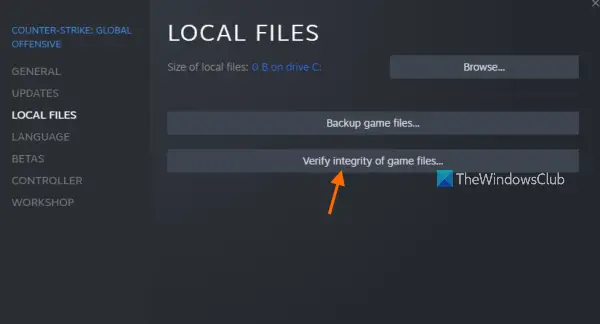
The problem may be triggered by corrupted game installation files associated with New World. Hence, try verifying the integrity of your game files on Steam and see if it resolves the issue for you. Here are the steps to do that:
- Firstly, open Steam and click on the LIBRARY option from the top menubar.
- Now, from the list of games, select the New World game and right-click on it.
- Next, select the Properties option from the context menu.
- After that, go to the Local Files tab and tap on the Verify Integrity of game files button.
- The verification process will take a few minutes. Once it is done, relaunch New World and see if the problem is resolved now.
Hope this helps.
How do I fix high CPU and GPU usage?
Depending on the app, you need to perform several steps to resolve high CPU and GPU usage issues while using the Windows 11/10 OS. You can start by terminating the application using Task Manager. Next, you can update the drivers, tweak a few app settings, close unnecessary apps, and so on.
How do I fix high CPU usage in Monster Hunter World?
To fix the high CPU usage in Monster Hunter World, make sure you have updated your GPU card drivers, verify the game on Steam, update the Windows OS, or limit the game FPS. You can also try setting the priority for MHW.exe to Low in the Task Manager.
Now read: Fix Modern Warfare Warzone’s High CPU Usage on PC.
