
Windows 11 Task Manager allows users to manage apps and processes running on their computer. Whenever an application is launched, it appears in the Task Manager. If you have ever used the Task Manager, you might have noticed multiple processes of the same application(s). This happens only with some specific applications. In this article, we will discuss why multiple processes of the same program may be running on Windows 11.

Multiple processes of the same program running on Windows 11
If you see multiple processes of the same program running on your Windows 11 PC, there is no need to panic, as this is a normal behavior of all Windows computers. However, if you experience performance issues with your system, it may indicate an underlying issue that needs your attention. In this article, we will explain why multiple processes appear, how to identify the legitimate ones, and what to do if they start affecting your system’s performance.
Why do multiple processes appear in Windows PCs?
Modern applications utilize a multi-process architecture to achieve optimal performance and enhance stability. Multiple processes are most commonly associated with web browsers. Whether it is Edge, Chrome, or Firefox, all of these use a multi-process architecture. Hence, when you open the Task Manager after launching a web browser, you will see its multiple processes.
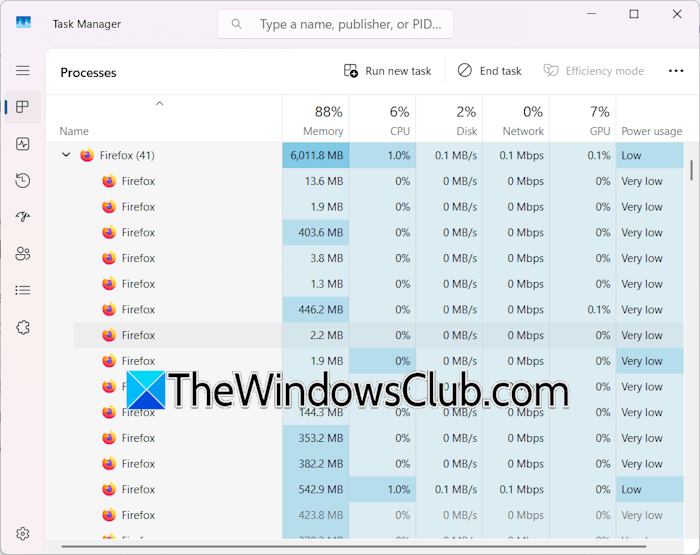
Out of these multiple processes, some manage tabs, extensions, and plugins. Due to this multi-process architecture, if a tab crashes, it does not affect other open tabs or the entire web browser.
Similarly, some third-party programs run background services or helper processes for different tasks such as updates and synchronization. These additional processes are part of the application design and are harmless to your system.

Apart from web browsers, some other programs also show multiple processes. These multiple processes are used to manage multiple tasks by those programs. For example, if you have Adobe Acrobat Reader installed on your system, you will see the processes in the Task Manager:
- Acrobat Collaboration Syncronizer
- Acrobat Update Service
These processes run continuously in the background, regardless of whether Adobe Reader is running or not. The Adobe Collaboration Synchronizer process handles the collaboration features and syncing documents. The Acrobat Update Service helps keep Acrobat Reader up to date.
Related: Why are there multiple instances of Microsoft Edge and Microsoft Edge Update in Task Manager?
How to differentiate legit and a malicious or fake process
When you see multiple instances of the same program running on your Windows computer, it is essential to determine whether they are legitimate or malicious processes. You can differentiate between a legitimate and a malicious process easily by viewing its signature. Here is how to do that:
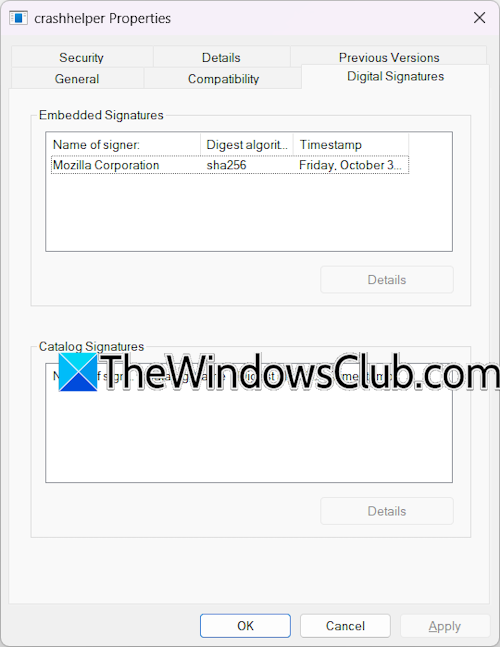
In the Task Manager, right-click on the process and select Open file location. This will open the File Explorer and highlight the process. Now, right-click on the highlighted process and select Properties. Select the Digital Signatures tab and view the name of the signer. If the signer appears suspicious, scan the file with Windows Security or a third-party antivirus. You can also scan it online on VirusTotal.
How to fix multiple processes of the same program running on Windows 11
If you experience performance issues with your system due to the multiple processes of the same program, here are some suggestions that you can follow:
- Check for updates
- Check for memory leaks
- Close browser tabs and disable extensions
- Uninstall and reinstall the affected program
- Add more RAM
Let’s start.
1] Check for updates
The first step is to check for updates for the affected program. Visit the official website of the program developer and look for its updated version. If an updated version is available, download and install it.
2] Check for memory leaks
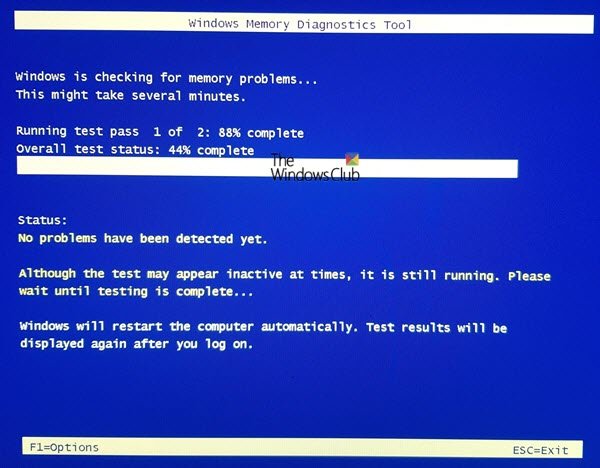
There might be a memory leak issue. To check this, close the program completely. If the RAM remains occupied, this can be a memory leak. In this case, you can apply some fixes, like updating the affected program to the latest version, or running the Memory Diagnostic Tool, etc.
3] Close browser tabs and disable extensions
Web browsers use a multi-process architecture to manage tabs, extensions and improve performance. This is a normal behaviour. However, if your system lags due to this, you can close unwanted tabs. Some web browsers, like Edge, have a feature called Sleeping Tabs to reduce the system resource consumption. If you’re browser does not support Sleeping Tabs, you need to close unwanted tabs to reduce the RAM consumption.

Some of the web browser processes manage extensions. These processes also consume your system resources. Disable unwanted extensions to reduce the RAM consumption. Sometimes, an extension consumes a lot of RAM due to a bug. You can check this by disabling all the extensions. If this resolves the issue, you know that it is an extension-related issue. Now, enable the extensions one by one to find the culprit. Once you find it, uninstall it and look for its alternative.
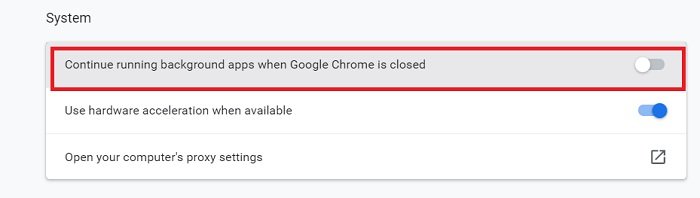
There is a setting in Edge and Chrome that allows processes associated with them to run in the background even after closing the browser. Turn these settings off.
4] Uninstall and reinstall the affected program
If a particular program is consuming too much RAM, there might be a bug. Uninstalling and reinstalling it can help.
5] Add more RAM

Running multiple instances of the same program in Windows 11 is a normal behavior and should not impact your system’s performance unless the processes are suspicious or malicious. However, you may experience a lag in your system’s performance if you work on multiple such programs simultaneously. In such a case, consider upgrading to a higher RAM capacity. Add more RAM so multiple applications can work flawlessly on Windows 11.
That’s it. I hope this helps.
Can a single program have multiple processes?
Yes, a single program can have multiple processes on Windows 11/10. This is because different processes of the same program manage different tasks. If you open the Task Manager and go to the Processes tab, you will see multiple processes of the same program. These processes handle various tasks, such as updating services and synchronization.
How to run the same application twice in Windows 11?
Some applications allow you to run multiple instances, whereas some do not. To run multiple instances of the same application, you just have to launch it again from the Windows search. If the application supports multiple instances, Windows will launch a new instance of that application.
Read next: How to fix Performance issues in Windows.
