
This tutorial will show you how to enable or disable Sleeping Tabs in the Microsoft Edge browser. The feature has been designed to improve battery life and overall performance. Once you enable the feature, it will help you save resources by putting the background tab into sleep mode. You can also specify the time after which Edge tabs should be put to Sleep or exclude tabs of some websites.
Automatically suspend tabs in Microsoft Edge
The Sleeping Tabs feature is enabled by default but you can disable it manually using a hidden experimental flag. It is available in the latest Edge for Windows and macOS.
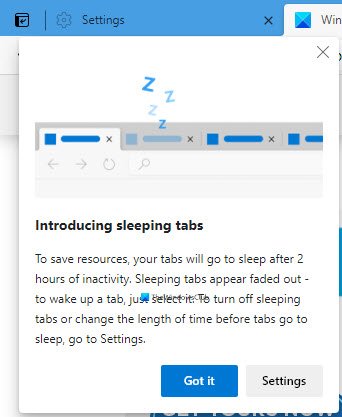
Enable or Disable Sleeping tabs in Edge browser
To enable or disable Sleeping tabs in Microsoft Edge, follow these steps:
- Launch Edge browser
- Navigate to
edge://settings/system - Click on System and Performance
- Now click on performance
- Toggle the switch against Automatically put tabs to sleep to On or Off as required.
- Restart Edge.
Let us see this in a bit more detail.
Open the Microsoft Edge browser.
Then go to the top-right corner of the page and hit Settings and more (three-dotted line) button.
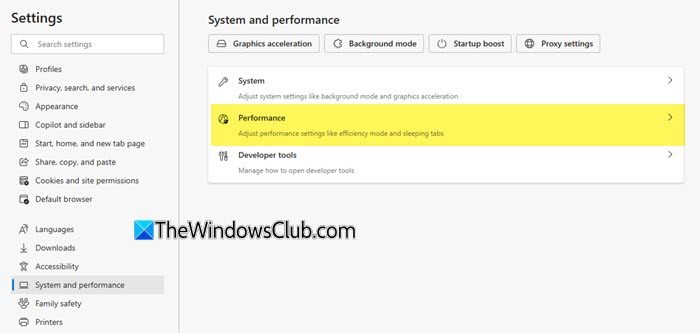
Select Settings > System and performance.
Now move to the right side and go to the Performance section.
Next to the Automatically put tabs to sleep, click on the toggle button to turn it OFF if you want to disable sleeping tabs in Edge.
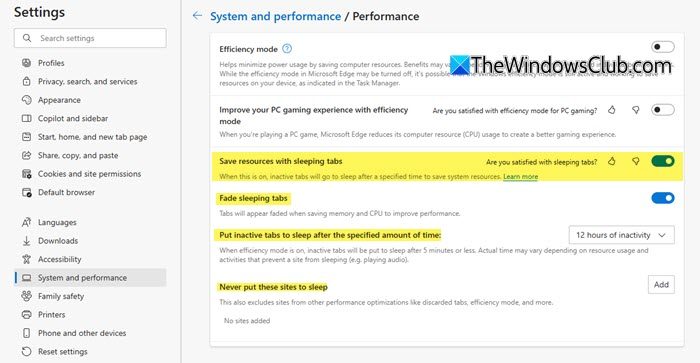
If you have turned it ON, then you have the option to Fade sleeping tabs. You may set it to ON or OFF depending on your preference.
Specify the time after which Edge tabs should be put to Sleep
You can also specify the time after which the tabs can be put to sleep using the drop-down menu against Put inactive tabs to sleep after the specified amount of time setting.
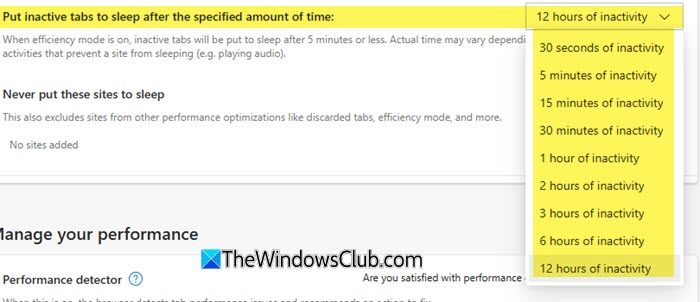
Besides this, you can prevent some sites from going into sleep mode.
Don’t put these sites’ Edge tabs to sleep
If you wish to exempt one or more sites from being put to sleep, you can specify the URL here in the Never put these sites to sleep setting.
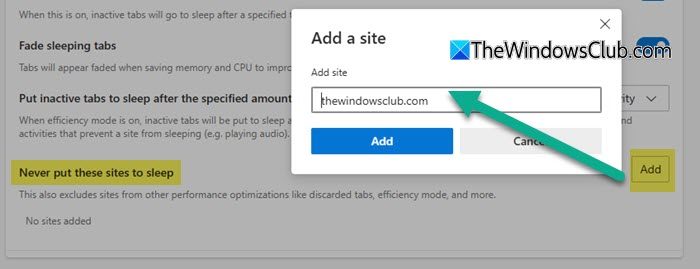
Restart the browser and you’re done.
Let us know how you like this feature.
TIP: You can also turn on or off Sleeping Tabs in Edge using Registry or Group Policy Editor.
Disable Edge Sleeping tabs completely using Flags
You have to use this Edge Flag to disable this feature altogether.
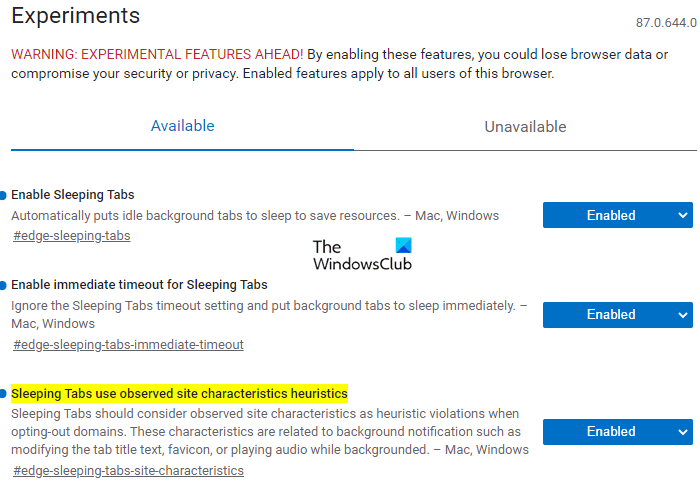
First of all, open the Microsoft Edge browser.
Go to the address bar, copy & paste the text line below, and hit Enter.
edge://flags/#edge-sleeping-tabs
In the below section, you will see a highlighted flag entitled Enable Sleeping Tabs.
On the right of this flag, click on the drop-down menu and switch it to Disabled.
Similarly, go to the address bar and disable the following flags one by one:
edge://flags/#edge-sleeping-tabs-immediate-timeout
edge://flags/#edge-sleeping-tabs-site-characteristics
Then click on the Restart button. This will affect the changes when you restart the browser.
What does “sleeping a tab” mean?
“Sleeping a tab” in Microsoft Edge refers to a feature that puts inactive tabs into a low-power state, freeing up system resources such as memory and CPU. This helps enhance browser performance by ensuring that active tabs operate smoothly and efficiently, thereby improving the overall user experience without requiring the closure of unused tabs.
How do I improve Microsoft Edge performance?
To enhance Microsoft Edge performance on Windows 11/10, keep the browser updated, disable unnecessary extensions, enable Efficiency Mode, enable Sleeping tabs and regularly clear your cache and cookies.
Related reads:
