
If Edge is not deleting cache when you exit the browser, even after enabling this feature, this article will be helpful. As there could be various reasons, we have consolidated some of the most common and widely encountered ones, along with solutions to get rid of this problem.
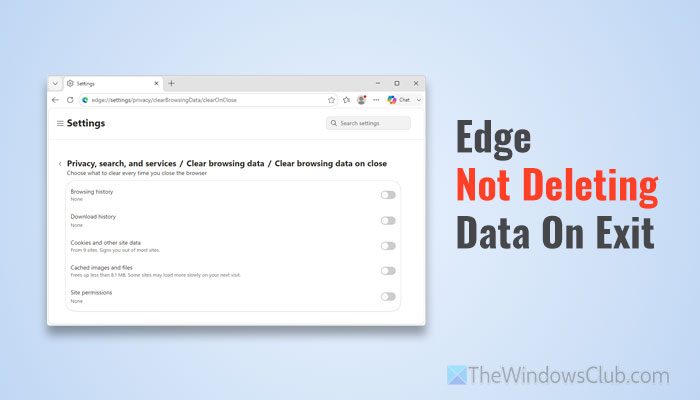
What is Clear browsing data on close in Edge?
Clear browsing data on close option helps you automatically clear browsing data, such as browsing history, download history, cookies, cache, site permissions, etc., when you close the browser.
Why is Clear browsing data on close not working on Edge?
If the Clear browsing data on close option is not working on Edge, one of these could be the reason:
- The browser is creating a conflict with synchronized data.
- Your administrator has set restrictions on deleting such data. It is a very common issue among School and Work account holders.
- Your user profile has some problems.
- Edge is always running in the background, even when you close it by clicking the Close button.
Edge Clear browsing data on close not working
If Clear browsing data on close is not working on Edge, follow these solutions:
- Disable synchronization
- Try in another user profile
- Check Task Manager and close all background processes
- Check Group Policy settings
- Check Registry settings
- Disable Startup Boost
- Disable extensions
- Reset Edge.
To know more about these solutions, continue reading.
1] Disable synchronization
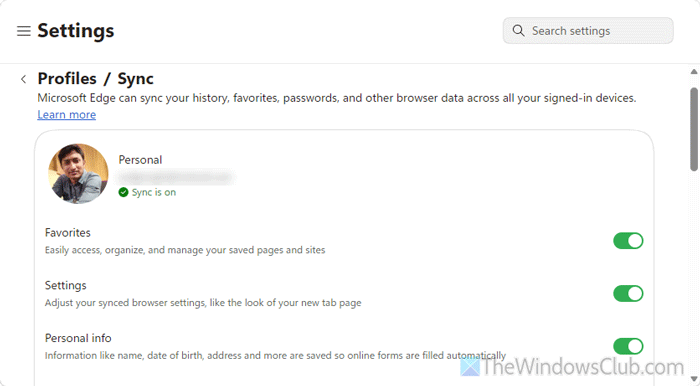
It is the very first thing you must check since synchronization may retain your data on another computer or the same computer. In case you don’t know, synchronization can let you send data from one computer to another computer and restore it again. That is why it is suggested to disable synchronization.
To do that, open the Edge Settings panel and make sure you are on the Profiles tab. If so, click the Sync option and toggle all the buttons OFF.
Once done, restart Edge and check whether the same problem persists.
Read: Fix Microsoft Edge sync issues on Windows 11
2] Try in another user profile
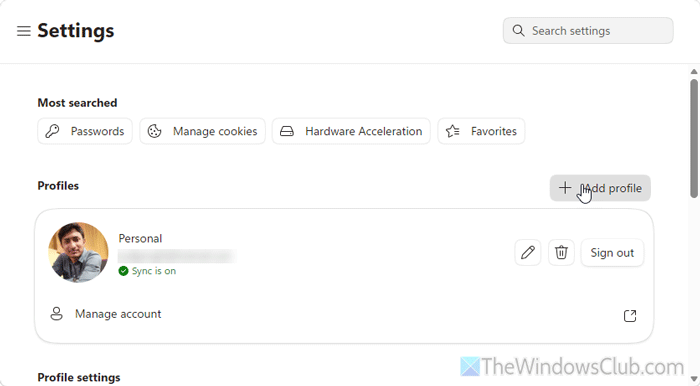
If the current profile has issues, you will encounter the same problem in the Edge browser. That is why it is recommended to create another profile and try the same settings in it.
To create another Edge profile, open the Edge Settings wizard and ensure that you are on the Profiles tab. Click on the Add profile button and click the Add button.
Once done, you will find a second window of the Edge browser. Click on the Start without your data button.
3] Check Task Manager and close all background processes
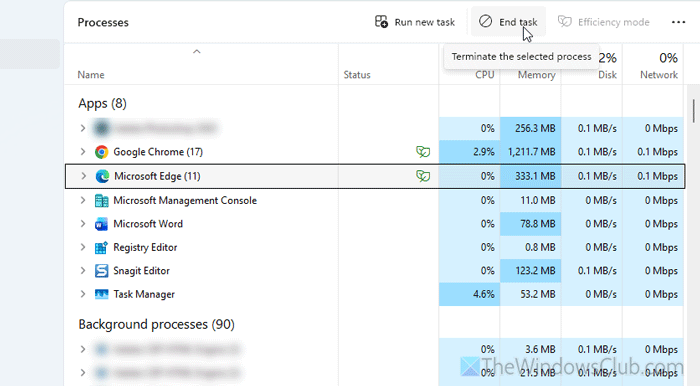
At times, you might click the close button, but a few processes will keep running in the background. That could be why Edge might not delete your data on exit, since the close button doesn’t actually close all processes or background services.
That is why it is recommended to check Task Manager and close all processes if any are running.
Read: How to force close a Program which Task Manager cannot terminate
4] Check Group Policy settings
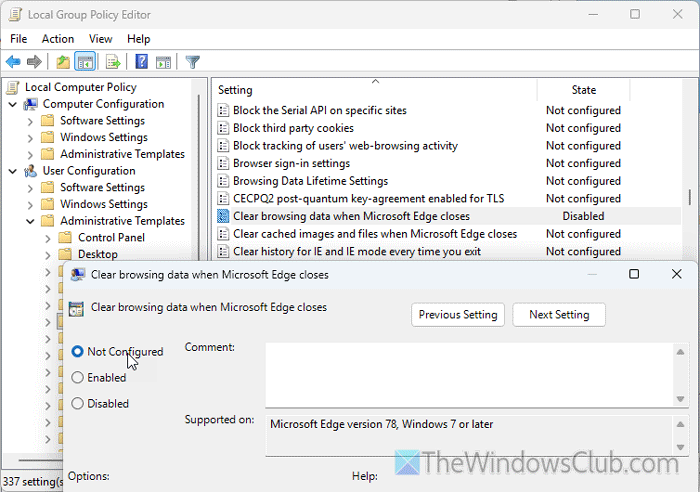
Note: If you have installed the Group Policy template for the Edge browser, follow this solution. Otherwise, skip it.
There is a setting named Clear browsing data when Microsoft Edge closes in the Local Group Policy Editor. If you have disabled this setting, Edge won’t be able to delete the data when you exit the browser.
Therefore, follow these steps to verify this Group Policy setting. Search for group policy in the Taskbar search box and click on the corresponding search result. Then, navigate to this path:
User Configuration > Administrative Templates > Microsoft Edge
Here you can see a setting named Clear browsing data when Microsoft Edge closes. Double-click on this setting and choose the Not Configured option.
Finally, click the OK button to save the change. Restart your computer to apply it.
Once done, open the Microsoft Edge browser and make the necessary changes in the Settings panel.
5] Check Registry settings
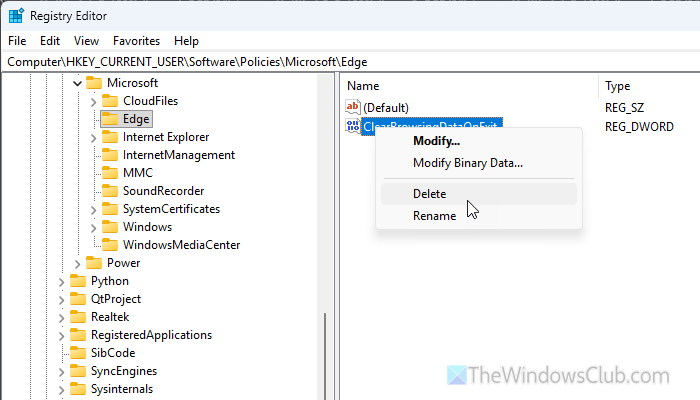
The same Group Policy setting can be found and applied through the Registry Editor. If you have changed these settings in Registry Editor or are not sure, here is how to check or verify the change.
First, open the Registry Editor and navigate to this path:
HKEY_CURRENT_USER\Software\Policies\Microsoft\Edge
Here you can find a REG_DWORD value named ClearBrowsingDataOnExit. You need to delete this value.
Finally, close all the windows and restart your computer.
6] Disable Startup Boost
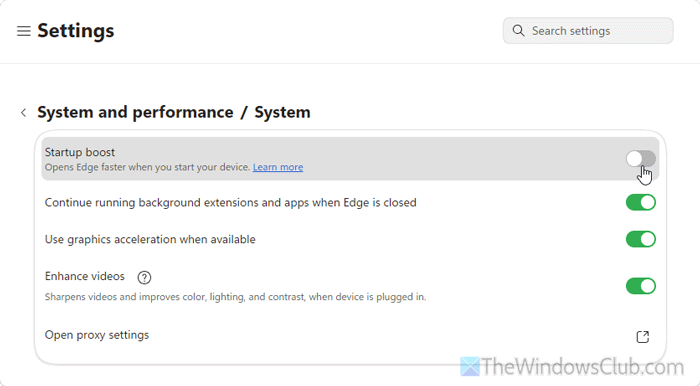
Startup Boost lets Edge run its processes in the background at startup so users can open the browser and websites swiftly. If you have enabled this feature, Edge won’t delete browsing data on exit.
That is why you must disable Startup Boost. For that, open the Edge Settings panel and go to System and performance > System. Then, toggle the respective button to turn off Startup Boost.
7] Disable extensions
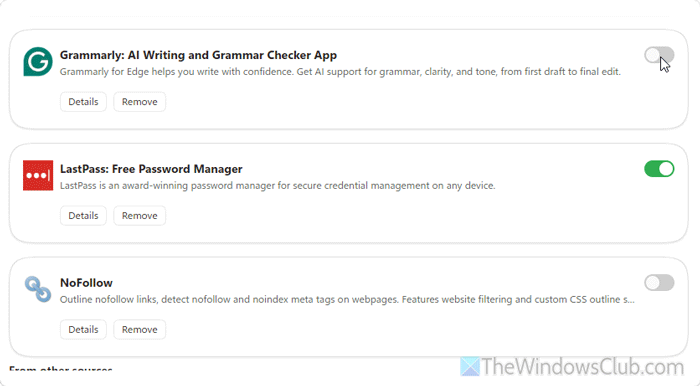
If you have installed quite a few extensions, they may start running in the background even when you close the browser. On the other hand, if the browser doesn’t close properly, it won’t delete the data.
That is why it is recommended to disable all the extensions first. Then, enable one extension at a time to find the culprit.
In case you don’t know how to disable extensions, open the Settings panel and go to the Extensions tab. Then, toggle the respective buttons to turn them OFF.
8] Reset Edge
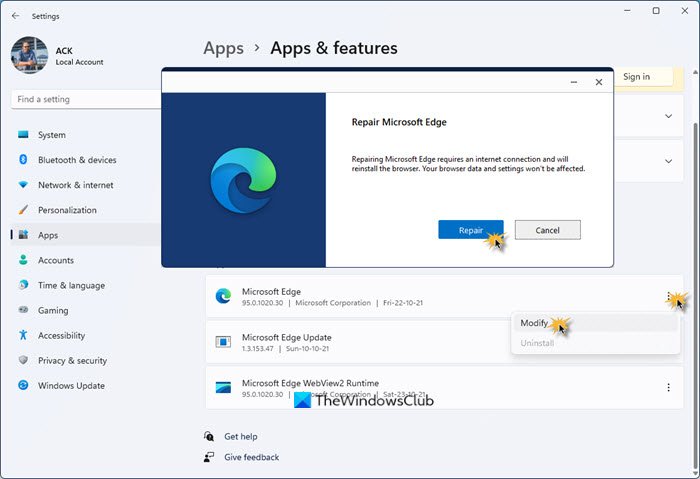
If nothing helps, resetting the Edge browser is sure to help.
Read: How to install, add, remove, disable Extensions in Edge browser
How to automatically clear browsing data when closing Edge?
To automatically clear browsing data when closing Edge, open the Settings panel of the Edge browser and navigate to this path: Privacy, search, and services > Clear browsing data > Choose what to clear every time you close the browser. Select what you want to delete by toggling the corresponding buttons.
Why is Edge browser not closing?
If you have enabled Startup Boost, you might be able to close the browser window, but it will keep on running in the background. You can either disable Startup Boost or terminate all background processes using Task Manager.
Read: How to force close a Program which Task Manager cannot terminate
