
Windows 11/10 supports Media Casting in Microsoft Edge, which enables the browser to cast video, picture, and audio content to any Miracast or DLNA-enabled device on its network. The capability can be tested through ‘Cast Media to device‘ option given in the browser.
Microsoft Edge Chromium browser supports video, audio, and picture casting to any Miracast and DLNA enabled devices. Microsoft has provided a few scenarios to try out, such as casting a video from YouTube, a Facebook photo album, or music from Pandora.
You can cast Microsoft Edge (Chromium) content to a Wireless Display, and the procedure is simple. Simply connect your wireless device to your PC, open Edge and search for multimedia content.
Enable Cast Media to device in Microsoft Edge
For casting a video from YouTube, go to YouTube.com in Microsoft Edge. Click on the ‘Settings and more‘ option (visible as 3 dots) in the extreme right-hand corner.
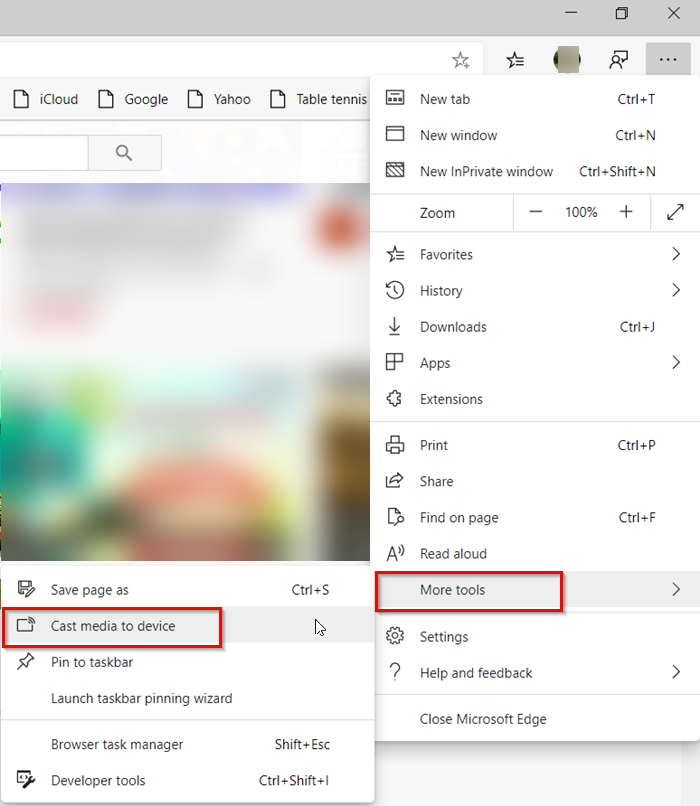
Then, select ‘More Tools‘ from the list of options displayed and then, ‘Cast media to device’.
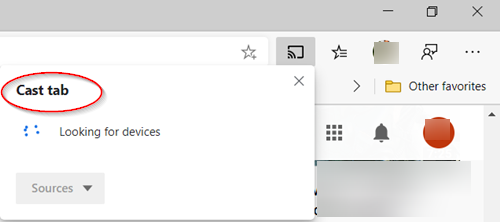
The browser will then start looking for a Miracast or DLNA device you want to cast to.
To cast a Facebook photo album, simply login to Facebook in Microsoft Edge and click on the first photo in one of your photo albums to cast. Click on the “…” menu and select ‘More Tools‘ > ‘Cast media to device’ and select the Miracast or DLNA device you want to cast to. Later, navigate through your photo album by accessing the forward and backward buttons.
To cast your music from Pandora, log in to Pandora in Microsoft Edge to get to your music and click on the “…” menu and select ‘More Tools‘ > ‘Cast media to device’ and select the Miracast or DLNA device you want to cast to.
Disable Cast Media to device in Microsoft Edge
Recently, I noticed a casting icon that seems to be actively trying to cast the Edge browser to another device on my network. When I clicked on it, it showed a stop casting button. This is not ideal, as your device can cast without your active involvement. In this section, we show you how you can disable casting on Microsoft Edge.
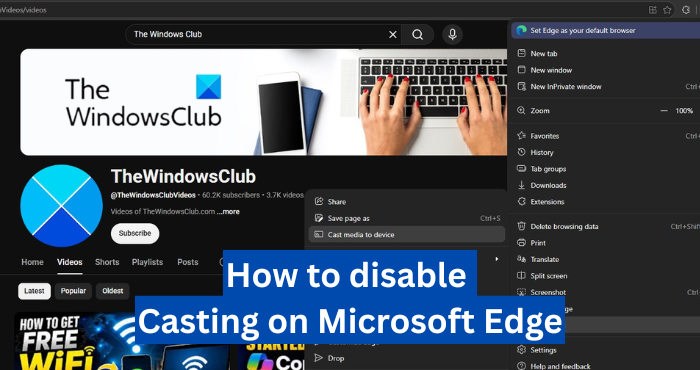
We see the “Cast media to device” option in More tools in Microsoft Edge. Clicking it searches for compatible devices and lets you cast the media from the Edge browser. If you do not have any use for the feature, you can disable it using the following methods.
1] Disable Connect to Cast devices in Edge flags
Flags in Microsoft Edge let us enable or disable additional features that improve the web browsing experience. Microsoft Edge flags contain the “Connect to Cast devices on all IP addresses” feature, which enables casting. To disable casting on Edge, we need to disable it in Edge flags. Navigate to edge://flags/ in the Edge browser and search for Connect to Cast devices on all IP addresses.
Click the drop-down beside Connect to Cast devices on all IP addresses and select Disabled.
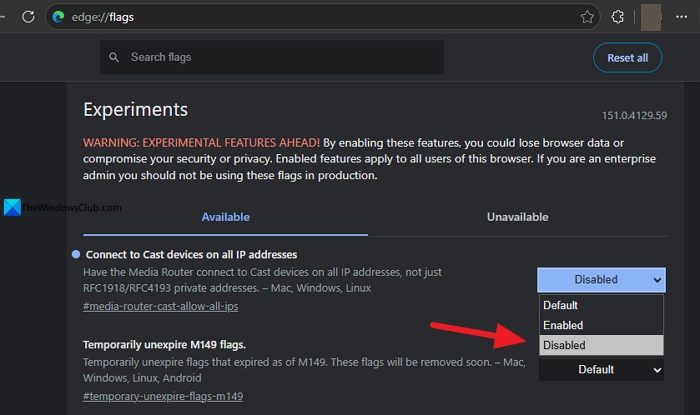
Restart the Edge browser to see that casting is disabled.
2] Disable casting on Microsoft Edge using the Registry Editor
Another way to disable casting in Microsoft Edge is through the Registry Editor. Before making any changes in the Registry Editor, make sure you back up the Registry so you can use it in case something goes wrong.
Open the Registry Editor on your Windows PC, and navigate to the following path.
Computer\HKEY_LOCAL_MACHINE\SOFTWARE\Policies\Microsoft\Edge
Double-click the EdgeDisableDialProtocolForCastDiscovery D-WORD entry. Set the Value data to 1 and click OK to save the changes.
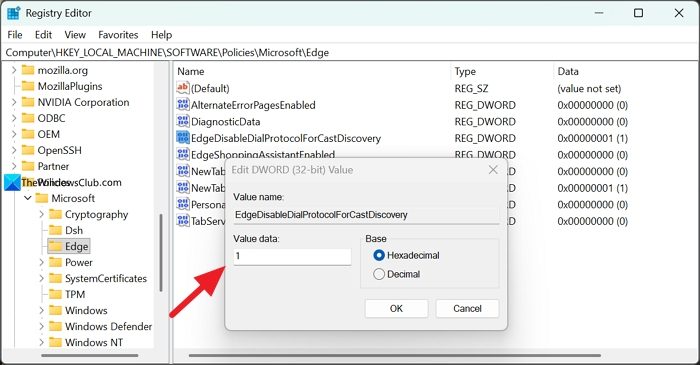
Close the Registry Editor and restart your PC to let the changes take effect.
3] Disable casting on Microsoft Edge using the Local Group Policy Editor
If you are a Windows 11 Pro user, you can access the Local Group Policy and disable casting on Microsoft Edge. Open the Local Group Policy Editor on your Windows PC, and navigate to the following path.
Administrative Templates/Microsoft Edge/Cast
Find EdgeDisableDialProtocolForCastDiscovery and double-click it. Then, set its value to Enabled. Save the changes and restart your PC.
4] Disable EnableMediaRouter entirely
Instead of disabling the casting feature on Edge, you can disable the casting feature on Edge entirely. After this, no casting service on Edge can use the casting feature. To do that, you must disable EnableMediaRouter on your PC. Once you disable EnableMediaRouter, there is no need to disable casting on Edge separately, as it makes no difference.
To disable EnableMediaRouter on your Windows PC, open the Registry Editor and navigate to the following path.
Computer\HKEY_LOCAL_MACHINE\SOFTWARE\Policies\Microsoft\Edge
Find the EnableMediaRouter DWORD entry. If there is no such entry, create a new DWORD (32-bit) Value and name it EnableMediaRouter.
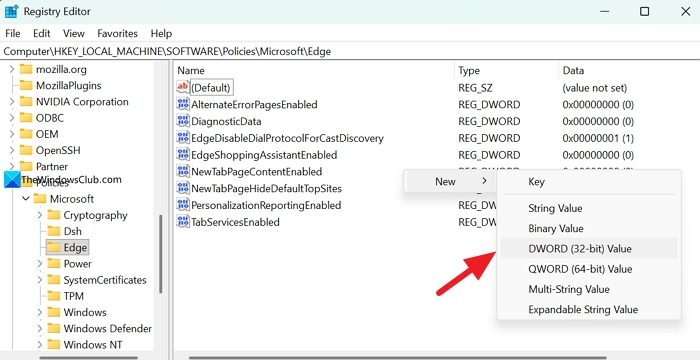
Double-click on it to open it and set its Value data to 0. Then, click OK to save the changes. If you set it to 1, the feature is enabled on your PC. Restart your PC.
5] Disable Cast Media to Device in Microsoft Edge from Context Menu
Alternatively, create a system restore point first and then copy-paste the following in Notepad and save it as a .reg file:
Windows Registry Editor Version 5.00

[HKEY_LOCAL_MACHINE\SOFTWARE\Microsoft\Windows\CurrentVersion\Shell Extensions\Blocked]
"{7AD84985-87B4-4a16-BE58-8B72A5B390F7}"="Play To menu"
Having done this, double-click on this .reg file to add its contents to your Windows Registry.
6] Use Nirsoft’s ShellExView
If you would like to disable or remove the entry ‘Cast Media to Device’ from your context menu, for some reason, you could use Nirsoft’s ShellExView and disable the ‘Play To menu‘ entry. The ShellExView utility displays the details of shell extensions installed on your computer and allows you to disable and enable each of them easily. Get the utility from this page.
TIP: This post will help you if Cast Media to device is not working on Microsoft Edge.
How do I enable Casting in Edge?
Casting on Microsoft Edge is enabled by default. If you have disabled the feature, you can enable it from Edge flags. Go to the Edge flags page, search for Connect to Cast Devices on all IP addresses, and select Enabled. If you have disabled EnableMediaRouter in the Registry Editor, navigate to the policy key and set its value to 1 to enable it.
Read: How to set up & use Miracast on Windows 11
Where to find Cast in Edge?
The Cast feature in Edge is easy to find. Click the three-dot icon on the toolbar and hover over More tools. In More tools, you can see Cast media to device. You can use the feature to cast to another supported device on the network using a casting device or with the internet. Your devices must be connected to the same network to cast.
Related read: How to project your Computer Screen to a TV
