
Tabbed internet browsing has come a long way. It is very common for most of us to open several tabs and work. I have a nasty habit of opening more than 40 tabs at once. Opening a large number of tabs will have a detrimental effect on your pc performance. More often than not, the laptop becomes sluggish, and the entire machine might freeze.
Hibernate tabs in Firefox and Chrome
The best solution is to be mindful of which tabs are useful and automatically close the others. That said, you can still use a tabbed browser without closing tabs. This can be done by temporarily freezing or hibernating the tabs and then unfreezing it as and when required. Now, let us take a closer look at all the methods we can use to hibernate tabs on Chrome and Firefox.
Hibernate tabs on Chrome using Browser Extension
Chrome is notorious for sucking up all your memory. We have seen a couple of updates designed to address this problem. However, even today, the Chrome browser ends up consuming a lot of memory. The problem gets worse if you have opened multiple tabs.
The Great Suspender was once a nifty extension that helped you hibernate tabs on Chrome and ensured your machine ran smoothly. However, it is no longer available.
In its place, we recommend using SessionBuddy or OneTab.
SessionBuddy is a tab manager that allows you to save open tabs as collections that can be easily restored later. It is great for freeing up memory and avoiding clutter. When your tabs are in the OneTab list, you will save up to 95% of memory by reducing the number of tabs open in Google Chrome.
Hibernating tabs in Firefox with Sleep Mode
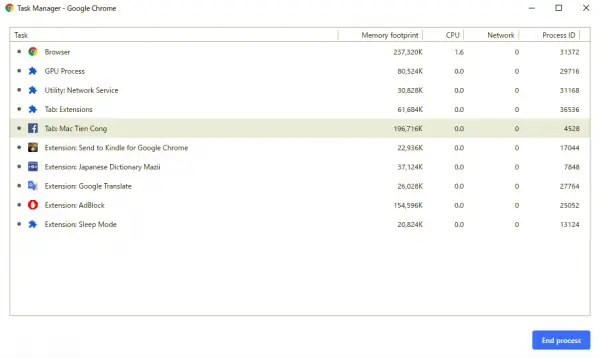
Sleep Mode is a relatively new Firefox extension that promises to automatically hibernate tabs. The makers of this extension claim that it helps reduce memory usage and ensures the machine runs without a hitch. Unlike the other extensions, Sleep Mode is based on Firefox’s new extension system and is here to stay.
You can install Sleep Mode like any other Firefox extension. Once installed the Sleep Mode icon will appear on the Firefox toolbar. Sleep Mode can be activated with a simple click on the icon. After activation, the extension springs into action and hibernates all inactive tabs. While testing the extension, I found the RAM usage to be significantly reduced.
When the Sleep Mode is enabled, there is only one active tab in Firefox. The content on the other tabs will be frozen. That said, the audio/video will stop on the suspended tab. A second click on the Sleep Mode button will automatically unfreeze all the tabs, and your browser will revert back to normal mode. The downside is that you may need to open a new tab to reload it.
I wish the developer had added other features that allowed me to freeze a single tab or pinned tab. In other words, it would be great if users got more options to freeze/unfreeze the tabs. Download the Firefox extension here.
Related reads:
- How to enable or disable Tab Snoozing in the Opera
- Enable or Disable Sleeping Tabs in Microsoft Edge.
