
This post covers different workarounds you can try if Inscryption keeps crashing or freezing on your Windows PC. Developed by Devolver Digital, Inscryption is a popular card-based deck-building video game available for PC. Since its release on Steam, the game has mainly received positive reviews from critics. But this doesn’t mean it is free from problems. As reported by users, the game is crashing on their Windows PC. There’s nothing to worry about if you are also facing the issue; we’ve got you covered. Try the solutions below to fix the crash issue on your Windows PC.
Inscryption keeps crashing or freezing on PC
Here are all the effective solutions you can try if Inscryption keeps crashing or freezing on your Windows 11/10.
- Ensure the system matches the minimum requirement
- Close unnecessary background running applications
- Run the game in administrator mode
- Download the latest Graphics Driver update
- Enable Game Mode
- Run Inscryption on dedicated GPU
- Whitelist Inscryption from Windows Firewall
- Verify Integrity of Game Files
- Reinstall the Game
Now let’s check out all these solutions in detail.
1] Ensure the system matches the minimum requirement
Although Inscryption is a comparatively new game, it can easily run even on a low-end device. However, if you have an extremely old system, you might face a compatibility issue. Check out the minimum requirements to run Inscryption on Windows.
Minimum requirements
- OS: Windows 7
- Processor: Intel Core i5-760, AMD Athlon II
- RAM: 4 GB RAM
- GPU: GeForce GTX 550 Ti, Radeon HD 6850 (1024 VRAM)
- Free space: 2 GB available space
If your system doesn’t meet the minimum requirements, you will encounter crashes. And in this case, you can’t do anything other than upgrading your system. But on the other hand, if your system matches the requirement, and still the game is crashing on your system, there can be some issues on your system. Continue with the troubleshooting guide to fix the problem.
Fix: Hl2.exe is not responding or has stopped working
2] Close unnecessary background running applications
Unnecessary background-running applications can be the primary cause of the crash issue. The situation applies especially to users with low-end devices. As it turns out, different applications running in the background will consume system resources, which will automatically cause a game crash. Close all background-running applications in Task Manager to fix the problem.
Open the Task Manager on your system > Right-click on unnecessary applications > End Task. Now, restart your system and launch the game. Check if the crashing issue continues.
See: Fix WWE 2K22 keeps crashing on PC after startup
3] Run the Game in administrator mode
Inscryption requires administrative privileges to run without any issue on Windows PC. But if this isn’t the case, i.e., you haven’t granted the game administrative rights, it’s no surprise you’re experiencing crashes. To provide administrative rights to the game, go to its file location. Right-click on the exe file > Properties > Compatibility > Run as an administrator > Apply > OK.
That’s it. Now launch the game and check if you’re still facing the problem. If yes, try the next solution on the list.
4] Enable Game Mode
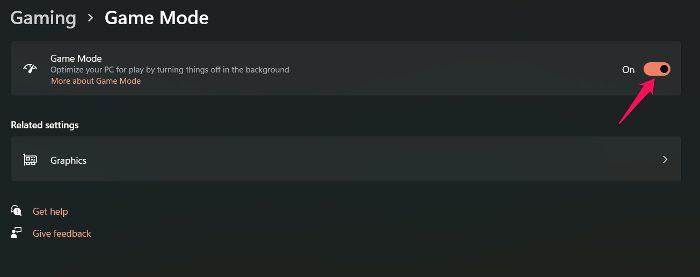
Windows 11/10 comes with a dedicated gaming mode feature. You can enable it to enhance the gaming experience. It optimizes the PC by turning things off in the background, and it will automatically fix the crashing problem. Here’s how you can enable Game Mode on Windows PC.
- Open the Settings menu using the Windows + I hotkeys.
- Click on the Gaming present at the left panel of the screen.
- Click on the Game Mode option.
- In the following window, enable the Game Mode toggle.
Now, launch the game, and check for the problem.
See: Dota keeps crashing or freezing on Windows PC
5] Download the latest Graphics Driver update
Not only Inscryption, but you will also face problems in different applications if you haven’t downloaded the latest graphics driver update. You need to have the latest drivers installed on your system to run the game without any issue. So, here’s how you can download the latest graphic driver update on Windows 11/10.
- You can download the latest Graphics driver update using Settings > Windows Update > Advanced options > Optional updates feature.
- Alternatively, you can visit the official device manufacturer’s website to download the drivers.
6] Run Inscryption on dedicated GPU
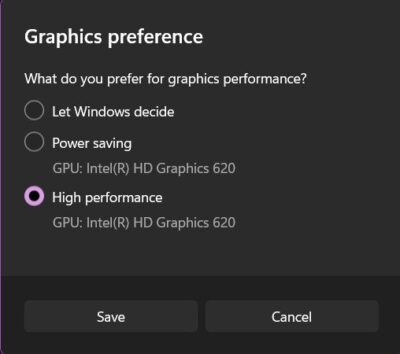
The next thing you can try is to run Inscryption on a dedicated GPU. You can do so by following the below steps.
- Open the Settings window by pressing Windows + I shortcut key.
- Navigate to System > Display > Graphics.
- Locate Inscryption, and tap on it.
- Click on Options.
- Select High performance in the following window.
- Click on Save.
Now, check if the problem is solved or not. If not, try the next solution on the list.
See: Kena Bridge of Spirits keeps crashing on Windows PC
7] Whitelist Inscryption from Windows Firewall
It has been noticed that Windows Firewall interferes in the game’s launch and cause the crashing issue. To solve the problem, you will have to allow the game from the Windows Firewall. Also, temporarily disable any third-party antivirus program installed on your system while running the game.
8] Verify Integrity of Game Files
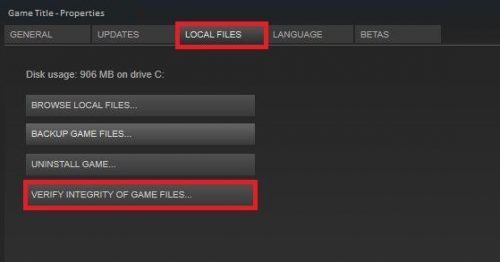
Corrupted game files can be another major cause of the crash. But thankfully, you can resolve the issue using Steam’s Verify integrity of game files feature. Here’s how it’s done.
- To begin with, open the Steam client and click on the LIBRARY menu present at the top.
- Now, look for Inscryption from the list of installed games.
- Right-click on it, and from the context menu, choose the Properties option.
- Click on the LOCAL FILES tab and click on Verify integrity of game files.
- Let the verification process be complete, and once done, relaunch Inscryption and see if the issue is now resolved.
9] Reinstall the Game
If you are still experiencing the problem, you have no other option but to reinstall the game. The crashing issue can be caused by an installation error. So, reinstall the game carefully to fix the problem.
Why does my game keep crashing PC?
If games keep crashing on your Windows PC, then it indicates that you haven’t downloaded the latest Graphics Driver update. Most modern games require the latest graphics driver to run without any issues. Additionally, the problem can occur due to corrupted game files.
Why do my games keep crashing on startup?
If your system isn’t compatible with the game’s minimum requirements, you will face the crashing issue during startup. If the game was working fine earlier but has started crashing on startup now, it indicates that the game files have been corrupted. You can solve this problem using Steam’s Verify integrity of game files feature.
Read Next: Fix Fortnite keeps crashing or freezing on Windows PC.
