
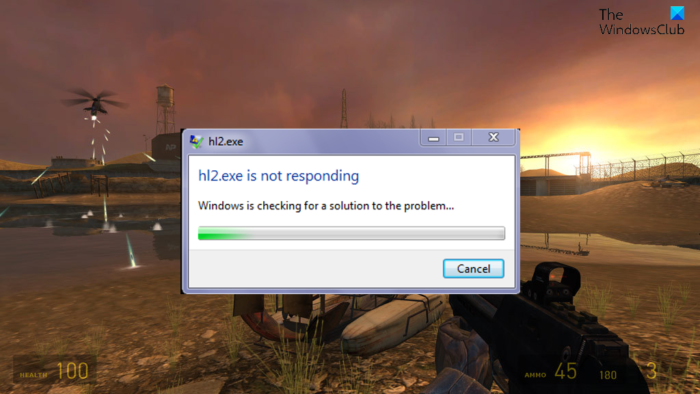
If the hl2.exe process is not responding or crashes then it can stop you from launching the game. In this post, we will discuss some working solutions to help you fix the issue on your Windows PC. Half-Life and Counter-Strike are among the best Source engine-based games. All these games require a source file to launch on a Windows PC. Hl2.exe is the core file to run Half-Life 2. But many users have reported that upon launching the game, they encounter the error message “hl2.exe is not responding.” The problem also occurs on changing the in-game maps and connecting to a different server.
What is the hl2.exe process?
hl2.exe is the executable for applications such as Half-Life 2, Crysis and Terraria. If by any chance the hl2.exe file gets corrupted, you’ll face different issues, including the one you’re currently facing. You can solve the problem by following the solutions in this post.
What causes the hl2.exe not responding error on Windows PC?
There can be various errors causing hl2.exe to not respond on a Windows PC. It may depend on your system’s condition; thus, the reasons can vary from system to system. Still, below is a list of the major reasons causing the problem in question.
- The most likely cause of the issue is an outdated GPU driver.
- It has been noted that third-party antivirus programs are a barrier to games; a similar issue can be seen with Half-Life 2.
- If you haven’t granted the game administrative permissions, you are most likely to encounter the issue mentioned.
- The monitor’s misconfigured refresh rate can be another primary reason for the problem.
Now that you have some background on the different reasons for the issue, let’s look at how to fix them.
hl2.exe has stopped working or is not responding on PC
If the hl2.exe process is unresponsive, it can prevent you from launching the game. Here are some solutions to help you fix the issue on your Windows 11/10 PC:
- Restart the system
- Ensure the system matches the minimum requirement
- Download the latest Graphics Driver update
- Run the game in administrator mode
- Download the required DirectX version
- Disable unnecessary background running applications
- Change monitor refresh rate
- Reinstall the game
Now, let’s check out all these solutions in detail.
1] Restart the system
Before trying anything technical, make sure you have restarted your device. As it turns out, the error message can appear due to a temporary bug. And the best way to try to eliminate the bug is to restart your system. Do so, and check if it solves the problem. If yes, you are good to go. But if the issue persists, continue with the troubleshooting guide.
2] Ensure the system matches the minimum requirement
Half-Life 2 is a basic game available for PC; thus, it can run seamlessly on even a basic PC. But if you have an extremely old system that doesn’t meet the minimum requirements to run the game, you will encounter the issue mentioned.
Minimum requirement
- OS: Windows 7 (32/64-bit)/8.1.
- Processor: AMD Athlon 2.4 GHz or Intel Pentium 4 Processor 2.80 GHz.
- Memory: 1 GB RAM.
- Graphics: DirectX 8.1 level Graphics Card
- DirectX: Version 8.1.
- Network: Strong Internet connection.
- Free Storage: 7 GB available space
See: Fix High Disk & Memory Usage when playing Games on Windows PC
3] Download the latest Graphics Driver update
An outdated driver can be the primary reason for the issue. Thus, download the latest graphics driver update to fix the problem. You can update the driver by following either step below.
- Using the Optional Updates section, you can update the graphics driver under Settings > Windows Update > Advanced options.
- You can also download driver updates from the official website of your device manufacturer. Just visit the website, search for drivers with the model name, download the latest drivers, and install them on your PC.
After installing the update, launch the game and check if the problem continues. If yes, try the next solution.
See: Computer keeps restarting when launching or playing Games
4] Run the game in administrator mode
The next thing you can try is running the game in administrator mode. Sometimes, not having administrative privileges can be the major reason for the issue. So, grant administrative rights and check if it’s still a problem. Here’s how it’s done.
- Navigate to the place where you have installed the game.
- Right-click on the game exe file and choose the Properties option.
- Click on the Compatibility tab.
- Checkmark the Run the program as an administrator option.
- Click on Apply > OK.
Now launch the game and check if you are still facing the problem.
5] Download the required DirectX version
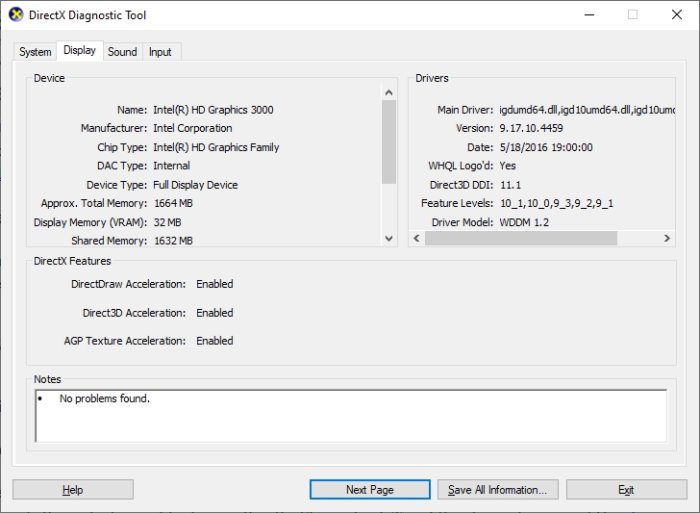
As mentioned, your system must feature DirectX 9 to run the game. This version is older than what you need to run any modern game; it’s likely that your system has been running a higher version of DirectX. So, if you want to play Half-Life 2, download the required version of DirectX. Here’s how.
- To begin with, open the Run dialogue box, type dxdiag and press the Enter key.
- It’ll open the DirectX Diagnostic Tool. Check the installed DirectX version on your system.
- Download the required version by visiting the DirectX End-user Runtimes.
Install the downloaded version and reboot your system. Once done, launch the game and check for the problem.
See: There is a problem with your game’s setup in FIFA
6] Disable unnecessary background running applications
Sometimes, unnecessary background-running applications can also be the cause of the issue. As it turns out, similar applications conflict with each other, causing the problem. Thus, close the unnecessary applications to solve the problem. You can do so by accessing Task Manager and closing all the unnecessary applications.
7] Change monitor refresh rate
As mentioned, having a low-end system is the primary reason behind the issue. In this case, you can adjust the monitor’s refresh rate in Steam settings to resolve the issue. Here’s how it’s done.
First off, open the Windows settings.
Navigate to System > Display > Advanced display.
Note down the refresh rate of the system present next to Choose a refresh rate.
Now, open Steam > Library > right-click on the game.
Choose Launch options from the context menu.
A prompt will pop up. Enter the following command and press the enter key.
-refresh <system referesh rate>
Now, launch the game, and check if it solves the problem.
8] Reinstall the game
If nothing helped you solve the problem, you are left with no other option than to install the game. There may be an issue during the installation process, which is why you’re seeing the “hl2.exe is not responding” error. Thus, reinstall the game to solve the problem.
Read: How to turn off Windows laptop screen with a click using ScreenOff
How do I fix Game exe has stopped working?
There can be multiple reasons why the Game exe file stops working. Depending on the basis, you can try these solutions: run the game in compatibility mode, run the game with administrative rights, download the latest driver update, scan for viruses and malware, and repair the corrupted system files. If none of the steps were helpful, you could reinstall the game.
How to recover deleted EXE file?
It’s very easy to recover deleted exe files. First off, look into the Recycle Bin. If you find the required file, select the recovered option. Next, you can look into the anti-virus Quarantine section. If not, you can reinstall the program. Most installers are usually available on the website where you made your purchase. Some applications, such as Microsoft Office, offer built-in repair tools as well. They will reinstall all core files, including the EXE file.
Read Next: FIFA Error Connecting to the Ultimate Team on Windows PC.
