
PC gamers are prone to encountering numerous issues on their Windows 11 or Windows 10 gaming computers. These issues could be VALORANT connection errors, Discord connection errors, Epic Games connection errors, Xbox games installation errors, game stuttering with FPS drops et al. In this post, we provide solutions to the issue of computer keeps restarting when launching or playing games.
Why does my computer keep restarting randomly?
Among other reasons, but mainly, an overheated processor is the most common culprit that can cause a computer to randomly restart. To fix the issue of your computer restarting randomly, you can open your computer and clean the CPU – you may require the services of a PC hardware technician.
The most likely culprits if your computer keeps restarting when launching or playing Games include-
- PC doesn’t meet the minimum requirements to run the game.
- Power settings.
- Overheating.
- System failure.
- Bad PSU.
- Heatsink.
- Overclocking.
- Incorrect BIOS Settings.
- Bad GPU.
- Botched Windows Installation.
Computer keeps restarting when launching or playing Games
Does playing games restart your PC? If you’re facing this issue, you can try our recommended solutions below, in no particular order, and see if they help resolve the issue.
- Change Power Plan
- Update graphics card driver
- Disable third-party GPU (if applicable)
- Disable overclocking (if applicable)
- Check PSU
- Check Processor and Heatsink
- Perform System Restore
- Reset BIOS to default settings
- Update BIOS.
Let’s examine the descriptions of the processes involved with each of the listed solutions.
Before proceeding with the solutions below, please verify that your PC meets all the requirements to run the game. Bear in mind that having the minimum requirements doesn’t guarantee that you will not have any problems. For the best gaming experience, your PC should meet the recommended requirements (not the minimum). You can check the requirements of any game by performing a search on the internet or visiting the game developer/vendor website.
In addition, check for updates and install any available bits on your Windows 11/10 device and see if the issue is resolved.
1] Change Power Plan
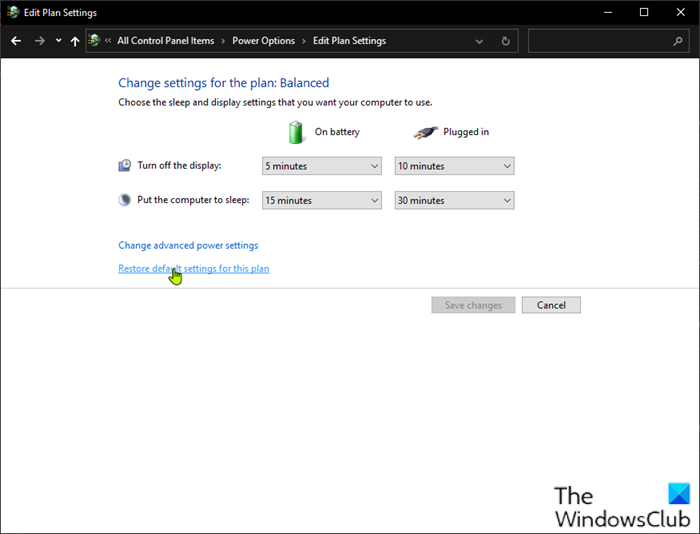
You can begin troubleshooting the computer keeps restarting when launching or playing Games issue by checking power settings on your PC.
Do the following:
- Right-click the battery icon on system tray on Taskbar.
- Select Power Options.
- In the Power Options page, if the Power Plan is currently set as Power saver, change it either to High performance or Balanced.
- Next, for the plan you have selected, if you have previously made changes to the settings, click on Change plan settings and select Restore default settings to this plan.
- Exit Control Panel.
- Restart PC.
If the issue is unresolved, try the next solution.
2] Update graphics card driver
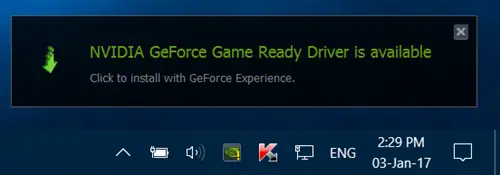
This solution requires you to update the graphics card driver installed on your Windows system.
3] Disable third-party GPU (if applicable)
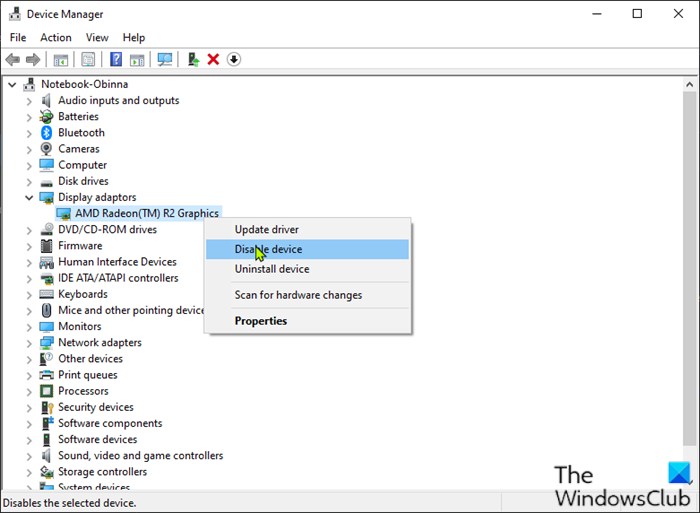
If you have a third-party GPU running on your computer, you may experience this issue due to incompatibility with the Windows OS version. In this case, to resolve the issue, do the following:
- Press Windows key + X to open the Power User Menu.
- Press M key on the keyboard to open Device Manager.
- In Device Manager, scroll down through the list of installed devices and expand the Display adaptors section.
- Right-click on the graphics card and click Disable device.
- Exit Device Manager.
- Restart computer.
Observe and see if the issue persists. If so, try the next solution.
4] Disable overclocking (if applicable)
This solution requires you stop overclocking your CPU. So, if you have overclocked your PC, you can simply reverse the change depending on the overclocking software in use. Generally, launch the software and look for the option to stop the overclocking. Once done, restart your computer and see if the issue is resolved. Otherwise, proceed with the next solution.
5] Check PSU
If your PSU is damaged or not transmitting power properly, you will experience system restarts coupled with other numerous problems including system hangs or freeze. In this case, you can try another PSU and see if the issue persists. Also, change the cable connecting the PSU to your mains electricity outlet; if the issue persists, have your PSU checked by a PC hardware technician, and replace the hardware if the diagnosis shows it’s damaged.
6] Check Processor and Heatsink
If your computer restarts when playing a game, it’s usually due to the computer overheats to such an extent that it performs an emergency restart. In this case, check the heatsink to ensure your Windows gaming rig is cooled. If you’re gaming on a laptop, you can clean the grill and make use of cooling software and a cooling pad as well.
7] Perform System Restore
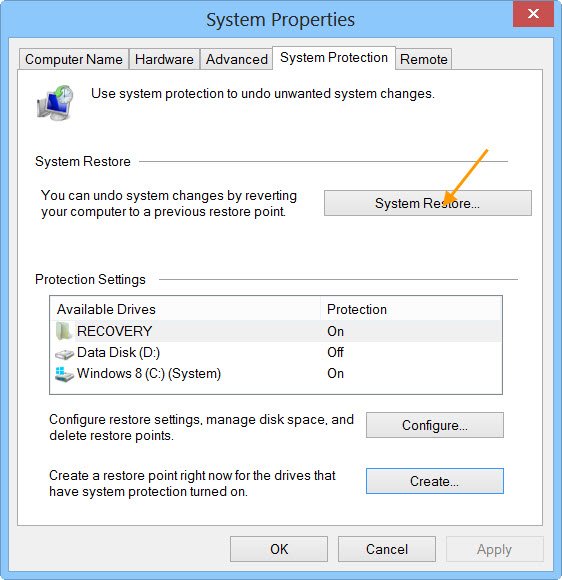
You can restore your system to an earlier point. This will restore your system to an earlier point when the system was working correctly.
8] Reset BIOS to default settings
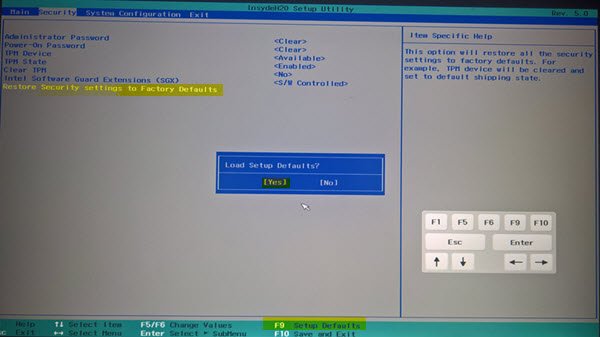
This solution requires you to reset the BIOS setting to its default values and see if that helps. If not, try the next solution.
9] Update BIOS
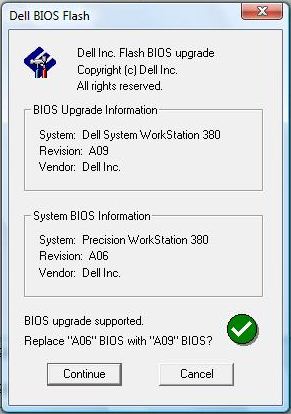
You can try updating the BIOS and firmware on your system using tools from OEMs is the easiest way to do so.
All OEM manufacturers have utilities that help you easily update, BIOS, firmware, and drivers. Search for yours and download it from the official site only.
This is the safest way to update the BIOS:
- If you own a Dell laptop you can head over to Dell.com, or you could use Dell Update Utility.
- ASUS users can download the MyASUS BIOS update utility from the Microsoft Store.
- ACER users can go here. Enter your Serial Number/SNID or search for your product by Model, select BIOS/Firmware, and click the Download link for the file you want to download.
- Lenovo users can use the Lenovo System Update Tool.
- HP users can use the bundled HP Support Assistant.
Hope this helps!
Why does my PC restart when I play games (Not overheating)?
The PC restarting under load is usually due to a faulty PSU (Power Supply Unit) or insufficient power supply. Additionally, suppose you have overclocked your graphics card. In that case, you may experience this issue, or it could be due to an incompatible or outdated graphics driver version installed on your gaming rig. You can try a different PSU, as well as a GPU. Additionally, test the PSU and GPU on another Windows computer; you may need to consult a PC hardware technician.
