
Kena: Bridge of Spirits is a great action-adventure game. It has been regarded as one of the most fun games released in recent times. However, like any other PC game, this one also crashes on many computers. In this article, we are going to see what you need to do when Kena: Bridge of Spirits keeps crashing on your PC.
What to do if a game keeps crashing on PC?
A game will usually crash on your system if its configuration doesn’t meet the minimum requirements. Many users make the mistake of buying a game without reading its system requirements. As for Kena: Bridge, the system requirements are listed below. If it’s crashing on your system, before going to the troubleshooting guide, it is better to check the requirements.
System requirements are one thing; file corruption is another. You have to check whether your game files are corrupted. The best thing, you can easily do that with your launcher. It will detect corrupted files and, hopefully, fix them. Next up, we have outdated Graphics Drivers, DirectX, and Visual C++ Redistributable. If they are left outdated, compatibility issues will arise for the game, which will cause it to crash time and again.
Fix Kena: Bridge of Spirits keeps crashing on Windows PC
If Kena: Bridge of Spirits keeps crashing on your Windows 11/10 computer, check the following solutions to resolve the issue.
- Run the game as an administrator
- Update Graphics Drivers
- Install the latest version of Visual C++ Redistributable and DirectX
- Fix Corrupted Files
- Try lowering Frame Rates
- Troubleshoot in Clean Boot
Let us talk about them in detail.
1] Run the game as an administrator
The first thing we need to do is check whether the issue occurred due to a lack of permissions. We are going to open the game with administrative privilege and see if that works. Right-click on Epic Games Launcher and select Run as administrator.
If that worked, we know the game was crashing due to a lack of administrative privileges. So, let us make the app always run with the required permission. To do that, follow the given steps.
- Right-click on Epic Games Launcher and select Properties.
- Go to the Compatibility tab and tick Run the program as an administrator.
- Click Apply > Ok.
Restart the computer and hopefully, it will be resolved.
2] Update Graphics Drivers
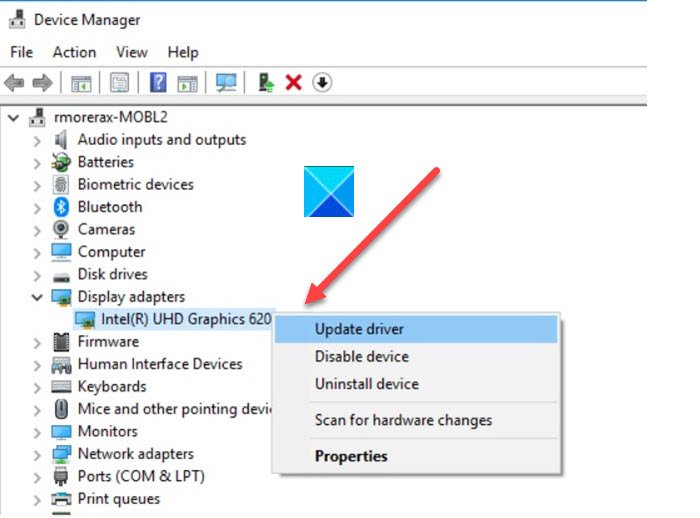
Maybe your Graphics Drivers are updated, which can cause compatibility issues and hence the game is not launching. The following are methods for updating Graphics Drivers on a Windows computer. Pick anyone and get on with it.
- Update the OS as it automatically detects and installs the latest version of all the drivers.
- Go to the manufacturer’s websites and download the latest version of the driver.
- Open Device Manager and update your driver.
Hopefully, this will do the job for you.
3] Install the latest version of Visual C++ Redistributable and DirectX
Both Visual C++ Redistributable and DirectX are required to run the game. Sometimes, they get missing or become outdated. What you need to do to download the latest version of Visual C++ Redistributable and DirectX, then install them on your system. This will fix the problem.
4] Fix corrupted files
As mentioned earlier, the game file can get corrupted for various reasons. And you can use your launcher, Epic Games, in this case, to verify and resolve those files. Follow the given steps to do the same.
- Open Epic Games Launcher.
- Go to Library.
- Click the three horizontal dots next to the game, then click Verify.
Wait for the process to complete. Finally, restart your computer, go to the launcher and open your game; hopefully, the issue will be resolved.
5] Try lowering Frame Rates
According to a large number of victims, playing Kena at 30 FPS can resolve the issue for you. It is quite understandable as well. The game is putting a lot of load on your CPU and GPU, lowering the FPS from 60 to 30 will remove some of that load and hopefully, it won’t cause a problem for you.
6] Troubleshoot in Clean Boot
There are a ton of apps that gamers use to enhance their systems’ gaming performance. These apps include FPS counter, FPS locker, and overclocking apps such as MSI Burner, etc. They should help the gameplay in theory, but they don’t; however, it is not easy to tell which one of these apps is causing the issue. So, we would recommend you to perform Clean Boot and find out what’s causing the issue. Then, you can remove it to resolve the problem.
That’s it
System Requirement to play Kena: Bridge of Spirits
The following are the system requirements to play Kena: Bridge of Spirits.
Recommended
- Processor: AMD Ryzen 5 2600X / Intel Core i7-6700K or equivalent
- RAM: 16 GB
- OS: 64-bit Windows 11/10
- GPU: AMD RX Vega 56 / Nvidia GTX 1070 or Equivalent
- DISK SPACE: 25 GB
- VIDEO RAM: 8192 MB
Also Read:
