
Some gamers have been complaining that the Rainbow Six Extraction keeps crashing on their Windows 11 or Windows 10 computer. In this article, we will see why this is happening and what you can do to fix it. So, without wasting any more time, let us hop into it.
Why does Rainbow Six Extraction keep freezing or crashing?
There are many reasons why your game will crash, but a basic reason why any game will crash is an outdated Graphics Driver. It can be a bit difficult to keep track of your drivers; that’s why Windows releases new builds to update everything.
You should make sure the system requirements are met, as your game will crash if your system is not compatible.
You should also look for any corrupted game files. You can get rid of corrupted game files by just verifying the integrity, and it will do the rest. Sometimes, you amp overclocking for advantage,s but in this case, it can cause the game to crash.
The game can also crash if a program is interfering in its task. Antivirus software is one such program. It can prevent Rainbow Six Extraction from accessing some essential files. There are some other reasons and workarounds that we will see later in this article.
Rainbow Six Extraction keeps crashing on Windows PC
If Rainbow Six Extraction keeps crashing on your system, then start the troubleshooting process by checking for updates. It’s a must to use the latest Windows version. After the process is done, follow the recommended fixes.
- Update your Graphics Driver
- Verify game files
- Disable Overclocking
- Quit conflicting apps
Let’s know these fixes in detail.
1] Update your Graphics Driver
An outdated graphics driver is a root cause that should be the priority. Recently updated Graphics driver and the latest version of Windows maintain a tassel-free environment for gamers. It is generally updated with Windows. However, you can also update your Graphics Driver manually with a free app. Or just go to the manufacturer’s website and download the latest version of your driver. Pick your method and make sure your driver is updated.
2] Verify game files
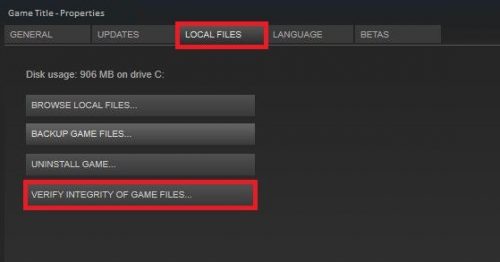
Corrupted game files can also lead the game to crash. Verifying the game files can end the game crashing. So we recommend you check whether your game files are corrupted. Here are the steps.
If you have Ubisoft, try the following method to verify files.
- Open Ubisoft.
- Select the game and click Properties.
- From Local files, click Verify files
- Click Repair.
If you have Steam, do the following:
- Open Steam and go to your game library.
- Navigate to Rainbow Six Extraction.
- Right-Click on the game and go to the Properties.
- Go to the Local Files tab, and then click on Verify integrity of game files.
After clicking on the button, it may take some time to verify the files and then replace them. Thereafter, check whether you can play the game without it crashing. Make sure to restart the game once before checking its situation. If the issue persists, then check out the next solution.
Related: No compatible driver/hardware found in Rainbow Six Extraction
3] Disable Overclocking
Enabling overclocking helps users get better gameplay. However, enabling overclocking may be the reason behind the issue you are facing. It would be in your interest to disable overclocking and set it on default. That’s pretty understandable, since enabling the feature basically asks your CPU to unleash everything. This may sound like a good idea, but if you have an inferior computer, then chances it’s too much to ask. After disabling overclocking, check if the error is resolved. If it persists, try the next fix.
4] Quit conflicting apps
Antivirus software can, by mistake, identify your game as a threat to the system and hence forbid it from accessing some files. They can also stop it from launching on you. Temporarily disabling antivirus software lets you play without interruption. You can also try to whitelist Steam and the game.
Hardware utility programs are another reason why the program is crashing. You can run Clean Boot to find exactly which program is causing the issue. After seeing the program, you can delete it, then and try launching the game.
Hopefully, this will resolve the issue.
System requirement for Rainbow Six Extraction
The game will crash repeatedly if your PC does not meet the system requirements. Before applying the fixes, it is recommended to review the system requirements below and confirm that your game is compatible.
Minimum
- CPU: Intel Core i5-4460 3.2 GHz or AMD Ryzen 3 1200 3.1 GHz
- RAM: 8 GB
- OS: Windows 10 64-bit
- VIDEO CARD: Nvidia GeForce GTX 960 4GB or AMD Radeon R9 290X 4GB
- DISK SPACE: 60 GB
- DEDICATED VIDEO RAM: 4 GB
Recommended
- CPU: Intel Core i7-4790K 4.0 GHz or AMD Ryzen 5 1500X 3.5 GHz
- RAM: 16 GB
- OS: Windows 10 64-bit
- VIDEO CARD: Nvidia GeForce GTX 1660 Ti 6GB or AMD Radeon RX 580 4GB
- DISK SPACE: 60 GB
- DEDICATED VIDEO RAM: 4096 MB.
That’s it!
Read Next: Windows 11 Gaming Settings – All you need to know.
