
Dota 2 is one of the most popular games. However, many users are experiencing performance issues with this game. According to some reports, the game freezes after launch, and others report crashes after startup. Whatever the case is, this is the guide you need. We are going to talk through everything in detail and see what you need to do when Dota 2 crashes or freezes on your system.
Why does my game keep freezing and crashing?
A pretty obvious reason why your system is experiencing performance issues is that it’s not powerful enough to run the game that you are playing. So, before buying a game, you should try to check the system requirements, if Dota 2 is your concern then don’t worry, we have mentioned the system requirements here.
If the system requirements match, there are other things you should check first: your game files. These files are vulnerable and can become corrupted during game installation or an update. Talking about updates, we need to keep our drivers up-to-date as otherwise, it can trigger compatibility issues. We will see some other solutions and workarounds later in this article.
System requirement for Dota 2
As mentioned above, make sure system requirements are met and the requirements are listed below.
- CPU: Dual-core from Intel or AMD at 2.8 GHz
- RAM: 4 GB
- OS: Windows 11/10
- GRAPHICS CARD: Nvidia GeForce 8600/9600GT, ATI/AMD Radeon HD2600/3600
- SOUND CARD: DirectX Compatible
- REQUIRED DISK SPACE: 15 GB
- DEDICATED VIDEO RAM: 256 MB
If your system is compatible, move to the solutions.
Dota 2 keeps crashing or freezing on Windows 11
If Dota 2 is crashing or freezing on your computer, try the following solutions.
- Update your Graphics Driver
- Change Launch Options
- Run the game as an administrator
- Verify Integrity of game files
- Reinstall Dota 2
Let us talk about them in detail.
1] Update your Graphics Driver
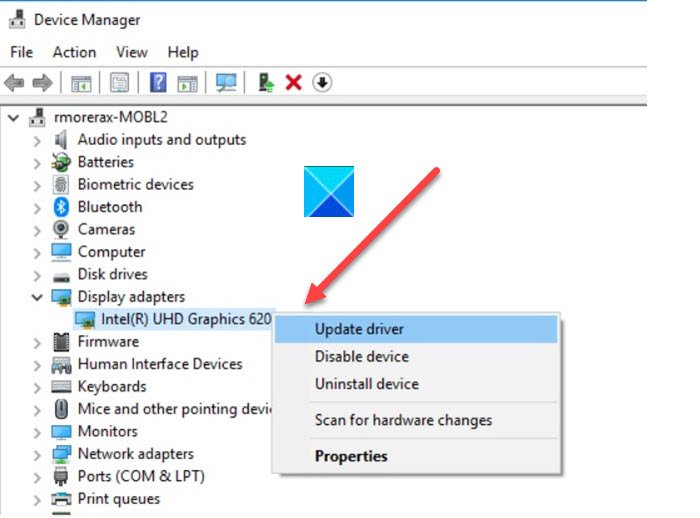
Let us start by updating your computer’s drivers. There are multiple ways to do the same. The following are some of them.
- Install updates of Windows and your drivers will be updated.
- Update your Graphics Driver from the Device Manager.
- Download the latest versions of your driver from the manufacturer’s website.
Hopefully, this will resolve the issue for you.
2] Change Launch Options
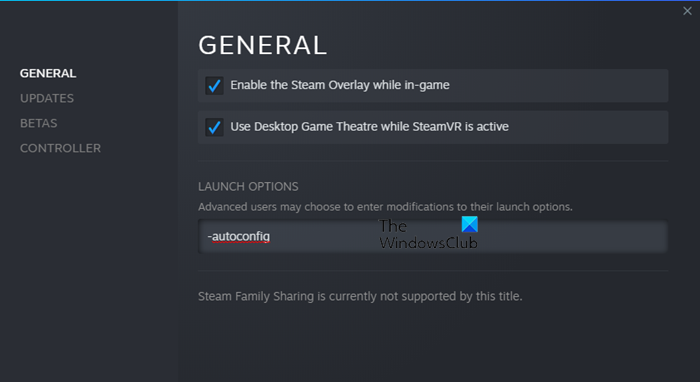
We are going to launch Dota 2 in AutoConfig or SafeMode and see if that works. Remember, you can not use both at the same time. Let us see how to add Launch Options.
- Open Steam.
- Go to LIBRARY.
- Right-click on Dota 2 and select Properties.
- In the LAUNCH OPTIONS field, paste any of the following commands.
-autoconfig
or
-safe
Finally, restart your computer and hopefully, the issue will be resolved.
3] Run the game as an administrator
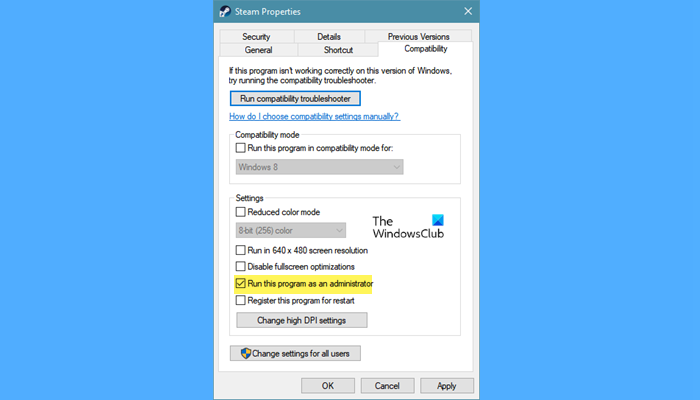
If the game crashes after startup, it may not have the required permissions to run. You should open Steam as an administrator and check if the issue persists. Just right-click on it and select Run as administrator. If you want it to always open in elevated mode, right-click on Steam, go to Properties > Compatibility, tick Run this program as an administrator, and click Apply > OK.
If that doesn’t work, go to Dota 2’s properties again, tick Run this program in compatibility mode for, select any of the previous OSes, and click Apply > OK.
Hopefully, this will do the job for you.
4] Verify the integrity of game files
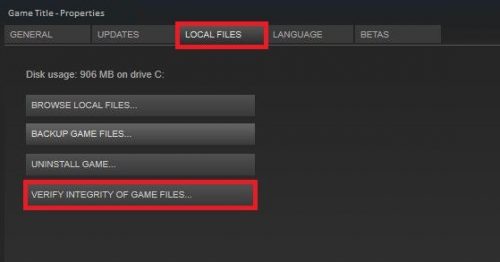
If your game files are corrupted, then it is prone to crashing. You can always reinstall the game, but that’s too much work. What we are going to do is use the launcher to check Dota 2 files and resolve any corruption. The following are the steps you need to follow in order to verify the integrity of game files.
- Open Steam and navigate to Library.
- Right-click on the game and click on the Properties option.
- Under the Local Files tab, select Verify integrity of game files.
The process will take time, but it will automatically get rid of errors.
5] Reinstall Dota 2
This is the last fix you should try if none of the above fixes worked for you. Reinstalling the game can easily resolve crashing or freezing issues. Here’s what to do.
- Open Steam and go to Library.
- Right-click on the game and then select Uninstall option.
- Click on the Delete button.
- Click Win+E to open File Explorer.
- Go to the following the location
C:\Program Files (x86)\Steam\steamapps\common
- Right-click on the Dota 2 folder and then select the Delete option from the list.
- Reinstall the game and launch it. This will resolve the issue for you.
Hopefully, you are able to resolve the issue with our solutions
Why does my PC turn off when I play Dota 2?
If your computer is turning off while trying to run Dota 2 then you seriously need to reconsider not playing the game as maybe your computer is not compatible. To confirm that, check the system requirements. If there is no problem there, then try the solution we have mentioned. However, more often than a system shutdown while running an app is because it can’t handle the work that you are through at it.
Related:
