
If you are one of those whose Halo Infinite is freezing or crashing on startup, or experiencing any other technical issues in Windows11/10, we have some solutions for you. In this article, we are going over reasons and solutions to resolve the issue.
Why is Halo Infinite freezing and crashing on Windows PC?
If a game is crashing on your system, then the first thing you should do is check its requirements. You need to make sure that your system is compatible with running Halo Infinite. If it’s not compatible, you should not install the game; it will either crash or lag to the point that the game becomes unplayable.
If your system meets the requirements, there may be other issues you’re dealing with. More often than not, the issue is due to corrupted game files or outdated Graphics Drivers. We will see how to fix those and some workarounds you will need if you want to play this game.
What are the system requirements to play Halo Infinite?
Before looking at the solutions mentioned later in this article, you should, first of all, make sure that your game is compatible with running Halo Infinite. The following are the system requirements to run the game.
Minimum System Requirements
- OS: Windows 11/10 (64-bit only)
- Processor: AMD Ryzen 5 1600 or Intel i5-444
- RAM: 8 GB
- GPU: AMD RX 570 or Nvidia GTX 1050 Ti
- DirectX: Version 12 or above
- Storage: 50
Recommended System Requirements
- OS: Windows 11/10 (64-bit only)
- Processor: AMD Ryzen 7 3700X or Intel i7-9700K
- RAM: 16 GB
- GPU: Radeon RX 5700 XT or Nvidia RTX 2070
- DirectX: Version 12 or above
- Storage: 50
Now that you know the system requirements to play Halo Infinite, you need to see in which bracket your computer falls. If it’s not compatible at all, you should not play this game or update your computer. If it’s just meeting the minimum system requirements, then you can play the game at the lowest settings, and also check the workarounds mentioned later.
If your system meets the recommended requirements and you see crashes, execute the solutions in the order mentioned.
Halo Infinite keeps crashing, freezing, stuttering or not working on PC
If Halo Infinite freezes and crashes on startup on your system, then you can start by checking for updates. If updating is not successful, we have to troubleshoot the issue; fixes are provided below.
- Update your Graphics driver
- Verify Game Integrity
- Change in-game settings
- Turn off background apps
- Disable Overlay
Let’s know these fixes in detail.
Halo Infinite crashing on startup
1] Update your Graphics driver
Start by checking the status of your Graphic driver. It is compulsory to update it regularly. So if you have recently updated it then this issue is out the door. However, if you have not updated it then update your Graphics driver and see if the issue persists.
2] Verify Game Integrity
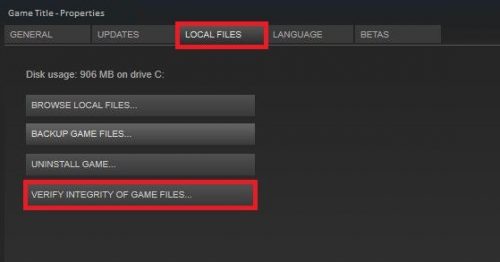
Your game can crash because of corrupted game files. Lucky for you, there is a way to resolve this via Steam and you can just follow the given steps to do the same.
- Launch Steam
- Navigate to Halo Infinite in your LIBRARY.
- Right-click on the game and go to Properties.
- In the LOCAL FILES tab, select VERIFY INTEGRITY OF GAME FILES.
3] Change in-game settings
Lowering frame rates and changing some settings can also resolve the issue, especially if you are experiencing frame drops, stuttering of the game, etc. Therefore, changing in-game settings is recommended. To do the same, follow the steps below.
- Open Halo Infinite.
- Go to its Settings.
- In the Video tab, lower the RESOLUTION SCALE to 90. And also set the MINIMUM FRAME RATE & MAXIMUM FRAME RATES.
- Disable VSYNC.
- Similarly, also reduce other graphic-intensive tasks.
Now try running the game and see if the issue still persists.
4] Turn-Off background apps
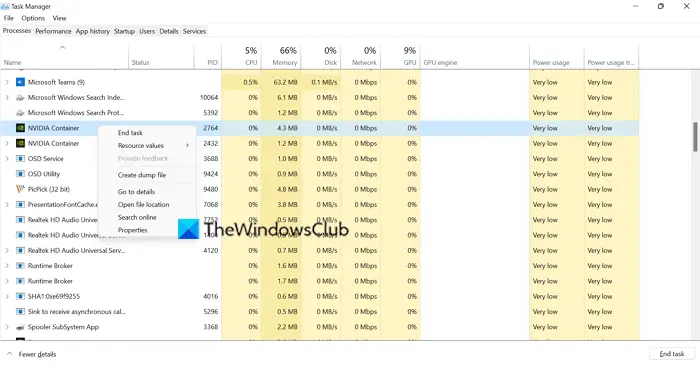
Background apps are one of the reasons for performance issues. It would be better to disable these apps so that they won’t interfere again. You can follow the steps to turn off background apps.
- Open Task Manager by Ctrl+Shit+Ecs.
- Go to the Process tab and right-click the apps that may be affecting performance.
- Click End Task.
Turn off all the apps running in the background and now check whether the game is working fine or still freezing/crashing.
5] Disable Overlay
The overlay is meant to improve your system’s gaming performance. But sometimes, they can work opposite what they are built for. According to many victims, disabling the Overlay feature in their game and their game launcher has resolved the issue and we are going to do the same.
We are going to disable Steam Overlay for Halo Infinite. Follow the given steps to do the same.
- Open Steam.
- Go to Halo Infinite from the Library.
- Right-click on the game and select Properties.
- Now, make sure that you are on the General tab and untick Enable the Steam Overlay while in-game.
Hopefully, you won’t have the same complaints after executing the solutions mentioned in this article.
If nothing helps, you need to perform a clean boot and try to troubleshoot the issue manually.
Read Next: Halo Infinite to support cross-play and cross-progression.
