
If Format Painter is not working in Word, Excel, and PowerPoint in Windows 11, here is what you can do to fix the issue. Here, we have listed all possible causes and solutions so you can get it working again.
Why is Format Painter not working in Word, Excel, and PowerPoint?
If Format Painter is not working in Word, Excel, or PowerPoint, one of these could be the reason:
- You are using the incorrect keyboard shortcut.
- The Esc key is faulty.
- There are some issues, but or glitch in Word, Excel, or PowerPoint.
- The newly added add-in may create a conflict.
- The file is encrypted, and the owner has blocked you from editing it.
Format Painter not working in Word, Excel, PowerPoint
If Format Painter is not working in Word, Excel, or PowerPoint, follow these solutions:
- Ensure the keyboard shortcut
- Check the Esc key of your keyboard
- Verify the process of using Format Painter
- Update Microsoft 365
- Disable Add-ins
- Disable file protection
- Reset Office app
- Repair installation
To learn more about these solutions, continue reading.
1] Ensure the keyboard shortcut
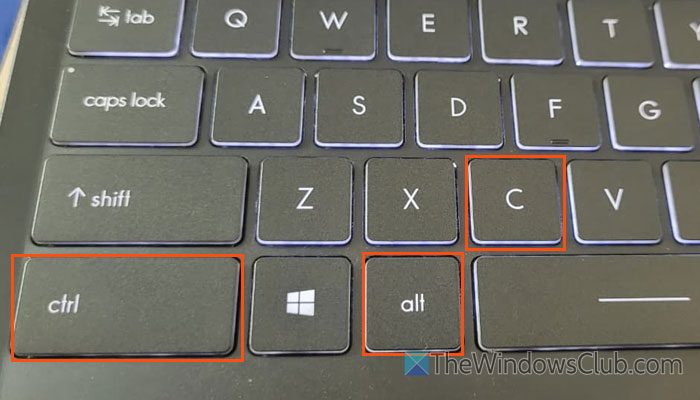
The old keyboard shortcuts were Ctrl+Shift+C to copy formatting and Ctrl+Shift+V to paste it. However, it has changed in the latest version of the Microsoft 365 apps. The new shortcuts are Ctrl+Alt+C to copy formatting and Ctrl+Alt+V to paste it.
Microsoft has changed these shortcuts because the traditional shortcut is not being used to copy the text formatting only. It no longer copies the white formatting. As Ctrl+Shift+C has gained the popularity of being a shortcut to copy text only, you cannot use it for the Format Painter purpose.
Read: How to remap Keyboard Shortcuts in Windows 11
2] Check the Esc key of your keyboard

While using Format Painter, press Esc to cancel it if you copied the wrong formatting. Therefore, if the Esc key is not working on your computer or it is faulty, you must check it first. These posts may help you:
- Esc key not working in Windows 11
- Best free Keyboard Tester software for Windows 11
- Best free online Keyboard Checker and Tester tool
3] Verify the process of using Format Painter
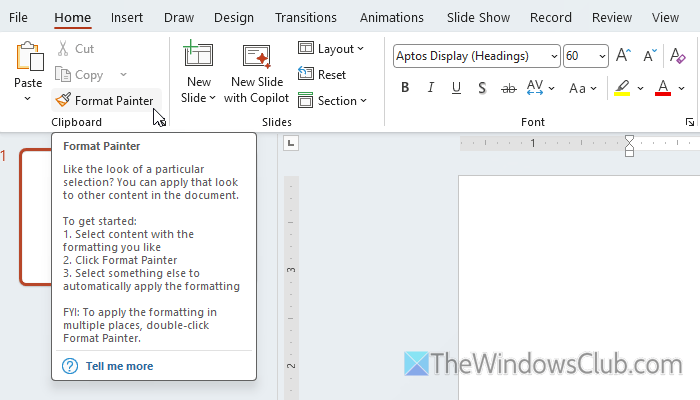
Using Format Painter could be tricky if you are using it for the very first time. In short, the process is mentioned here:
First, choose a text or cell that you have already edited, and you want to use as the source. Select it and click on the Format Painter option visible in the Clipboard section in the Home tab. Next, find the text to apply the formatting and click on it.
If you press the Esc key in between, it will be cancelled.
Read: How to use Format Painter in Word, Excel, and PowerPoint
4] Update Microsoft 365
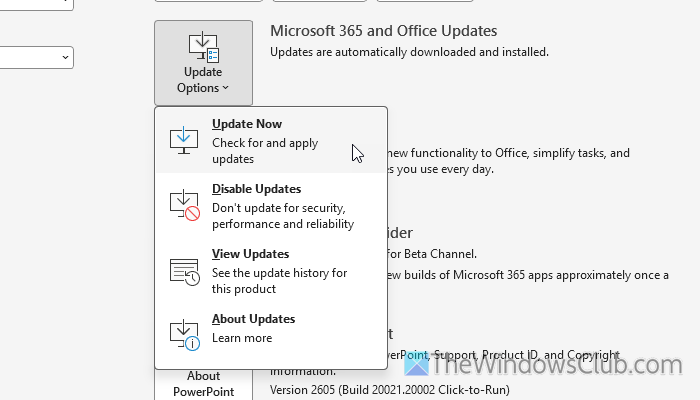
At times, it could happen due to a bug or glitch. If so, you may be able to fix it by updating the Microsoft 365 app on your computer. To update Microsoft 365 manually in Windows 11, open Word, Excel, or PowerPoint and go to File > Account. Click on the Update Options > Update Now.
For your information, it may take several minutes to complete the job. Do not disconnect your computer from the internet, and do not close the process.
Read: How to update Microsoft Office manually in Windows 11
5] Disable Add-ins
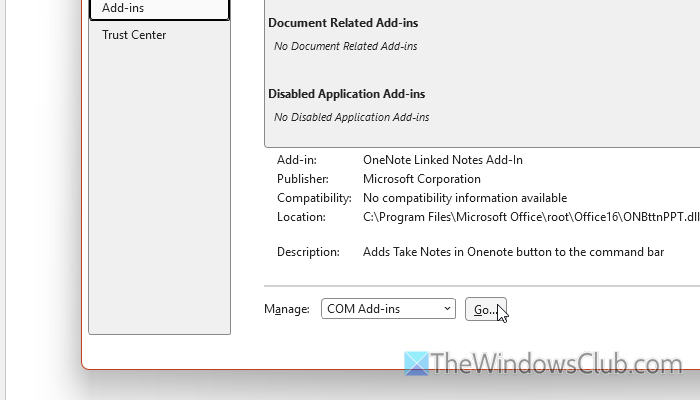
If you have installed numerous add-ins, they may create a conflict with Format Painter. Although it should not happen, there is a chance you may encounter this problem on your computer. That is why you must go through these steps:
- Disable all add-ins of the conflicting application.
- Try using Format Painter.
- If it works, enable one add-in at a time to find the culprit.
In order to disable all add-ins, open Word, Excel, or PowerPoint and go to File > Options. Then, switch to the Add-ins tab.
Next, select the COM Add-ins and click the Go button. Remove the tick from all checkboxes and click the OK button.
Then try the Format Painter in that application and see if it works. If yes, enable one add-in by selecting the corresponding checkbox and clicking OK.
Read: View, manage, install and remove Add-ins from Office programs
6] Disable file protection
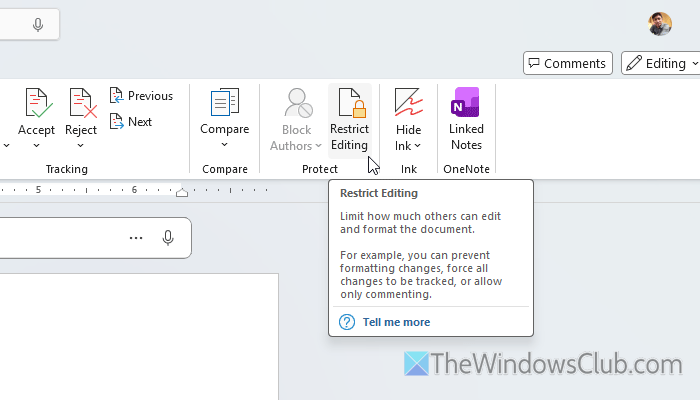
In almost all these Microsoft 365 apps, you can find a common option called Restrict Editing. It can be used to restrict unnecessary editing by a third party. If this feature is enabled, you won’t be able to use Format Painter.
Therefore, open Word and go to the Review tab. Then click on the Restrict Editing option and click the Stop Protection option.
Enter the password to confirm. Once done, you can use the Format Painter without any problem.
7] Reset Office app
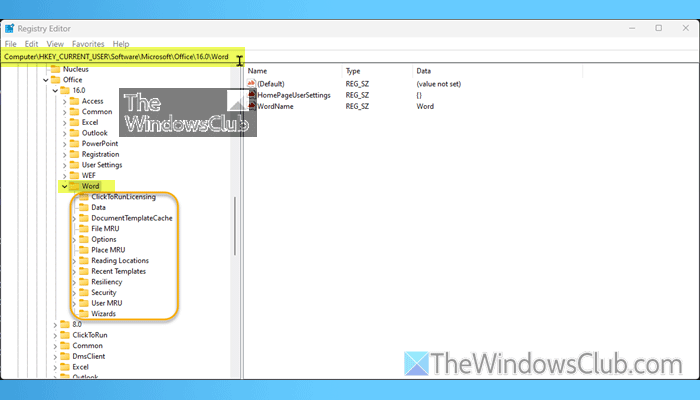
At times, if you have made countless changes in Office programs, there is a chance of getting this problem on your computer. If so, you can reset the Office or Microsoft 365 app. You can go through these guides to reset Word and Excel:
- How to reset Word to default settings in Windows 11
- How to reset Excel settings to default
- How or Reset or Repair Individual Office apps in Windows.
8] Repair installation
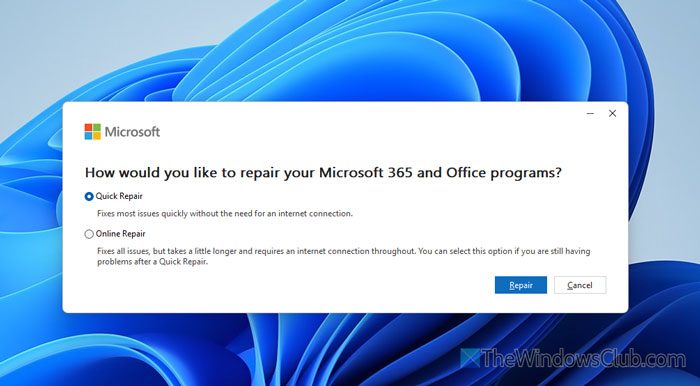
To repair the Microsoft 365 installation, follow these steps:
- Press Win+I to open the Windows Settings.
- Go to Apps > Installed apps.
- Click the three-dot icon in Microsoft 365 and select Modify.
- Click the Yes button on the UAC prompt.
- Choose the Quick Repair option and click the Repair button.
- If it doesn’t work, choose the Online Repair option and click the Repair button.
For your information, the second option takes longer than the first.
Read: How to apply same Style or Formatting to all Slides in PowerPoint
How to get Format Painter to work in PowerPoint?
To get Format Painter to work in PowerPoint, select the text you want to copy the formatting from first. Click on the Format Painter option in the Clipboard section. Click on the desired text.
How to activate the format painter in Excel?
To activate Format Painter in Excel, select the cell from where you want to copy the formatting and press Ctrl+Alt+C. Choose the cell you want to paste the formatting into and press Ctrl+Alt+V. You can also use the Format Painter option in the Clipboard section.
Read: PowerPoint Cameo not showing or working in Windows 11.
