
If you want to apply the same style or formatting to all slides in PowerPoint, here is how you can do that. It is possible to apply the same formatting in all slides at once using themes, Slide Master, Format Painter, etc. This article will explain all the possible methods of getting the job done.

How to apply same Style or Formatting to all Slides in PowerPoint
To apply the same style to all slides in PowerPoint using the Slide Master, follow these steps:
- Open PowerPoint and go to the View tab.
- Click on the Slide Master option.
- Click on a particular slide on the left side.
- Make all the edits as per your requirements.
- Click the Close Master View button.
- Create a new slide to find the changes.
To learn more about these steps, continue reading.
First, open PowerPoint on your computer and go to the View tab. Here you can find an option named Slide Master. Click on it.
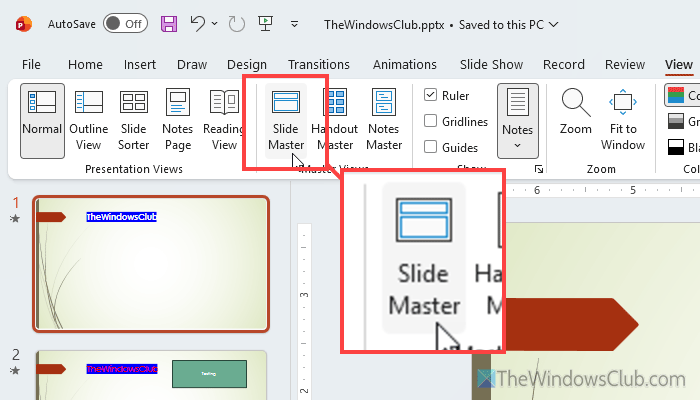
You can see a few slides on your left-hand side. These slides can be edited, and all edits will be visible when you add a slide to your presentation.
For instance, you want to insert the Title and Content Layout. Therefore, click on the second slide from the top and start editing it. If you want to change the title font, select the existing title and apply the changes as required.
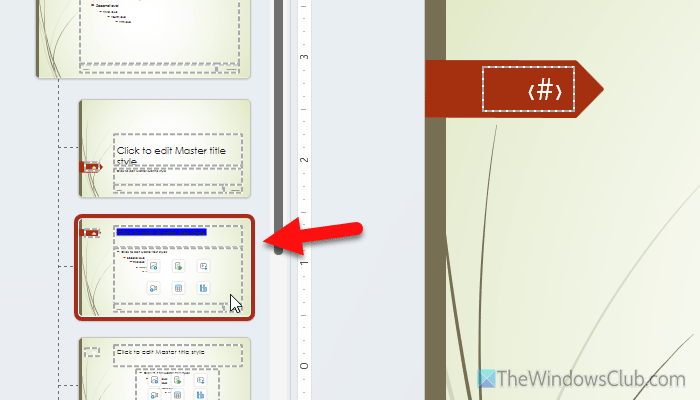
Similarly, if you want to change the view of the bullet points, create a demo bullet point and change the styling. In case you want to insert a date/time, you can do that as well.
Once done, click on the Close Master View button, which is available in the Slide Master tab.
Following that, go to the Home tab, click on New Slide, and choose the Title and Content option.
Next, you will automatically see the edited version of the slide on your screen.
However, if you want to save the Slide Master, go to the Slide Master tab, click on Themes > Save Current Theme.
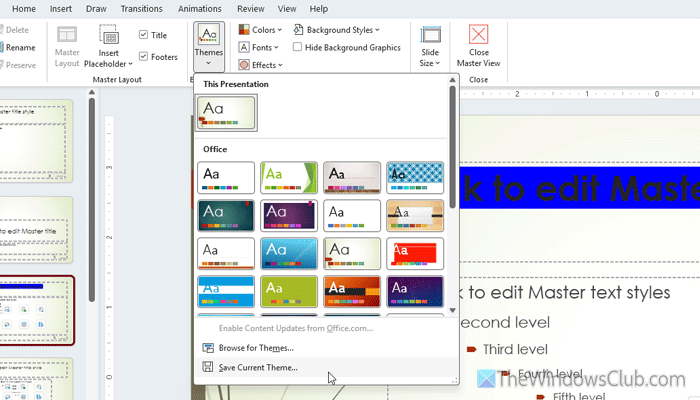
If you want to apply the same formatting in the future, you can simply open and apply the custom theme.
How to apply same style or formatting to all slides in PowerPoint using Themes
To apply the same style or formatting to all slides in PowerPoint using Themes, follow these steps:
- Open PowerPoint on your computer.
- Go to the Design tab.
- Select a theme.
- Edit the theme.
- Use the Save Current Theme option to save the edit.
To know more about these steps, continue reading.
To get started, open PowerPoint on your computer and go to the Design tab. Then, select a theme as per your requirements.
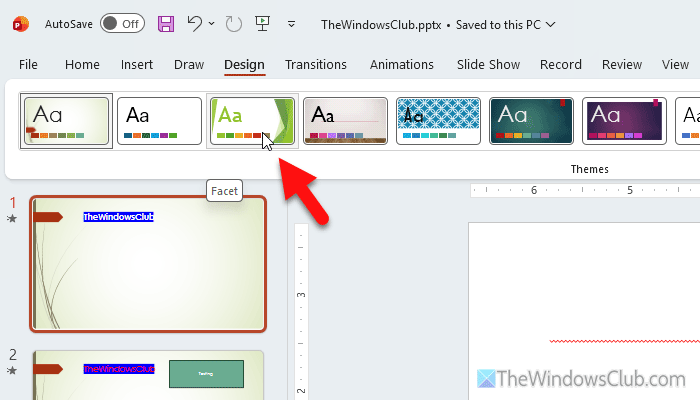
Once done, you can edit the selected theme. For example, you can change the color scheme, font, heading title, title font, make text bold/italic, change font color, background, etc.
To change the font, go to the Home tab and select a font. The same tab includes options to change the title font, color, highlight color, and more. In case you want to change the color scheme, go to the Design tab and head to the Variants section.
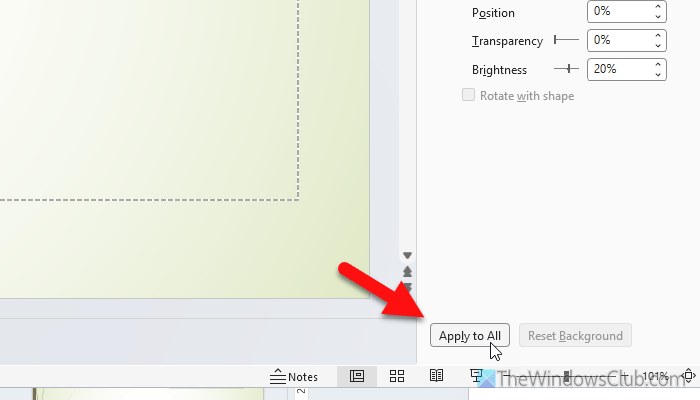
Next, choose a color scheme or variant that you like to use. To change the background, click on the Format Background option. Next, choose Solid fill, Gradient fill, Pattern fill, or anything that you want to use.
Once done, click on the Apply to All button to apply the same change to all slides.
After all the editing, it is time to save the changes so that you can use them further in the future. To do that, go to the Design tab, click on the arrow icon, and select the Save Current Theme option.
Choose a location where you want to save, give it a name, and click the Save button.
Read: How to create a Theme in PowerPoint
Slide Master vs. Themes
These are mainly two very useful methods to apply the same formatting to multiple slides at once. However, if you already have a presentation and you want to change the formatting, you can use the second option, i.e., Themes. Slide Master is handy only when you want to create a presentation from scratch. Although Slide Master changes the existing styling, Themes work better in that case.
How to apply the same formatting to all slides in PowerPoint using Format Painter
- Open a slide and select a text, object, shape, etc.
- Click on the Format Paint option.
- Go to another slide and select text/object/shape. And click on it.
Let’s take a deeper look at these steps.
To use the Format Painter, open a slide and select a text, object, or shape. It is the source object from where the Format Painter will copy the styling. After selection, make sure that you are in the Home tab. If so, you can find an option called Format Painter. Click on it.
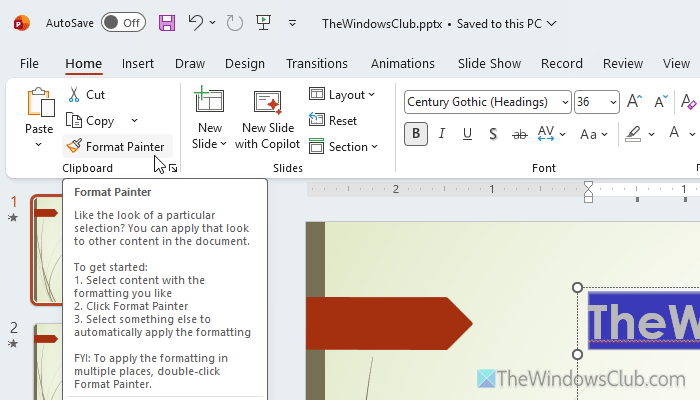
Then, switch to another slide and click on the same type of content to apply the copied style. Having said that, you must choose text if your source has text formatting. Similarly, it is mandatory to click on a shape if you copied the formatting from the shape.
Note: The disadvantage of Format Painter is that it doesn’t store the formatting permanently. Having said that, once you use the formatting, it will be deselected. You will have to copy the source formatting again to apply it a second time on an object or any other content.
Pro tip: If you want to apply the same transition to all slides, select all the slides using Ctrl+A and apply a transition.
Read: Best free tools to create PowerPoint presentation (PPT) online
How do I apply the same style to multiple slides in PowerPoint?
The easiest way to apply the same style to multiple slides in PowerPoint is to use a theme, which is already included. However, you can also use the Slide Master option to create a personalized layout and styling for your presentation.
How to apply one slide design to all slides in PowerPoint?
To apply one slide design to all slides in PowerPoint, use the Slide Master option. Slide Master helps you create a general design for all slides for your PowerPoint presentation.
Read: Top 10 Most Useful PowerPoint Tips and Tricks
