
If PowerPoint Cameo is not showing or working on Windows 11, here is what you can do to troubleshoot the issue. As there could be numerous reasons, we have consolidated some of the most common causes and solutions to fix it in Windows 11. Whether you use Microsoft 365 or Office Pro, you can go through these solutions.
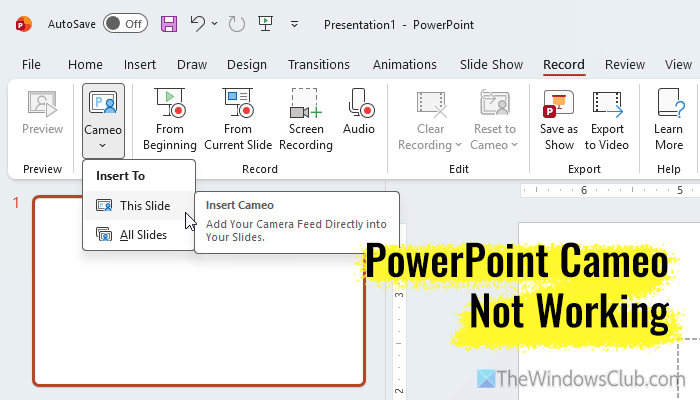
What is PowerPoint Cameo?
In short, PowerPoint Cameo lets you insert a live camera feed onto your slides. Whether you want to present it to a team or colleagues, or record a video, you can show yourself via your webcam while doing so.
Why is PowerPoint Cameo not showing or working?
If PowerPoint Cameo is not working, one of these could be the reason:
- Your webcam is not working properly.
- You have turned off your webcam using the physical switch.
- The external webcam driver is either not installed or malfunctioning.
- You are using PowerPoint 2021/2019.
- Your administrator has blocked your account.
- PowerPoint doesn’t have permission to access the camera.
PowerPoint Cameo not showing or working in Windows 11
If PowerPoint Cameo is not showing or working in Windows 11, follow these instructions:
- Check physical switch of webcam
- Check PowerPoint version
- Install/Update webcam driver
- Check privacy settings
- Ask administrator for permission
- Update PowerPoint to the latest version
- Run webcam troubleshooter
- Repair Office
- Disable hardware graphics acceleration
To learn more about these solutions, continue reading.
1] Check physical switch of webcam
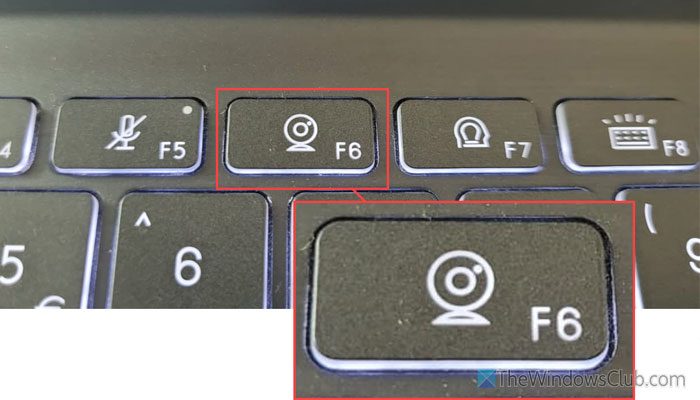
The very first thing you need to check is whether PowerPoint Cameo is not working on your computer. If the camera is turned OFF, you won’t be able to use this feature. Instead of showing the live feed, it shows a camera blocked sign. Therefore, if your computer or laptop has a dedicated webcam ON/OFF switch, press it once to see whether it is turned OFF.
Read: Camera is reporting that it is blocked or turned off in Windows 11
2] Check PowerPoint version
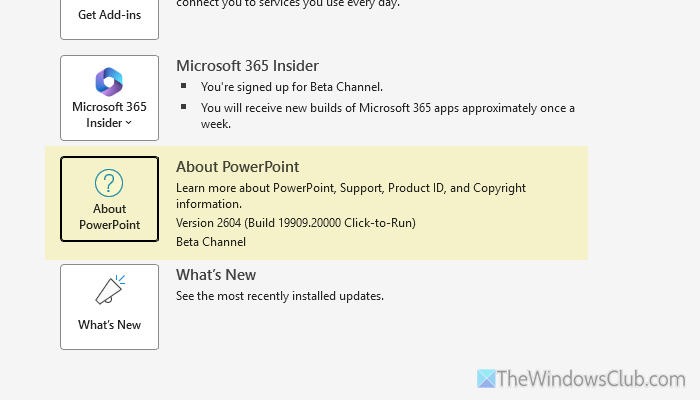
PowerPoint Cameo is available in PowerPoint for Microsoft 365, PowerPoint for Web, and PowerPoint 2024. If you have any version of PowerPoint, you won’t find this option. To check the PowerPoint version, follow these steps:
- Open PowerPoint on your computer.
- Click on Account.
- Find the version on your screen.
3] Install/Update webcam driver
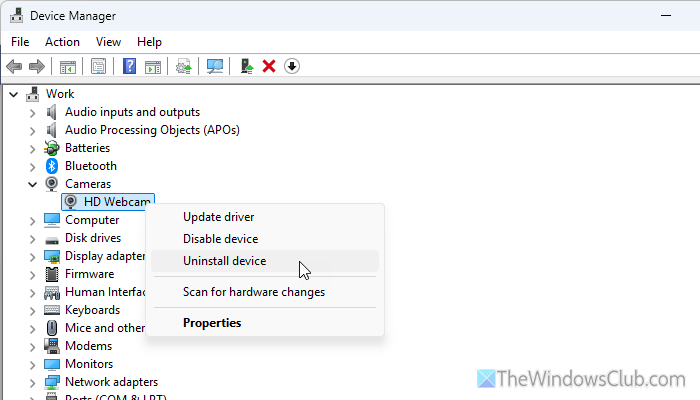
Although an integrated webcam might not require a dedicated driver, some external webcams require drivers to be installed. If you use an external webcam and encounter this problem, try installing the driver first.
However, if you already have the driver installed, use Device Manager to uninstall it first. Then, head to the official website of the webcam manufacturer, download, and install the driver.
Read: Laptop Camera not working in Windows 11
4] Check privacy settings
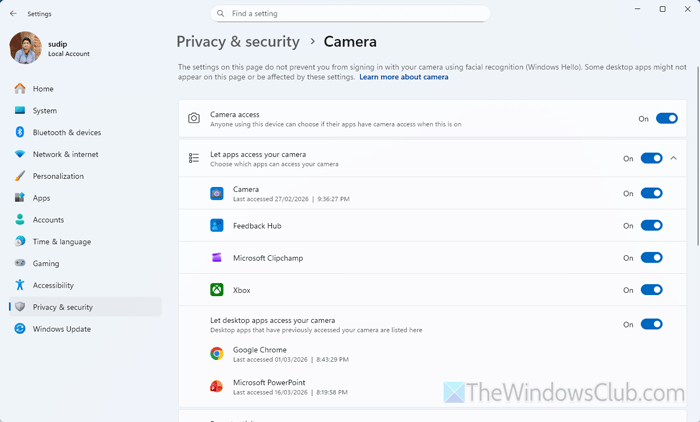
Windows 11 has the option to allow or block a specific app from using the webcam, microphone, etc. If PowerPoint is not allowed to use a webcam, you won’t be able to use the PowerPoint Cameo feature. On the other hand, Windows Settings lets you enable or disable camera access. To verify all these settings, go through the following steps:
- Press Win+I to open Windows Settings.
- Go to Privacy & security > Camera.
- Toggle the Camera access button to turn it ON.
- Toggle the Let desktop apps access your camera button to turn it ON.
- Ensure that this list contains PowerPoint.
5] Ask administrator for permission
If you use a School or Work account, there is a chance that your administrator has blocked you from using this feature. At this point, there is nothing you can do except ask your administrator for permission to access PowerPoint Cameo.
Read: The account isn’t associated with this Office product
6] Update PowerPoint to the latest version
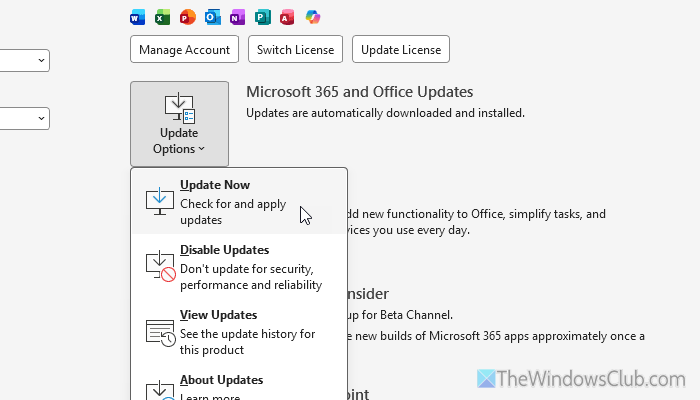
Even though you have the aforementioned version of PowerPoint, you might not find this feature unless you use the latest version. If you haven’t updated it for a long time, it is time to go through the update process.
To update PowerPoint to the latest version, follow these steps:
- Open PowerPoint on your computer.
- Go to the Account section.
- Click Update Options > Update Now.
Once done, make sure you restart PowerPoint.
7] Run webcam troubleshooter
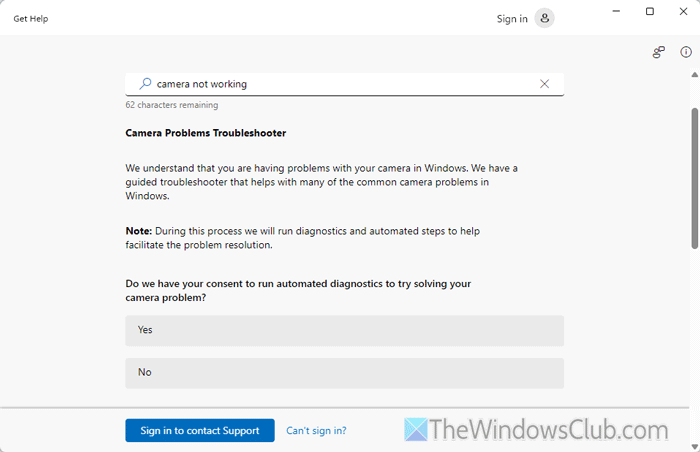
To run the webcam troubleshooter, you must use the Get Help app. Follow these steps to run the webcam troubleshooter in Windows 11:
- Open the Get Help app on your computer.
- Type “camera not working”.
- If it asks for consent, click on Yes button.
- Go through the screen instructions.
8] Repair Office
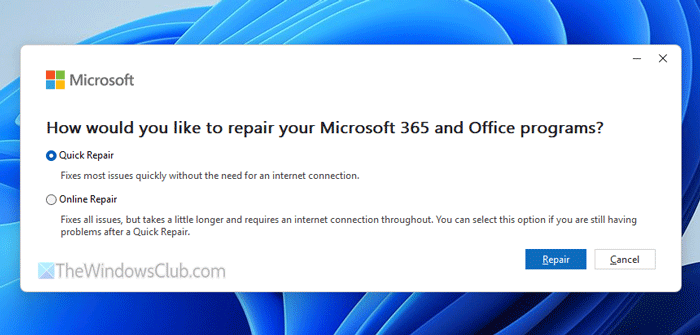
Instead of the camera or webcam, it could be a Microsoft Office issue as well. If so, you can repair Office and check if it resolves the issue.
To repair Microsoft Office or Microsoft 365, follow these steps:
- Press Win+I to open Windows Settings.
- Go to Apps > Installed apps.
- Find Microsoft 365.
- Click on the three-dotted icon and select Modify.
- Choose the Quick Repair option and click the Repair button.
However, if it doesn’t do anything, select the Online Repair option, and click the Repair button. For your information, the latter option takes longer than the former.
9] Disable hardware graphics acceleration
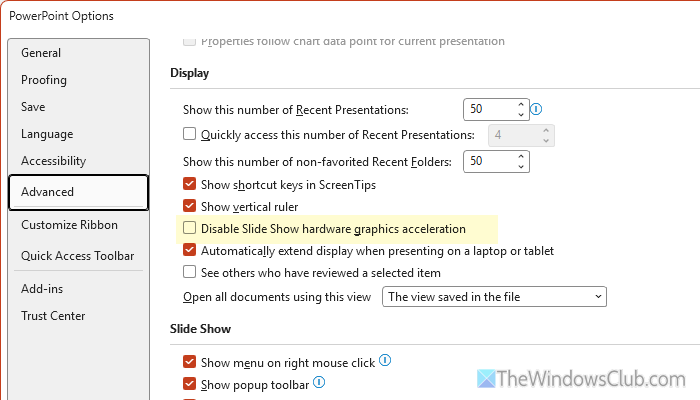
By default, hardware graphics acceleration is enabled in PowerPoint so that animations, transitions, etc., work pretty smoothly. However, it could also cause the above-mentioned issue. Therefore, it is suggested to disable hardware graphics acceleration and check whether it fixes the problem.
For that, do the following:
- Open the Options wizard of PowerPoint.
- Go to the Advanced tab.
- Head to the Display section.
- Tick the Disable Slide Show hardware graphics acceleration checkbox.
- Click the OK button.
- Restart PowerPoint.
Read: How to turn off Hardware Graphics Acceleration in Office
How do I enable Cameo in PowerPoint?
To enable Cameo in PowerPoint, open a presentation and go to the Insert tab. Find the Cameo option and click on it. Select an option between This Slide and All Slides.
How do you reset the cameo in PowerPoint?
To reset Cameo in PowerPoint, go to the Record tab and click on the Reset to Cameo option. Choose an option between Current Slide and All Slides. For your information, if you recorded a cameo on a single slide, select the first option. Otherwise, choose the latter option.
Read: How to add live webcam video to a PowerPoint presentation.
