
If you encounter error code 7: 0X3C while installing or updating Google Chrome in Windows 11/10, this post is helpful. Users may face problems or receive an error while updating Chrome because of network issues, firewall settings, malware, etc. In this case, the error code 7: 0X3C occurs because another operation on the Chrome browser is in progress. It can happen if the Chrome browser is already processing an update or is stuck, too many tabs are open, or downloads are in progress. I also received the same error while updating the Chrome browser on my PC.
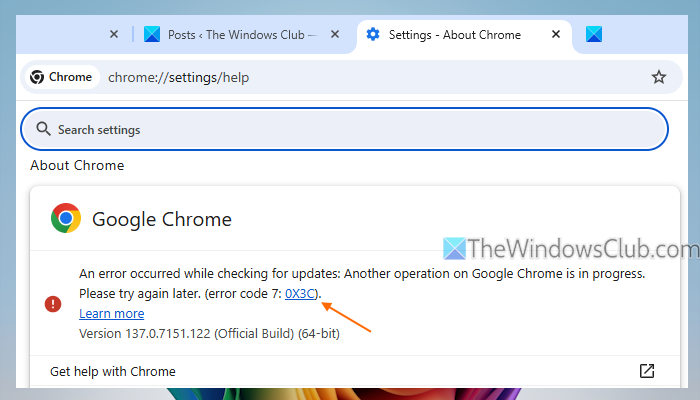
An error occurred while checking for updates. Another operation on Google Chrome is in progress. Please try again later. (error code 7: 0X3C).
Before we check the fixes, you should try the common solutions, which include refreshing the update page, restarting the Chrome browser, and checking if your internet connection is stable. You should also check your antivirus and firewall settings to ensure that updates aren’t blocked. If the problem is not solved, use the fixes covered by us.
Error Code 7: 0X3C while installing or updating Google Chrome
You can get rid of the error code 7: 0X3C and complete installing or updating the Google Chrome browser with the following fixes:
- Update your PC
- Close unnecessary tabs and pause downloads
- End background processes that interrupt the update process
- Reset Chrome settings to default.
Let’s check these solutions.
1] Update your PC
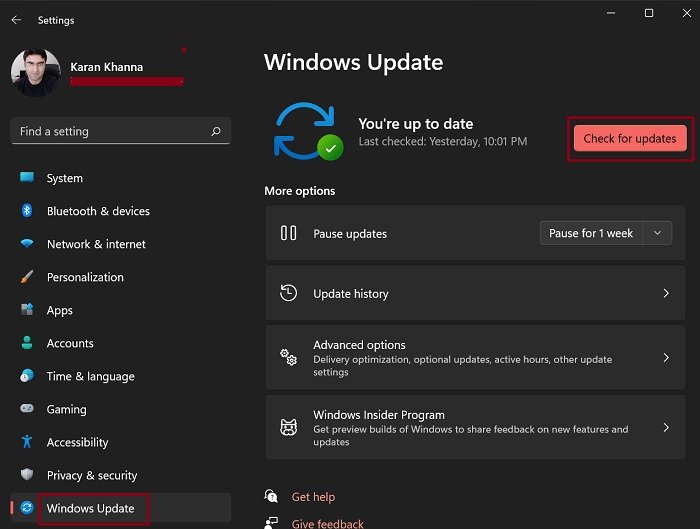
This solution worked for one of the users. He posted on Reddit that every time he tried to update the Chrome browser, the error message Another operation on Google Chrome is in progress appeared. Even after uninstalling Google Chrome, the problem continued. Finally, updating his system worked to solve the problem.
So, you should check for updates on your Windows PC and finish any pending updates. If Windows update is stuck on downloading updates, clear the SoftwareDistribution folder or free up disk space and complete the update process.
2] Close unnecessary tabs and pause downloads
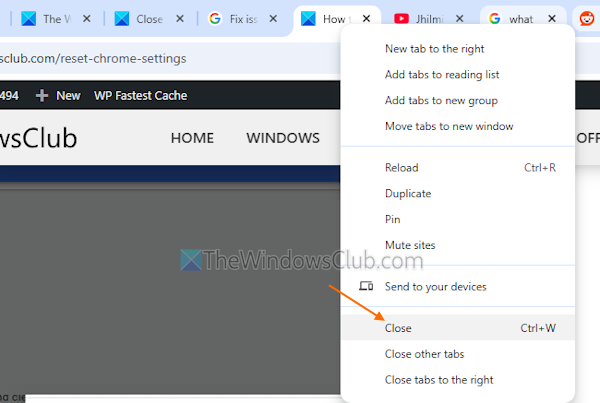
This is one of the best fixes to use when the Google Chrome update fails with error code 7: 0X3C. The solution worked for me like a charm. In my case, I had opened more than a dozen tabs, and a couple of downloads were in progress when the update failed at 80%. Refreshing the update page didn’t help. So, I closed some tabs, paused the downloads, and tried again. It worked, and the Chrome update process finished successfully. If the resources are occupied or limited, it may result in update failure.
So, if the problem is caused by too many tabs, the download process, etc., you should close them or stop multiple Chrome processes from running. Also, close unnecessary desktop applications to free up system resources.
Related: Google Chrome won’t update on Windows PC
3] End background processes that interrupt the update process
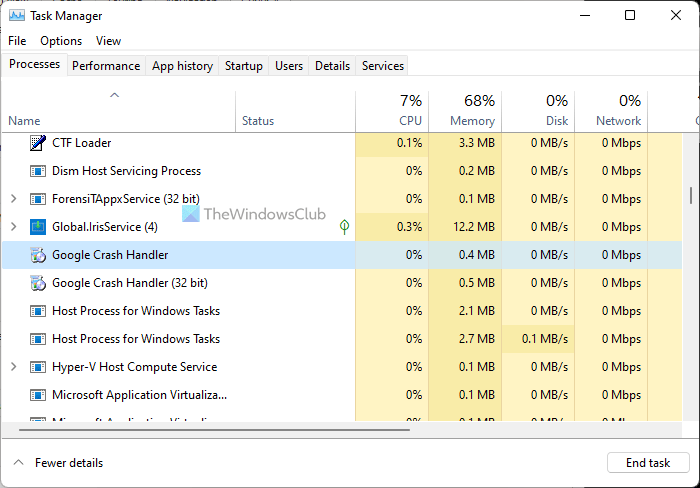
As the error message indicates, the update failed because another operation is in progress. So, you should close unwanted Google Chrome processes that run in the background, interrupting the Chrome update process. For example, you can close the GoogleCrashHandler.exe process that might interrupt the update process as it runs silently in the background to send crash reports and usage statistics to Google.
Open the Task Manager on your Windows 11/10 PC and look for unwanted Chrome processes in the Processes tab, and end those background processes. This should fix the issue. You can also use Chrome Task Manager to manage background services, active processes, tabs, etc.
4] Reset Chrome settings to default
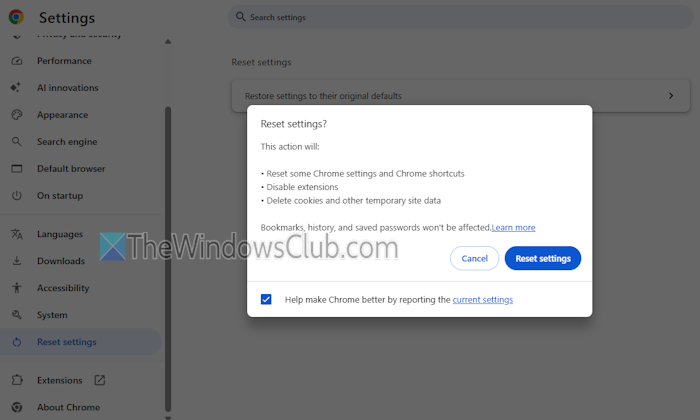
Sometimes, unwanted ads, pop-ups and malware, or extensions can change your Chrome settings (like the default search engine, content settings, etc.) without your knowledge and also interfere with the update process. If this is causing the issue, reset Chrome settings to default.
In the Settings page of Chrome, select Reset settings > Restore settings to their original defaults. In the confirmation pop-up, press the Reset settings button. This will reset some Chrome settings for the profile you’re signed in to, disable extensions, and delete cookies and other temporary data. It won’t delete your saved passwords, bookmarks, and history.
If nothing works, you should reinstall Google Chrome.
Now read: Google Chrome no update is available when installing
How to fix error code 7 in Google Chrome?
Google Chrome error 7 occurs when the update or download fails. If the Chrome update failed with error 7 or 12, review parental control settings (if any) or antivirus and firewall settings. Sometimes, a system reboot can also fix the problem. If that doesn’t help, perform an antivirus scan, remove proxy, and ensure that dl.google.com and tools.google.com are not blocked.
How to Fix Google Chrome Not Installing?
If you cannot install Google Chrome on your Windows 11/10 PC and encounter an error code, such as 4, 13, or 102, or the Chrome installation fails with Error Code: 0x8004070c, try installing Chrome with administrative privileges. If this doesn’t work, temporarily disable your security tool and try again. You should also delete Chrome residual files or leftovers from the previous installation. You can also troubleshoot in Clean Boot State to identify the problem and install Google Chrome.
Fix Bug Check 0x3C INTERRUPT_UNWIND_ATTEMPTED Blue Screen
This Blue Screen error appears very infrequently. It occurs when Windows detects an attempt to unwind through an interrupt service routine (ISR), violating the kernel-level rules. Run Memory and Hardware diagnostics, update device drivers, and use WinDbg to examine the minidump and trace the offending code.
Read next: Google Chrome problems and issues on Windows PC.
