
Cannot update Chrome to its latest version? Are updates to Chrome failing every time you try to update it? In this post, we examine the list of Chrome Update errors and provide solutions to resolve them.
Chrome failed updates Error Codes
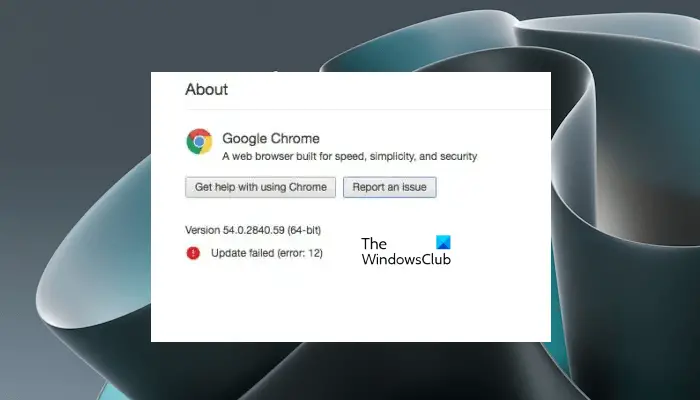
An error occurred while checking for updates
While there are tons of error code around Chrome, these are only because the update is having an issue. Here is the list:
- Update failed: This occurs when the Updates are disabled by the administrator.
- Update failed with
- Error 3 or 11: When Chrome’s inbuilt updater fails to find the Update server to download the latest version.
- Error 4 or 10: This happens while checking for updates with message “Update check failed to start”
- Error 7 or 12: This occurs when a download fails while checking for updates.
- Windows OS version not supported.
- Google Chrome may not be able to keep itself updated.
- Any other errors that mention that “Update failed”
Chrome update failed on Windows
Since all these error codes are around “Update Failure”, they have a common solution. It is also possible that there is something wrong with your network. Chrome comes with an inbuilt updater. It automatically downloads the update and installs the new version of Chrome.
Use the following fixes and see which one of them helps you:
- Reboot your computer
- Review antivirus, firewall, or parental control settings
- Remove Proxy
- Flush DNS, reset Winsock and reset TCP/IP
- Reinstall Chrome
Let’s start.
1] Reboot your computer
Try rebooting your computer and updating Chrome again. Sometimes it’s a temporary issue that nobody can explain!
2] Review antivirus, firewall, or parental control settings
If there are any of these rules, i.e., antivirus, firewall, or parental control settings blocking the download of anything, the Chrome update will not work either. So make sure to check the rules, and double-check if software updates aren’t blocked from going online.
If it’s ok, try running Network Troubleshooter on your computer to resolve any DNS issues or connectivity problems. It is available under Update & Security > Troubleshoot. You can always add Google or Cloudflare DNS for even better connectivity.
3] Remove Proxy
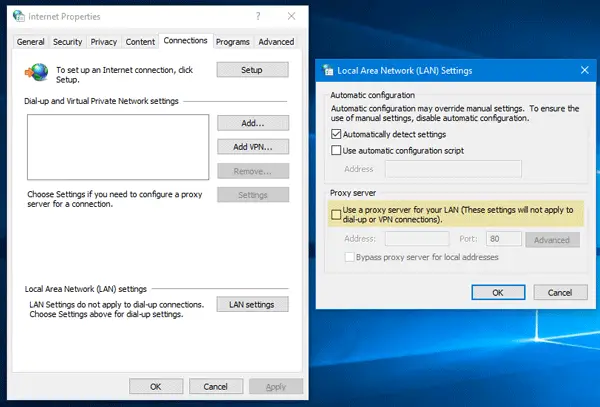
- Press Windows Key + R then type “inetcpl.cpl” and hit enter to open Internet Properties.
- Next, Go to Connections tab and select LAN settings.
- Uncheck Use a Proxy Server for your LAN and make sure “Automatically detect settings” is checked.
- Click OK, then Apply, and reboot your PC.
If you are using a third-party proxy service, make sure to disable it.
Read: Error code 7: 0x80072EE7 while installing or updating Chrome.
4] Flush DNS, reset Winsock and reset TCP/IP
Sometimes the websites don’t resolve because the DNS in your PC still remembers the old IP. So make sure to Flush the DNS, Reset Winsock and Reset TCP/IP.
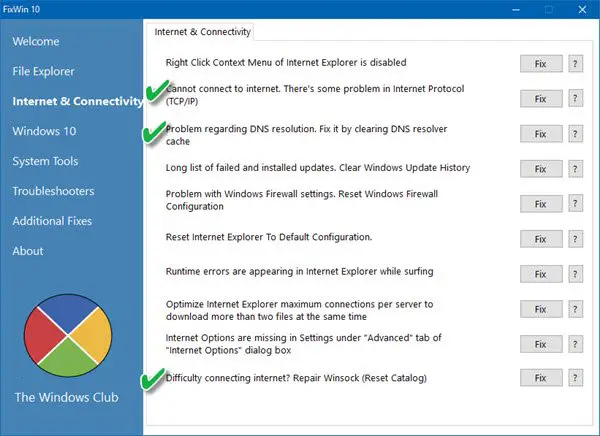
You can also use our freeware FixWin to carry out these three operations with a click.
In case everything seems to be fine, add URLs tools.google.com and dl.google.com to WhiteList or always allow. Now try updating Chrome again.
Read: Chrome Update Error 7: 0x80040902
5] Reinstall Chrome
If the updater cannot update it internally, you can always download and reinstall Chrome.
- Uninstall Chrome.
- Download Chrome again and try reinstalling.
- You can also choose to download the Chrome standalone installer.
While it’s easy to reinstall any software, for Chrome you will have to make sure that you delete the User Data folder, and then install it.
- Type
%LOCALAPPDATA%\Google\Chrome\User Data\in the Run prompt, and hit Enter - Rename the ‘Default’ folder inside it to something else, e.g., Default.old
Now, reinstall Chrome and see if the issues are resolved for you. Make sure you get this done with administrator rights to your computer to complete the Chrome install. Right-click and run as administrator.
Please note that Chrome doesn’t support older OS platforms, and therefore, you will not be able to update it on these operating systems.
That’s it. Please let us know in the comments if this helped you resolve Chrome update failed problems.
Related: Google Chrome won’t update on Windows
How do I fix Google Chrome update error?
You may see different error codes while updating Google Chrome. Each Chrome Update error code needs a different approach to get fixed. When you see an error code while updating Google Chrome, you can try some general fixes, like restarting your computer, temporarily disabling your antivirus and firewall, completely uninstalling and then reinstalling Chrome, etc.
What is error code 12?
On Windows 11/10, the error code 12 occurs in the Device Manager, which means that the device you have connected to your system could not find enough free resources to operate. Additionally, error code 12 can also occur in various applications, such as Google Chrome and third-party antivirus software like BitDefender VPN. You may also encounter this error code in certain video games, such as Valorant.
Read next: Chrome not allowed to load local resource.
