
While updating Google Chrome on Windows 11/10, if you get error code 7: 0x80040902, this article will help you fix the issue. Although it is an unusual error, you may encounter this issue on your computer with any version of Google Chrome.
The entire error message says something like this:
An error occurred while checking for updates: The installer failed to uncompress archive. Please download Google Chrome again. (error code 7: 0x80040902: 50-system level).
Chrome Update Error 7: 0x80040902
To fix error 7: 0x80040902 during Google Chrome update, follow these steps:
- Close all tasks and restart Chrome
- Disable VPN and proxy
- Disable antivirus/firewall software temporarily
- Reset Google Chrome
- Reinstall Chrome
To learn more about these steps, continue reading.
1] Close all tasks and restart Chrome
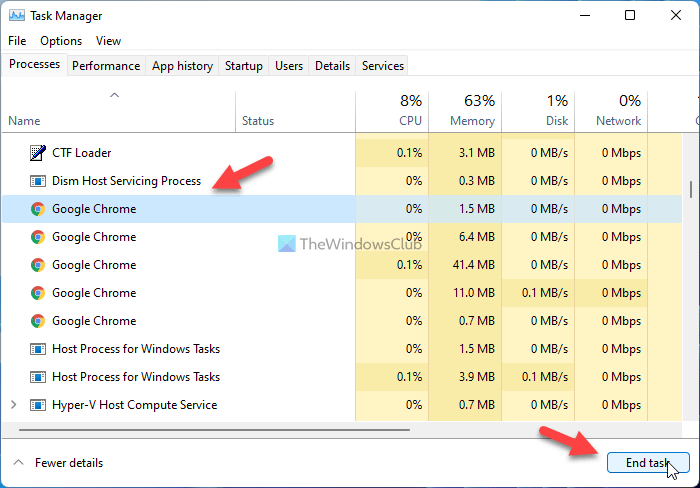
When you encounter error code 7: 0x80040902 while updating the Google Chrome browser, restarting it is the first step to resolve the issue. However, simply closing the browser and reopening it is not enough. Even if you do that, Google Chrome doesn’t terminate all the background processes. For that, you need to use the Task Manager. To close all tasks and restart Chrome, follow these steps:
- Press Win+X and select Task Manager from the list.
- Select one process of Chrome at a time.
- Click on the End task button.
- Open the Google Chrome browser.
Before proceeding, ensure that you have closed the browser.
2] Disable VPN and proxy
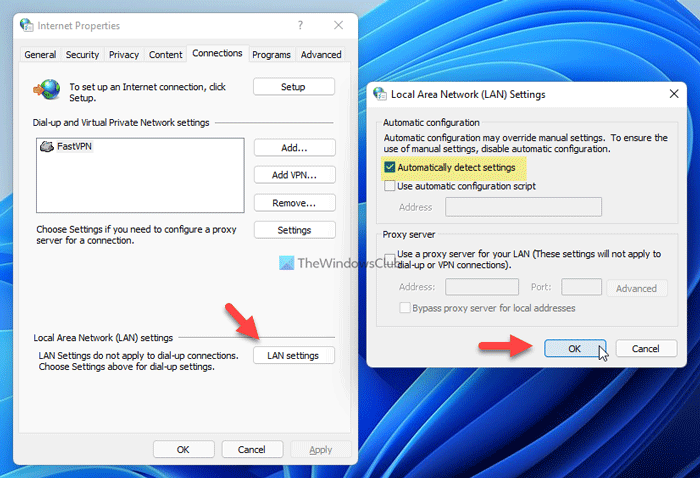
If you use a VPN or proxy on your computer, you might get this error. It happens when there is an issue with the VPN app or the proxy settings. That being said, it is recommended to turn on a VPN or proxy and check if the problem remains or not. For that, you can do the following:
- Search for internet options in the Taskbar search box.
- Switch to the Connections tab.
- Click on the LAN settings button.
- Tick the Automatically detect settings checkbox.
- Click the OK button.
After that, restart the Google Chrome browser and check if you can update it or not.
3] Disable antivirus/firewall software temporarily
If you have installed a third-party antivirus or firewall software, it is recommended to disable it temporarily. At times, firewall software might block the outgoing and incoming traffic. As a result, you can find this issue on your PC.
4] Reset Google Chrome
If you have installed numerous extensions randomly or changed incorrect settings in the past, you may encounter this error. Therefore, resetting Google Chrome should fix the issue. To reset Google Chrome, follow this detailed article.
5] Reinstall Chrome
It is the last step you need to take to resolve the updating issue on Google Chrome. If none of the above solutions worked for you, you could try out this solution. However, it is recommended to backup your bookmarks first. Then, you can use any third-party software uninstaller to remove Chrome and delete all leftovers.
We hope this guide helped you resolve error 7: 0x80040902 while updating Google Chrome.
How do I fix Google Chrome update error?
If you can’t update Google Chrome and see Updates are disabled by your administrator error or Chrome update failed with error 4 or 10, 3, 12, 7, etc., then first, restart your computer and try again. You should also check for malware, review your firewall and antivirus settings, and ensure that the dl.google.com and tools.google.com addresses are not blocked. You should also disable or turn off the proxy and remove any third-party proxy service. If that doesn’t help, use the Chrome Cleanup Tool or re-install the Chrome browser.
Similar: Chrome Error code 4: 0x80070005 – System Level
Why can’t Chrome update to the latest version?
The reason why the Chrome browser won’t update to the latest version automatically could be due to a corrupt cache and cookies, the Google Chrome Update service not being enabled, or a problem with your internet connection. In that case, you can manually update the Chrome browser. Additionally, verify that your internet connection is functioning properly, access the Services window, and set the Startup type for the Google Chrome Update service to Automatic. You should also clear your browser cache and cookies. If these steps don’t help, then try resetting or reinstalling the browser.
Read: Error code 7: 0x80072EE7 while installing or updating Chrome.
