
Google Chrome, at times, is known to display error code 7: 0x80072EE7. This is primarily caused by the Windows Firewall or a third-party firewall blocking the installation or update process. However, other factors, such as corrupt or incomplete downloaded installation files, may also cause this error message to appear.
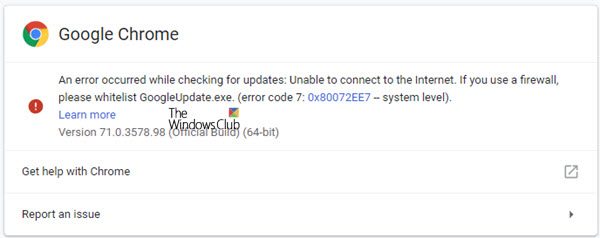
An error occurred while checking for updates: Unable to connect to the Internet. If you use a firewall, please whitelist GoogleUpdate.exe. (error code 7: 0x80072EE7 — system level).
This post will show you how to whitelist googleupdate.exe in Firewall on Windows 10. This will be useful if you see Chrome display error 0x80072EE7 during installation or update.
Error 7: 0x80072EE7 during Chrome Installation or Update
The cause is at Google Chrome’s end. The system files are not supporting the browser to function properly. It could have been modified or might be missing. Nevertheless, there are a few things you could try at your end. To fix this error, we will be taking a look at the following methods-
- Check your internet connection.
- Whitelist googleupdate.exe in Firewall
- Reset Google Chrome.
1] Check your connection
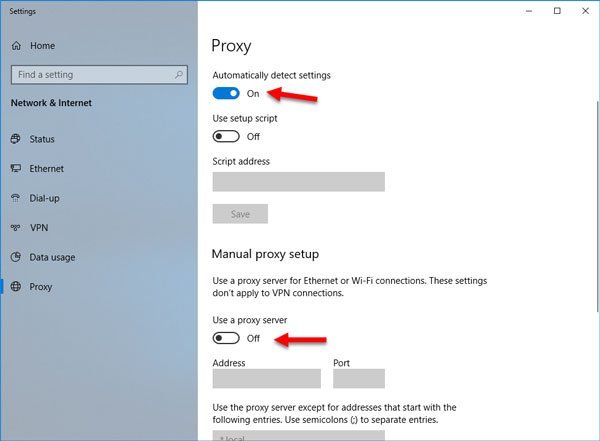
In Windows 11/10, there is an option in the Settings panel that allows you to set up a proxy. If you are receiving this error message, you should temporarily disable it and check if the problem persists. For that, open Windows Settings by pressing Win + I button and go to Network & Internet > Proxy.
On your right-hand side, make sure the Automatically detect settings is enabled and Use a proxy server option is disabled under Manual proxy setup.
Now check if you can open a website or not.
If you are using a VPN app, there is a chance to get this error message. In that case, you should do these:
- Disable the VPN temporarily and check if you can open the website or not.
- Change server and check if it is opening or not.
- Change the VPN app if nothing’s working.
- Disable proxy server for your LAN.
Read: Chrome Update Error 7: 0x80040902
2] Whitelist googleupdate.exe in Firewall
You may need to whitelist GoogleUpdate.exe program. For that start by opening the File Explorer.
Now in the address bar, copy and paste the following location and hit Enter,
Control Panel\All Control Panel Items\Windows Defender Firewall\Allowed apps
Now, click on the button called Change Settings. From the list, locate Google Chrome and check both Private and Public connection for it.
Click on OK. Check if that has fixed your issues.
Similar: Chrome Error code 4: 0x80070005 – System Level
3] Reset Google Chrome
The last option you have is to reset Chrome browser, make sure that Google Chrome is not running anywhere in the background using the Task Manager.
Did this fix the Chrome error code 7: 0x80072EE7?
More suggestions here:
