
Dread Hunger is a wonderful game, probably, the greatest roleplay game for PC. However, the game is crashing on many computers. In this article, we are going to see what you need to do when Dread Hunger keeps crashing on your Windows 11/10 computer. These solutions are not only for professional users but will also work for you, even if you are an amateur.
Dread Hunger keeps crashing or freezing on Windows PC
If Dread Hunger keeps crashing on your Windows 11/10 computer, try the following solutions to resolve the issue.
- Check the System Requirements
- Update Graphics Driver
- Verify Integrity of Game Files
- Disable Steam Overlay
- Update Visual C++ Redistributable and DirectX
- Troubleshoot in Clean Boot
Let us talk about them in detail.
1] Check the System Requirements
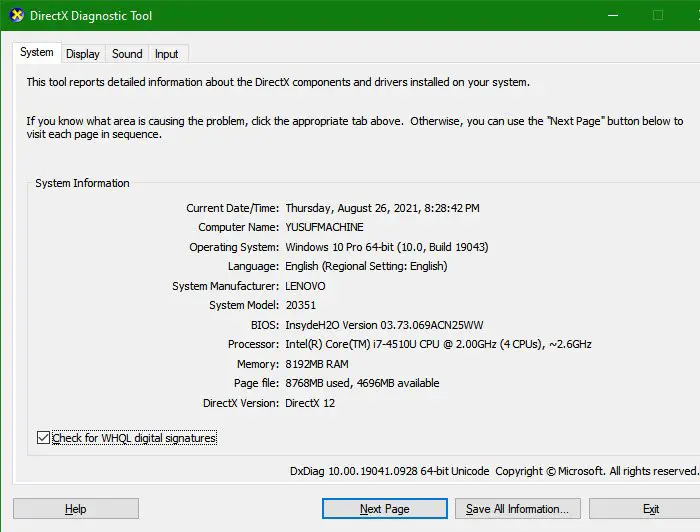
First of all, you should check the system requirements and if that doesn’t match then, unfortunately, you have to either upgrade your computer or forget the roleplay world.
Minimum
- OS: Windows 7 (64-bit)
- Processor: Quad-core Intel or AMD, 2.5 GHz
- Memory: 8 GB RAM
- Graphics: NVIDIA GeForce 760 GTX or AMD Radeon R9 280
- Storage: 15 GB available space
Recommended
- OS: Windows 11/10 (64-bit) or later
- Processor: Intel Core i7-4770K or AMD Ryzen 5 2600
- Memory: 8 GB RAM
- Graphics: NVIDIA GeForce 1060-6GB or AMD RX 580
- Storage: 15 GB available space
To check your system’s configuration, we are going to open DirectX Diagnostic Tool. Open Run, type “dxdiag” and click Ok.
2] Update Graphics Driver
Graphics Driver is very important in your computer to run a graphically intensive game. Please update the drivers and see if it works. The following are some ways to update your computer’s drivers.
- Update your computer as it will update the graphics drivers along with all the other drivers.
- Install the latest version of your Graphics Driver from the manufacturer’s website.
- Use freeware to update the drivers.
- Go to Device Manager and update the driver.
Hopefully, this will resolve the issue for you.
3] Verify Integrity of Game File
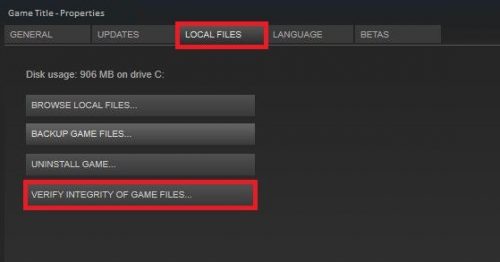
Your game can get corrupted because of various reasons but to fix it you need to verify the integrity of game files. Steam has a button that will do that for you. The following is a guide to do the same.
- Open Steam by searching it out of the Start Menu.
- Go to LIBRARY.
- Right-click on Dread Hunger and select Properties.
- Click on LOCAL FILES > VERIFY INTEGRITY OF GAME FILES.
Wait for the process to complete and check if the issue persists.
4] Disable Steam Overlay
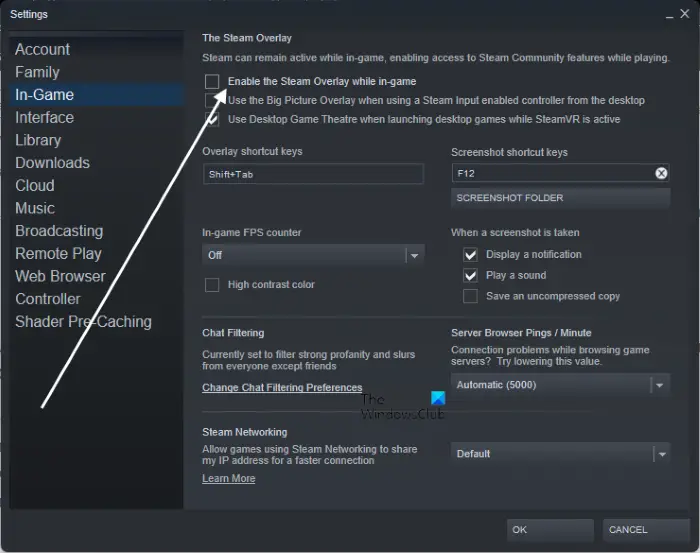
Steam Overlay is a great way to use the launcher’s feature on top of any game that you are playing. This is a great feature, but it may not work for you for various reasons. What we are going to do is disable Steam Overlay and see if the issue persists.
- Open Steam.
- Go to Steam > Settings.
- Go to the In-Game tab.
- Untick Enable the Steam Overlay while in-game and click Ok.
Hopefully, this will resolve the issue for you.
5] Update Visual C++ Redistributable and DirectX
Both of these tools are essential to a game. You should update both Visual C++ Redistributable and DirectX to the latest version and see if that works.
6] Troubleshoot in Clean Boot
Many apps can interfere with your game and cause it to crash on your computer. However, we don’t know what’s causing this problem. That is why we are going to troubleshoot in Clean Boot and see what’s causing the issue. Then, you can remove it and resolve your issue.
Hopefully, you will be able to play Dread Hunger after executing these solutions.
Why does my game keep crashing PC?
A game will crash if your system doesn’t meet the requirements. Please review the requirements. Please review it to confirm the requirements are met. However, most gamers tend to check the system requirements before downloading the game. If your computer is capable of running the game, this doesn’t guarantee smooth gameplay. Your game may also crash due to corrupted game files.
What do you do if your game keeps crashing?
If your game keeps crashing on your computer, first try restarting it. If that doesn’t work, try installing the latest game patch. Also, if the game crashes during gameplay, try lowering the graphics settings and see if that resolves the issue. If your issue persists, try the solutions in this article.
Read Next:
