
CCleaner, one of the most widely used PC cleaning and optimization tools, has released its latest update, version 7. This release goes beyond a routine upgrade, bringing a redesigned interface and a more streamlined approach to system maintenance. While the core functionality remains largely the same, the update focuses on simplifying how users interact with the tool. Below, we take a closer look at what CCleaner 7 offers and how it compares to earlier versions in terms of usability and features.
What’s new in CCleaner 7?
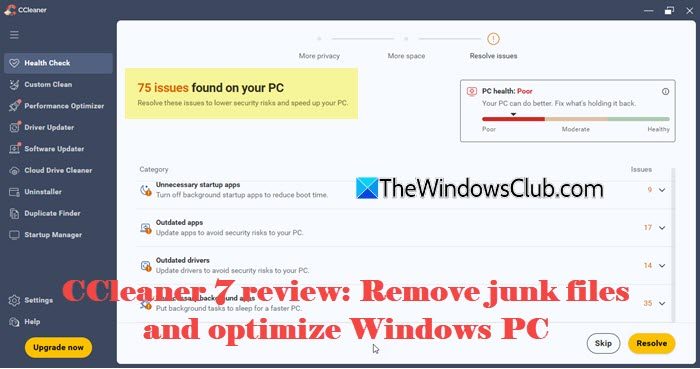
CCleaner 7 focuses more on simplicity and ease of use rather than detailed customization. The biggest change is the shift toward a more automated workflow. Instead of manually selecting multiple cleaning options, users are encouraged to go with suggested fixes and one-click cleaning.
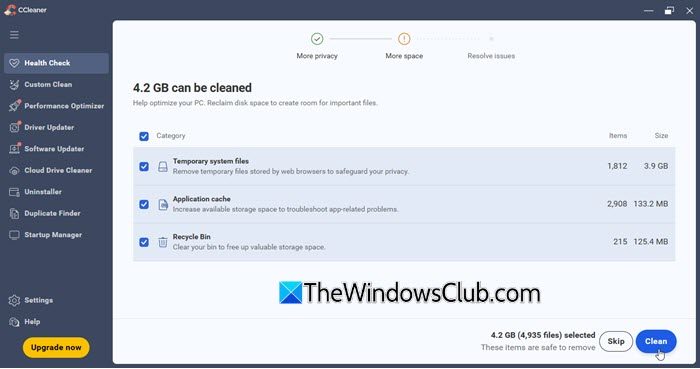
Some of the noticeable changes in CCleaner 7 include:
ARM64 support for modern devices
The tool now supports ARM64 architecture, allowing it to run natively on modern ARM-based laptops and hybrid devices. This improves performance and reduces resource usage. It also ensures better compatibility with newer Windows devices going forward.
Redesigned interface and visual experience
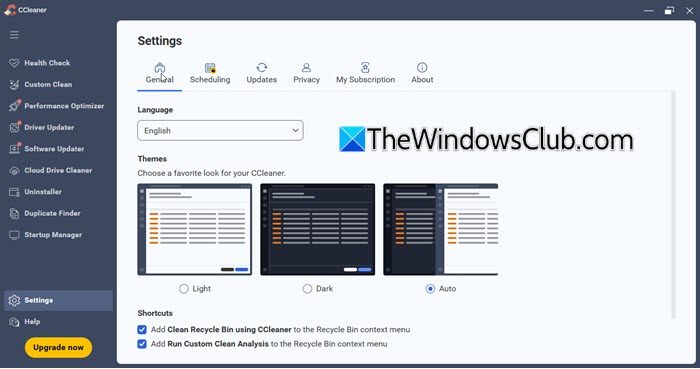
CCleaner 7 comes with a cleaner and more modern interface that feels easier to navigate. Sections are better organized, and tools are quicker to access. The fonts also appear more refined, improving readability across the interface. It adapts well to different screen sizes and also lets users choose between Light, Dark, and Automatic themes for better visual comfort.
Expanded updater tools
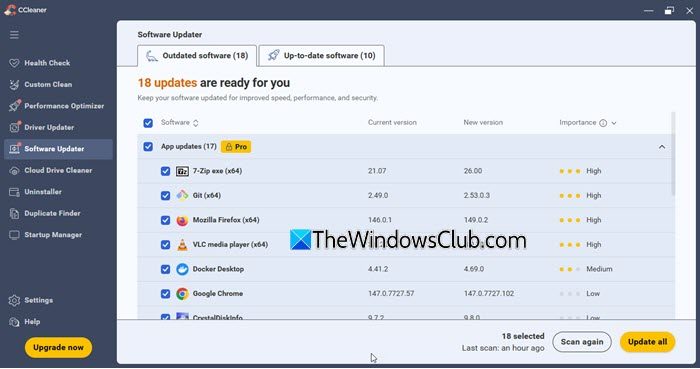
CCleaner 7 now includes both Driver Updater and Software Updater, making it easier to check for outdated drivers and installed applications. This brings more system maintenance features into one place. However, updating items is still limited to the Pro version.
Improved Uninstaller
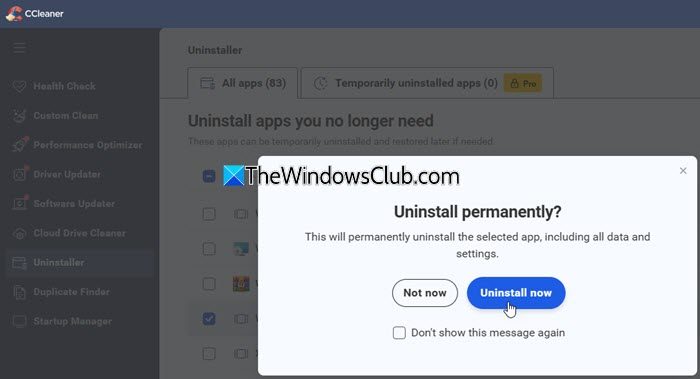
The built-in uninstaller in CCleaner 7 is more capable than before. It now supports batch uninstall, allowing you to remove multiple applications at once, which was not available in earlier versions. It also helps clean up leftover files after removal to improve disk space recovery. Additionally, a temporary uninstall option is available (in the Pro version), letting you remove an app to test its impact and restore it if needed.
Disk Analyzer removed; Duplicate Finder expanded
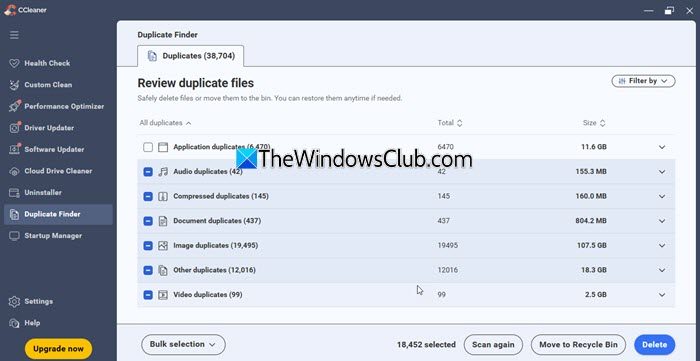
In earlier versions, Disk Analyzer allowed users to check disk space usage by file type or extension, which was a useful feature. In CCleaner 7, this functionality is no longer available, and the focus has shifted to the Duplicate Finder. While it still categorizes files like images, documents, and audio, and supports bulk deletion, it does not offer the same level of detailed storage analysis. Scans may also take longer, depending on the system.
Startup Manager
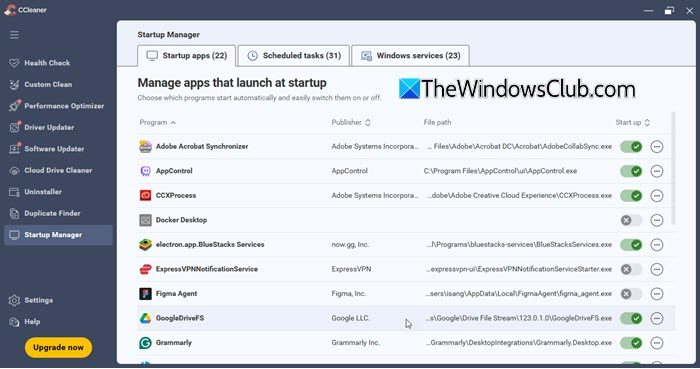
CCleaner 7 introduces a Startup Manager that lets you view and manage Startup apps, scheduled tasks, and Windows services in one place. You can enable or disable items using a simple one-click toggle to control background activity. This helps reduce system load and improve startup performance without requiring multiple system tools.
Read: How to stop apps from running in the background in Windows.
What has not changed in CCleaner 7
The core functionality of CCleaner remains largely the same. The tool still focuses on removing junk files, clearing browsing data, and improving system performance.
Key features such as Health Check, Custom Clean, Registry Cleaner, and Performance Optimizer are still present and work in a similar way. Users can continue to clean temporary files, manage startup programs, uninstall applications, and analyze disk space just like in previous versions.
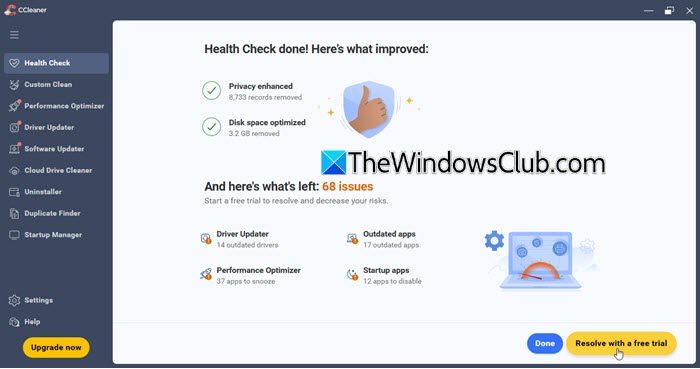
Additionally, the free version still provides basic cleaning capabilities, while advanced features such as driver updates and automatic optimization are available only on the Pro plan.
Read: Windows Registry tweaks to improve Performance and Experience.
Is CCleaner 7 still worth using?
CCleaner 7 works well for basic cleaning and routine system maintenance. The updated interface and guided workflow make it easier for new users to clean their systems without navigating complex settings. However, the shift toward a simplified, automation-focused design means some advanced options are less visible or easily accessible. Users accustomed to more detailed control in earlier versions may find this change limiting.
If you are considering the paid version, you can first try the available 60-day trial option (accessible under Settings > My Subscription). This helps you evaluate whether the additional features are useful for your needs. However, note that payment details may be required to activate the trial, so it is advisable to review the terms carefully.
CCleaner 7 has received some criticism for instability, forced updates, and data loss. Some users report scans freezing, auto-installation without consent, and even the deletion of browser data, such as Firefox passwords and bookmarks. The new interface and behavior changes have been poorly received, with many uninstalling the app and switching to alternatives.
But overall, CCleaner 7 is still a good free registry cleaning & junk remover software for everyday use, but it may not offer the same level of flexibility that some users expect. You can download CCleaner Free from ccleaner.com.
If you prefer more control over cleaning and optimization, here are some free alternatives you can try:
How do I get rid of junk files on Windows 11?
You can use Storage Sense to automatically delete junk files on your Windows 11/10 computer. Or else, you can try some good and free third-party tools with such a feature. CCleaner is one of those tools that lets you remove junk files and speed up your computer’s performance.
Does Windows 11 have a cleaner?
Yes, both Windows OS has a built-in Disk Cleanup tool. You can run this tool to delete temporary files, set up log files, Windows error reports and feedback, thumbnails, delivery optimization files, etc. It also lets you remove Previous Windows Installations that can help you gain disk space with size in GBs.
Read next: Improve Windows 11 Performance by tweaking these settings.
