
Almost every budget PC or laptop that comes with a Windows installation comes with Windows 11 Home edition. It works well for personal and normal usage. Windows 11 Pro is good for business users and organizations that need more security features, as well as management capabilities. But getting Windows 11 Pro out of the box costs more money. Instead, we can upgrade Windows 11 Home to Pro easily by getting a Pro license. However, some users report being unable to upgrade to the Pro edition. In this guide, we show you what to do when you can’t upgrade Windows 11 Home to Pro.
Can’t upgrade Windows 11 Home to Pro
If you try to upgrade Windows 11 Home to Pro and fail, you can follow these methods to upgrade your PC.
- Check if your PC meets the minimum requirements of Windows 11 Pro
- Upgrade without internet using the generic key
- Clear Microsoft Store Cache
- Run DISM and SFC scans
- Clean install Windows 11 Pro
Please note that if your PC shipped with Windows 11 Home Single Language, you can only upgrade to Pro Single Language, not the standard Pro edition.
1] Check if your PC meets the minimum requirements of Windows 11 Pro
If you have installed Windows 11 on an unsupported PC and are trying to upgrade it to Windows 11 Pro, it might not work. Windows 11 Pro has features like BitLocker Drive Encryption that absolutely need TPM 2.0 and other features. Upgrading Windows 11 Home to Pro on an unsupported PC is a futile effort. Check whether your PC meets the following requirements, then try again.
Minimum system requirements for Windows 11 Pro:
- Processor: 1 GHz or more with more than 2 cores on a 64-bit compatible processor
- Memory: Minimum of 4GB
- Storage: Minimum of 64GB
- Graphics: Must be compatible with DirectX12 or later versions
- Display: Must support HD resolutions
- Firmware: UEFI, Secure Boot capable, TPM 2.0
If your PC meets the requirements, follow the methods below. Before proceeding, make sure the Windows 11 Home edition currently running on your PC is activated with a valid product key, as the current activated version is required to upgrade to Windows 11 Pro.
2] Upgrade without internet using the generic key
If the upgrade to Windows 11 Pro fails, the best workaround is to disable the internet and use the generic key to add Windows 11 Pro features to complete the upgrade. Turn off WiFi or Ethernet on your PC, and then proceed with this method.
Open the Settings app and select System. Go to Activation and expand Upgrade your edition of Windows. Then, click the Change button to enter the product key.
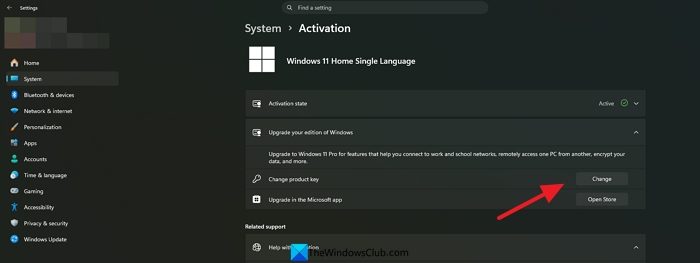
In the Enter a product key pop-up, enter the following generic key provided by Microsoft for evaluation and upgradation purposes.
VK7JG-NPHTM-C97JM-9MPGT-3V66T
Click Next to start the upgrade to Pro.
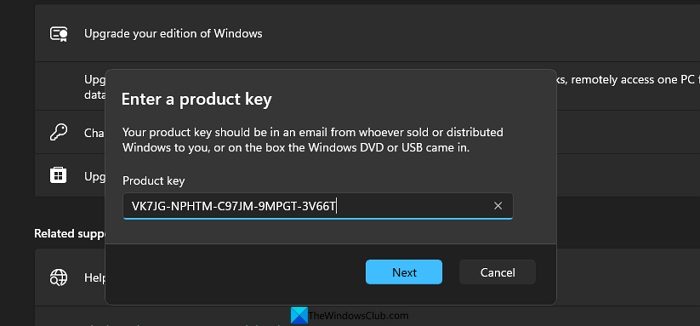
After a successful upgrade to Windows 11 Pro, go to Activation and activate your Windows 11 Pro using the Product key you have received or through the Microsoft Store option. The generic key does not activate Windows 11 Pro.
3] Clear Microsoft Store Cache
If you have purchased Windows 11 Pro from the Microsoft Store and are unable to install or activate it, a corrupted Microsoft Store cache might be causing the issue. To fix that, you must clear the Microsoft Store cache and try activating Windows 11 Pro again.
To clear the Microsoft Store cache on Windows 11, open Command Prompt as an administrator and enter the following command.
wsreset.exe

You will not see any status after running the command. After the cache is successfully cleared, it will open the Microsoft Store. Then proceed to activate Windows 11 Pro in the Settings app.
4] Run DISM and SFC scans
It is possible that issues with the System image and system files are preventing the upgrade to Windows 11 Pro. You need to eliminate the possibility of corrupted or missing files by running the DISM and SFC scans on your Windows 11 Home edition.
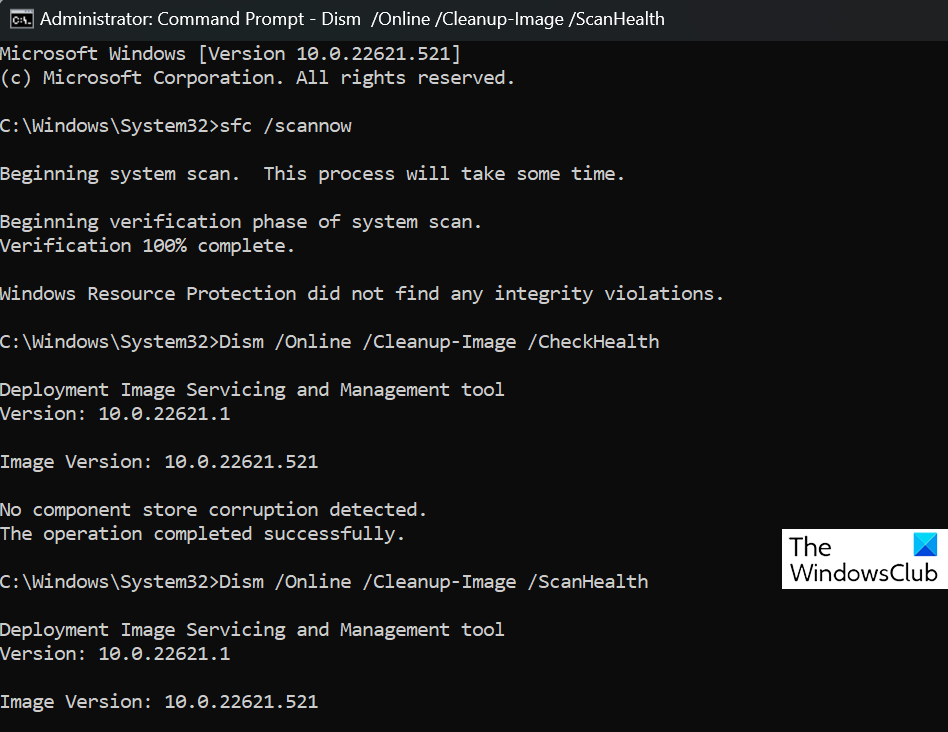
The scans will run, find issues, and fix them automatically. After the scans are complete and the fixes are implemented, you can proceed with the upgrade to Windows 11 Pro in the Settings app.
5] Clean install Windows 11 Pro
If nothing else works to upgrade your PC from Windows 11 Home to Windows 11 Pro, you have to perform a clean install of Windows 11 Pro using a bootable USB drive. Moreover, if your device is locked to Home by the OEM, you will have to reinstall Windows 11 Pro manually with a Pro license.
Download Windows 11 Installation Assistant from Microsoft, and then download Windows 11 Disk Image from the same website. After a successful download, run the Windows 11 Media Creation Tool and create a bootable USB following the on-screen instructions. After you see the “Your USB flash drive is ready” message, the process completes.
If your PC is pre-activated with Windows 11 Home edition, the bootable USB drive installs Windows 11 Home by default. You need to make sure Windows 11 Pro is installed. To do that, open Notepad on your PC, and paste the following text as it is.
[EditionID]
Professional
[Channel]
Retail
[VL]
0
Then, save the Notepad file as ei.cfg and select All files in the Save as type options. Paste the file into the Sources folder inside the bootable USB drive.
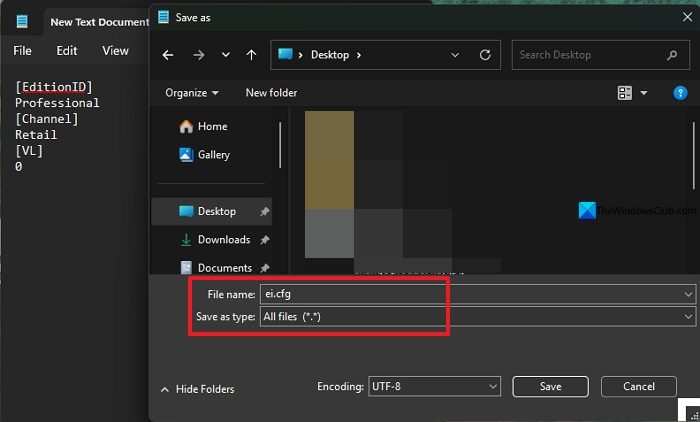
It will force your PC to select Windows 11 Pro, Retail version with a license. Now, proceed to Windows 11 Pro installation with a bootable USB drive.
Read: Windows 11 stuck on Getting Windows ready screen
How to force upgrade Windows 11 Home to Pro?
You must have an activation key to force-upgrade Windows 11 Home to Windows 11 Pro. To force upgrade, turn off the internet on your PC, enter the generic product key for the Pro version in the Activation settings, and let the Windows 11 Pro features install. After a successful upgrade, it will ask you to enter the product key to activate Windows 11 Pro.
How do I activate my Windows 11 Pro for free without a product key?
It is not possible to activate Windows 11 Pro for free without a product key. If your PC manufacturer has provided Windows 11 Pro by default, you do not need an activation key. If you have upgraded to Windows 11 Pro with a generic key, it will prompt you to activate Windows 11 Pro with a valid product key provided with the Windows 11 Pro purchase.
Related read: Fix 0xC1900101 – 0x40021 Windows 11 Upgrade error.
