
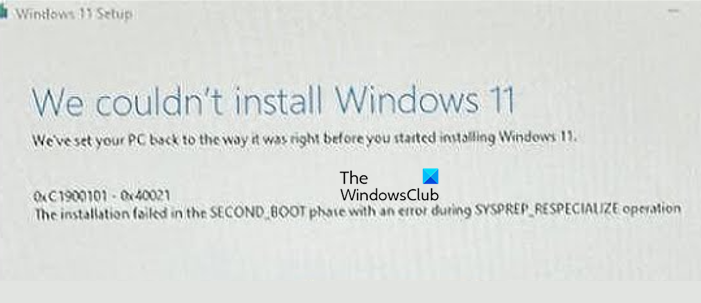
If you are experiencing Error 0xC1900101-0x40021, The installation failed in the SECOND_BOOT phase due to SYSPREP_RESPECIALIZE operation when upgrading Windows 11, you are not alone. This error indicates that the installation has got stuck right before the final setup stage. The good news is that this is almost always fixable. In this article, we will discuss the reasons and find their solutions.
Why is my Windows upgrade failing?
The Windows 11 upgrade is likely failing due to a compatibility conflict. It can also be due to low storage space, damaged system files, or third-party software running in the background. We will explore this topic in the next section. But before you proceed, you can take a look at this post, which explains Downlevel, Safe OS, First Boot, and Second Boot Phases.
Fix 0xC1900101- 0x40021 Windows 11 Upgrade error
If you are encountering the 0xC1900101-0x40021 Windows 11 upgrade error, execute the solutions given below.
- Update BIOS/UEFI firmware
- Update critical hardware drivers
- Run Windows repair commands
- Perform a clean boot and then upgrade
- Use the Windows 11 Installation Assistant in Safe mode
- Run the Windows Update troubleshooter
Let’s get started with the troubleshooting guide.
The installation failed in the SECOND_BOOT phase due to SYSPREP_RESPECIALIZE operation
1] Update BIOS/UEFI firmware
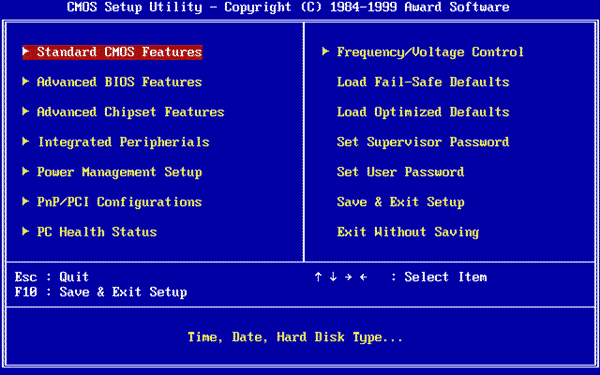
An outdated BIOS is the primary cause of the 0xC1900101-0x40021 error. It’s necessary to run the latest BIOS version. Here’s how to update BIOS/UEFI firmware.
- Click Win + R to open the Run dialogue box, type msinfo32, and press Enter to open System Information.
- Search for BIOS Version/Date to note the manufacturer and version, and then navigate to the manufacturer’s support website. There, enter the model number, go to the BIOS or Driver and Utility section, and download the latest BIOS/UEFI firmware file.
- Once the executable file is downloaded, close all other programs and run the file as an administrator. The system will restart and update the BIOS automatically.
While the process is ongoing, do not switch off the power or restart the PC. After the update, enter the BIOS setup to verify that all settings are correct, then try updating Windows 11 again. If the issue persists, see the next solution.
Read: Error 0xC1900101 – 0x40017, The installation failed in the SECOND_BOOT phase
2] Update critical hardware drivers
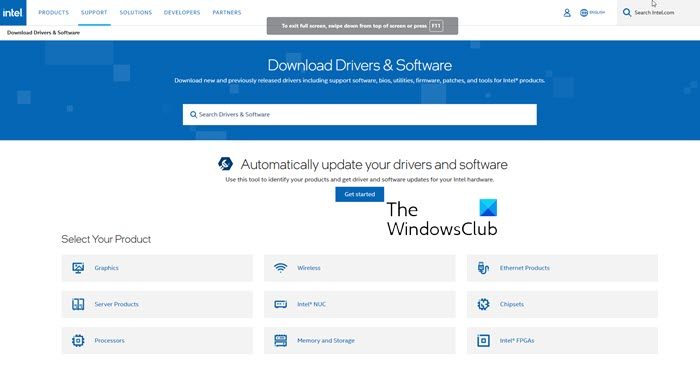
Corrupt or outdated drivers are some of the most common causes of upgrade failure. All critical drivers should be updated to eliminate this as a potential contributor to the issue. Here are three different ways to update critical hardware drivers.
- Download the drivers from the manufacturer’s website
- Get a driver update software
- Install Driver and optional updates
Move to the next solution if the issue persists.
3] Run Windows repair commands
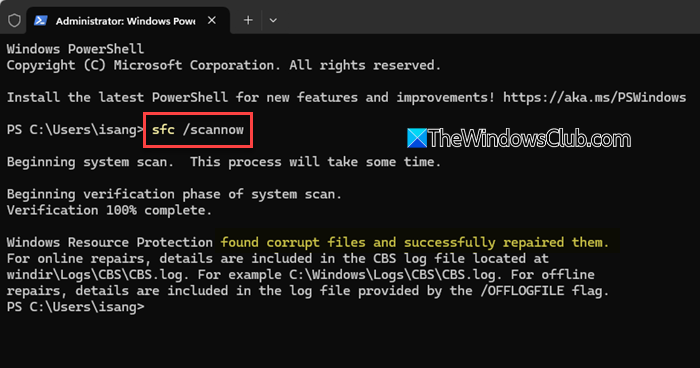
In this solution, we will run the built-in SFC and DISM tools to automatically detect and repair underlying system corruption.
- Click Win + R to open the Run dialogue box, type cmd, and hit Ctrl+Shift+Enter to open Command Prompt with admin rights.
- To run SFC, execute the command given below.
sfc/scannow
- Wait for the process to complete, and then execute the following command to run DISM.
DISM /Online /Cleanup-Image /RestoreHealth
Restart the device after successfully executing both commands, and then attempt to upgrade again. Slide to the next solution if you are unable to do so.
Read: Error 0x8007002C-0x4001E, The installation failed in the SECOND_BOOT phase
4] Perform a clean boot and then upgrade
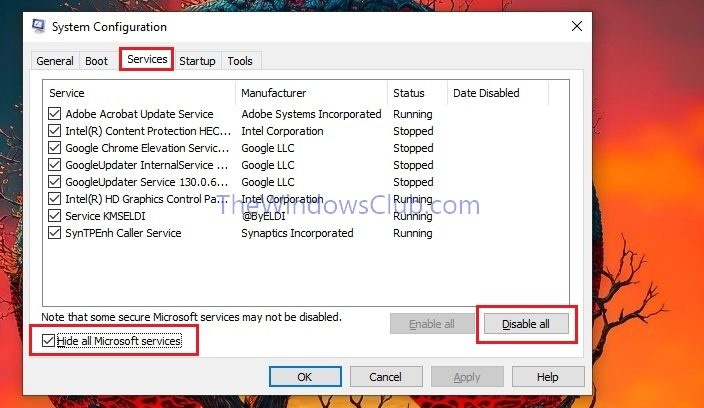
Third-party apps and services running in the background can interfere with the installation process. Performing a Clean Boot will restart Windows with a minimal set of drivers and startup programs to create a clean environment.
- Click Win + R to open the Run dialogue box, type msconfig, and press Enter to open the System Configuration window.
- Navigate to the Services tab, and check the Hide all Microsoft services and Disable all boxes.
- Press the Apply button, and then go to the Startup tab. There, click on the Open Task Manager, select each item under it, and press the Disable button.
- Once done, quit the Task Manager window, go to the System Configuration window and click OK.
Reboot the device when prompted to run the PC in a Clean boot state. Now try upgrading again from this clean environment. If the issue persists, see the next solution.
5] Use the Windows 11 Installation Assistant in Safe mode
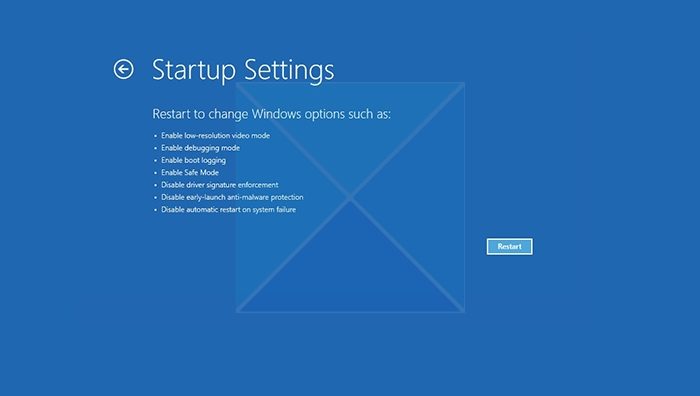
If you are still unable to upgrade, try upgrading in safe mode using the Windows 11 Installation Assistant. Safe mode only loads the most essential Windows drivers and thus bypasses any conflicting software or drivers.
- Click Win + I to open Settings, then go to System> Recovery.
- Scroll down to find Advanced startup, and click the Restart Now button. After the restart, click Troubleshoot on the bluescreen, then select Startup settings.
- Click on Restart, and when the computer restarts once again, press the 5 or F5 key to select Enable Safe Mode with networking. Once in safe mode, run the Windows 11 Installation Assistant.
If it fails, and the issue remains, go to the next solution.
Read: Windows Upgrade Error Write 0x0000065e while gathering/applying Object
6] Run the Windows Update Troubleshooter
Lastly, we are going to use Get Help to execute the Windows Update Troubleshooter. This tool will automatically scan and resolve common problems. To do the same, navigate to the Search bar, type Get Help, and select Run as administrator. In the app’s search bar, type Windows Update Troubleshooter, and press Enter.
The app will display a panel of solutions, execute each one, and, based on the issue’s status, answer the question “Did this solve your problem?” with a Yes/No answer. When you click NO, the app will display another solution until the issue is resolved. However, if none of the solutions work, the app will ask you to contact Microsoft Support as the final solution.
Hopefully, with these solutions, your issue will be resolved.
Read: Error 0x8007007f when using Windows 11 Installation Assistant
How to fix a corrupted Windows 11 update?
A corrupted Windows update can usually be fixed by running the built-in troubleshooter or resetting Windows Update components. If the update still fails, clearing the SoftwareDistribution folder and restarting the update services always helps. As a last step, users can also manually update through the Microsoft Update Catalogue.
Also Read: Error 0x80070003 – 0x20007 or 80040005 – 0x20007 on Windows 11.
