
Windows 11 disk image (ISO) is available to download from the official Microsoft website for all users. You can follow this guide to download the official ISO of the latest Windows 11/10 version and build with or without using the Media Creation Tool..
This is what Microsoft says about the ISO download:
This option is for users that want to create a bootable installation media (USB flash drive, DVD) or create a virtual machine (.ISO file) to install Windows 11. This download is a multi-edition ISO which uses your product key to unlock the correct edition.
Before you begin the download, you must know about a few things:
- It is recommended to have 64-bit system architecture to install Windows 11.
- It is the official ISO of Windows 11, and you can verify that on the download page.
- You can download multiple ISO files of different languages.
Download Windows 11 ISO (Disk Image) file from Microsoft
To download Windows 11 disk image (ISO) file from Microsoft, do the following:
- Visit the official Microsoft website.
- Locate the Download Windows 11 Disk Image (ISO) section.
- Expand the drop-down list and choose Windows 11.
- Click the Download button.
- Select a language from the list and click on Confirm.
- Click the 64-bit Download button.
To get started, visit the official ISO download page at microsoft.com.
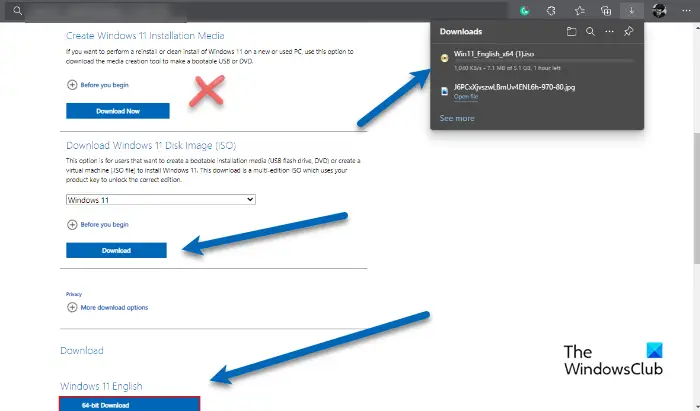
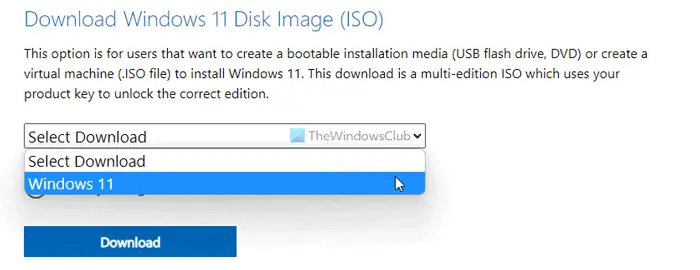
From here, find out the Download Windows 11 Disk Image (ISO) heading. Under this heading, you can see a drop-down list.
You need to expand this list and choose Windows 11. Then, click on the Download button.
After that, expand the subsequent drop-down list, choose a language, and click the Confirm button. Since Windows 11 requires a 64-bit architecture, you can only find the 64-bit Download option.

To start the downloading, click on this button.
Download the Windows 11 Disk Image (ISO) file using Media Creation Tool
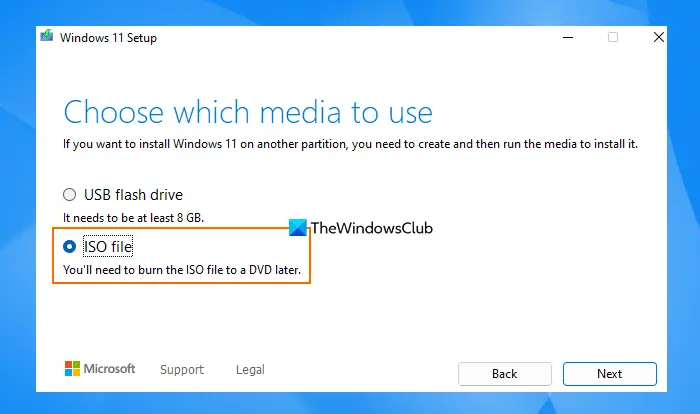
Another way to download Windows 11 Disk Image (ISO) is by using the Media Creation Tool. It lets you download and create the latest version ISO file provided by Microsoft. So, let’s say you want to download the Windows 11 25H2 Update ISO file using this tool, the steps are as follows:
- Grab the Media Creation Tool from the official website
- Execute the mediacreationtool.exe file that you downloaded. A Windows 11 Setup wizard will open
- Press the Accept button
- Select the Language (say English (United States)) and Edition (Windows 11). Or else, tick mark the Use the recommended options for this PC option to automatically set the Language and Edition
- Press the Next button
- Now select the ISO file option
- Click on the Next button to proceed further
- A Select a path box will pop up. Select the output folder or directory where you want to save the ISO file on your Windows 11/10 computer. You can also change the file name if you want
- Press the Save button in that box. Now the Media Creation Tool will start downloading the ISO file. It will take some time. You can check the progress and continue using your PC in between
- Once the download process is completed, it will automatically verify your download which will be completed quickly
- After that, it will start creating Windows 11 media (ISO file)
- Press the Finish button.
Finally, the Windows 11 ISO file will be saved to your computer. After that, you can burn the ISO file to a DVD or create a bootable USB flash drive from ISO to install Windows 11 with the latest version.
How can I download Windows 11 for free?
You can download Windows 11 ISO for free from the official Microsoft website mentioned above. From there, you can download the ISO file directly or use the Media Creation Tool. However, you must have a valid product key to continue using Windows 11 in its fully-featured form.
How do I download Windows 11 ISO official from Microsoft to get the latest release easily?
There are two ways to download the official Windows 11 ISO with the latest version from Microsoft. These are:
- Using the official Microsoft Website
- Using the Windows 11 Media Creation Tool.
Both options are covered in this post with a step-by-step guide. Once you get the ISO file, you can create a bootable ISO to upgrade Windows 11 or clean install Windows 11 from USB.
How do I install Windows 11 from ISO?
To install Windows 11 from an ISO file, you can use different methods. You can use Rufus to create a bootable USB and then install the OS, or you can create Windows 11 bootable installation media using the Media Creation Tool. Or if you want a portable option, you can create a Windows To Go version of the OS on a suitable USB and then use it to utilize Windows 11 on your computer.
Should I install Windows 11 on an unsupported PC?
Windows 11 is new and exciting, and it is tempting to try something new, but you have to think about the consequences it can have on your computer. It can make your computer sluggish because the new OS is not optimized for your system.
However, if you want to, you can install Windows 11 on unsupported hardware. So, do that, and see how your computer responds. Sometimes, it can run smoothly as well, so, try and decide for yourself.
Is Windows 11 faster than Windows 10?
According to Microsoft, Windows 11 is faster than Windows 10, and they back this claim with explanations.
Windows 11 will have better memory management, so you will notice more apps staying in memory. This also means that apps will launch more quickly, and the time to wake from sleep will be shorter. All in all, Windows 11 will offer better memory optimization than its predecessor.
They have also dialed up the efficiency, resulting in a well-balanced system, with ample power and a good battery. Windows 11 has a smaller footprint than Windows 10, which will help you to save a few extra GBs. So, we can conclude that if you are installing Windows 11 on a supported system, it will be more powerful than Windows 10.
Read: Download Windows 11 Enterprise Trial Version Setup Free.
Download Windows 11 ISO without using Media Creation Tool
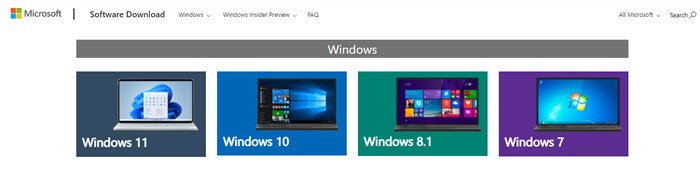
You can easily download Windows 11 ISO without using Media Creation Tool from the official website of Microsoft. Just follow the given steps and you will be good to go.
- Go to microsoft.com.
- Click Windows 11.
- Scroll down to Download Windows 11 Disk Image (ISO), and from the drop-down menu, select Windows 11.
- Now, click Download.
- Select the language of your choice from the “Select the product language” section and click Confirm.
- Now, click 64-bit Download.
That said, the process is completely legal, and we are doing it so we don’t have to download the ISO again, and again.
However, do note that the Media Creation tool has its own advantage. It always gets you the latest & updated files. If you use an old ISO file, you may need to update Windows 11/10 to the newest version.
However, if you are updating multiple PCs, or a PC that doesn’t have direct internet access or is restricted, this will come in handy.
Related reads:
- Windows 11 free download full version.
- How to use Windows 11 Installation Assistant to install Windows 11
- Create Windows 11 bootable installation media using Media Creation Tool..
