
If when you are upgrading your Windows 11/10 computer or laptop to a newer version, it is stuck on Getting Windows ready, Don’t turn off your computer screen, then this post is sure to interest you.
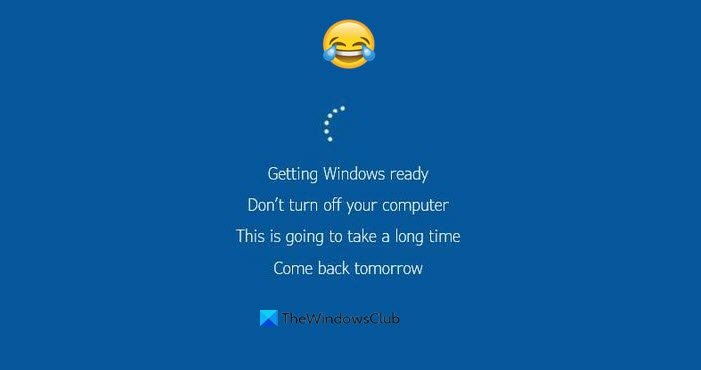
During the “Getting Windows ready, Don’t turn off your computer” screen, Windows is finalizing updates, configuring system files, and applying changes to ensure your PC runs correctly. This process can take from 15 minutes to hours, depending on update size, hardware speed, and system health.
Getting Windows ready, Don’t turn off your computer
I recently encountered this screen while upgrading my Windows 10. While my other laptops had no issues, my Dell laptop was stuck on this screen for over 2 hours! But there have been reports that it can take up to 7 hours!
First, you will have to see if the cursor’s (circle) animation state:
- Is it moving
- Or is it frozen?
The circle animation is moving
Well, what can or should you do in this case? Actually, nothing much. You just need to wait till the upgrade process is over.
Never make the mistake of shutting down your laptop, else you never know, the PC might just not boot!
What did I do? After patiently waiting for over 2 hours, I decided to go to sleep. But I had ensured that my laptop would never go to sleep.
Before I start any upgrade process I always ensure that my laptop will not Sleep when plugged in. In Windows 11/10, you will get the setting under Settings > System > Power & Sleep. You will see a drop-down for When plugged in, turn off after setting. I select Never before upgrading my PC.
I ensured that the laptop was connected to the Mains power supply and things were all working fine.

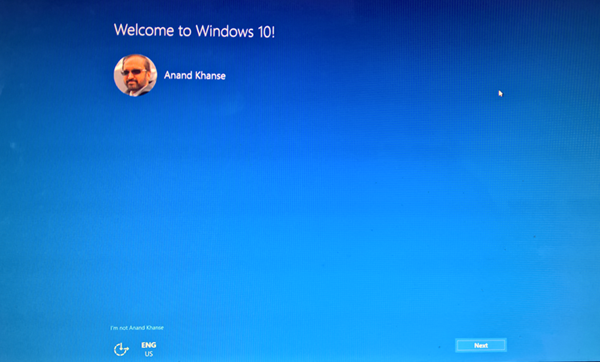
After a few hours, I found that the laptop had successfully upgraded, and when I logged in, I saw the following screen.
So the takeaway from this small post?
As long as the circle animation is moving, don’t do anything. Just wait.
The circle animation is frozen
What if the animation itself is frozen? Well, I’d say still wait for a day. If you think it’s a lost cause, well you might have shut down Windows using the Power switch on the laptop.
- If your PC reboots, great! Clear the contents of the Software Distribution folder, reset the Catroot2 folder and then run Windows Update again.
- If your PC does not boot, well, you may have to reinstall Windows, using Media Creation Tool or Windows Upgrade Assistant, ensuring that the ‘Keep personal files & data’ option is selected during installation.
Useful read: This post shows you how to access Safe Mode or Advanced Startup Options when Windows is stuck on loading some screen with the spinning dots animation moving endlessly, welcome mode, login screen, starting Windows or will not boot.
All the best!
