
Microsoft Outlook is one of the most commonly used Email clients. So it is natural that users might have a lot of issues with it, like common start-up problems, freezing, slow response, corrupt PST or Profile or Add-in, etc.
Fix Outlook problems and issues
In this post, we will suggest a few tips that would help you in resolving these Microsoft Outlook issues on your Windows computer.
1] Outlook add-in corrupt
Most of the time, Outlook issues are caused by poorly written add-ins installed with the software, which we won’t even know! As the first step, we should try to disable the add-ins and see if that resolves the problem. Add-ins can cause Outlook not to open, freeze, or cause’ not responding’ issues! Here are a few methods I suggest, which you may use to disable the add-ins.
Disable Outlook add-ins via Add-in Manager
If you can open Outlook, then we can disable it from there.
- Outlook 2003: Go to Tools > Options > Advanced > Add-in Manager
- Outlook 2007: Tools > Trust Center > Add-ins
- Outlook 2010/2013/2016/2019,2024: File > Options > Add-ins. There you’ll find COM Add-ins select that option and uncheck all non-Microsoft related add-ins you would also select the Exchange add-ins and disable it from there as well. Then close Outlook.
Sometimes Outlook just won’t close -it will continue to be still running in Task Manager. So we have to open the Task Manager, go to the Process tab and look for Outlook.exe and kill the service. Then re-open Outlook and see if the problem is still there.
Disable Outlook add-ins using OfficeIns
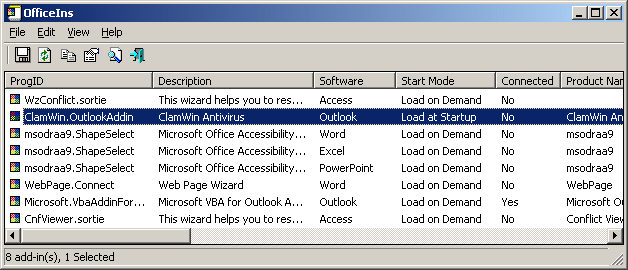
Download OfficeIns from Nirsoft. Close Outlook. Make sure it’s not running in the Task Manager. Then open OfficeIns. Select the Add-in and Right Click on it. You’ll find an option called “Change Start Mode” and select Disabled and then Select “Change Connect Mode” and select No. Follow the same process for all non-Microsoft add-ins. Once you disable all the add-ins, the open Outlook and test it.
Disable Outlook add-ins via Registry
The next method is disabling it from Registry. This option is for advanced users. Change the value incorrectly can cause potential damage to Cothe mputer beto very cautious.
Go to Start and type in Regedit. Then let’s make a backup of the Registry.
Click “Computer” then Go to File > Export > type the File name as Registry back and click on Save. Then go to:
HKEY_LOCAL_MACHINE\SOFTWARE\Microsoft\Office\Outlook\Addins (32- Bit System)
HKEY_LOCAL_MACHINE\SOFTWARE\Wow6432Node\Microsoft\Office\Outlook\Addins (64-Bit System)
Under Addins key, you’ll find the list of add-ins. To remove the simply highlight the one Right Click on it and Delete.

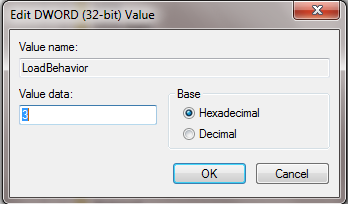
To temporarily disable it, on the Right side Pane, you’ll find a Value called “Load Behavior.” Double-click on it and change the Value data from “3” to “0.” Click OK. Once you do that, close the Registry, open Outlook, and test it.
Sometimes it’s the corrupt PST file or a corrupt Profile that can cause Outlook to crash. If it can cause a crash due to an improper shutdown of Outlook – sometimes the PST size is huge like around 2 or 3 GB – then it is time to use a new PST for better performance of Outlook.
2] Corrupt PST file in Outlook
Microsoft Outlook has an inbuilt Tool called “SCANPST.exe” using that program you can scan and repair issues with PST.
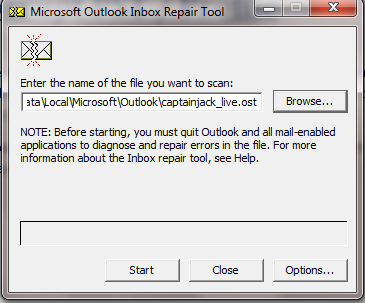
Select the PST using the Browser button and Select Start. Sometimes it might take a long time to complete. So don’t disturb the process. Read more here on how to Repair corrupt Outlook PST files with Inbox Repair Tool or Microsoft Fix It. Stellar PST Viewer will let you scan and view the contents of damaged or corrupted Outlook data files (.pst) files.
3] Corrupt Profile in Outlook
Most of the time, corrupt Profile can use Outlook not to open or error message, etc. To test that, you could try creating a new Outlook Profile.
To create a new Profile, go to Start > Control Panel > Mail.
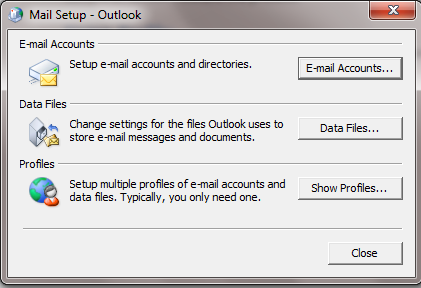
Then Select Show Profiles.
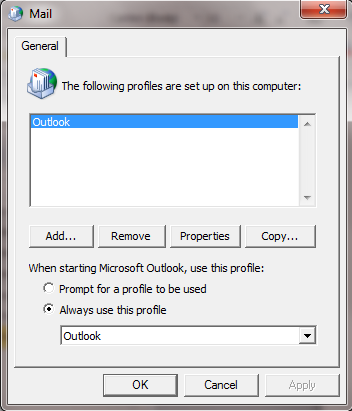
Then Select Add and type a new Name for Profile. Then set up the E-mail account and click Finish. Then under “Always use this Profile,” Select a new profile name and Click OK. Then open Outlook and test it.
If that works, then you have to move your old PST that has all the E-mails to a new Outlook Profile. Go to Control Panel > Mail > E-mail Account, and Select the Data tab.

There Click on Add and Select the Old PST File. Once you select it Click on “Set as Default” so it will default to your Old PST’s Inbox. Then open Outlook again.
Fix: Outlook high Memory and CPU usage
4] Outlook Calendar problems
The Calendar Checking Tool for Outlook (CalCheck) is a command-line program that checks Microsoft Outlook Calendars for problems.
TIP: See this post if you face Outlook.com problems, errors, and issues.
5] Office Diagnostic – Fix Outlook Problems
Office Diagnostic is a powerful method to fix most of Outlook setup related issues or missing file to Registry-related problems.
To run Office Diagnostic:
- Outlook 2003: Go to Help and Select on Detect and Repair
- Outlook 2007: Go to Help and Select Office Diagnostic or Go to All Programs > Microsoft Office > Microsoft Office Tools > Office Diagnostic
- Office 2010/13/16/19,24 : In Office 2010, Microsoft has removed that option, and they have replaced it with an Automatic Repair option.
- From any Microsoft Office 2010 application, click the File tab, then click Options.
- On the Options screen, select Trust Center, then click Trust Center Settings.
- From the Trust Center screen, select Privacy Options on the left.
- Under the Privacy Options section on the right, check the box for Download a file periodically that helps determine system problems.
- Click OK to save these settings.
If that doesn’t work, open Program and Features and On the list of programs, select Microsoft Office, and click Change. On the change screen, select Repair, and click Continue.
This post will show you how to repair an Outlook account if your Outlook is not syncing.
Read: How to delete Outlook cache files.
6] Troubleshoot Outlook issues using Command switches
There are a lot of command switches for different types of troubleshooting. Few of them are very popular. I’m listing a few that would be helpful.
Start > Run > Outlook /<Switch> (Without <>)
- Outlook /Safe – To open the Outlook in Safe mode
- Outlook /Resetnavpane – This will reset Navigation Pane is Outlook. It will resolve common issues like “Cannot start Outlook…” etc.
- Outlook /resetfolders – Restores missing folders for the default delivery location.
- Outlook /cleanreminders – If Outlook freezes while opening due to Alarms using this switch will fix it.
7] Outlook Loading Profile stuck
See this post if Microsoft Outlook is stuck on Loading Profile.
I hope it helps!
Other posts which may interest you:
- You receive Not Implemented error in Outlook
- Outlook RSS Feeds not updating
- Outlook has stopped working
- Cannot start Microsoft Outlook, Cannot open the Outlook window
- PowerPoint is not responding.
