
Microsoft Word is the primary text editor for Microsoft Office. If it doesn’t open on your computer or stops responding, then you could face a work stoppage. If Microsoft Word does not open or run properly on your Windows computer, please read this article for possible resolutions.
Microsoft Word is a part of the Microsoft Office package. The package is not free and comes for a cost. However, the online version of Microsoft Office is free of cost. You will be able to download files in the same format .doc using the online version of Microsoft Office. Also, you can use free alternatives to Microsoft Office. They usually have a text editor with features similar to Microsoft Word.
Microsoft Word won’t open on Windows PC
The main causes of this issue are troublesome add-ins or corrupt application files. Addressing these causes can resolve the issue with Microsoft Word not opening on your computer. Try the following solutions sequentially:
- Open Microsoft Word in Safe Mode and disable add-ins
- Delete the Word Data registry key
- Delete the Word Options registry key
- Repair Microsoft Office
- Uninstall and reinstall Microsoft Office
- Other troubleshooting suggestions.
1] Open Microsoft Word in Safe Mode and disable add-ins
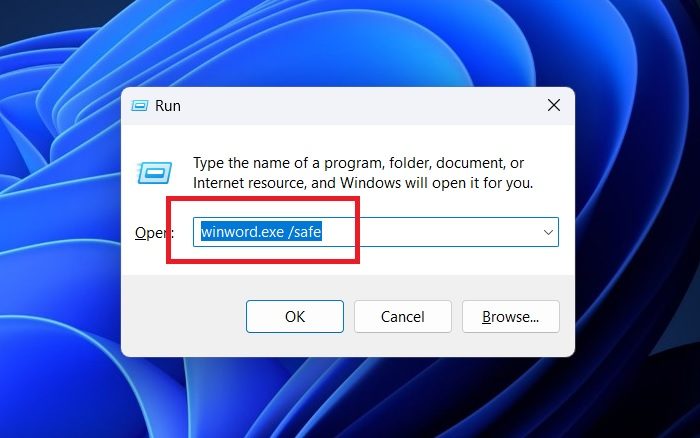
The usual way to open Microsoft Word is to search for it in the Windows Search bar and then open the application. However, if troublesome extensions are preventing the same, you can open it in Safe Mode. Safe Mode does not use add-ins and disables many features of Microsoft Word. Thereafter, you can find the troublesome Office add-in and disable it. The procedure is as follows:
- Press Win+R to open the Run window.
- In the Run window, type the command Winword.exe /safe.
- Hit Enter to open Microsoft Word in the Safe Mode.
- Go to File >> Options.
- In the Options window, go to the Add-ins tab on the list on the left-hand side.
- Corresponding to Manage, change the drop-down to COM Add-ins.
- Click on Go.
- All the Add-ins or extensions will appear in a list with checkboxes.
- Check the box associated with the first Add-in and click on Remove.
- Check if it solves the problem. If not, use the hit and trial method for all Add-ins to figure out the problematic one.
- Once the problematic Add-in is removed, the issue would be resolved.
Read: Microsoft Word won’t open on Windows PC
2] Delete the Word Data registry key
Open regedit and locate the following registry subkey, as appropriate for the version of Word that you are running:
For instance-
Word 2024/21/19/16:
HKEY_CURRENT_USER\Software\Microsoft\Office\16.0\Word\Data
Word 2010:
HKEY_CURRENT_USER\Software\Microsoft\Office\14.0\Word\Data
Word 2007:
HKEY_CURRENT_USER\Software\Microsoft\Office\12.0\Word\Data
Word 2003:
HKEY_CURRENT_USER\Software\Microsoft\Office\11.0\Word\Data
Word 2002:
HKEY_CURRENT_USER\Software\Microsoft \Office\10.0\Word\Data
Similarly, check the path for your version of Office.
Click Data, and then click Export on the File menu. Name the file Wddata.reg, and then save the file to the desktop.
Click Delete on the Edit menu, and then click Yes. Exit Registry Editor.
If Word starts and works correctly, great! If not, restore the original backed-up Word Data registry key Wddata.reg, by double-clicking on it.
Related: Microsoft Word has stopped working
3] Delete the Word Options registry key
To delete the Word Options registry key, open Registry Editor and locate the following registry subkey, as appropriate for the version of Word that you are running:
Word 2024/21/19/16:
HKEY_CURRENT_USER\Software\Microsoft\Office\16.0\Word\Options
Word 2010:
HKEY_CURRENT_USER\Software\Microsoft\Office\14.0\Word\Options
Word 2007:
HKEY_CURRENT_USER\Software\Microsoft\Office\12.0\Word\Options
Word 2003:
HKEY_CURRENT_USER\Software\Microsoft\Office\11.0\Word\Options
Word 2002:
HKEY_CURRENT_USER\Software\Microsoft\Office\10.0\Word\Options
Click Options, and then click Export on the File menu. Name the file Wdoptn.reg, and then save the file to the desktop.
Click Delete on the Edit menu, and then click Yes. Exit Registry Editor.
If Word starts and works correctly, you have resolved the problem. The problem was a damaged Word Options registry key. If the problem persists, restore the original Wdoptn.reg Word Options registry key.
Related: Office not opening after Update
4] Repair Microsoft Office
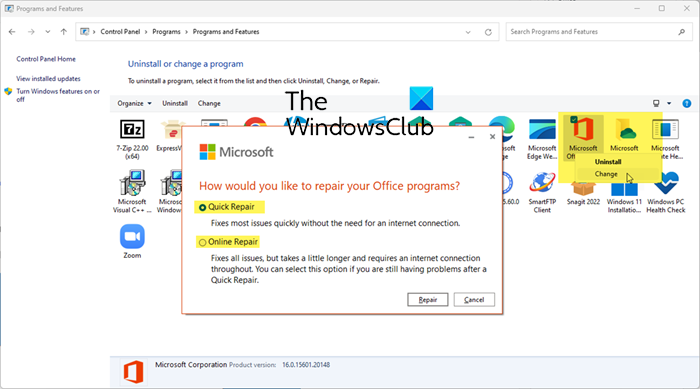
If files associated with the Microsoft Word application are corrupt, you might encounter a problem in the discussion. In this case, repair the Microsoft Office client could be helpful. The procedure is as follows:
- Right-click on the Start button and select Settings from the menu.
- Go to the Apps tab on the list on the left-hand side.
- In the right pane, select Installed Apps.
- Search for the Microsoft 365 application in the list of apps.
- Click on the three dots associated with the application and select Modify.
- Click on Yes if you get the UAC prompt.
- In the next window, you will notice 2 options for Quick repair and Online repair.
If your system is connected to the internet, we would suggest trying Online repair. Check the radio button associated with the option and click on Repair.
Read: Microsoft Word is not responding
5] Uninstall and reinstall Microsoft Office
If everything else fails, you can consider uninstalling and reinstalling the Microsoft Office client on your system. The procedure is as follows:
- Go to the Installed Apps page as explained in the previous solution.
- Find the Microsoft 365 application.
- Click on the three dots associated with it and select Uninstall.
- Click on yes if you encounter the UAC prompt.
- Let the application uninstall completely.
- Now, you can reinstall the Microsoft Office application from account.microsoft.com.
This should solve the problem for all users.
Read: Microsoft Word keeps crashing.
6] Other troubleshooting suggestions
- Disable the Startup folder add-ins
- Delete the COM add-ins registry keys
- Determine which COM add-in program is causing the problem
- Rename the Normal.dot or Normal.dotm global template file.
Hope this helps.
Read: Office documents do not open after upgrading Windows 11
Read: Word cannot open the file because the file format does not match the file extension
What is Microsoft Word used for?
Microsoft Word is a sophisticated text editor. Microsoft continues to improve its features over time to make it more user-friendly. It has an in-built editor and many other features that make it far superior to a standard text editor. You can also edit images using Microsoft Word.
Read: Word couldn’t start last time; Do you want to start in safe mode?
Why does Microsoft Word hang or freeze?
Microsoft Word is a simple application. However, third-party add-ins can significantly impact its performance. If the add-ins are problematic, the application will stop functioning properly. In this case, Microsoft Word will hang or freeze. Another reason could be missing or corrupt files associated with Microsoft Word. This can be fixed by repairing the application or reinstalling it.
Also read: Word is Slow to open and run and Lagging when typing.
