
When an application starts in safe mode or shows up an error message about it, it means something obstructed the regular launch. When it comes to Office applications, it is usually related to plugins and corrupted folders. When launching Excel, Word, or PowerPoint, if you receive a message saying, “The application could not start last time. Safe Mode could help you troubleshoot the problem, but some features might not be available in this mode” then this post will help you resolve the problem.
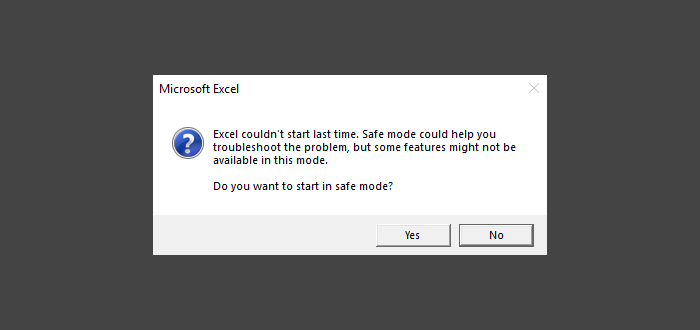
Excel, Word, or PowerPoint couldn’t start last time
When you are prompted to start in safe mode, choose to do so right away. In case you skipped the message, and get it every time hold CTRL key and click on the application icon and don’t release the CTRL key until it asks you for Safe mode confirmation.
- Disable/Enable Add-ins in Safe Mode
- Repair Office Application
- Delete files in Application Startup Path
You may need admin permission if it comes to repairing or reinstalling Office applications.
1] Disable/Enable Add-ins in Safe Mode
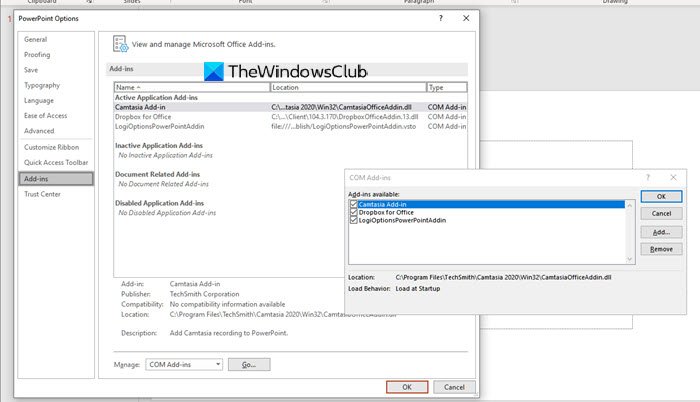
If the application’s Safe Mode does not cause any problems, then you need to check whether the add-ins are causing the problem. We will have to disable all the add-ins one by one and then relaunch Excel, Word or PowerPoint in normal mode and check if the issues persist. To disable the add-in:
- File > Options > Add-ins
- At the bottom, you must have Manage: Com Add-in
- Press Go > Untick all the Add-ins to disable
- Close the application, and then start it usually.
The steps remain the same for all Microsoft Office applications that support Add-ins.
2] Repair Office Application
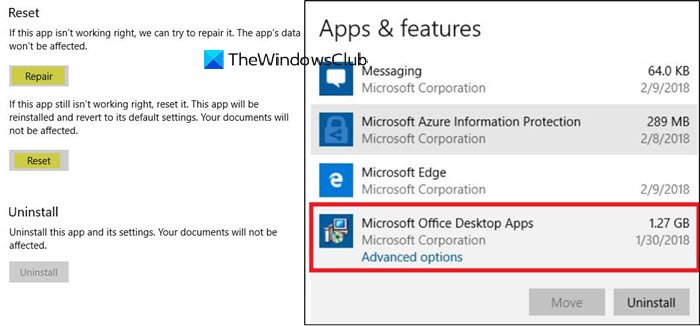
If the problem is occurring across all applications and there is no common add-in, it would be best to repair Office. One or more core files are corrupt, and repair will replace them with a fresh copy. Follow out guide to either individually reset apps or complete Office installation.
Read: Outlook couldn’t start last time; Do you want to start in safe mode?
3] Delete files in Application Startup Path
Some of the forum users at Microsoft Answers reported that removing files and folders in the Application Startup Path folder can help. They are usually located in the-
%appdata%\Microsoft\Excel

"%appdata%\Microsoft\Word

"%appdata%\Microsoft\PowerPoint
The folder names are Startup for Word and PowerPoint, and XLSTART for Excel. Make sure the office application is closed while you delete all the content inside that folder.
Relaunch the app, and check if the problem persists.
I hope the post was easy to follow, and you were able to open Excel, Word, and PowerPoint applications in Windows 11/10.
Fix: Microsoft Word won’t open on Windows PC.
Word opens in safe mode only
If Word opens only in Safe Mode, disable the add‑ins to rule out faulty extensions. If you find the offending add-in, remove it. You should also run a Quick or Online Repair to fix Office files, clear out any templates or macros in the Word Startup folder, and reset Word’s registry key to rebuild fresh settings.
