
When you launch Outlook, and you receive an error message saying “Outlook couldn’t start last time” and asks you to launch it in safe mode, then this post can help you resolve the problem. The full error message is as follows:
Outlook couldn’t start last time. Safe mode could help you troubleshoot the problem, but some features might not be available in this mode.
Do you want to start in safe mode?
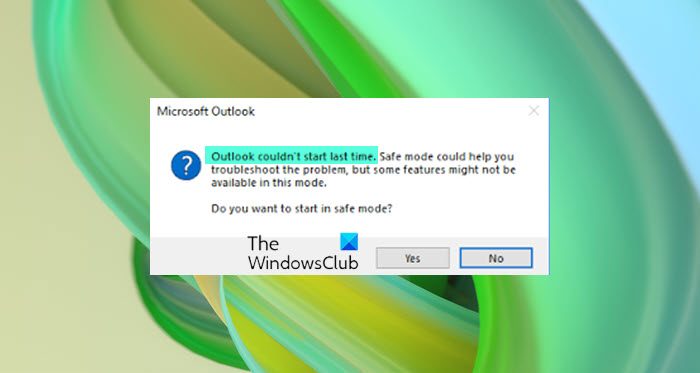
Outlook couldn’t start last time; Do you want to start in safe mode?
The error means that Outlook could not open properly i.e., loading profile, addons, and configuration files failed. We will have to check on what is causing the issue.
- Start Outlook in Safe Mode
- Disable Add-ins
- Repair Outlook data file
- Create a new Outlook profile.
Make sure you perform each step and check if you still have issues. Otherwise, it will be challenging to figure out what was causing the problem.
Outlook won’t open on Windows 11
1] Start Outlook in Safe Mode
It is a good idea to choose, yes, when you get the Outlook Safe Mode prompt. When Outlook launches in safe mode, it disables anything which is not necessary. If Outlook works fine in this mode, your problem could be with add-ins, your profile, or other configurations. If you want to manually start Outlook in safe mode, then first close it, and then type and press the Enter key in the following the command
Outlook /safe
It will then prompt you with Choose Profiles. Select the default profile, and then click ok. If you have set up a password, make sure to provide it.
2] Disable Add-ins
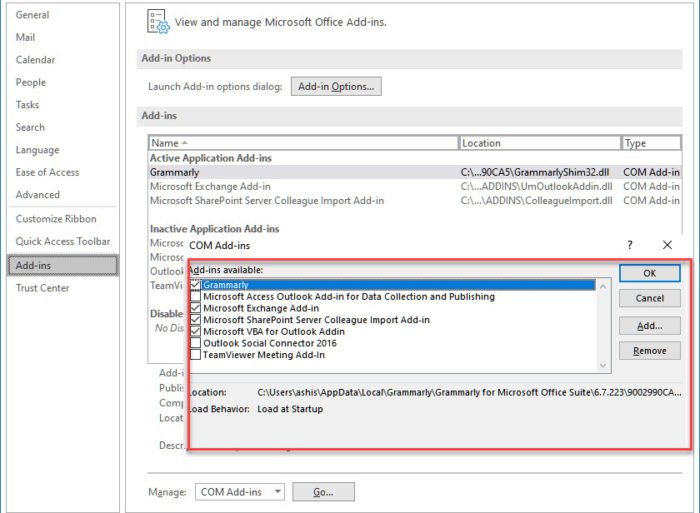
You can try this in two ways. You can either disable everything and then turn it on one by one, or you can disable one and relaunch Outlook to check if everything is working fine. If not, you have found the problem.
- Click on File > Options to open the Outlook Options window.
- Select the Add-ins section to reveal the list.
- At the bottom of this section., click on the Go button next to Manage Comm Ad-ins.
- Here, you can deselect the add-ons you want to disable and relaunch Outlook.
Read: Excel, Word or PowerPoint couldn’t start last time; Do you want to start in safe mode?
3] Repair Outlook data file
Microsoft Office offers an in-house tool SCANPST.EXE, which can scan, diagnose, and repair errors in your Outlook data file. It will be a good idea to check if you are facing an issue because of the error in your PST file. The program is usually available in the following path:
-
Outlook 2024: C:\Program Files (x86)\Microsoft Office\root\Office16
- Outlook 2021: C:\Program Files (x86)\Microsoft Office\root\Office16
-
Outlook 2016: C:\Program Files (x86)\Microsoft Office\Office16
Before we start, first close the Outlook application, and make sure that it’s not running in the Task Manager. Done that follow the steps as below:
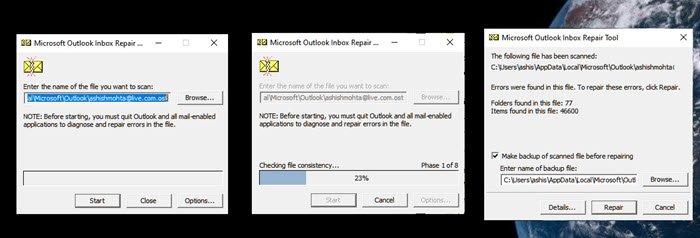
- Double-click to launch SCANPST.EXE.
- Click on the browse button, and select the Outlook Data File (.pst)
- Then click on the Start button.
- If there is an error, you will be notified and given the option to Repair.
- Click on the button, and let the process do its job.
Once the repair is complete, relaunch Outlook, and check if you still get the message again.
Related: Outlook only opens in Safe Mode.
4] Create a new Outlook profile
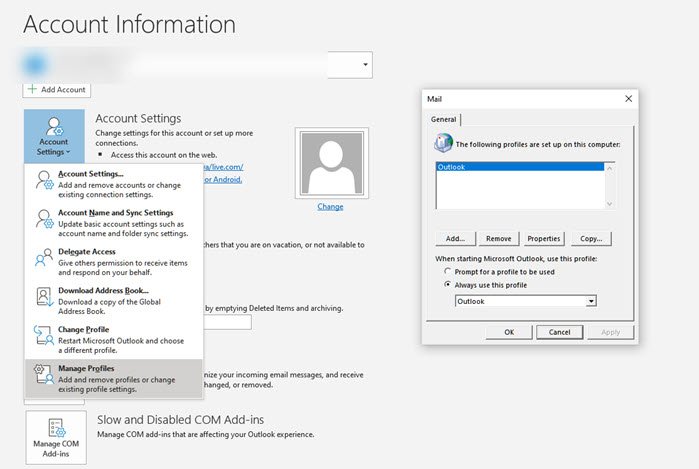
If nothing else works, the best idea is to create a new Outlook Profile. If the profile is misconfigured and you are unable to repair it, creating a new one will help.
- Click on File > Info > Account Settings > Manage Profiles
- Click on Show Profiles button to open the Mail window
- Click on the Add button, and name the profile.
- You will need to add the email account here, then sync all your emails.
Creating a new profile isn’t as user-friendly, as you have to add everything again, which is why I recommend using it only when you don’t have anything left.
Similar: Outlook failed to launch in Safe Mode, Do you want to start repair?
